
If you want to dive into the world of natural language processing, NLTK is the perfect place to start. This powerful Python toolkit helps you work with text in ways that can unlock insights, automate tasks, and make your projects smarter.
Whether you’re analyzing tweets, building chatbots, or exploring language patterns, NLTK gives you the tools to do it all. In this guide, you’ll learn how to set up NLTK quickly and use its key features step-by-step. By the end, you’ll feel confident enough to explore your own text-based projects.
Ready to see what you can create with NLTK? Let’s get started!
Installing Nltk
Getting started with NLTK begins with installing the toolkit correctly. Before you can explore its powerful features for natural language processing, you need to set up your environment and download essential data packages. Let’s walk through the steps to get you up and running smoothly.
Setting Up Python Environment
First, ensure you have Python installed on your computer. NLTK works well with Python 3, so check your version by running python --version in your terminal or command prompt.
If you don’t have Python installed yet, download it from python.org. Once installed, you’re ready to add NLTK.
Using Pip To Install Nltk
Open your terminal or command prompt and type the following command:
pip install nltkThis command downloads and installs the NLTK library and its core components. It’s simple, but here’s a tip: if you encounter permission errors, try adding --user at the end, like pip install nltk --user.
Have you ever tried installing a package only to find out it was missing dependencies? Luckily, NLTK manages most dependencies automatically, making installation hassle-free.
Downloading Nltk Data Packages
Installing NLTK isn’t enough—you also need to download data packages it uses, like corpora and tokenizers.
Run Python interactively by typing python in your terminal, then enter these commands:
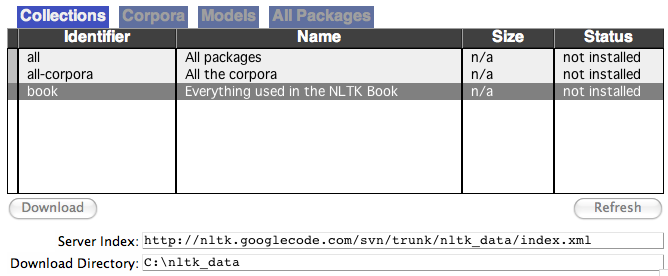
import nltk nltk.download()This opens the NLTK Downloader GUI, where you can select specific packages or just click “Download” to get everything. If you prefer the command line, you can download a common set with:
nltk.download('popular')Downloading these packages might take a few minutes depending on your internet speed. What’s great is that you can always add more packages later as your project grows.
Exploring Nltk Basics
Exploring the basics of NLTK opens a path to simple natural language processing. NLTK, or Natural Language Toolkit, is a popular Python library. It helps in working with text data easily and effectively. This section introduces key steps to start using NLTK.
Importing Nltk Modules
Start by importing the main NLTK modules into your Python script. Use import nltk to access all functions. Specific tools like tokenizers or stemmers can be imported individually. This keeps your code clean and efficient.
Example:
import nltk from nltk.tokenize import word_tokenize These imports allow you to use NLTK’s powerful text processing features.
Working With Corpora
NLTK includes many collections of text called corpora. Corpora are useful for analyzing language patterns. You can load these texts directly with NLTK commands. For example, the Gutenberg corpus contains classic literature.
To access a corpus, first download it using nltk.download(). Then load texts like this:
from nltk.corpus import gutenberg texts = gutenberg.words('austen-emma.txt') This lets you explore real text data for your projects.
Accessing Lexical Resources
NLTK offers lexical resources like WordNet for semantic information. WordNet groups words by meaning and shows relationships. It helps with tasks like synonym detection and word sense disambiguation.
To use WordNet, import it and query words:
from nltk.corpus import wordnet synsets = wordnet.synsets('dog') These tools improve the understanding of language beyond just text.
Text Processing Techniques
Text processing techniques form the backbone of natural language processing. These methods prepare raw text for analysis and improve the quality of results. NLTK offers easy-to-use tools to handle various text processing tasks. Understanding key techniques helps you work with text data effectively.
Tokenization Methods
Tokenization breaks text into smaller pieces called tokens. Tokens can be words, sentences, or phrases. Word tokenization splits text into individual words. Sentence tokenization divides text into sentences. NLTK provides functions like word_tokenize() and sent_tokenize(). Proper tokenization is essential for further text analysis.
Stopwords Removal
Stopwords are common words like “the,” “is,” and “and.” They usually do not add meaning to text analysis. Removing stopwords helps focus on important words. NLTK includes a list of stopwords for many languages. You can filter out these words easily to clean your data. This step reduces noise and improves model accuracy.
Stemming And Lemmatization
Stemming cuts words to their root form by removing endings. For example, “running” becomes “run.” Lemmatization finds the base form of a word using vocabulary and grammar. It returns real words, unlike stemming. NLTK offers both stemmers and lemmatizers for text normalization. These techniques help group similar words together for analysis.
Part-of-speech Tagging
Part-of-Speech (POS) tagging is a key step in natural language processing. It assigns word types to each token in a sentence. These types include nouns, verbs, adjectives, and more. POS tagging helps computers understand sentence structure. This understanding is essential for many language tasks.
Pos Tagging Overview
POS tagging labels words with their parts of speech. It uses rules or machine learning methods. The tags provide meaning beyond just the words. For example, “run” can be a verb or a noun. POS tagging clarifies its role in the sentence. The Natural Language Toolkit (NLTK) offers tools for POS tagging in Python. It can tag words quickly and accurately.
Tagging Examples
Here is a simple example using NLTK:
import nltk from nltk.tokenize import word_tokenize sentence = "Dogs bark loudly." tokens = word_tokenize(sentence) tags = nltk.pos_tag(tokens) print(tags) This code outputs:
[('Dogs', 'NNS'), ('bark', 'VBP'), ('loudly', 'RB'), ('.', '.')] Each tuple shows a word and its POS tag. NNS means plural noun, VBP means verb present, and RB means adverb. This tagging helps analyze the sentence structure.
Applications Of Pos Tagging
POS tagging is useful in many language tasks. It helps improve machine translation by understanding word roles. Search engines use it to better match queries with results. Chatbots rely on POS tags to understand user input. It also aids in text summarization and sentiment analysis. POS tagging makes language data easier to process and analyze.
Chunking And Named Entity Recognition
Chunking and Named Entity Recognition (NER) are key techniques in natural language processing with NLTK. They help organize text into meaningful parts and identify important information. These methods make text analysis easier and more effective.
Chunking groups words into phrases, such as noun or verb phrases. NER finds names of people, places, dates, and other specific terms. Understanding these basics allows you to extract valuable data from large texts quickly.
Phrase Chunking Basics
Phrase chunking breaks sentences into smaller parts called chunks. These chunks usually include noun phrases or verb phrases. NLTK uses chunking to group words with similar roles together. For example, it can identify “the big dog” as a noun phrase. This helps simplify complex sentences for further analysis.
To perform chunking, NLTK uses regular expressions or predefined grammar rules. You can write patterns to match specific word sequences. The chunk parser then extracts these patterns from the text. This process highlights key phrases without changing the original word order.
Extracting Named Entities
Named Entity Recognition finds specific names in text. Entities include people, organizations, locations, dates, and more. NLTK has built-in tools to detect these entities automatically. It tags words with labels like PERSON, ORGANIZATION, or LOCATION.
This tagging helps highlight important information in documents. For example, it can find all the names of companies mentioned in an article. NER also supports identifying dates and monetary values. These capabilities make it easier to organize and analyze text data.
Practical Use Cases
Chunking and NER serve many practical purposes. They improve search engines by identifying key phrases and entities. In customer feedback, they help spot product names and issues quickly. These methods aid in summarizing text by focusing on important parts.
In business, NER helps extract company names from contracts or emails. Chunking organizes text for better readability and analysis. These techniques also support chatbots by understanding user inputs clearly. Using NLTK for chunking and NER enhances many text processing tasks.
Credit: medium.com
Analyzing Text Data
Analyzing text data is a key step in natural language processing. It helps uncover patterns and insights hidden in words and phrases. NLTK offers simple tools to explore text easily. These tools let you count word frequency, find common word pairs, and visualize data. Understanding these basics builds a strong foundation for deeper text analysis.
Frequency Distribution
Frequency distribution shows how often each word appears in a text. It helps identify common words and themes. NLTK’s FreqDist class counts word occurrences quickly. Simply pass your list of words to create a frequency distribution. You can then see the most common words or check the frequency of specific words. This method helps summarize large texts in a clear way.
Collocations And Concordance
Collocations are word pairs that often appear together. Finding these pairs reveals meaningful phrases in the text. NLTK can detect collocations with built-in functions. Concordance shows all the contexts where a word occurs. This helps understand how a word is used. NLTK’s concordance tool displays lines containing the target word, making context analysis easy.
Plotting With Matplotlib
Visualizing text data clarifies patterns. NLTK integrates well with Matplotlib for plotting. You can create bar charts of word frequencies or line graphs of trends. Plotting helps compare words visually and spot trends quickly. Simple graphs make complex data easy to understand. This visual approach supports better insights from text analysis.
Building Simple Nlp Projects
Building simple NLP projects with NLTK offers an excellent way to practice natural language processing skills. These projects help you understand how to process and analyze text data using Python. NLTK provides easy-to-use tools that make it possible to create useful applications quickly.
Starting with small projects keeps the learning process manageable. You can focus on core NLP tasks and see immediate results. Experimenting with these projects builds your confidence and prepares you for more complex challenges.
Sentiment Analysis
Sentiment analysis detects emotions in text. It classifies text as positive, negative, or neutral. NLTK provides tools to tokenize text and identify sentiment words. You can use a pre-built sentiment lexicon or create your own. By analyzing product reviews or tweets, you learn how language expresses feelings.
Text Classification
Text classification assigns labels to text documents. Common examples include spam detection or topic categorization. NLTK helps extract features from text, such as word frequency or presence of keywords. Then, you train a classifier using labeled data. This project teaches how to organize and categorize text data efficiently.
Chatbot Basics
Chatbots respond to user input in a natural way. Using NLTK, you can build a simple rule-based chatbot. It matches user phrases to predefined responses. You learn how to process user input, understand context, and generate replies. This project introduces conversational AI concepts with minimal coding.

Credit: www.youtube.com
Troubleshooting Tips
Troubleshooting is part of learning NLTK. Encountering problems can slow progress. Knowing how to fix common issues helps save time and effort.
This section offers simple tips to solve typical problems. It covers installation glitches, missing data packages, and ways to boost performance. Follow these steps for a smoother experience.
Common Installation Issues
Installation errors often occur due to Python version conflicts. Use Python 3.6 or higher for best results. Make sure pip is up to date by running pip install --upgrade pip.
Sometimes, permissions block package installation. Run the command prompt or terminal as administrator or use sudo on Linux and Mac. Check your internet connection if downloads fail.
Virtual environments help avoid conflicts with other Python packages. Create one using python -m venv env, then activate it before installing NLTK.
Handling Missing Data Packages
NLTK requires extra data packages for many functions. Use nltk.download() to open the downloader GUI. Select the needed packages or choose “all” to get everything.
If the downloader GUI fails, download packages using code. For example, run nltk.download('punkt') to get the tokenizer data. Check error messages for specific missing packages.
Data files sometimes get corrupted. Delete the nltk_data folder and re-download to fix this issue. The folder is usually found in your home directory.
Optimizing Performance
Large text processing can be slow. Use smaller datasets when learning or testing your code. Break big tasks into smaller chunks to avoid memory issues.
Cache results of expensive computations to save time. Use Python’s built-in caching or write results to files. This avoids repeating slow steps.
Keep NLTK and related packages updated. Run pip install --upgrade nltk regularly. Updates often include performance improvements and bug fixes.
Credit: www.nltk.org
Frequently Asked Questions
What Is Nltk And Why Use It For Text Processing?
NLTK stands for Natural Language Toolkit. It helps analyze and work with human language data easily. It offers many tools for processing text in Python.
How Do I Install Nltk On My Computer?
You can install NLTK using Python’s package manager with the command pip install nltk. After installation, download datasets using nltk. download(). This makes it ready for use.
What Are Common Tasks Nltk Can Perform?
NLTK can tokenize text, tag parts of speech, and remove stopwords. It also supports stemming, lemmatization, and parsing sentences. These help prepare text for analysis.
How Do I Tokenize Text Using Nltk?
Tokenization breaks text into words or sentences. Use nltk. word_tokenize() for words and nltk. sent_tokenize() for sentences. This makes text easier to analyze.
Can Nltk Handle Different Languages Besides English?
NLTK mainly supports English but works with some other languages too. Its effectiveness varies depending on the language. Check available resources in the NLTK data for your language.
Conclusion
Getting started with NLTK opens many opportunities in text processing. This toolkit helps you explore language data in Python easily. You can tokenize text, analyze word frequency, and more. Practice with small projects to build your skills step by step.
Keep experimenting to understand how NLTK works best. Soon, you will feel comfortable handling natural language tasks. NLTK is a useful tool for beginners and experts alike. Start simple, stay curious, and enjoy learning!