A loose Bluetooth connection or a pending software update is likely why your Fitbit isn’t showing data, which you can usually fix with a simple restart. Most issues occur because the tracker has lost its sync link or needs a refresh to push stored information. Check your app for a “Syncing” icon or red exclamation mark, and verify your phone’s Bluetooth settings to ensure the device remains paired.
Why your Fitbit isn’t showing data
| Cause | How common | How to confirm it | Fix it yourself? |
|---|---|---|---|
| Bluetooth disconnected | Very common | Check phone settings | Yes |
| Pending app update | Common | View App Store status | Yes |
| Battery depleted | Common | Screen stays black | Yes |
| Firmware mismatch | Occasional | Check device info | Yes |
| Cache corruption | Occasional | App runs slowly | Yes |
| Account sync error | Rare | Web dashboard empty | No |
Bluetooth drops usually stem from interference in crowded 2.4GHz zones. If your device disconnects near a microwave or router, move six feet away to test stability.
For battery issues, distinguish between a drained cell and a bricked unit. If the device fails to show a charging icon after 30 minutes plugged into a wall outlet, the hardware has likely failed.
Cache corruption manifests as stuttering menus or repeated crashes during startup. Clear the app data in your phone settings to resolve this. If the app remains sluggish, reinstall it entirely to force a clean configuration.
Account sync errors are distinct because they only affect cloud-stored data. If your web dashboard shows zero activity while the local app shows history, you’re likely logged into a secondary account. Log out and re-verify your credentials to restore the link. Avoid unnecessary factory resets, as they will erase any data currently stored on the tracker that hasn’t yet synced to your account.
Sync link interruptions
A weak or broken Bluetooth connection is the primary reason your tracker fails to report daily activity. If the signal between your wearable and your smartphone drops, the device holds the data locally but can’t upload it to the cloud. You can test this by toggling your phone’s Bluetooth off for ten seconds and then turning it back on. If the app begins to sync, the radio link was the bottleneck.
To fix this, ensure your phone is within 20 feet of the tracker. If the connection continues to drop, remove the device from your phone’s Bluetooth list and re-pair it through the official Fitbit app. This process takes about five minutes. If you have multiple Bluetooth devices connected to your phone, such as wireless headphones, they may interfere with the sync. If you use a high-end smartphone with many active connections, turn off other devices to see if the data flow improves.
If the sync fails after re-pairing, you must verify that your app version is current. As noted in the official Fitbit device troubleshooting guide, maintaining the latest app version is essential for data integrity. If your phone is running an outdated operating system, it may not communicate properly with the tracker’s newer software, causing the data to stall or disappear entirely.
Firmware and system state
An outdated firmware version often prevents the tracker from processing or transmitting data correctly. If the device firmware doesn’t match the requirements of the mobile app, the sync process will start but fail to complete. You can tell this is the cause if the app displays a specific “Update Required” notification upon opening.
To resolve this, keep your device on its charger while the update runs. The update process usually takes between 10 and 20 minutes depending on your internet speed. If your battery is below 20 percent, the firmware update won’t trigger, so ensure the device is fully powered.
This isn’t for users who have recently replaced their phone, as a new device often requires a fresh setup rather than a simple firmware patch. A common mistake is trying to force an update while the battery is low, which can freeze the device. If the screen remains unresponsive after the update, perform a hard restart by holding the button on the side of the tracker for ten seconds until the logo appears. This doesn’t delete your data, as the information is stored in the device’s memory until the next successful sync. The time this takes is small, but it’s necessary to restore communication between the hardware and the app server.
App cache and account errors
Corrupted cache files inside the mobile application can prevent the dashboard from refreshing, even if the tracker has successfully sent the data. You can distinguish this from a hardware issue by logging into your account on a web browser; if your data appears online but not in the app, the problem is localized to your phone.
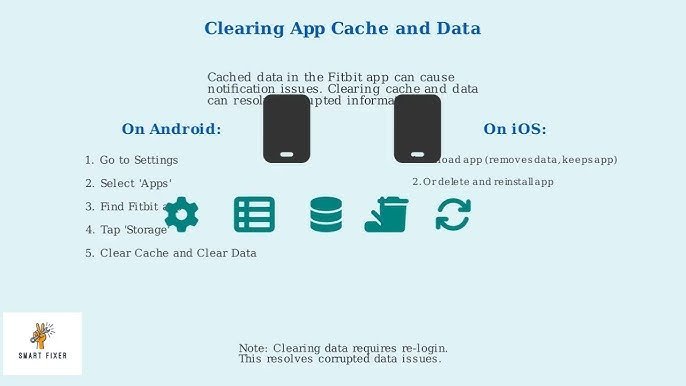
To fix this, clear the app cache in your phone’s settings menu. On Android, go to your system settings, select the app list, and choose “Clear Cache.” On iOS, there’s no direct cache clear button, so you must uninstall and reinstall the app. This requires you to log in again, so have your credentials ready.
This is a trade-off: you’ll lose local app settings, but you won’t lose your historical health data because that’s stored on the company’s servers. If you don’t perform this step, the app may continue to show old data or nothing at all. If the web dashboard also shows no data, the issue is with your account sync, which requires contacting official customer support.
The less likely causes
Low power mode: Your phone restricts background data to save battery, which kills automatic syncing. If your battery icon is yellow, the system is actively throttling the app’s ability to reach the cloud.
Disabled background permissions: If you denied background refresh, the app stays frozen until you open it. Check your system settings to ensure the app is toggled to “Always Allow.” If background permissions are disabled, the app may fail to sync while the phone is locked.
Time zone mismatch: If your phone and tracker disagree on the time, data logs to the wrong day. This happens most often after crossing state lines or manual clock adjustments. Check the app’s device settings; if the time is off by even one hour, the sync will reject the data as a conflict.
Server outages: Manufacturer cloud services occasionally crash. Check the company’s status page before troubleshooting your hardware. If the dashboard shows a red “Service Disruption,” wait for their engineers to fix the bottleneck.
What a fix usually involves
Fixing a sync issue usually demands only a few minutes of your time and no extra tools. Most solutions, such as restarting the device or toggling Bluetooth, are free and built into the phone or tracker software. If you must uninstall and reinstall the app, this is also free, though it costs a small amount of time to reconfigure your notification settings.
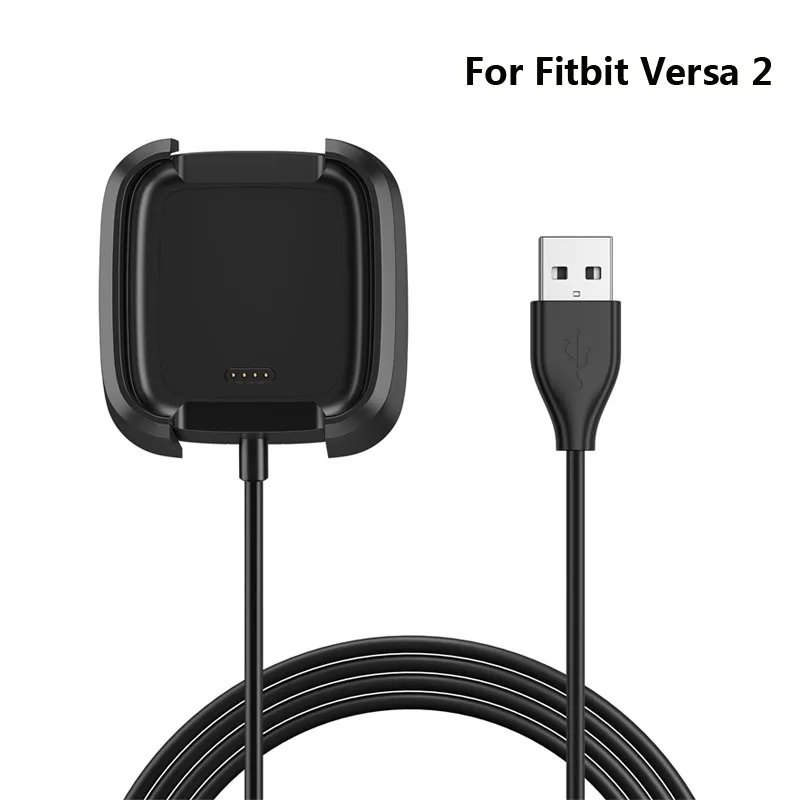
If the problem is a dead battery or a broken charging cable, you might need to buy a replacement part. These are generally a small part of the total cost of a new device. You should check the official manufacturer’s page for your specific model to identify the correct charging cable, as using a generic cable can sometimes fail to provide enough power to trigger a sync. If you’re still under warranty, contact the manufacturer for a free replacement before paying for any repairs. Always check your purchase receipt or the online account portal to see if you’re eligible for support.
Frequently asked questions
Can I lose my data if I restart the tracker?
No, you won’t lose your data because the tracker stores information locally until it successfully syncs with the app. The restart process only refreshes the device’s operating software. Once the device reboots and connects to your phone, it will automatically send any pending data to your dashboard. This process is safe and is the standard way to clear minor software errors.
Why does my data show on the web but not the app?
This happens because your app cache is likely corrupted or outdated. You can verify this by checking your account on a computer browser; if the data is there, the issue is strictly with your phone’s app. Uninstalling and reinstalling the mobile app usually forces a fresh connection and clears the display error. This fix typically takes about five minutes to complete.
How long does a firmware update take?
A firmware update usually takes between 10 and 20 minutes to finish. The exact time depends on your internet connection speed and the size of the update package. You should keep the device on its charger during this entire time to prevent the process from stopping. If the update takes longer than 30 minutes, check your internet connection and try restarting the process.
Is it safe to remove the device from Bluetooth settings?
Yes, it’s perfectly safe to remove the device from your Bluetooth list to fix sync issues. This action doesn’t erase any of your health or activity records. You’ll simply need to re-pair the tracker through the official app once you’re ready. This step is often necessary to clear out old connection files that prevent a stable sync.
What happens if the tracker battery is completely dead?
If the battery is completely dead, the device will stop tracking data until it’s recharged. Once you plug it in, the device should power on and begin the sync process automatically. If it doesn’t turn on after 30 minutes on the charger, try a different wall outlet or charging block. Ensure you’re using a standard USB power source.
Does it matter if my phone is old?
Yes, an older phone may not support the latest version of the app or the required Bluetooth standards. If your phone’s operating system is too old, it can’t maintain a stable connection with newer tracker firmware. Check the app store listing for the minimum system requirements. If your phone doesn’t meet them, you may need to use a different device to sync your data.
Final Thoughts
If these quick adjustments don’t get your stats flowing again, don’t worry. Sometimes a deeper connection error requires you to remove the device from your phone’s settings and set it up as new. You’ll be back to tracking your daily progress in no time once you’ve refreshed that link.
Related guides