You can fix safari bookmarks not syncing by signing out of your iCloud account on all devices and then signing back in to refresh the connection. If you have many devices, start with the one that holds the most current bookmark data. This is a common hurdle for users who keep multiple Apple devices updated to different software versions.
Fixing Safari bookmarks not syncing
Syncing problems often stem from a conflict between the local database on your Mac or iPhone and the cloud storage. When you change a bookmark, Safari sends a request to update the iCloud database. If your device can’t reach the server or if your login credentials aren’t verified, the sync process pauses.
Another frequent cause is a simple lack of storage space in your iCloud account. If your account is full, it can’t upload new data, which stops your bookmarks from updating across your devices. You should check your storage usage in the Settings app to see if you have crossed your Apple iCloud storage limits.
Sometimes, the issue isn’t the account but the software itself. If you’re running an outdated version of macOS or iOS, the communication protocol between your device and the iCloud servers might be incompatible. This varies by model — check the label or the settings menu to ensure you have the latest security updates installed. If you have tried restarting and signing in again without luck, the problem might be a temporary service outage on Apple’s end. You can check the status of these services on the official Apple System Status page before you spend time troubleshooting your own equipment.
Check your iCloud settings
This fix is for users who have confirmed that their internet connection is stable but still see no changes across devices. You must ensure that the Safari toggle is active in your iCloud settings on every device you own.
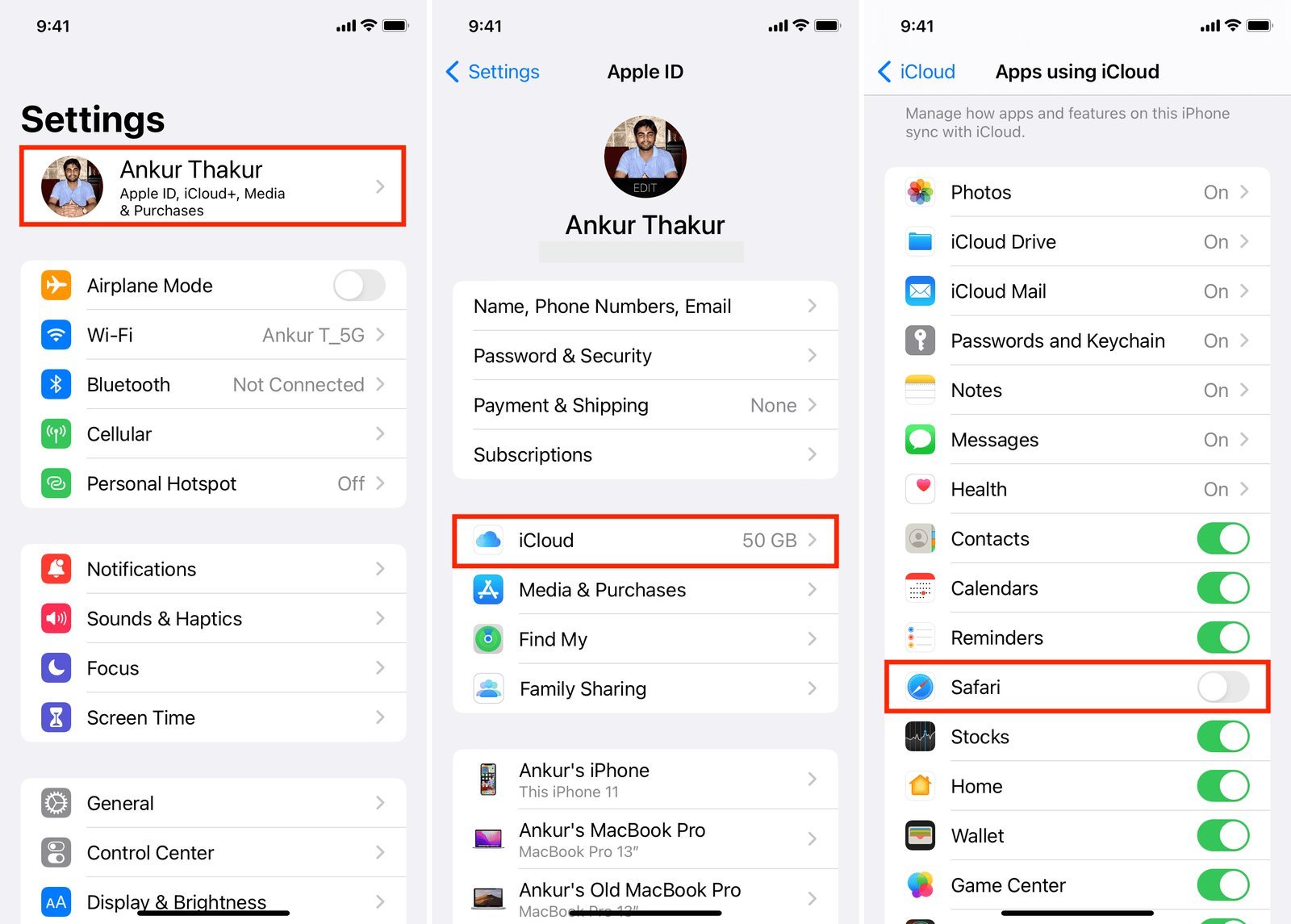
On your iPhone or iPad, go to the Settings app, tap your name at the top, and select iCloud. Look for the “Show All” option under the apps using iCloud section. Find Safari in that list and make sure the switch is turned on. If it’s already on, turn it off, wait ten seconds, and turn it back on.
On a Mac, open System Settings, click your name, then choose iCloud. Click “Show All” or “Apps using iCloud” to find the Safari option. Toggle the switch off and on again. If you have multiple Apple IDs, ensure that every device is signed into the exact same account. Using a different ID on your phone than on your computer is a mistake that prevents data from ever merging. If you have a work account and a personal account, you’ll never see them sync together. This is a hard limit of the system; Apple doesn’t allow merging data across two different Apple IDs.
Force a network refresh
If your settings are correct, your device might be stuck on a stale network connection. This fix is for those who find that their bookmarks update on one device but refuse to push that data to others.
Start by switching your device from Wi-Fi to cellular data, or vice versa. Sometimes, a firewall on a specific Wi-Fi network blocks the ports that iCloud uses for background syncing. By changing the network, you bypass the potential restriction. If the bookmarks appear after the switch, you know the original network was the problem.
If that doesn’t work, perform a forced restart. For modern iPhones, press and quickly release the volume up button, press and quickly release the volume down button, then hold the side button until the Apple logo appears. On a Mac, simply restart the machine through the Apple menu. If the bookmarks don’t show up after a full reboot, check your date and time settings. iCloud sync fails if your device clock is even a few minutes off from the actual time, as the security certificates will be rejected by the server. Ensure “Set Automatically” is enabled in your Date & Time settings.
Verify the bookmark structure
This fix is for cases where only some bookmarks are missing or if you have a massive collection of thousands of links. If you have imported thousands of bookmarks at once, the sync engine may time out before it finishes the upload.
It’s worth the effort to organize your bookmarks into smaller folders if you have a very high count.
If you have a specific bookmark that’s corrupted, it can block the entire queue. Try to delete the most recent bookmark you added and see if the rest start syncing. If you aren’t comfortable deleting data, move your bookmarks to a local folder on your Mac first to create a backup. Once you have a backup, you can safely clear the synced data and re-import the clean list. If you don’t have a backup, don’t attempt to delete your bookmarks, as they will be permanently removed from all devices. If you’re unsure about the safety of your data, consult a professional at an Apple Store before you proceed.
What not to do
- Don’t delete the Safari app from your device, as this doesn’t reset the bookmark database and only hides the icon.
- Don’t sign out of your primary Apple ID while you’re in the middle of a large file download, as this can corrupt your local system files.
- Don’t use third-party “sync cleaner” tools, as these often bypass Apple’s security protocols and can lead to permanent data loss.
- Don’t turn off iCloud Drive while trying to fix Safari, as this is a separate service and will only add more complexity to your troubleshooting.
How to stop it happening again
Consistency is the best way to keep your bookmarks synced across your digital life.
| If you’re doing this | Do this instead | Why |
|---|---|---|
| Leaving devices off for days | Keep devices powered on | Syncing happens in the background |
| Using multiple Apple IDs | Use one primary account | Data can’t merge across IDs |
| Saving thousands of links | Use folders to group them | Large lists slow down the sync |
| Ignoring software updates | Update your OS regularly | New versions fix sync bugs |
Most users fail because they assume sync is instantaneous. It’s not.
If you notice a discrepancy, don’t manually delete the bookmark on your second device. This often triggers a conflict that deletes the entry everywhere. Instead, force a manual refresh by toggling the sync setting off and back on.
Frequently asked questions
Can I force Safari to sync right now?
You can trigger a sync by toggling the Safari switch in your iCloud settings off and then back on. This action forces Apple servers to re-verify your bookmark database against the cloud version. Do this on your most reliable machine first to ensure a clean sync.
Why are my bookmarks missing on my iPhone?
Your bookmarks are likely missing because your iPhone isn’t signed into the same iCloud account as your other devices. Verify that the email address in Settings matches your computer’s account. Note that low storage on your iPhone may also prevent it from downloading the latest updates.
How long does it take for bookmarks to sync?
It usually takes between thirty seconds and five minutes for a new bookmark to appear on all devices. This assumes you have a strong, consistent internet connection and that all devices are signed into the same account. Syncing thousands of bookmarks may take up to an hour.
Is it safe to sign out of iCloud?
Yes, it’s safe to sign out of iCloud, provided you choose the option to keep a copy of your data. This ensures your local bookmarks remain on your device while the cloud connection resets. Always back up your bookmarks to a file before signing out.
What happens if I delete a bookmark on one device?
Deletions sync to all your other devices within a few minutes if your internet is active. Once you delete a bookmark, the action is permanent and can’t be undone through the sync process. Always check your other devices before deleting folders to ensure you don’t lose critical links.
Final Thoughts
If these changes don’t bring your links back immediately, don’t worry. Sometimes the servers just need a little extra time to catch up. Check your connection again in an hour or two, and you’ll likely find everything right where it belongs. It’s a simple fix that usually gets things running smoothly.