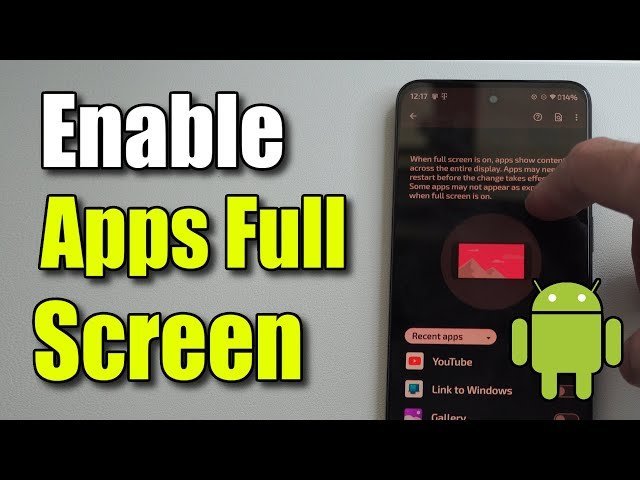
You can fix an app not full screen android by adjusting the display settings in your device’s menu to force the application to use the entire aspect ratio of your display. This issue usually happens because your phone has a taller screen than what the app was originally built to support, causing black bars to appear at the top or bottom of the screen.
Why this happens
Display issues occur primarily because of the wide variety of screen shapes and sizes in the modern smartphone market. Developers build apps for specific aspect ratios, which are the proportions of a screen’s width to its height.
Most developers target the standard 16:9 or 18:9 ratio. You can identify this by looking for black bars at the top or bottom of the screen.
Another cause is a software setting designed to prevent visual errors. If an app isn’t optimized for your specific display, Android may intentionally restrict the app to a smaller window to ensure the buttons and text remain clickable and readable. Without this limit, the app might stretch, distort, or hide important menu items off the edges of your screen.
Finally, this happens if you have changed your display’s scaling or font size settings.
This varies by model. Manufacturers like Samsung or Xiaomi handle this differently than stock Android devices. If you see the toggle, forcing the app to “Full Screen” usually fixes the issue, but be prepared for minor UI clipping on the corners.
Force full screen in display settings
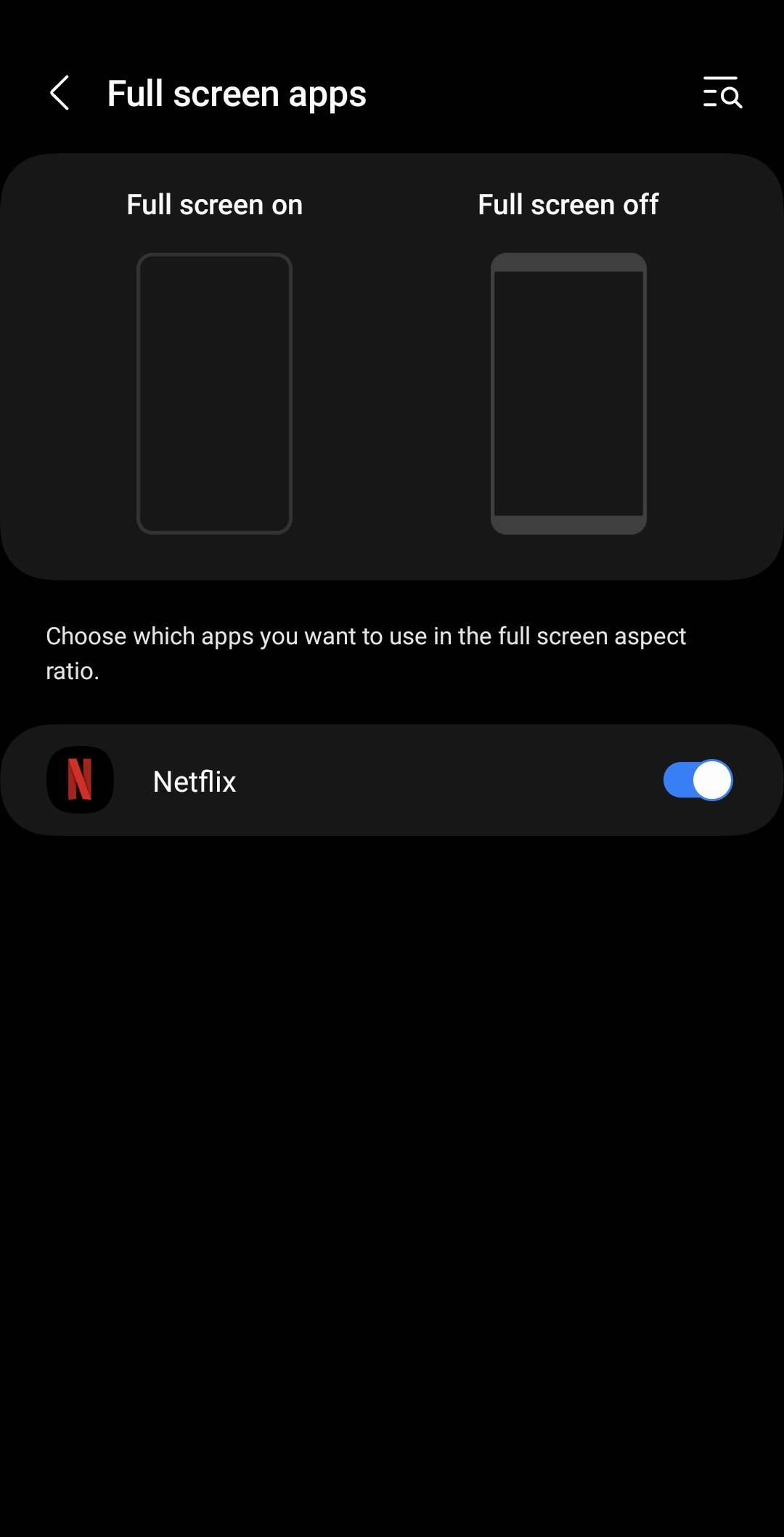
This fix is for users who have a phone with a dedicated “Full Screen Apps” menu. Most modern devices allow you to override the default behavior for individual applications.
- Open your Settings app and tap on Display.
- Look for a menu item labeled Full Screen Apps or Camera Cutout.
- Scroll through the list of your installed apps to find the one that isn’t displaying correctly.
- If you see an option for that app, change it from “Auto” or “Default” to Always show or Force full screen.
- Close the app completely by swiping it away from your recent apps list and then reopen it to see if the black bars are gone.
This works for most apps, but it isn’t for every scenario. If the app’s interface relies on fixed-size assets, forcing it to full screen might cut off buttons or make text look blurry. If the app becomes unusable after this change, return to the menu and set it back to “Auto.” This is a trade-off between having a clean, immersive look and maintaining perfect touch accuracy. If you need professional help with system-level display drivers, contact your device manufacturer’s official support team to see if a firmware update is available.
Fix app not full screen android settings
This acts as a global override for how the OS renders interface elements.
- Navigate to Settings and select Display.
- Locate Display Size or Screen Zoom.
- Move the slider to the Default or Small setting.
- Restart your phone to force background processes to refresh.
This is a global change, so it affects every application on your device. If you rely on large fonts for accessibility, this fix may render text too small to read.
Use this decision rule: If the app content looks blurry or pixelated, the issue is likely a resolution mismatch. If these steps fail, the app’s code is strictly limited, and no further system setting can force it to adapt to a modern, taller screen.
Check for app updates
Sometimes the problem is simply that the developer hasn’t updated the app to support newer, taller screen shapes. This is common with older games or niche utilities that haven’t been touched by their creators in several years.
- Open the Google Play Store and tap your profile icon.
- Select Manage apps & device.
- Check if your specific app has an Update button next to it.
- Install the update if one is available.
If no update is available, check the “Version” and “Updated on” dates at the bottom of the app’s Play Store page. If the last update was a long time ago, the developer has likely abandoned the project. Don’t expect a fix in this scenario.
A common mistake is waiting for an automatic update that will never arrive. If the app is critical to your work and the lack of full-screen support hides essential buttons or data, you must choose between two paths.
If you need the specific features of that app, you must accept the black bars as a permanent trade-off. However, if the interface issues prevent you from completing tasks, you should search for a modern alternative. Use the “Similar apps” section on the store page to find tools that support current screen resolutions. If you find a replacement, migrate your data immediately to avoid future compatibility crashes.
What not to do
- Don’t download “screen stretcher” apps from the Play Store, as these often contain malware or adware that can compromise your personal data.
- Don’t try to root your phone to force screen scaling, as this will void your warranty and could prevent secure apps like banking software from working.
- Don’t change your phone’s Developer Options unless you’re a technician, because altering values like “Smallest Width” can make your entire system unstable.
- Don’t trust online forums that suggest editing system configuration files, as a single typo in those files can prevent your phone from booting properly.
How to stop it happening again
Staying updated and choosing well-maintained apps ensures you avoid display issues in the future.
| If you’re doing this | Do this instead | Why |
|---|---|---|
| Using outdated apps | Developers fix scaling bugs in updates | |
| Using custom launchers | Use the default system launcher | Custom launchers often conflict with aspect ratios |
| Changing display zoom | Keep settings at the default level | High zoom levels force apps into compatibility mode |
| Ignoring app reviews | Read recent reviews before buying | Users will report if an app isn’t full-screen |
Frequently asked questions
Why does my app have black bars at the top?
Black bars appear because the app is restricted to a smaller aspect ratio than your phone’s physical screen. This is a safety feature to prevent the app from crashing or becoming unclickable when it tries to fill space it was never designed to occupy.
Is it safe to force full screen mode?
Yes, it’s safe to use the “Force full screen” setting in your display menu. It won’t damage your phone’s hardware, though it might occasionally make an app’s buttons look stretched or cause the top part of the app to hide behind your camera notch.
Can I fix this without changing settings?
No, if an app isn’t built for your screen size, it won’t fill the screen automatically. You must either use the built-in system settings to force the scaling or wait for the developer to release an update that supports your device’s resolution.
How long does it take to update an app?
Updating an app usually takes less than a minute, depending on your internet connection speed. If the app is very large, it may take longer to install, but the process is fully automated once you tap the update button in the Play Store.
What happens if the app breaks after I force full screen?
If the app stops working or buttons disappear, simply go back to the same menu where you enabled the setting and turn it off. This will reset the app to its original, safe display mode and restore its normal functionality immediately.
Final Thoughts
If these adjustments don’t solve the problem, check the Play Store to see if the developer has released a newer version of the app. Updating your software often fixes these compatibility glitches automatically. If you’re still stuck, reaching out to the app’s support team is a great way to help them improve.
Related guides