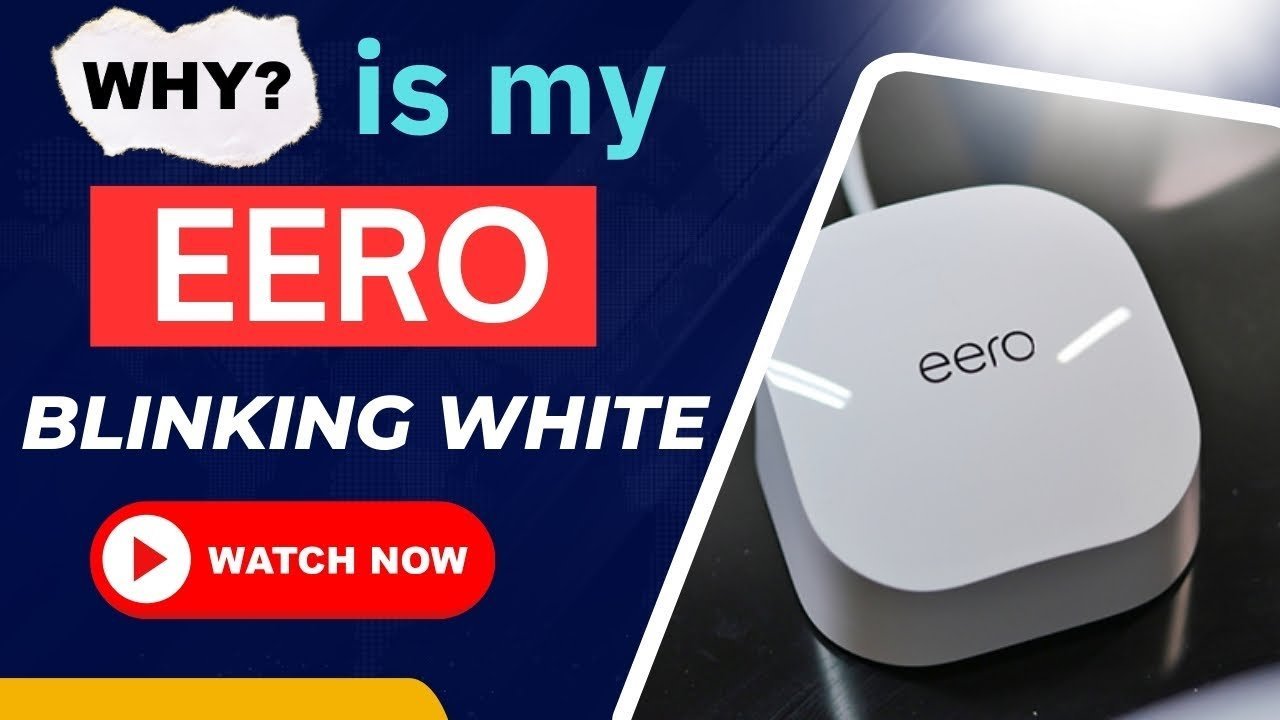
An eero white light blinking indicates that your device is currently starting up or is in the process of downloading a software update. It’s safe to keep the unit connected to power while this happens, as interrupting the process could potentially corrupt the system files. You can confirm this status by checking the device in your mobile app, which will show a status update or a progress bar if an update is actively downloading. This blinking behavior is a normal part of the device operation and usually resolves itself within ten minutes.
What an eero white light blinking means
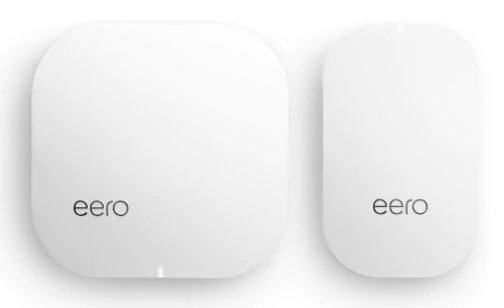
| What you notice | What it usually means | What to do first |
|---|---|---|
| Blinking white light | Normal boot or update | Wait ten minutes |
| Solid white light | Connected to internet | No action needed |
| Blinking blue light | Ready for pairing | Open eero app |
| Solid red light | No internet connection | Check your modem |
| Blinking red light | No internet access | Restart your modem |
| No light at all | No power reaching unit | Check power cable |
If your light is solid red, the issue is likely a handshake failure between your modem and the ISP. Before calling support, unplug the modem’s power cord for at least thirty seconds to allow it to fully power down. If the light remains red after a reboot, swap the Ethernet cable connecting the modem to your gateway. A frayed wire often causes intermittent signal drops.
If you see a blinking red light, your system has lost its upstream connection entirely. Check the status lights on your modem first. If the modem shows no activity, the fault lies with your service provider’s line. If the modem is healthy but the gateway is still red, check the eero app for specific error messages or contact eero support.
The device is starting up
A blinking white light is the standard signal that your eero is performing a boot sequence or installing firmware. Every time the unit gains power, it runs a self-check to ensure the hardware is functioning correctly before it attempts to connect to your local network. If you recently moved the device to a new outlet or experienced a power flicker, the hardware is simply re-initializing its internal components.
The most common mistake owners make is unplugging the unit while the light is blinking because they believe it’s stuck. This action forces a hard stop, which can interrupt a background firmware update and leave the system in a state where it can’t finish its next boot attempt. If you interrupt the process, you may need to perform a factory reset to restore the system.
If the unit continues to blink white for more than fifteen minutes, try unplugging the power adapter from the wall, waiting thirty seconds, and plugging it back in to trigger a fresh boot. If the light transitions from blinking white to solid white, the process has completed successfully. If it moves to a red light, the issue isn’t the startup sequence but rather the internet connection itself.
The system is downloading an update
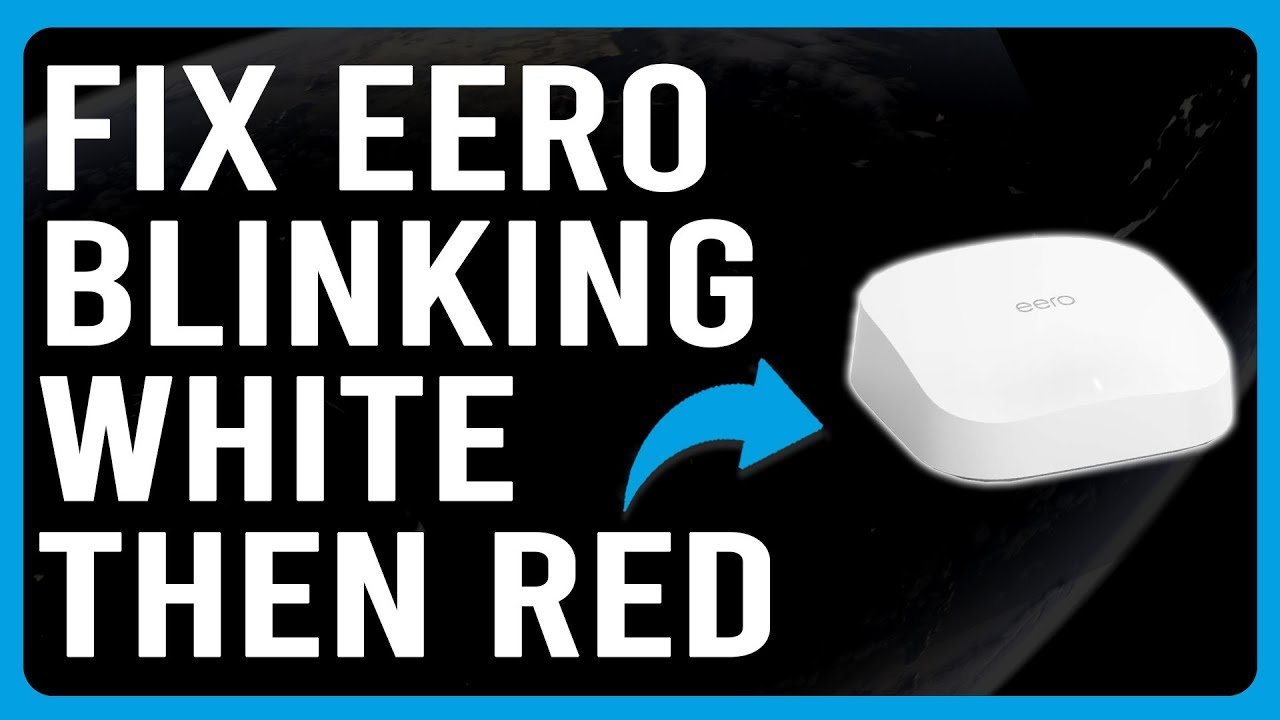
Software updates occur automatically in the background to ensure your network remains secure and performs at its best. When the eero detects a new firmware version, it enters a state where the light blinks white to signal that it’s actively writing data to its memory. This is a critical state, and you shouldn’t interfere with the power supply during this window.
You can tell if this is the cause by looking at your eero app on your phone. If an update is in progress, the app usually displays a message stating that your network is being updated. This process usually finishes in less than five minutes, though it varies by model — check the label on the bottom of the device to see your specific version, as older models may take longer to process the data than newer ones.
This differs from the startup sequence because the unit is typically already online before the update begins. If you notice your internet connection drops for a few minutes and the light begins blinking white, it’s almost certainly an update. If the light remains blinking white for over thirty minutes, the update may have stalled. In this case, you should power cycle the device once. If the behavior persists after a reboot, the device might have a corrupted file that requires a manual reset.
Issues with the network connection
Sometimes, an eero will display a blinking white light when it loses its connection to the gateway or the modem. While a solid red light is the primary indicator for a lost connection, a unit that’s constantly trying to re-establish a link with the rest of the network may cycle through a blinking white state. This happens if the mesh signal is too weak or if the upstream router isn’t providing an IP address.
To see if this is the cause, compare the blinking unit to your main eero connected to the modem. If the main unit is solid white but the secondary unit is blinking, the problem is likely signal interference or distance. If the main unit is also showing an error, the problem is your modem.
A trade-off exists here: moving the device closer to the main hub provides a stronger signal but might not be in the ideal spot for your home coverage. If the unit blinks white only when you place it in a distant room, the device is struggling to maintain a handshake with the rest of the network. If you move it to a room closer to the gateway and the light turns solid white, you know the issue is the physical distance between your units. If it continues to blink regardless of where you plug it in, the internal radio might be failing, and you should contact support for a diagnostic check.
When to stop and get help
If the light stays blinking white for an extended period despite power cycles, contact eero support for further assistance.
If you smell burning plastic or notice the unit is excessively hot to the touch, disconnect the power immediately to prevent a fire hazard.
If the device shows a blinking white light and you have already performed a factory reset without success, the hardware likely has an internal failure. You can distinguish this from a software glitch by checking the ethernet port lights. If the port lights remain dark even when a live cable is plugged in, the failure is physical, not logical.
If you’re uncomfortable troubleshooting network settings or cabling, stop and contact your internet service provider. Professionals carry signal testers that identify line noise, a variable you can’t measure at home.
Don’t attempt to open the device casing, as this voids your warranty and poses a risk of electrical shock. If the device remains unresponsive, reach out to the manufacturer’s support line for cloud diagnostics.
Frequently asked questions
Can I turn off the eero light?
Yes, you can turn off the status light using the eero app. Simply navigate to your device settings and toggle the “Status Light” option to off. This setting stops the light from displaying colors but doesn’t affect device performance or updates. Note that disabling the light makes it harder to troubleshoot potential connection issues.
How long does an update take?
An update typically takes between five and ten minutes. This varies by model — check the label on the bottom of your unit, as older versions have slower processors and may take longer to install the firmware. If your internet speed is very slow, the download portion of the update may take additional time. Always avoid unplugging the device during this window to prevent a failed update.
Is it safe to leave the light blinking overnight?
Yes, it’s safe to leave the device plugged in while it blinks. The device is designed to handle updates and reboots automatically, even while you’re asleep. If you wake up and the light is still blinking, it may indicate a stalled process or a persistent connection error. You can safely perform a power cycle in the morning to see if the device recovers and returns to a solid white state.
What happens if I unplug it during a blink?
Unplugging the device during a blink can potentially interrupt a firmware write, which may lead to a corrupted system. If this happens, the device might not be able to boot up properly the next time you plug it in. If you suspect you have corrupted the system, you may need to perform a factory reset using the button on the back of the device.
Does the blinking mean my password is wrong?
No, the blinking white light isn’t related to your Wi-Fi password or your account login. It only reflects the status of the device hardware or the firmware installation process. If you’re having trouble connecting your phone or computer to the network, check the Wi-Fi settings on your device and ensure you have the correct network name and password saved in your system.
How do I factory reset my eero?
You can perform a factory reset by pressing and holding the reset button on the back of the device for fifteen seconds. The light will flash yellow and then eventually turn to a blinking blue light, indicating it’s ready to be set up again. Only use this method if you have tried all other troubleshooting steps, as it will erase all your custom network settings and preferences.
Final Thoughts
If the light doesn’t turn solid after a while, don’t worry. You can simply unplug the power cable, wait a few seconds, and plug it back in to give the unit a fresh start. If it still won’t connect, reach out to the support team so they’ve got you covered.
Related guides