When your kobo not syncing with libby occurs, it’s usually because the OverDrive login on your device has expired or your library card has been removed from your account. Most users find that logging out of the OverDrive feature in the Kobo settings and signing back in with the same library credentials resolves the issue instantly. This refresh forces the device to re-authenticate your card and fetch the latest loans from your local library’s digital catalog.
Fixing a Kobo not syncing with Libby
Synchronization issues typically stem from a break in the digital handshake between your Kobo eReader and the OverDrive platform. First, library cards have expiration dates. Even if your physical card works at the library, your digital account might have expired, meaning the Kobo can’t verify your borrowing rights. You can verify your card status by logging into your library’s website directly or by checking your account details in the Libby app on your phone.
Second, the session token stored on your eReader can become corrupted or outdated. Think of this token as a digital key that tells the library server you’re a valid user. When this key sits unused for a long time, the server may reject it for security reasons. This is a common occurrence if you haven’t connected to Wi-Fi for several weeks.
Finally, regional restrictions can cause sync errors. Some titles are only available to specific library systems, and if you have multiple library cards linked to your OverDrive account, the Kobo might be trying to sync a book from a card that isn’t currently active on that specific device. If your device firmware is outdated, it may also fail to communicate with the newer security protocols used by public libraries.
Re-authenticate your library account
This fix is for readers who have active library cards but see an error when trying to download a book. To start, go to the “Settings” menu on your Kobo eReader and select “OverDrive.” Tap on “Remove Library Card” and confirm the action. Once removed, tap “Sign In” and choose your library from the list. You’ll need to enter your library card number and PIN again.
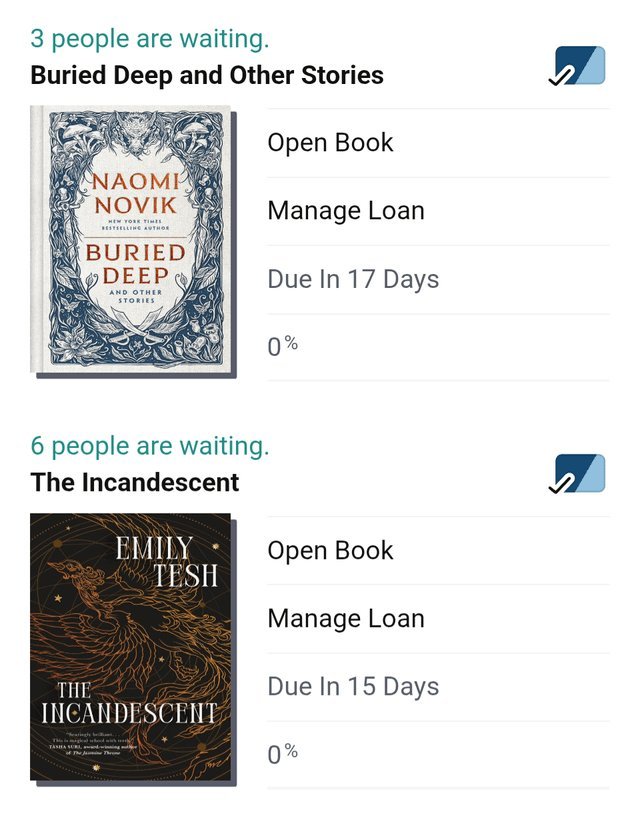
If you have multiple cards, ensure you’re signing in with the one that holds the specific loan you’re trying to sync. After signing in, go back to your “My Books” section and tap the “Sync” icon in the top right corner. You’ll know it worked if the cover of your borrowed book appears in your library with a small “OverDrive” icon. If the book doesn’t show up, check your Libby app on a smartphone to confirm the loan is active and not pending. This process requires a stable Wi-Fi connection; if you’re in an area with weak signal, the device may time out before the sync completes. If you find that the device still reports an error after re-authenticating, it’s possible your library system is currently undergoing maintenance.
Update the device software
If re-authenticating doesn’t work, your Kobo may be running an old version of the software that’s no longer compatible with current library security. Go to “Settings,” then “Device Information,” and look for the “Software Version” section. If an update is available, the device will usually prompt you to install it when you connect to Wi-Fi.
Updating is for those who are comfortable with a device restart, as the Kobo will reboot once the installation finishes. Ensure your battery is charged to at least 40% before starting this process, as a power failure during an update can lead to a corrupted system. If you’re using a very old model, such as the original Kobo Touch, check the manufacturer’s website to see if your specific model still receives security updates. If your model is no longer supported, you may need to transfer books manually using a computer and Adobe Digital Editions. This is a trade-off: you lose the convenience of direct Wi-Fi syncing, but you gain the ability to read library books on older hardware. This isn’t for users who prefer a strictly wireless experience, as manual transfers require a USB cable and extra software setup.
Use the Libby app as a bridge
When direct sync fails consistently, the most reliable workaround is to borrow the book on your phone and use a computer to move the file. This method bypasses the Kobo Wi-Fi sync entirely. First, borrow the book in the Libby app on your phone. Next, visit your library’s website on a computer, log in, and go to your “Loans” page. Click “Download EPUB” to save the file to your computer.
You’ll need to install Adobe Digital Editions on your PC or Mac. Open the downloaded file in this software, then connect your Kobo via USB. The program will recognize your device, allowing you to drag and drop the book onto your eReader. This is the best approach for users dealing with persistent server-side errors that prevent the Kobo from seeing new loans. It requires a bit more effort, but it’s highly effective when the internal OverDrive integration is malfunctioning. If you aren’t technically comfortable with managing files, you may want to visit your local library, where staff can often assist with the initial setup of Adobe Digital Editions. Never attempt to use third-party “cracking” software to remove DRM from these files, as this violates your user agreement and can lead to account suspension.
What not to do
Don’t perform a factory reset on your Kobo. This wipes all your personal data and rarely fixes a library sync issue. If your device is unresponsive, try a soft reboot by holding the power button for fifteen seconds instead.
Don’t change your library card PIN while the Kobo is logged in. This triggers a permanent authentication error that forces a full re-login. If you must update your credentials, sign out of the OverDrive settings menu first, update your PIN on the library website, and then sign back in.
Don’t leave the eReader plugged into a computer during a Wi-Fi sync. The device disables its wireless radio when it detects a USB connection to prevent data corruption. Always eject the device properly before attempting a wireless refresh.
Don’t delete a book from the Libby app while it’s still processing on your Kobo. This confuses the sync server and leaves a ghost file. Wait for the download status to show as complete before removing the title from your account.
How to stop it happening again
Regular maintenance of your library credentials is the most effective way to prevent sync errors. If you follow these habits, your device will remain connected without issue.
| If you’re doing this | Do this instead | Why |
|---|---|---|
| Waiting for the sync to fail | Sync once every two weeks | Prevents session tokens from expiring |
| Using outdated firmware | Enable auto-updates in settings | Keeps security protocols current |
| Ignoring card expiration | Check your account status monthly | Avoids failed logins for expired cards |
| Keeping Wi-Fi off | Turn on Wi-Fi before opening “My Books” | Allows the device to check for new loans |
Most users mistake a simple app crash for a permanent account lockout. If you see a “403 Forbidden” error, don’t delete the app. This error usually means your session token has simply timed out. Instead, sign out of the library service entirely, wait sixty seconds, and sign back in to refresh the handshake.
The critical decision rule is simple: if you’re offline for more than 72 hours, always toggle your connection off and on before attempting a manual sync. This forces the device to clear its local cache. Skipping this step often causes the app to attempt a sync with a stale IP address, which triggers an automatic security block that requires a manual password reset to resolve.
Frequently asked questions
Can I sync books from two different libraries?
Yes, you can link multiple library cards to a single OverDrive account on your Kobo. You must manage these cards through the OverDrive settings menu on the device. If you have trouble, sign out of the current library card and sign in with the other one to switch your active catalog. The device will only display books associated with the currently active library card.
Why does my book show as “expired” when it’s not?
The date on your Kobo may be incorrect, which causes the device to think the loan period has ended. Go to the settings and ensure your date and time are set to “Automatic” or manually update them to the current day. Once the internal clock is correct, the device will recognize that the loan is still valid and allow you to open the book again.
How long does a sync take?
A sync usually takes between 30 and 60 seconds, assuming you have a strong Wi-Fi connection. If the sync takes longer than two minutes, the device is likely struggling to reach the library server. In this case, cancel the sync, move closer to your router, and try again. If it still hangs, restart the Kobo completely.
Is it safe to use public Wi-Fi to sync?
Yes, it’s safe to use public Wi-Fi to sync your library books because the Kobo uses an encrypted connection to communicate with the OverDrive servers. You aren’t entering sensitive financial information, only your library card number, which is already registered with the library system. However, avoid using insecure public networks for other activities like banking while your device is connected.
What happens if I lose my internet connection during a sync?
If your internet drops during a sync, the process will stop and the device will display an error message. Your existing books will remain safe, but the new loan won’t appear. Simply reconnect to your Wi-Fi network and trigger the sync again. The Kobo will pick up where it left off without duplicating your existing library files.
Final Thoughts
If you still can’t see your books after re-logging, try connecting your eReader to your computer’s Wi-Fi to ensure the signal isn’t the culprit. Sometimes a quick restart is all your device needs to get back on track. You’ll be diving into your next great story in no time at all.