
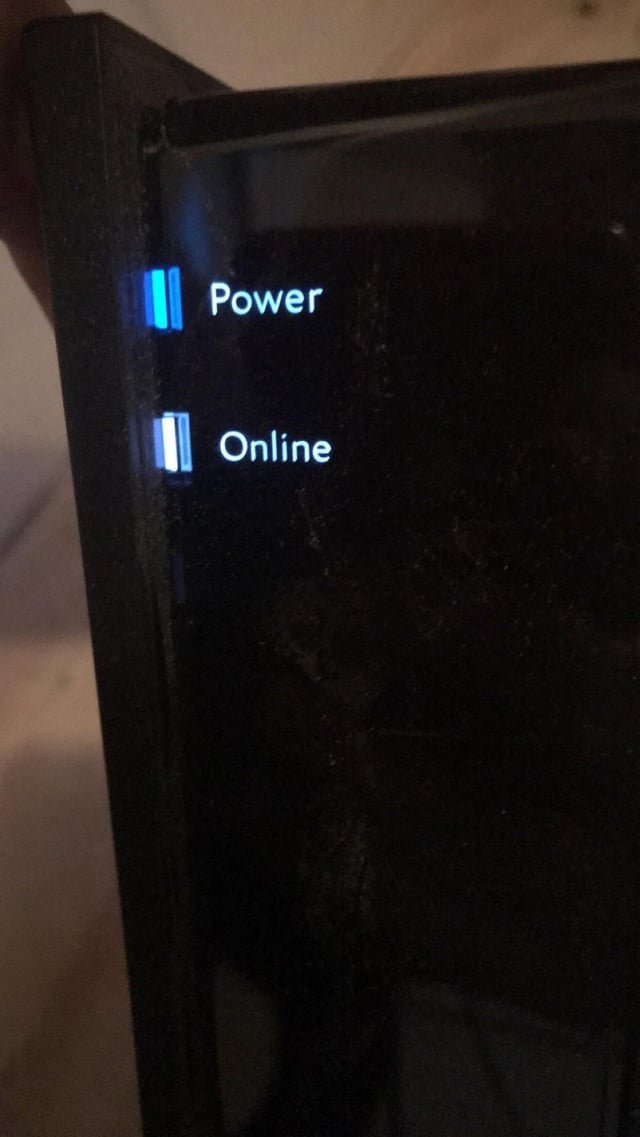
A spectrum router blue light blinking indicates that your device is currently searching for a connection to the internet service provider’s network. This is a standard process during startup or after a service interruption, so it’s safe to keep the equipment powered on while it attempts to sync. To confirm the status, check the cable connected to the wall port; if it’s loose, the router will continue to blink indefinitely. You should ensure the coaxial or ethernet cable is hand-tightened or snapped firmly into the port to allow the handshake process to complete.
What a Spectrum router blue light blinking means
| What you notice | What it usually means | What to do first |
|---|---|---|
| Blue light flashes | Searching for network | Wait 5 minutes |
| Light turns solid | Connection is active | Test your device |
| Light stays blinking | Signal not found | Check cable tightness |
| Alternating colors | Firmware updating | Don’t unplug |
| No lights at all | Power issue | Check wall outlet |
| Red light appears | No internet signal | Restart the router |
If the light stays blinking after five minutes, inspect the coaxial or fiber cable at the wall plate. A loose connection here is the most common cause of signal failure. If the cable feels secure, touch the connector to ensure it isn’t threaded at an angle.
When you see a red light, perform a hard reset by unplugging the power cord for exactly thirty seconds. This forces the device to re-initialize its connection process. If the light remains red after the reboot, your ISP is likely experiencing a local outage.
Check your provider’s status page using cellular data before calling support. If the status page shows no outages, the hardware itself has likely failed. In that case, you must request a replacement unit. Don’t attempt to open the casing, as this voids your warranty and poses a shock risk.
Searching for the network signal
The blinking blue light primarily signals that the router is performing a “handshake” with the Spectrum system to establish a secure data link. This happens automatically when the device powers on or when a connection is dropped due to line noise or temporary service maintenance in your area. If the router can’t find the upstream server, it will cycle through the blinking pattern for an extended period rather than switching to a steady state.
To confirm if the issue is a simple sync problem, look at the back of your router where the internet cable enters the unit. If the cable is a coaxial type with a screw-on connector, ensure it’s turned clockwise until it’s tight against the port. If it’s a standard ethernet cable, press it into the port until you hear a clear click. A loose connection is the most common reason for a failed handshake; fixing this often resolves the blinking within sixty seconds.
If the cable is tight and the router has been blinking for more than ten minutes, you must perform a power cycle. Unplug the power cord from the back of the device, wait exactly thirty seconds, and plug it back in. This forces the modem to re-initialize its connection and re-establish communication with the provider. You can verify your connection status through the Spectrum official support portal to see if there’s a known outage affecting your specific neighborhood. If the light turns solid blue after the restart, your internet is ready for use.
Firmware updates in progress
A secondary, distinct cause for a blinking blue light is an automatic firmware update. Manufacturers push these updates to improve security or fix software bugs, and the router must remain powered on and connected during this time. You can tell this apart from a standard connection failure because the light pattern is often more rhythmic or accompanied by other lights on the front panel flashing in sequence.
If you suspect an update is occurring, you must not unplug the power cord. Interrupting a firmware update can corrupt the internal software, which might render the unit unusable and require a professional equipment swap. This process typically takes between five and fifteen minutes depending on the file size and your connection speed. If the blinking persists for longer than twenty minutes, it’s likely that the update has stalled or failed.
In this case, you should perform a manual restart by unplugging the device for one minute. If the device returns to a solid blue light, the update likely completed or was bypassed by the reboot. If it immediately returns to the same blinking pattern, the internal software may be stuck in a loop. This is a trade-off between waiting for the automatic process and forcing a reboot; always prioritize waiting if you have no urgent need for the internet, as it minimizes the risk of a corrupted device.
External line interference
The third cause involves external line interference or a physical break in the service line outside your home. Unlike a simple handshake issue, this occurs when the signal strength reaching your home drops below the required threshold for the router to lock onto the frequency. You can tell this apart from the other two causes because the blinking often happens during heavy weather or after construction work near your property.
If you have tried tightening the cables and restarting the device, but the blue light continues to blink indefinitely, the problem is likely outside your control. You should check the external cable box attached to the side of your house to ensure no wires appear frayed or disconnected. If you see physical damage to the line, contact your service provider immediately to schedule a professional repair. This is a common mistake that leads to damaged equipment or dangerous electrical faults.
The limit here is clear: if the cable is damaged or the signal is consistently failing despite a hard restart, the issue requires a technician. If you aren’t comfortable checking external equipment, or if the cable looks damaged, stop all troubleshooting steps immediately. You must contact the provider to send a technician to test the signal levels at the tap. They have the specialized signal meters required to identify exactly where the line break is located, whether it’s at the street pole or inside your wall wiring.
When to stop and get help
- Damaged power cables: If the power cord is frayed or the insulation is peeling, stop immediately to avoid a fire or electrical shock.
- Physical line breaks: If the coaxial cable running from the street is snapped or pulled out of the wall, you require a professional repair.
- Water damage: If the router was exposed to water or shows signs of internal corrosion, it’s a safety hazard and must be replaced.
- Persistent failure after reset: If you have performed a full power cycle twice and the light still blinks, the device has likely reached its end-of-life or has a hardware failure.
If you encounter any of these scenarios, don’t attempt to open the router casing or bridge any connections. Opening the device will void your warranty and may expose you to internal electrical components that carry a risk of shock. Contact the official customer support line to request a hardware replacement or a site visit from a qualified technician who can safely handle the repair.
Frequently asked questions
Is it safe to leave the router blinking all night?
Yes, it’s safe to leave the device powered on while it blinks. The blinking indicates the router is attempting to find a signal, which doesn’t create a fire risk or damage the hardware. If the light is still blinking the next morning, follow the manual restart steps provided here. If that doesn’t work, contact support to check for a local service outage or a hardware issue.
How long should the blinking take to stop?
About five to ten minutes is the standard time for a router to sync after a reboot. If your router has been blinking for more than twenty minutes, it isn’t successfully completing the handshake with the network. You should check your cable connections first, then perform a power cycle. If the blinking continues after these steps, the issue is likely with the signal coming into your home from the street.
Does a blinking blue light mean I have no internet?
Yes, a blinking blue light means your connection to the internet is currently unavailable. The device can’t pass data to your computers or phones until the light remains solid. You should treat this as a temporary loss of service and perform the troubleshooting steps provided in this article. Once the light becomes steady, your connection should be restored and ready for use.
Why did my router start blinking blue suddenly?
This usually happens because the ISP performed a remote maintenance update or there was a brief fluctuation in the line signal. Routers are designed to detect these drops and attempt to reconnect automatically. If the blinking started without any action on your part, wait ten minutes to see if it resolves itself. If it does not, a simple power cycle is usually all that’s required to fix the sync.
Can I fix a blinking blue light by pressing the reset button?
No, you should avoid the recessed reset button unless instructed by a support agent. Pressing this button performs a factory reset, which erases your custom Wi-Fi name and password. Always try unplugging the power cord for sixty seconds first, as this is a “soft” restart that clears the memory without deleting your personal network settings or requiring you to reconfigure your home Wi-Fi security.
What happens if the light never stops blinking?
If the light blinks indefinitely, it means the router is unable to establish a stable path to the provider’s server. This is often caused by a damaged cable, a loose connector, or an outage in your area. Check your cables for physical damage or loose fittings, then verify if your neighbors have service. If everything looks correct on your end, you must request a technician to check the signal.
Final Thoughts
If the light doesn’t turn solid after a few minutes, don’t worry. Sometimes the signal just needs a little extra time to stabilize. If you’re still having trouble getting online, it’s a good idea to reach out to Spectrum’s support team so they can check for any local outages.
Related guides


