
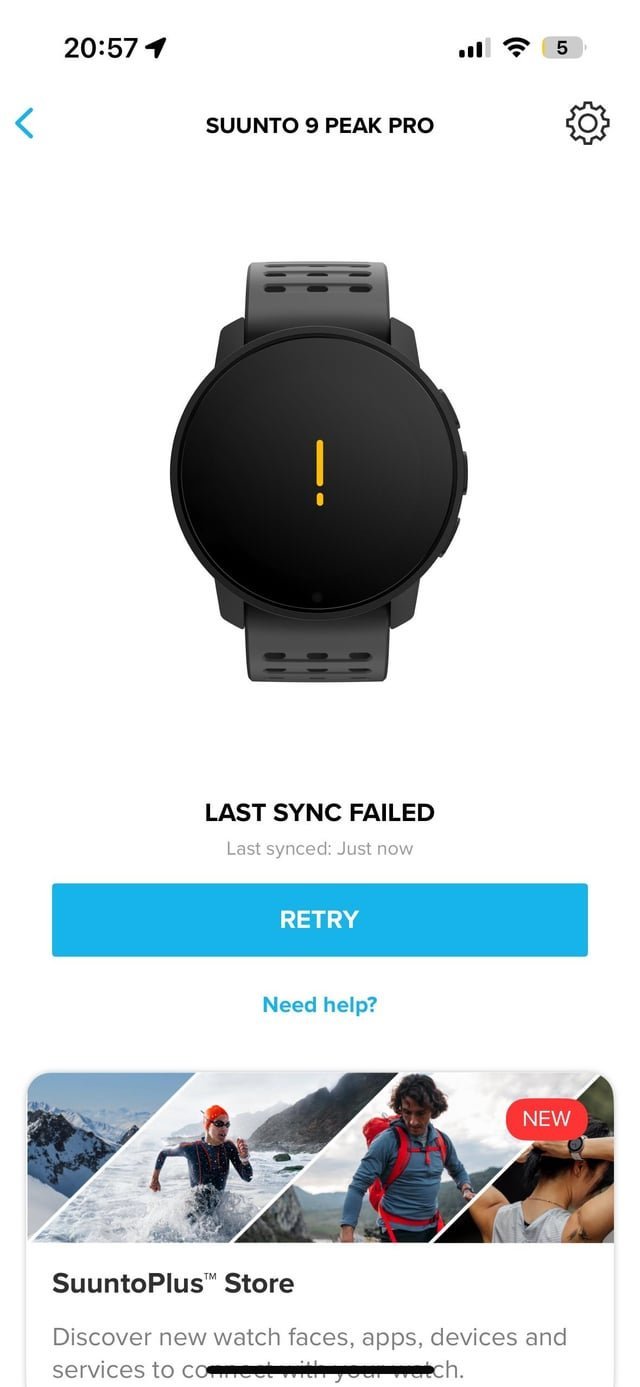
When your Suunto 9 Peak Pro not syncing, it usually stems from a broken Bluetooth connection or corrupted app cache, though outdated firmware can also be the culprit. You can confirm the cause by checking if your phone lists the watch as paired while the app shows it as disconnected.
Why your Suunto 9 Peak Pro not syncing
| Cause | How common | How to confirm it | Fix it yourself? |
|---|---|---|---|
| Bluetooth connection drop | Most common | App shows disconnected | Yes |
| Corrupted app cache | Common | App freezes during sync | Yes |
| Outdated watch firmware | Frequent | Version check in app | Yes |
| Phone OS update needed | Frequent | Check phone system settings | Yes |
| Interference from other devices | Occasional | Turn off other Bluetooth | Yes |
| Internal hardware failure | Rare | Watch won’t pair at all | No |
Bluetooth drops usually stem from the phone’s power-saving mode killing background processes. If your connection dies only when the screen locks, disable battery optimization for the app.
Corrupted caches often trigger after a major app update. If the sync bar stalls at 99%, clear the app storage in your phone settings. Don’t delete the app, as this wipes your local data.
Firmware issues are distinct from connectivity bugs. If the watch pairs but fails to upload health metrics, check the app’s device menu for a pending update.
Interference occurs when more than three active Bluetooth devices surround the watch. If you use wireless headphones and a smart speaker simultaneously, toggle them off to isolate the signal.
Hardware failure is the final diagnostic. If the watch fails to appear in the Bluetooth menu of three different phones, the internal antenna has likely physically disconnected. No software patch can resolve this; contact support for a replacement.
Connection drops between devices
Bluetooth connectivity issues often stem from the handshake between the watch and the phone failing during the background sync process. This occurs when the mobile device prioritizes battery saving over maintaining a constant link with wearable accessories. You can identify this if the watch icon in your app remains greyed out despite being within the standard range of about 10 meters.
To resolve this, you must first toggle the Bluetooth setting on your phone off for 15 seconds before turning it back on. If the link doesn’t restore, go into your phone’s Bluetooth settings and select “Forget this device” for your watch. Afterward, restart the Suunto app and initiate a new pairing sequence. This process usually takes about 3 to 5 minutes to complete. A common mistake people make is trying to force a sync while the watch is in “Do Not Disturb” or “Airplane” mode, which physically blocks the radio signal. If you’re using a power-saving mode on your phone, you must disable it, as these modes often restrict background data usage for third-party apps. This varies by model — check the label on your phone’s battery settings to see if your specific device restricts app activity. If the watch still refuses to connect after a fresh pairing, you might need to uninstall the app entirely, restart your phone, and perform a clean install to ensure all background permissions are reset correctly.
App cache and data conflicts
The Suunto app stores temporary data to speed up the sync process, but this cache can become corrupted over time and prevent successful transfers. You can tell if this is the issue if the app crashes or stops progress bars midway through a sync attempt while your phone’s internet connection remains stable.
If your phone is an Android device, you can clear the app cache directly through your phone’s settings menu under “Apps.” If you’re on an iPhone, the only way to clear this data is to delete the application and reinstall it from the store. This action removes the temporary files that are blocking the communication path.
A common mistake is failing to log back into the account after a reinstall, which leads to a loss of pending data that wasn’t yet uploaded to the cloud. Always ensure you have a stable Wi-Fi connection before performing a reinstall, as the app needs to download its configuration files from the server.
If your watch has a high volume of stored logs, the sync may take longer than usual; allow at least 10 minutes for the first sync after a re-installation to ensure all historical data is processed. This isn’t for users who haven’t synced their watch in several weeks, as the large data transfer may require a constant power source to avoid a mid-sync failure.
Use this decision rule: if the sync bar freezes at exactly 50% for more than three minutes, clear the cache. If the app closes instantly upon opening, a full reinstall is mandatory regardless of your operating system. Failing to clear the cache when the app is sluggish often leads to “ghost” logs, where the watch shows data that never actually reaches your profile. Always verify your last successful sync date in the settings menu before clearing data to confirm which sessions remain trapped on the device.
Outdated firmware and software limits
Firmware versions that don’t match current app requirements will cause frequent sync failures. You can confirm this by checking the “Watch” menu within the app, which displays a notification if an update is available.
If the firmware is outdated, the watch may fail to communicate with the newer protocols used by the latest app version. To fix this, connect your watch to a charger, as the update process requires at least 50% battery to proceed safely. If the battery is lower than this, the update button remains inactive to prevent the watch from shutting down during the write process.
A common mistake is attempting to update via a mobile data connection. Always use a strong Wi-Fi signal to prevent the update file from becoming corrupted during the download. If the update hangs at a specific percentage for more than 20 minutes, the connection was likely interrupted. In this case, restart the watch by holding the upper button for 12 seconds and try again.
Check your phone’s operating system version as well. Older OS versions often lack the security certificates required to complete a secure handshake with the watch. If your phone is running a version released more than three years ago, it’s likely incompatible with the latest firmware patches.
Use this decision rule: if the app shows a “Sync Failed” error immediately, check the firmware version first. If the error occurs only during data transfer, check your phone’s OS compatibility. If you continue to see errors after updating both the watch and the phone, contact professional support. Internal memory errors might be present, which require a factory reset that only a technician can perform safely without bricking the device.
The less likely causes
Battery Saver Modes: Many phones kill background processes when battery is low, which stops the sync. Check your phone’s power settings to allow the app to run in the background. If your battery percentage is below 20%, the system often enforces these restrictions automatically. You must manually toggle “unrestricted” mode for the specific app to bypass this.
Multiple Paired Devices: Having too many Bluetooth devices connected to your phone simultaneously causes signal congestion. Turn off other accessories to see if the sync completes. If you have more than three active connections, the Bluetooth controller may drop packets from your watch to prioritize audio devices.
Location Services: The app requires location permissions to be enabled on your phone to maintain a stable Bluetooth connection. Verify this in your phone’s privacy settings. Without “Always Allow” enabled, the OS may kill the connection the moment you lock your screen.
Hardware Damage: If the watch has suffered a physical impact or water damage, the internal Bluetooth antenna may be broken. This requires a repair center visit. If the watch fails to pair with a second phone, the antenna is likely faulty.
What a fix usually involves
Resolving these issues usually demands a small amount of time and basic troubleshooting steps. Most software-related fixes involve simple app settings or a quick reboot, which costs nothing but a few minutes of your effort.
If the issue is a faulty battery or damaged antenna, the cost is a small part of the price of a new watch, depending on the warranty status of your specific unit. Expect to pay a modest fee for out-of-warranty hardware repairs, depending on the model tier.
You can check your warranty status by looking at the documentation provided in the box or by visiting the official manufacturer website and entering your serial number. If your device was purchased more than 24 months ago, assume the warranty has expired.
Never attempt to open the watch casing yourself, as this voids the warranty and can compromise the water resistance of the device. A single breach of the adhesive seal often leads to permanent moisture damage within days.
If the steps above don’t work, contact the manufacturer’s customer support directly. They can provide a specific quote for a repair or replacement based on your region and the age of your device.
Always keep your proof of purchase handy, as you’ll need it to claim any free repair services under the standard warranty terms. If you can’t locate the receipt, check your email history for a digital confirmation, as most manufacturers accept a PDF copy as valid proof of the original transaction date.
Related guides


