
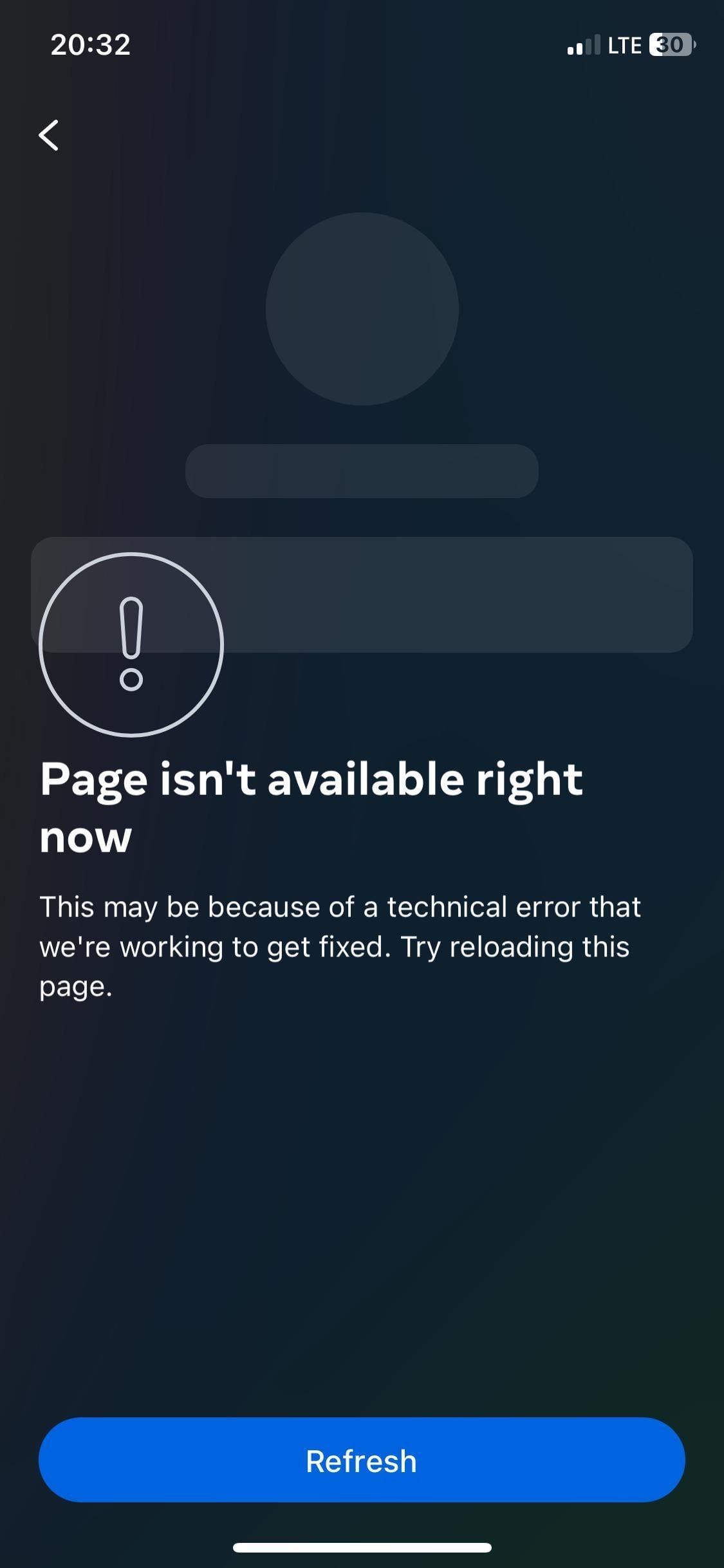
A poor internet connection or corrupted cache data is the most common reason you’ll find the facebook app not working on your mobile device. Most of the time, this happens because your phone loses its link to the server or stores old temporary files that conflict with the latest updates. You can confirm this quickly by checking if other apps that need a network connection are loading correctly. If they work fine, the problem is likely isolated to the app itself rather than your home network or mobile data plan.
Why your Facebook app not working
| Cause | How common | How to confirm it | Fix it yourself? |
|---|---|---|---|
| Network timeout | Very common | Try loading a webpage | Yes |
| Corrupted cache | Very common | Check app storage usage | Yes |
| Pending update | Common | View app store status | Yes |
| Server outage | Occasional | Visit status websites | No |
| OS incompatibility | Rare | Check phone system update | Yes |
| Account restriction | Rare | Try a different device | No |
Network timeouts often stem from DNS conflicts rather than a total loss of signal. If your browser loads sites but the app fails, toggle your Wi-Fi off to force a cellular connection. This isolates the issue to your local router.
Corrupted cache files frequently trigger infinite loading loops. You can confirm this by checking the app’s storage size in your settings; if it exceeds 500MB, clear the cache immediately. Don’t clear the data unless you have a cloud backup, as this deletes your local login credentials.
Server outages are the most common false positive. Before troubleshooting your hardware, check a site like DownDetector. If the report spikes above 1,000 users in an hour, stop all local fixes. You’re wasting your time. Wait for the provider to restore service. If you attempt to reinstall the app during a server-side outage, you may lose your saved preferences permanently.
Connection and signal interference
A weak or unstable internet signal is the primary reason the application fails to refresh content or load new posts. If your phone shows only one bar of signal or is switching rapidly between Wi-Fi and mobile data, the app can’t maintain a steady stream of data. You can test this by opening your web browser and navigating to a news site. If the site fails to load or takes a long time to display images, your connection is the bottleneck.
To fix this, toggle your device’s Airplane Mode on for ten seconds and then off again to force a fresh handshake with the nearest cell tower or router. If you’re using Wi-Fi, move closer to your access point or restart the router by unplugging it for thirty seconds. This clears the local network buffer. If the app still fails after these steps, switch from Wi-Fi to mobile data to see if your internet service provider is blocking the connection. This varies by model — check the label on your router for specific reset instructions, as some devices require a longer power-off period. If you have a solid connection but the app remains unresponsive, you have ruled out the network and should look at the internal data storage next.
Stored temporary files conflict
The application saves small pieces of data, known as cache, to help it load faster when you return. Over time, these files can become damaged or outdated, which prevents the app from displaying new information correctly. If you notice the app freezes, crashes upon opening, or shows empty boxes where images should be, a corrupted cache is the likely culprit.
You can verify this by looking at the app settings menu on your phone. If the cache size is unusually large, it often indicates that the files are no longer syncing with the server. On Android devices, you can go into the system settings, select the app from your list, and choose the option to clear the cache. For iOS users, the system handles this automatically, so you must uninstall and reinstall the application to achieve the same result. This is a common mistake people make: they try to restart the phone repeatedly without clearing the specific app data, which costs them time but never solves the underlying file corruption. If you clear the cache and the app still refuses to load, check if you have the latest version installed. You can verify the current software requirements on the Meta Help Center to ensure your phone is still supported.
Software version mismatches
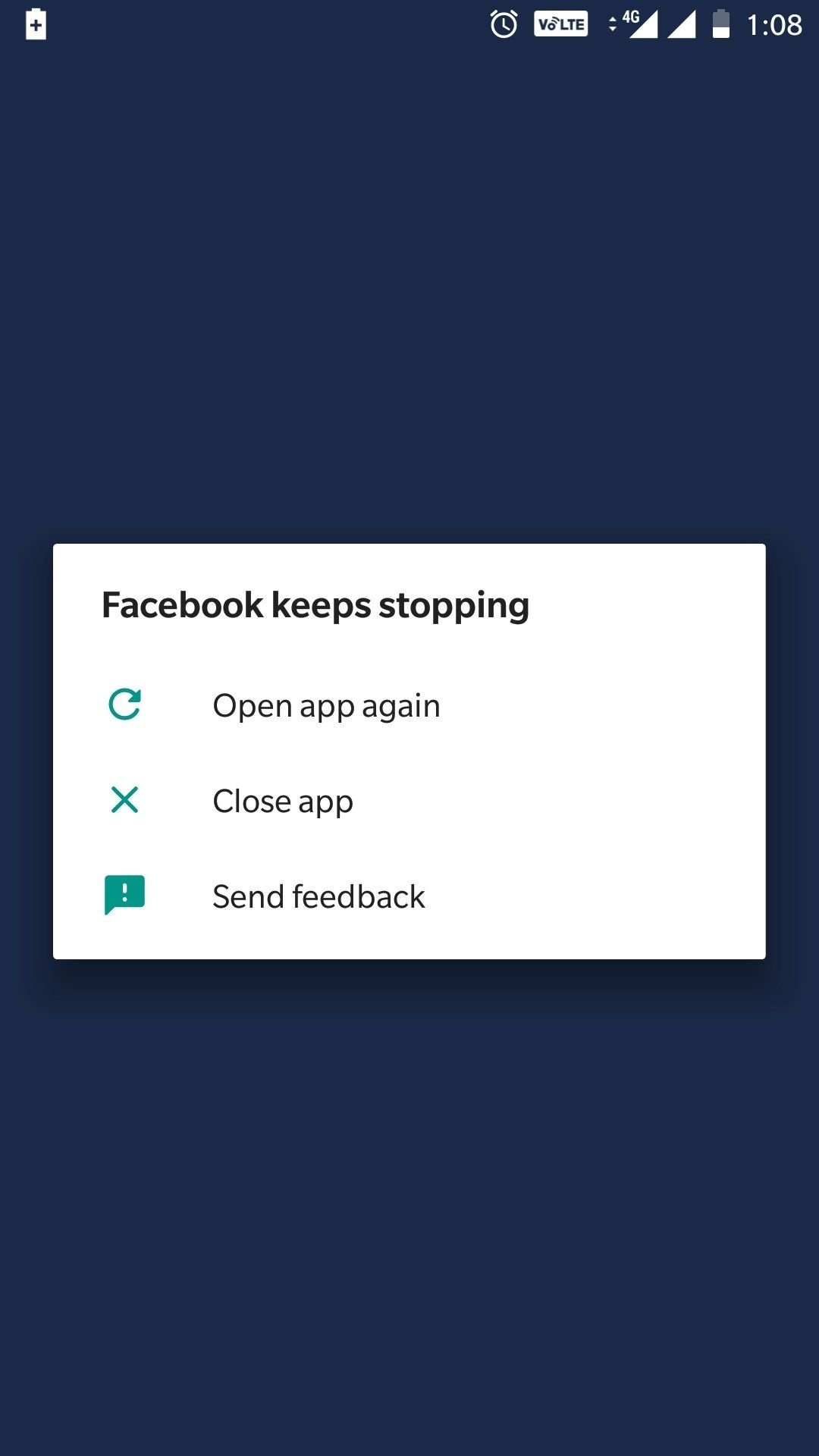
The app requires a current version of the software to communicate with the servers effectively. When the developers release a new update, they eventually stop supporting older versions to maintain security and performance. You’ll know this is the cause if you see a persistent “update required” message or if the app stops loading content entirely after a recent phone software update.
If your phone’s operating system is very old, it may no longer support the latest version of the app. If you’re on a modern OS, navigate to your app store and check the “Updates” section to see if a version is pending for the application. If you have an update waiting, install it immediately. If the app is already at the latest version and still fails, verify that your phone’s operating system is also updated to the latest available version provided by your manufacturer. This is where a trade-off exists: updating your OS can fix app bugs, but it may also slow down older hardware. If you have the latest version of both the app and the OS, and the service is still down, the issue is likely a server-side outage. In that case, you have done all you can, and you must wait for the company to resolve the problem.
The less likely causes
Server outages: The company’s infrastructure may be down. Confirm this by checking independent status-tracking websites like DownDetector. If the outage is widespread, you’ll see a surge of reports from other users in your region.
Account security locks: Your account might be restricted for a policy violation. This usually triggers an email notification or an on-screen warning. If you see an error code like “403 Forbidden,” you’re likely locked out due to a security flag rather than a technical glitch.
Date and time settings: If your phone’s clock isn’t set to “Automatic,” the app fails to verify security certificates. It will refuse to connect to the server to prevent data interception.
Insufficient storage space: The app requires at least 200MB of free space to cache new data. If your phone is full, the app will hang or crash. Clear your cache or delete one large video file to restore functionality.
What a fix usually involves
Fixing these issues usually involves only a small amount of your time and no special tools. Most software-based resolutions are free and require only a few minutes to navigate through your phone’s settings menus.
If the fix requires a hardware repair, such as replacing a failing battery or a faulty antenna that causes constant signal loss, the cost depends on your device’s warranty status. You can check your device’s warranty on the manufacturer’s official support page to see if a repair is covered.
Never attempt to open the device or manipulate internal components yourself, as this voids your warranty and can cause permanent damage. A common mistake is assuming a loose connection is the culprit, leading users to pry open the casing. This often snaps delicate ribbon cables, turning a simple software glitch into a total hardware failure.
If the software steps fail to restore functionality, contact your mobile service provider or the manufacturer’s support team for a professional diagnosis. They have the tools to identify if your specific device has a hardware fault that prevents it from maintaining a stable network connection. If your device is out of warranty, ask for a flat-rate repair quote before authorizing any work to avoid unexpected service fees.
Frequently asked questions
Can I fix the app by restarting my phone?
Yes, restarting your phone clears the temporary memory and stops background processes that might be interfering with the app’s performance. It’s the fastest way to resolve minor software glitches that cause the app to freeze. If the problem persists after a reboot, you should move on to clearing the cache or checking for updates as described in the previous sections.
How long should I wait if the server is down?
Usually, server issues are resolved within one to four hours by the developers. You can check for widespread outages by looking at news reports or status-tracking websites. If the problem lasts longer than a day, it’s likely not a server issue but a local problem with your account or your specific device’s settings.
Is it safe to clear my app cache?
Yes, clearing the cache is a safe procedure that doesn’t delete your personal photos, messages, or account information. It only removes temporary files that the app will automatically download again when you reopen it. This is a standard maintenance step that keeps the application running smoothly without any risk to your private data or account security.
What happens if I reinstall the app?
Reinstalling the app provides a completely clean start and removes any deep-seated software bugs that a simple cache clear might miss. You’ll need to log back into your account, but your posts and data remain safe on the cloud. Ensure you know your password before you uninstall, as you’ll need it to sign back into your account.
Does it matter if I am on Wi-Fi or mobile data?
Yes, the app may behave differently depending on the quality and security settings of your network. If you’re on a restricted public Wi-Fi network, some features might be blocked by the network administrator. Switching to a stable mobile data connection or a private, password-protected home Wi-Fi network often solves connectivity issues caused by network-level restrictions.
Final Thoughts
If these quick fixes don’t get things running smoothly again, don’t worry. You should try uninstalling the software and downloading a fresh copy from your app store. This often clears out stubborn errors that standard updates can’t reach. You’ll be back to scrolling through your feed in no time at all.
Related guides


