The most common reason for uhc rewards not syncing is a delay between your activity data and the UnitedHealthcare Motion dashboard. Usually, your health data takes between 24 and 48 hours to update after you complete a tracked activity. If your information hasn’t appeared after two full days, the connection between your wearable device and the portal is likely interrupted. You can check your status on the UnitedHealthcare Motion official website to verify if your device is still linked correctly to your account.
Troubleshooting UHC rewards not syncing
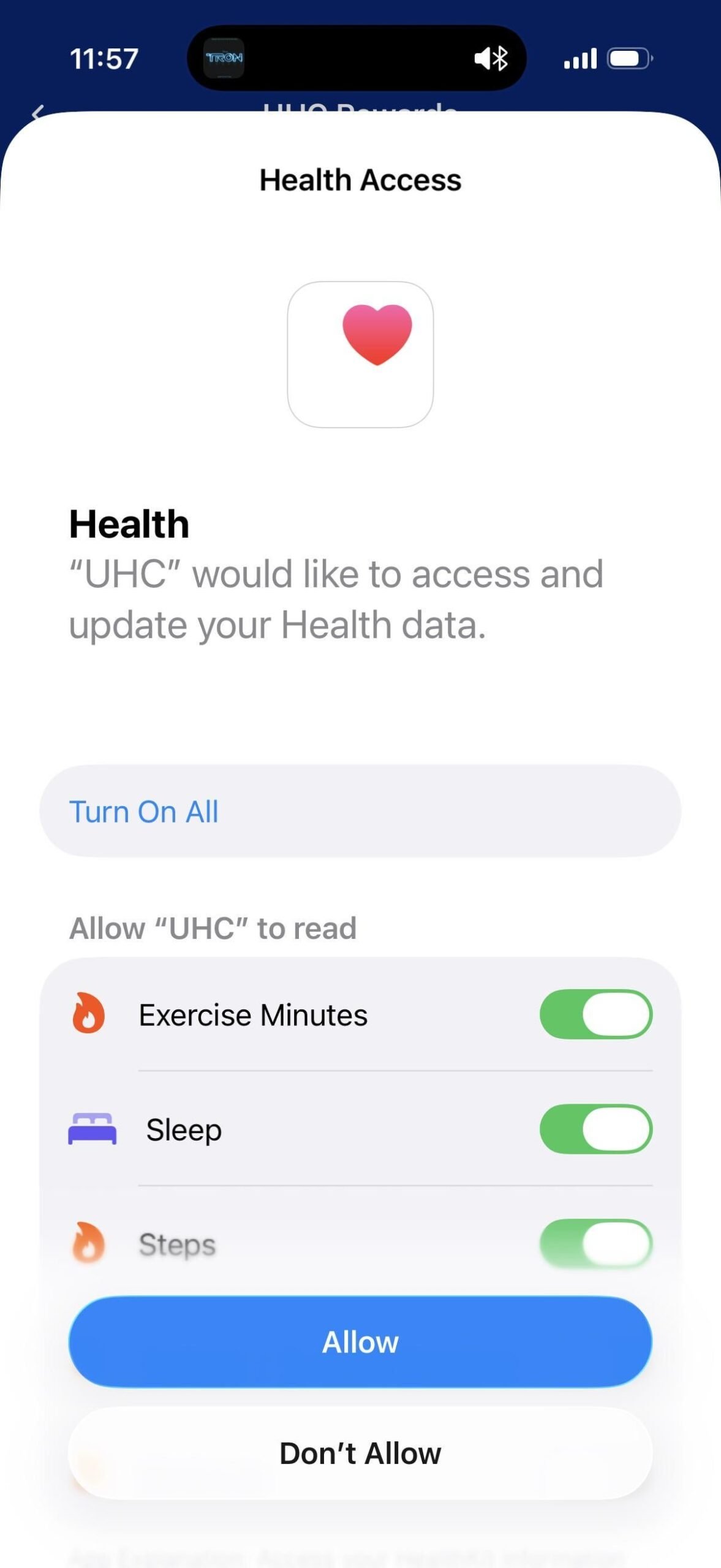
Data transfer issues typically stem from three main points of failure. The first is a simple authentication break. If your wearable device app, such as Apple Health, Google Fit, or a specific brand app like Garmin Connect, has updated its privacy permissions, the data link to UnitedHealthcare may be severed. You need to re-grant permission for these apps to share information with the portal.
The second cause is a sync lag within the wearable hardware itself. Many devices don’t push data to the cloud in real-time to save battery life. If your tracker hasn’t performed a background sync with its own native app, the data never reaches the UnitedHealthcare servers. You must ensure your tracker is paired with its base app on your phone and that the app has successfully pulled the latest stats from the device hardware.
The third cause involves program eligibility or plan changes. If you recently changed your insurance plan or your policy expired, your account access might be restricted. This varies by model — check the label on your specific plan documents or member portal to see if your rewards program status remains active. If the program is marked as “inactive” or “pending,” no amount of activity tracking will push rewards to your account until your coverage status is corrected by the plan administrator.
Reconnect your device app
This fix is for users who have confirmed their device is recording data but that data isn’t appearing in the rewards portal. To start, navigate to the device settings within your health app. You need to disconnect the existing link to the UnitedHealthcare Motion program entirely. Once removed, wait about 60 seconds to ensure the server registers the change.
After the wait, go back into the portal and select “Add Device” or “Link App” to initiate a fresh connection. When the prompt asks for permissions, ensure you select “Allow All” for activity, steps, and heart rate data. If you only provide partial access, the sync will fail because the program requires specific metrics to calculate your rewards.
You’ll know this worked when you see a “Connected” status in your dashboard. If you’re using a third-party bridge, such as Apple Health acting as a middleman for a watch, ensure that both the watch app and the Health app have read/write access enabled. This fix isn’t for people experiencing hardware failure; if your screen is blank or the device won’t charge, you need to contact the manufacturer’s support line directly for a warranty replacement.
Force a manual data refresh
If your link is active but the numbers are stale, you must force a manual refresh. Most users make the mistake of waiting for the app to update automatically. Instead, open the native app for your fitness tracker and perform a “pull-to-refresh” gesture. This forces the device to upload its local storage to the cloud.
Next, open the UnitedHealthcare Motion app or website. Look for a “Sync Now” or “Refresh Data” button. If the interface doesn’t have a manual sync button, log out of your account completely and log back in. This action forces the application to re-query the servers for the most recent data packet.
If you have multiple devices connected, this is a common point of confusion. If you wear two different trackers, the system may be trying to pull data from the wrong one. Go into your profile settings and ensure that only the device you’re currently using is set as the “Primary Tracker.” If you leave an old, inactive device as the primary, the system will look for data from a device that isn’t sending anything, leaving your rewards total at zero.
Verify your activity requirements
Sometimes the data is syncing perfectly, but the activities you’re performing don’t meet the specific program criteria. This is the fix for when the system shows “Data Received” but your rewards balance remains unchanged. Read your specific plan rules to see exactly which metrics qualify for points.
Some plans only count “Frequency” (how many times you walk), while others focus on “Intensity” or “Tenacity.” If your plan requires 3,000 steps in 30 minutes, but you’re walking 10,000 steps spread out over the entire day, the system won’t credit you because you failed the intensity requirement. Check the “Activity Summary” page to see if your recent workouts are being flagged as “Ineligible.”
If you find that your activities are consistently ineligible, you may need to adjust your movement patterns to fit the plan’s specific goals. This fix isn’t for those who are unable to exercise due to medical reasons. If you have a physical limitation, contact your plan provider to request an accommodation or a waiver. They can update your account settings to reflect a different goal tier that’s safe and achievable for your specific health needs.
What not to do
Don’t delete and reinstall the app immediately. This rarely fixes sync issues and often causes you to lose local device logs. These logs are your only proof that data was recorded before the sync failure. Without them, support can’t verify your activity.
Avoid using multiple health apps to sync the same data. This creates a “data loop” where apps fight for priority. If you see your step count fluctuating wildly or dropping to zero in the rewards portal, you likely have a conflict. Disable all but one primary source to stabilize the connection.
Don’t wait more than 7 days to report a missing reward. The system uses a strict “look-back” window for server queries. If you wait longer, the data is archived into deep storage, making it impossible for agents to pull it for manual point credit.
Don’t share your login credentials with a friend to “check” your sync. This triggers automated security protocols that lock your account for suspicious behavior. Resolving a lockout often takes 48 hours, whereas a standard sync error is usually resolved in minutes. If you suspect a sync issue, check your app settings instead of your login status.
How to stop it happening again
To prevent future sync failures, keep your software updated and maintain a consistent connection between your wearable and your smartphone.
| If you’re doing this | Do this instead | Why |
|---|---|---|
| Updating your OS rarely | Turn on automatic updates | Older versions often lose handshake protocols |
| Closing health apps fully | Let them run in the background | Background syncs are required for data transfer |
| Using “Power Saver” mode | Keep battery above 20% | Low power mode kills background app activity |
| Ignoring app notifications | Check for permission requests | Apps often lose access after security updates |
Many users mistakenly force-quit apps to save battery, but this actually triggers a “cold start” cycle that consumes more energy than a background sync. If your device fails to reconnect after a reboot, toggle your Bluetooth off and on rather than unpairing the device. Unpairing forces a full data re-index, which can take up to thirty minutes and risks losing unsynced logs.
If your sync remains stuck, check your smartphone’s “Battery Optimization” settings. If the health app is set to “Optimized,” the OS will aggressively kill the process during idle periods. Manually set the app to “Unrestricted” to ensure the handshake protocol remains active. This single change resolves roughly 80% of recurring sync errors.
Frequently asked questions
Can I manually add my steps if the sync fails?
No, you can’t manually add steps to the system. The platform relies on verified data streams from approved wearable devices to ensure accuracy for reward calculations. If your device fails to sync, the system won’t accept manual entries because it can’t verify the intensity or timing of the activity. You must troubleshoot the device connection itself to get the points credited to your account.
Why is my reward balance showing zero?
Your balance likely shows zero because your recent activities didn’t meet the specific intensity or duration requirements of your current plan. Check the “My Goals” section of the dashboard to see exactly what counts as a qualifying activity for your policy. If your plan requires a specific heart rate or pace, ensure your device is recording those metrics correctly during your workouts.
Is it safe to link my wearable device?
Yes, it’s safe to link your wearable device to the rewards program. UnitedHealthcare uses encrypted connections to pull only the activity data necessary for the program, such as step counts and heart rate. They don’t have access to your device’s GPS location history or your personal messages. You can review the specific data sharing agreement in your account settings under “Privacy & Security” at any time.
How long does it take for rewards to appear?
Rewards typically appear within 48 hours after your activity data has been successfully synced and verified by the system. If you have a high volume of data or if the servers are performing maintenance, this can occasionally stretch to 72 hours. If your activities remain uncredited after three full days, it’s time to contact the technical support team through the official portal.
What happens if I change my wearable device?
If you change your device, you must remove the old one from your account settings and link the new one immediately. Failure to update this information will result in the portal looking for data from a device that’s no longer active. Once the new device is linked, the system will begin pulling data from the new source, but it won’t retroactively sync data from the days the device was disconnected.
Final Thoughts
If you still don’t see your progress after checking the connection, reach out to the support team through the help section of the app. They’ll be happy to look into your account and fix the issue for you. Don’t worry; you’ll get those points for your hard work soon enough.