
You can stop an app not force quitting mac by using the Activity Monitor to send a termination signal to the unresponsive process. This method acts as a direct command to the system kernel to end the specific task immediately. If the standard “Force Quit” menu fails, the system is likely waiting on a hung I/O operation or a frozen resource lock. This fix requires no extra software, but it does require you to identify the correct process name among your background tasks.
Why this happens

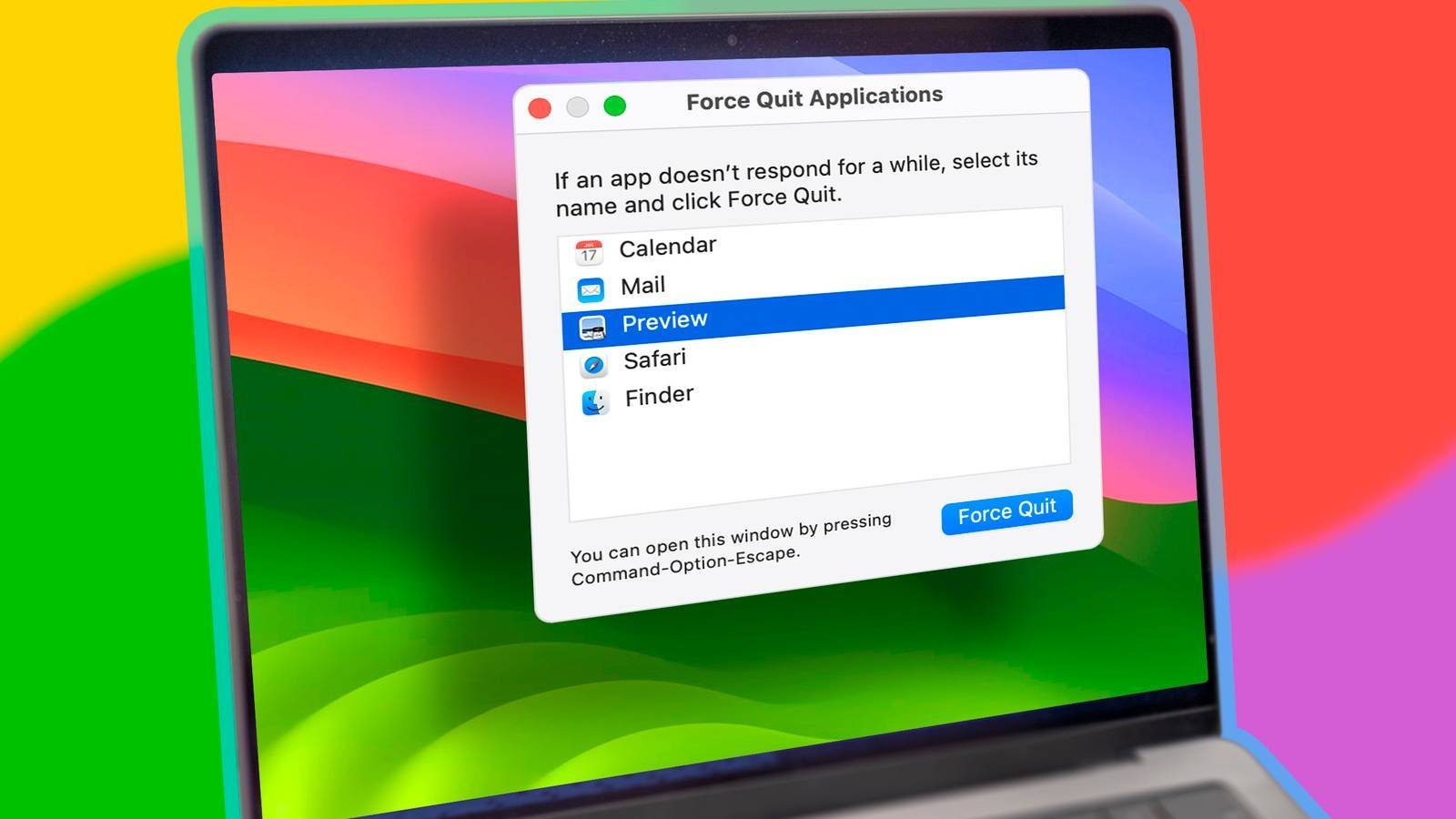
When an application stops responding, it usually means the main thread is stuck in a loop or waiting for an external resource that isn’t answering. macOS manages applications through a series of processes. When you click “Force Quit,” the system sends a request to the application to close gracefully. If the application is truly frozen, it can’t process that request, and the interface remains stuck.
Another common cause is a resource deadlock. This happens when the application is waiting for a file, a network connection, or a hardware driver that has crashed. Because the app is waiting for the hardware to respond, it becomes unresponsive to user input.
Finally, some apps enter a “zombie” state. This occurs when the parent process has exited, but the child processes remain active in the background. In this state, the app might disappear from your Dock, but it still consumes CPU or memory resources. These ghost processes are often invisible to the standard user interface and require administrative-level intervention to clear. You can verify your system’s current process management and resource allocation through the official Apple Support documentation.
Use Activity Monitor for unresponsive processes
This fix is for users who have tried the standard Command-Option-Escape shortcut and seen no result. Activity Monitor is a built-in tool that shows you every single process running on your machine.
- Press Command + Space to open Spotlight, type “Activity Monitor,” and press Enter.
- Ensure the “CPU” tab is selected at the top of the window.
- Look through the list of processes to find the name of the app that isn’t responding. You can use the search bar at the top right to filter by name.
- Click on the process name once to highlight it.
- Click the “X” button in the top toolbar of the Activity Monitor window.
- A dialog box will appear. Select “Force Quit.”
This sends a “SIGKILL” signal to the process, which forces the system to stop it immediately without waiting for the app to save data. If the app is a system-level process, you might need to enter your administrator password. This isn’t for apps that are simply slow; only use this for apps that are completely frozen. If you aren’t sure what a process does, don’t quit it, as stopping core system processes can cause your Mac to restart unexpectedly.
Use the Terminal for stubborn tasks
If the graphical interface of the Activity Monitor is also frozen, you can use the command line to kill the process. This is the most powerful way to stop a task.
- Press Command + Space, type “Terminal,” and press Enter.
- Type
topand press Enter to see a live list of all running processes. - Identify the “PID” (Process ID) number next to the frozen app.
- Press “q” to exit the live list.
- Type
kill -9 [PID]and replace[PID]with the actual number you found. - Press Enter.
This sends a forceful termination signal directly to the process ID. This is for users who are comfortable with text-based commands. If you type the wrong PID, you might accidentally close an app you wanted to keep open. This method is final and doesn’t offer a “save” prompt, so any unsaved work will be lost instantly. If you find the Terminal isn’t accepting commands, your entire system may be hanging, and a physical restart might be necessary.
Perform a hardware-level restart

When software-level commands fail, the OS kernel itself may be locked up. This is the final step when all other methods don’t work.
- Press and hold the power button (or the Touch ID button) on your Mac.
- Keep holding it until the screen goes black and the power indicator light turns off.
- Wait at least 10 seconds.
- Press the power button once to turn the machine back on.
This is a last resort. It isn’t for minor app freezes; it’s for when the cursor is frozen and no keyboard inputs work. This carries a risk of minor data corruption if the system was in the middle of writing a file to the disk.
If you find yourself doing this more than once a month, check your system logs in the Console app to see if a specific piece of hardware is causing the crash. Look for “kernel panic” entries; these confirm a hardware or driver failure rather than a simple application bug.
The decision rule is simple: if you can still move your mouse or trigger a Force Quit menu, don’t use this method. Only pull the power if the system is completely unresponsive to all inputs for at least 60 seconds. This isn’t a task for someone who isn’t ready to lose unsaved changes in open documents.
What not to do
Don’t pull the power plug on a desktop Mac. This sudden loss of voltage can corrupt the file system structure. Always hold the power button for ten seconds to trigger a safe hardware shutdown.
Don’t attempt to delete application files while the app is frozen. The system will block the request, often leaving file permissions in a broken state that prevents the app from launching correctly later.
Don’t force-restart your Mac if you have an external drive actively transferring data. This is the most common way to cause permanent data loss on external volumes.
How to stop it happening again
Regular maintenance of your startup items and background agents usually prevents these freezes from recurring.
| If you’re doing this | Do this instead | Why |
|---|---|---|
| Leaving 50+ tabs open | Use a tab manager extension | Reduces memory pressure on the browser |
| Ignoring OS updates | Update to the latest version | Patches fix known memory leaks |
| Running heavy apps on startup | Disable items in System Settings | Allows the system to boot cleanly |
| Filling the disk to capacity | Keep 20GB free space | macOS needs space for virtual memory |
Most users mistakenly assume that clearing the cache is enough. This is a trap; it ignores the underlying process bloat that causes the system to hang. If your fans spin loudly while idle, you likely have a rogue background agent. Use Activity Monitor to sort by CPU usage.
If you still experience lag after these steps, check your disk health. If the drive is over 90% full, the OS can’t swap memory effectively. This causes the “beach ball” effect. If you have less than 10GB of free space, delete large media files immediately to restore stability.
Frequently asked questions
Can I lose my work if I force quit?
Yes, you’ll lose unsaved changes because a force quit immediately terminates the process. The system prioritizes stability over data preservation. If the application remains completely unresponsive for more than five minutes, it’s unlikely to recover on its own.
Is it safe to force quit system processes?
No, you should never force quit processes labeled as “root” or “system” unless you’re a professional troubleshooting a specific issue. Many of these processes are required for your Mac to communicate with the hardware, such as the window manager or the disk controller. If you stop these, your Mac will likely become unstable or crash, requiring a full restart to recover. Stick to quitting user-facing applications that you recognize by name.
How long should I wait before force quitting?
The application may be performing a large background task, such as saving a complex project. If the spinning cursor persists after this time, the application is likely stuck in a loop.
What if your app not force quitting mac?
If the Force Quit window doesn’t open, the window server is likely unresponsive. You must then use Activity Monitor or the Terminal to terminate the process. If these also fail, a hard power-off via the power button is your only remaining option.
Is there a keyboard shortcut for force quit?
Yes, press Command + Option + Escape to open the Force Quit menu. This shortcut displays a list of all currently running applications for you to select and terminate. If this window fails to appear, the system is experiencing a deeper hang requiring advanced methods.
Final Thoughts
If your computer keeps freezing, it’s a good idea to check your available disk space or run a quick system update. Keeping your software current helps prevent these glitches from happening again. You shouldn’t have to deal with stubborn windows, so don’t hesitate to reach out for professional help if issues persist.
Related guides