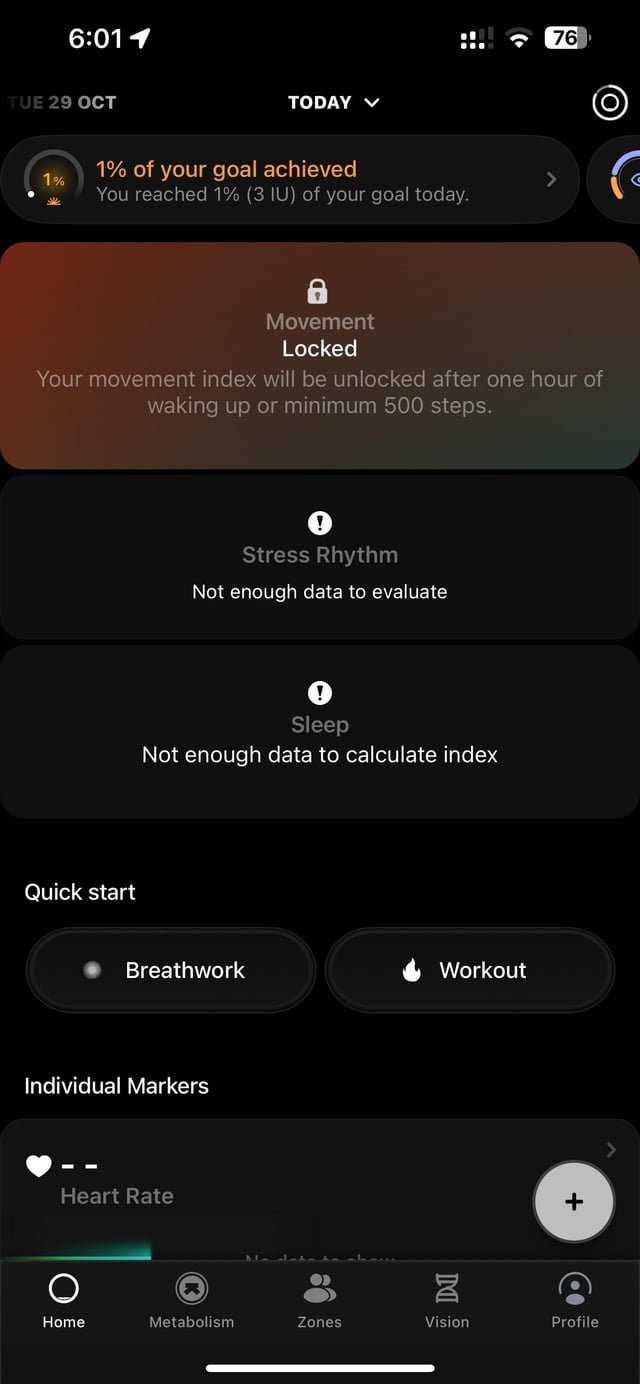
A weak Bluetooth connection or a pending firmware update is the most common reason for your ultrahuman ring not syncing with your smartphone. Most of the time, this issue resolves by simply toggling your phone’s Bluetooth setting off and back on again or ensuring the ring is charged above twenty percent. If these simple steps don’t work, the problem usually stems from background app restrictions or an outdated operating system. You should check the device settings on your phone to confirm the app has the necessary permissions to communicate with your hardware.
Troubleshooting: Ultrahuman Ring Not Syncing
| Cause | How common | How to confirm it | Fix it yourself? |
|---|---|---|---|
| Bluetooth connection error | Very common | Toggle Bluetooth settings | Yes |
| Low ring battery | Common | Check app battery icon | Yes |
| Outdated firmware | Common | Check app update tab | Yes |
| Background app restriction | Occasional | View phone battery settings | Yes |
| Corrupt cache files | Occasional | Clear app cache data | Yes |
| Firmware installation failure | Rare | Contact official support | No |
Most users assume a connection failure implies hardware failure, but the vast majority of cases stem from software sync timeouts. If your ring is charged but unresponsive, toggle your phone’s Bluetooth off for ten seconds before restarting the app.
If the app shows a “Sync Failed” error, check your phone’s battery optimization settings. Android and iOS often kill background processes to save energy, which prevents the ring from pushing data. You must manually set the app to “Unrestricted” or “Always Allow” to ensure constant connectivity.
Distinguishing between a dead battery and a firmware lock is simple. If the app shows a red battery icon, charge the device for at least thirty minutes. If the app shows a “Firmware Update Required” prompt that hangs at 0%, clear your phone’s Bluetooth cache. Never attempt a factory reset unless support directs you; doing so often wipes the unique encryption keys required for your specific device.
Connection and signal interference
A broken Bluetooth handshake is the primary reason data stops moving from the ring to your phone. This happens when the wireless signal is interrupted by other active devices or when the phone’s radio enters a power-saving mode. To confirm this, look at the Ultrahuman app; if the ring icon shows a “disconnected” status despite the ring being on your finger, the link is down.
To fix this, turn off Bluetooth on your phone, wait ten seconds, and turn it back on. If that fails, restart your phone completely to clear the temporary cache of the Bluetooth module. This process takes about two minutes of your time. If you use a device with a low-power Bluetooth mode, ensure the ring is within three feet of your phone while you attempt the sync. Keep in mind that this varies by model — check the label on your packaging for specific Bluetooth version requirements. A mistake people often make is trying to pair the ring through the phone’s system Bluetooth menu instead of the app itself. This prevents the app from identifying the device correctly and usually costs you an extra ten minutes of troubleshooting. If the sync still fails, you can find official guidance on Ultrahuman’s troubleshooting guide to see if there are specific known bugs for your current software version.
Battery levels and power states
An insufficient power supply prevents the ring from broadcasting data to your smartphone. When the battery drops below fifteen percent, the ring enters a deep sleep mode to preserve its remaining life, which stops all background syncing. You can confirm this by placing the ring on its charging dock; if the LED indicator pulses, the battery was likely the culprit.
If the ring doesn’t sync, leave it on the charger for at least thirty minutes until the light turns solid green. Once charged, open the app and pull down on the dashboard to force a manual sync. This isn’t for users who expect instant results while the device is nearly dead, as the ring requires a stable power state to complete a full data dump. If you notice the battery drains in under three days, you may have a hardware defect that requires a replacement rather than a software fix. A common error is using a third-party charging block that provides an inconsistent voltage, which can cause the ring to stop charging prematurely. If the ring still doesn’t sync after a full charge, verify that your phone’s “Low Power Mode” is disabled, as this setting often throttles the background data transfer needed for the ring to communicate.
Application and software updates
Outdated software versions often cause the app to lose compatibility with the ring’s current firmware. When the app and the ring run on different communication protocols, the sync will hang or show an error message. You can confirm this by navigating to the “Settings” menu inside the app and looking for a red dot or an “Update Available” notification.
To fix this, ensure your smartphone is running the latest version of its operating system and that the Ultrahuman app is updated via your app store. If an update is pending for the ring itself, keep it on the charger during the entire process to prevent a failed installation. This update usually takes between five and ten minutes. If the app remains stuck, clear the app cache in your phone’s settings to remove any corrupted temporary files. This is a trade-off: clearing the cache may require you to log back into your account, but it often solves persistent sync failures. If you find the app still crashes, you must uninstall and reinstall it entirely. This isn’t for users who don’t know their account login credentials, as you’ll need to sign back in to retrieve your historical data. If the issue continues, you have reached the limit of self-service and should contact the manufacturer’s support team for a diagnostic check.
The less likely causes
- Corrupted background processes: If the app has been force-closed by your phone’s memory manager, open the app manually and keep it in the foreground during the sync.
- Multiple device interference: If you have another phone with the app installed nearby, turn off its Bluetooth to ensure your primary phone has a clear link to the ring.
- Firmware installation failure: If a firmware update was interrupted, the ring may become unresponsive; you’ll need to contact official support for a factory reset procedure.
- Hardware damage: Physical impacts can damage the internal antenna; if the ring has visible cracks or heavy scratches, it may no longer be able to transmit data.
What a fix usually involves
Most fixes for a sync failure involve only your time and a stable internet connection. When the fix requires a software update or a simple restart, the cost is nothing. If the problem is a dead battery that no longer holds a charge, you may need a new charging dock or a replacement unit. A new charging dock is a small part of the total investment, but a full unit replacement is a significant portion of the price of a new one. Before spending money, always check the official help pages to see if your specific issue is covered under the original warranty. If you’re unsure, contact the manufacturer with your device’s serial number to get a real quote for repairs. Never assume a hardware fault without first testing the device with a different charging cable or a different smartphone to isolate the variable.
Frequently asked questions
Can I sync my ring to two phones at the same time?
No, the ring can only pair with one smartphone at a time to maintain data integrity. If you want to switch phones, you must first unpair the ring from the current device through the app settings. After you unpair, you can initiate a new connection on the second phone. Attempting to force a connection to two devices simultaneously often causes the sync to fail entirely.
How long does a full sync take?
A full sync usually takes about thirty seconds to two minutes depending on how much data is stored. If you haven’t synced in several days, the file size will be larger and the process may take longer. You should keep your phone screen active during this time. If the sync bar stops moving for more than five minutes, restart the app to clear the stalled process.
Is it safe to force a firmware update?
Yes, it’s safe as long as the ring is on its charger and has at least fifty percent battery. The update process ensures your ring has the latest features and bug fixes from the manufacturer. You should never disconnect the ring or turn off your phone while the progress bar is moving. An interrupted update can sometimes lock the ring in a non-responsive state.
What happens if I lose my connection during a sync?
The app will simply pause the sync and resume from the last saved point once the connection is restored. You won’t lose the data that has already been transferred to the app. Once the Bluetooth link is re-established, the app will automatically continue the data upload. You can check the “Sync Status” in the app menu to see if any data is still pending.
Does it matter if I have a weak Wi-Fi signal?
No, the sync process relies exclusively on the Bluetooth connection between your ring and your phone. Your phone’s Wi-Fi or cellular signal only matters when the phone uploads the synced data to the cloud servers. If your sync fails, focus on the Bluetooth settings on your phone rather than your internet speed. A strong Wi-Fi connection is only helpful for downloading app updates or firmware patches.
Why does the app say my ring is offline?
The app says the ring is offline when it can’t detect a Bluetooth signal from your device. This happens if the ring is out of range, the battery is depleted, or Bluetooth is disabled on your phone. Move the ring closer to your phone and ensure the battery is charged. If the status doesn’t change, toggle your phone’s Bluetooth off and on to force a new scan.
Final Thoughts
If you’ve tried these fixes and the data still isn’t appearing, it’s time to reach out to the support team through the app. They’ll look at your diagnostic logs to see exactly what’s going wrong. Don’t worry, they’re usually quick to help you get back on track with your health goals.
Related guides