You can resolve your ultrahuman not syncing issue by performing a hard reset on the sensor and refreshing the Bluetooth connection on your phone. Most connectivity errors happen because the sensor’s internal cache is full or the background pairing process on your smartphone has stalled. If you’re in a hurry, simply turning your phone’s Bluetooth off and back on usually clears the handshake error. For deeper issues, you must ensure your firmware is current, as the manufacturer frequently releases patches to improve data transmission stability.
Troubleshooting Ultrahuman not syncing
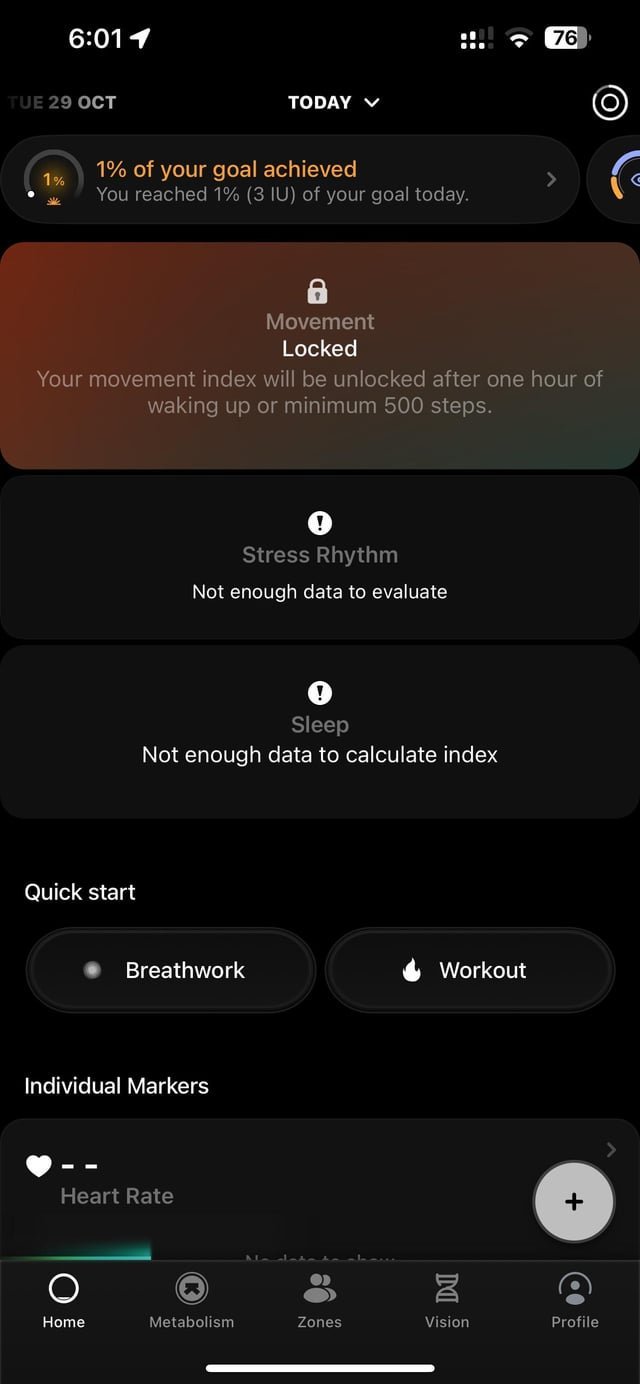
The primary reason for sync failures is a breakdown in the Bluetooth Low Energy (BLE) communication between the sensor and the app. These devices use a specific protocol to send data packets in the background. If your phone’s operating system aggressively kills background apps to save battery, the sensor loses its “handshake” with the device. This creates a gap in your metabolic data.
Another common cause is sensor firmware lag. When the sensor’s onboard memory reaches its limit, it may stop recording or transmitting new data until it successfully offloads existing files to the cloud. You can find specific details on how the Ultrahuman M1 sensor manages data storage and transmission through their official support portal.
Environmental factors also play a part. If you have many other Bluetooth devices connected to your phone—like smartwatches, headphones, or car audio systems—your phone may prioritize those connections over the sensor. This varies by model; newer smartphones with Bluetooth 5.0 or higher handle multiple connections better than older hardware. If you notice the sync fails only when you’re in your car or wearing headphones, your phone is likely hitting a connection limit. Always check if your app is restricted by “Battery Optimization” settings, as this is a frequent culprit for interrupted background syncing.
Force a fresh connection
If the app shows a “Disconnected” status, you must force a reconnection. This fix is for users who see the device listed in settings but can’t pull new data. First, go to your phone’s Bluetooth settings and “Forget” or “Unpair” the sensor. Don’t just toggle the Bluetooth switch. Navigate to the app, log out, and restart your phone completely.
Once the phone reboots, open the app and initiate a new pair. If the sync bar starts moving, wait for it to reach 100% before closing the app. Don’t switch to other apps while the sync is in progress, as this can crash the transfer.
This process isn’t for someone who has a damaged sensor. If the sensor has physical cracks or the adhesive has failed, no amount of software resetting will fix the hardware. If you have tried this twice and the app still shows “No Data,” check the sensor light. If there’s no blinking LED after a reset, the battery may be depleted or the hardware may be faulty. In that case, stop trying to fix it and contact support to avoid voiding your warranty.
Update the app and firmware
Outdated software is a common barrier to smooth syncing. If you haven’t updated your app in several weeks, the communication protocol may have changed, making it incompatible with the sensor’s current state. Go to your app store and check for a pending update. Once the app is updated, open it while your phone is connected to a stable Wi-Fi network.
The app will often prompt you to update the sensor’s firmware immediately upon opening. Don’t ignore this. Keep your phone charged above 50% for this update. If the phone dies during a firmware write, it can brick the sensor. This is a trade-off: you gain better syncing stability, but you must commit 5 to 10 minutes of uninterrupted time.
If the update fails, move to a different room away from other electronic devices. Interference from microwave ovens or Wi-Fi routers can corrupt the firmware packet during the transfer. If you see an error code during the update, restart the app and try again. If it fails three times, it’s a sign that your internet connection is too unstable for the file size. Switch from Wi-Fi to cellular data or vice versa to see if the connection improves.
Clear the cache and permissions
Sometimes the app’s temporary data folder becomes corrupted, which prevents it from recognizing the sensor even when Bluetooth is active. To fix this, you need to clear the app cache. On Android, go to Settings, then Apps, select the app, and tap “Clear Cache.” On iOS, you can’t clear the cache directly, so you must uninstall the app and reinstall it from the store.
This fix is for users who have stable Bluetooth but see “Sync Error” inside the app itself. Before you uninstall, ensure you know your login credentials, as you’ll need to sign back in. After reinstalling, you must grant the app permission to access “Bluetooth” and “Location Services.” If you deny these permissions, the app can’t find the sensor even if it’s sitting right next to your phone.
This is a common mistake; many people deny location access to save privacy, but the app requires this permission to scan for nearby Bluetooth devices. If you’re unsure if permissions are set correctly, go to your phone’s privacy settings and ensure the app is toggled to “Always Allow.” If the sync still fails after a fresh install and correct permissions, the issue is likely with the sensor’s internal storage buffer.
What not to do
Don’t force-close the app while it’s syncing. This interrupts the handshake between your device and the sensor. It causes data packet corruption, which may result in permanent gaps in your metabolic graph that can’t be recovered.
Don’t factory reset your phone to fix a sensor issue. This is an extreme measure that won’t resolve a local Bluetooth handshake problem. You’ll lose your personal data, and the sensor will likely remain unresponsive. If your sensor fails to pair, toggle your phone’s Bluetooth off and on instead.
Don’t use third-party “Bluetooth Fixer” apps. These tools often contain malware or adware. They lack the system-level access required to modify hardware communication protocols. Using them exposes your private data to unnecessary security risks.
Don’t leave the sensor in extreme heat. This degradation makes it impossible for the device to maintain a stable Bluetooth connection, rendering the sensor permanently unreliable. Keep it in a cool, dry place.
How to stop it happening again
Consistent syncing depends on your phone’s background management and the sensor’s battery life. If you ignore these patterns, you’ll likely face the same connection errors within a few days.
| If you’re doing this | Do this instead | Why |
|---|---|---|
| Closing the app manually | Keep the app running in the background | It allows for automatic periodic data syncing |
| Turning off Bluetooth | Leave Bluetooth enabled at all times | It prevents the handshake from breaking |
| Ignoring low battery warnings | Charge the sensor promptly | Low voltage causes unstable Bluetooth signals |
| Using power-saver mode | Add the app to your “Battery Optimization” ignore list | It stops the phone from killing the sync process |
Most users mistakenly force-quit apps to save memory, but this actually triggers a high-energy “cold start” every time you reopen the interface. This process consumes more battery than simply letting the app idle.
If your device disconnects repeatedly despite these settings, check if your phone’s “Adaptive Battery” feature is throttling the sensor’s background data. You can confirm this by checking your system logs for “restricted background activity” alerts.
Frequently asked questions
Can I sync my sensor if my phone is off?
No, the sensor can’t sync while your phone is off because the phone acts as the bridge to the cloud. The sensor stores data locally until you turn your phone back on and open the app. Note that the sensor can only hold a limited amount of data before it must sync.
How long does a full sync take?
A full sync typically takes between 30 seconds and 3 minutes, depending on your internet speed and stored data volume. If you haven’t synced in over 24 hours, the process may take longer. If the sync bar remains stuck for more than 5 minutes, restart the app and move your phone closer.
Is it safe to wear the sensor in water?
Yes, the sensor is water-resistant and safe to wear in water. However, Bluetooth signals don’t travel well through water, so the sensor can’t sync in real-time while you’re swimming or showering. It will store your data locally and sync automatically once you’re out of the water.
Why does the sync fail when I am at the gym?
Sync failure at the gym usually happens because of Bluetooth interference from other gym members’ devices or high-intensity Wi-Fi traffic. Your phone’s Bluetooth hardware can only manage a certain number of signals at once. When the environment is crowded with other wireless signals, your phone may drop the connection to your sensor to prioritize other tasks. Step away from the crowd and try to sync again in a quieter area.
What happens if I lose my internet connection during a sync?
If you lose your internet connection, the sync will pause, but your data will remain safe on the sensor. The app will usually show an “Offline” or “Sync Interrupted” status. Once your phone regains a stable internet connection, the app should resume the sync automatically from the point where it stopped. If it doesn’t resume, simply close the app and reopen it to trigger a new handshake and finish the upload.
Final Thoughts
If these quick fixes don’t get your data flowing again, don’t hesitate to reach out to the support team through the app. They’ll be able to check your sensor’s logs and see if there’s a deeper hardware glitch. You’ll be back to tracking your health metrics in no time at all.
Related guides