
The most common reason for the amazon app not working is an outdated version of the software on your smartphone. You can fix this by visiting your device’s app store to download the latest update, which often includes critical patches for bugs. If the app still fails after an update, the issue usually stems from a corrupted cache or a temporary interruption in your internet connection.
Why the Amazon app not working
Most functional errors occur because the software on your phone is out of sync with the current requirements of the company’s servers. When developers release new security protocols, older versions of the app may lose the ability to authenticate your account or load data from the store. This is a common hurdle if you have disabled automatic updates in your phone settings.
Another frequent cause is a cluttered cache. Your phone stores temporary files to help the app load faster, but these files can become corrupted over time. When this happens, the app may crash immediately upon opening or fail to display images and pricing information correctly. This varies by model — check the label on your phone’s settings menu to see if your operating system version is also outdated, as some newer app versions require the latest mobile OS updates to function.
Finally, connectivity conflicts can prevent the app from reaching the server. If your Wi-Fi signal is weak or your cellular data is restricted by a firewall or VPN, the app will time out. You can verify your connection status by visiting the official Amazon help page to see if there are known service interruptions. If the server is online but your app remains stuck, the problem is local to your device settings.
Clear the app cache
If you use an Android device, clearing the cache is often the quickest way to resolve performance glitches without deleting your personal data. Go to your phone’s Settings menu, tap on “Apps,” and locate the Amazon shopping app in the list. Select “Storage” and then tap “Clear Cache.” Don’t select “Clear Data” unless you’re prepared to sign back into your account and reconfigure your preferences, as this resets the app to its original state.
This fix is ideal if the app is slow, images aren’t loading, or the screen freezes during checkout. It isn’t for users who are experiencing total network outages or account-level blocks. If you’re an iOS user, Apple doesn’t provide a direct button to clear the cache for individual apps. Instead, you must uninstall the app entirely and reinstall it from the App Store. This process automatically clears all temporary files and forces the device to pull a fresh, clean version of the software. If you still see the same error after clearing the cache or reinstalling, move to checking your network settings.
Update your system time
A frequent mistake involves having the wrong date or time set on your smartphone, which prevents the app from establishing a secure connection with the server. If your phone’s clock is even a few minutes off from the actual time, the security certificates used for encrypted shopping sessions will fail, causing the app to block all incoming data. Go to your system settings and ensure that “Set Time Automatically” is toggled on.
This fix works for both Android and iOS users. If the setting is already on, toggle it off, wait five seconds, and turn it back on to force the device to re-sync with the network time server. You’ll know this worked if the app immediately begins loading your account information and order history upon relaunch. This is a common issue for travelers who switch time zones or for those who recently let their phone battery die completely. If your time settings are correct and the app still fails, you may have a deeper software conflict that requires a device restart. Restarting your phone clears the active memory and stops background processes that might be hogging resources or interfering with the app’s ability to ping the Amazon servers.
Reset your network settings
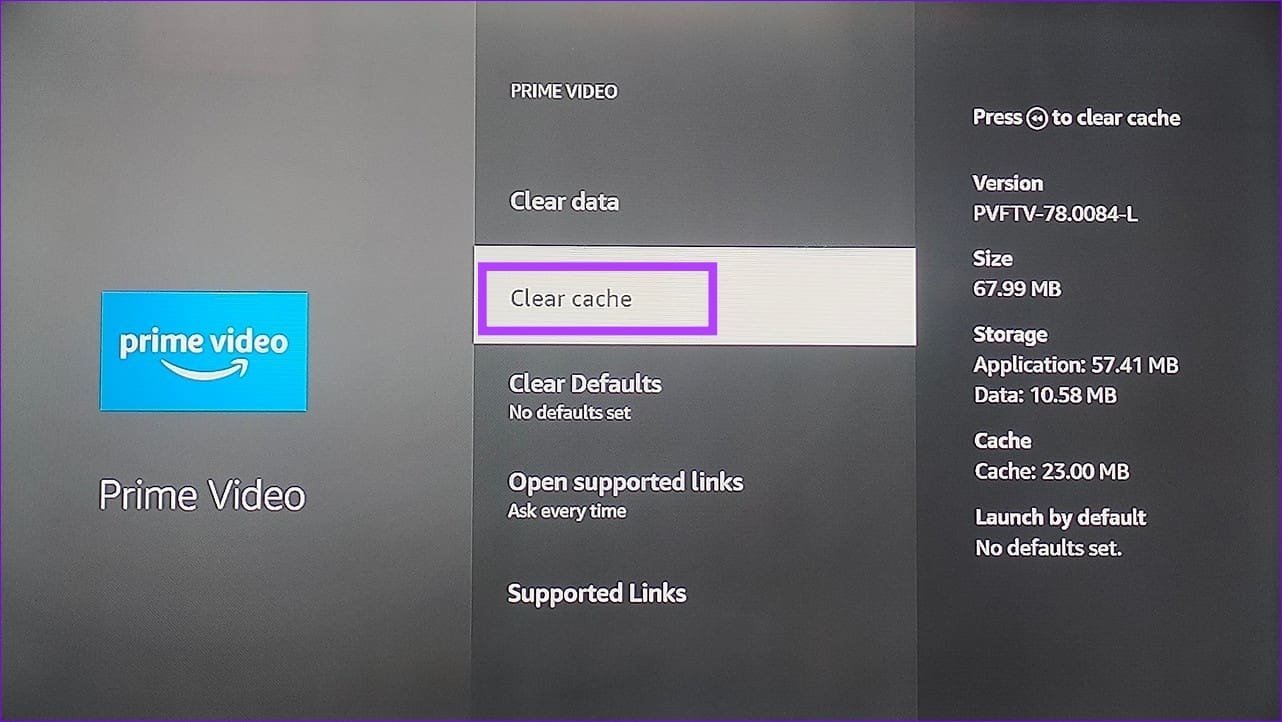
When the app refuses to connect despite having a full signal, your phone’s network configuration might be holding onto a bad connection string or a restrictive DNS setting. This is a more advanced step that’s worth the effort if you have already tried updating the app and clearing the cache without success. Be aware that resetting network settings will erase all saved Wi-Fi passwords and paired Bluetooth devices, so you’ll need to reconnect to your home network manually afterward.
To do this, navigate to your phone’s “General” or “System” settings and look for the “Reset” or “Transfer/Reset” menu. Choose “Reset Network Settings.” This doesn’t delete your photos, contacts, or apps; it only wipes the networking profiles that handle how your phone talks to the internet. Once the phone restarts, join your Wi-Fi network again and launch the Amazon app. If the app connects successfully, the previous configuration was the culprit. If this doesn’t solve the issue, the problem might be an account-level restriction or a regional outage. At this point, it’s best to contact your internet service provider to ensure they aren’t blocking traffic to specific domains, as this is no longer a simple app-side fix.
What not to do
Don’t download the Amazon app from unofficial third-party websites. These modified versions often contain hidden malware designed to scrape your saved credit card numbers. If you see an “Install from unknown source” prompt, stop immediately. Only use the official Google Play Store or Apple App Store.
Avoid uninstalling and reinstalling the app repeatedly within a short window. Doing this more than three times in an hour triggers automated fraud detection. This results in a temporary account lock that can take up to 24 hours to clear.
Never share your login credentials to troubleshoot a friend’s device. Once you provide your password, you lose control over your payment methods and purchase history. If a friend needs to test the app, have them log in with their own account instead.
Finally, keep your operating system updated. If your phone runs software older than three years, it will eventually lose support for modern encryption protocols. This leaves your shopping data vulnerable to interception on public Wi-Fi networks.
How to stop it happening again
Keep your device software current to ensure the app always has the correct environment to run.
| If you’re doing this | Do this instead | Why |
|---|---|---|
| Manual updates | Enable auto-updates | You’ll never miss a security patch. |
| Using public Wi-Fi | Use cellular data | Public networks often block shopping traffic. |
| Ignoring OS updates | Install latest OS | Apps depend on modern system libraries. |
| Saving passwords in browser | Use the official app | The app provides better encryption. |
Most users fail to clear their cache after a major update, which causes legacy data to conflict with new code. If the app continues to crash, delete it entirely and perform a clean install. This forces the device to download fresh configuration files rather than relying on corrupted local storage.
If you’re unsure whether your network is the culprit, toggle your Airplane Mode for ten seconds. If the error persists after reconnection, the issue is likely a server-side authentication timeout. In that case, wait exactly fifteen minutes before attempting another login to avoid triggering a temporary account lockout.
Frequently asked questions
Can I fix the app if it crashes during checkout?
You can usually fix this by clearing the app cache or updating your payment method. Crashes during checkout are often server-side handshake issues. If the problem persists, try switching from Wi-Fi to cellular data or complete your order using a web browser.
Why does the app show a blank screen?
A blank screen usually means the app failed to load data due to a poor connection or server glitch. Check your internet speed by opening a website in your browser. If your connection is stable, restart your phone to clear the memory and relaunch the app.
How long should I wait for the app to load?
Wait thirty seconds for the screen to load before assuming the app has hung. If the icon spins longer, the app is likely stuck in a loop. Force close the app and reopen it; if it fails after three attempts, clear your cache.
Is it safe to use a VPN with the app?
No, using a VPN isn’t recommended because it can trigger security errors and connection issues. Amazon’s servers often flag VPN IP addresses as suspicious, preventing the app from loading. Disable your VPN before opening the app to ensure a stable, authorized connection.
What happens if I clear the app data?
Clearing app data resets the application to factory settings, logging you out and erasing local preferences. Your account, orders, and payment information remain safe on Amazon’s servers. You’ll simply need to sign in again, which often resolves deep-seated software bugs.
Final Thoughts
If these simple fixes don’t get things running smoothly again, don’t worry. You can always try uninstalling the program and downloading it fresh from your store. If that doesn’t help, reach out to their support team directly. They’re usually quick to respond and will help you get back to shopping.


