
You can often fix your apple mail app not working by force-quitting the application and restarting your device to clear temporary software glitches. The most common cause is a stalled background sync process or a network connection error that prevents your inbox from updating. If your emails remain stuck after a restart, check your internet signal or your service provider’s status page to ensure their servers are active. This simple step resolves most connectivity issues without needing deeper technical changes.
Reasons Apple Mail isn’t working
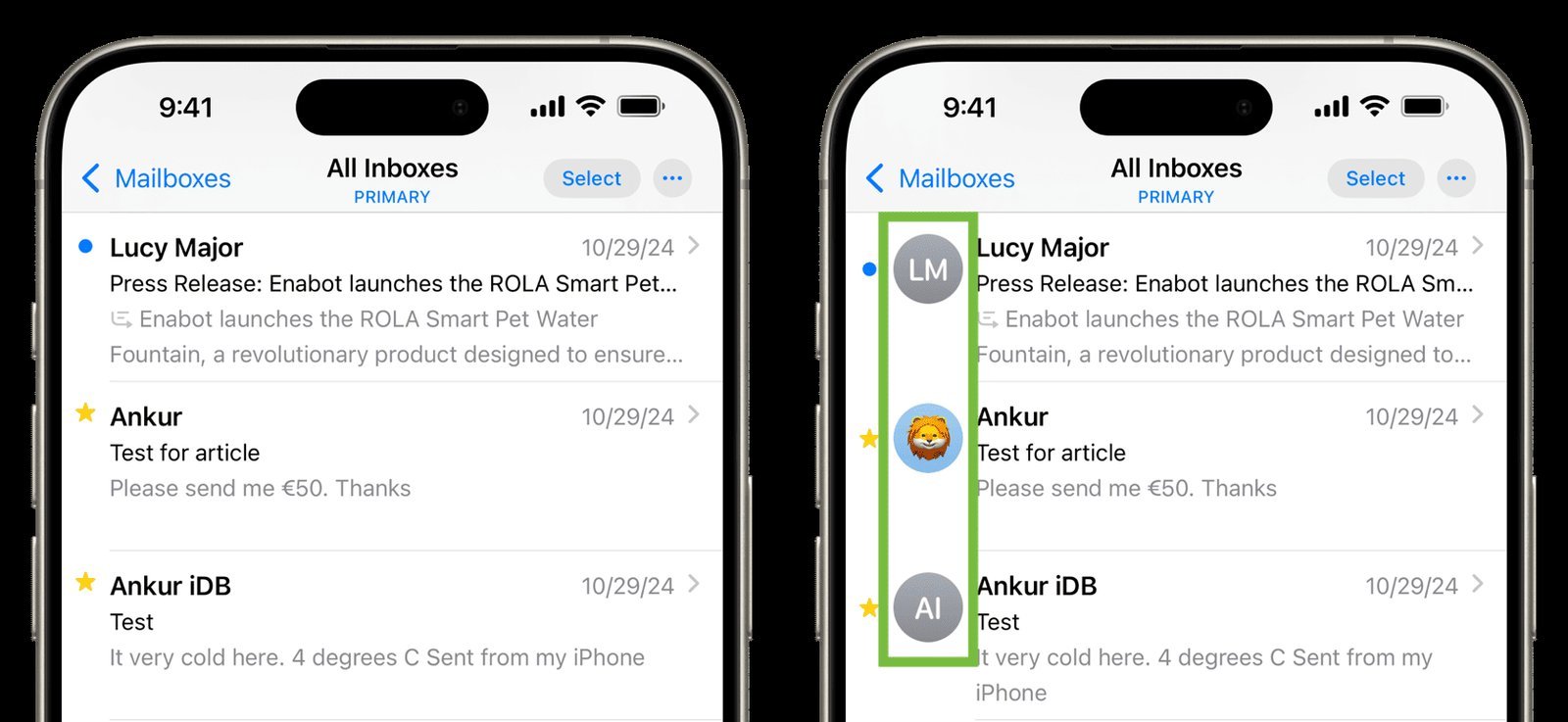
When your email client fails to load or send messages, the issue usually stems from a communication breakdown between your device and the mail server. The first cause is an authentication error. If you recently changed your account password on a web browser but failed to update it in your device settings, the app will lose its connection. You might see a warning icon near your inbox indicating that the password is rejected.
The second cause is a corrupt cache or a stalled background process. Apple Mail stores temporary data to speed up performance. Sometimes, this data becomes damaged, causing the interface to freeze or hang during the sync process. This is common if you have a very large mailbox or have recently received an email with a heavy attachment that failed to download fully.
Finally, internet configuration or server-side maintenance can trigger a failure. If your ISP has an outage or your router is blocking specific ports used for email protocols, the app can’t reach the server. You should verify your connection by opening a webpage in Safari. If the web loads but your email does not, the issue lies within your account configuration or the provider’s server. Always check your official Apple system status to see if the service is experiencing a known outage before you spend time changing your internal settings. If the status page shows green for iCloud Mail, the fault is likely local to your device or your specific network.
Force quit and restart
This fix is for users who see a frozen screen, a spinning wheel that never stops, or an app that refuses to open entirely. It clears the active memory and forces the application to re-establish its connection to the mail servers from scratch.
To do this on an iPhone or iPad, swipe up from the bottom of the screen and pause in the middle. Find the Mail app card and swipe it upward to close it completely. On a Mac, press Command + Option + Escape, select Mail, and click Force Quit. Once the app is closed, restart your device. This power cycle resets the network stack and clears any “stuck” data packets that might be blocking your incoming messages.
If the app works normally after the restart, you don’t need further action. However, if the app remains unresponsive, you must check your account settings. Go to Settings, select Mail, then Accounts, and tap on the specific provider. If you see a “Re-enter Password” prompt, follow those steps. This fix assumes your login credentials are correct; if you have forgotten your password, you’ll need to reset it through your email provider’s website. If you’re using a work or school account, check with your IT department before changing any incoming or outgoing server settings, as these are often locked by administrative policy.
Refresh your network connection
Sometimes the software is fine, but your device is struggling to reach the mail server due to a weak or restricted network. This fix works best if you notice that your mail only fails in one specific location, such as your home or office, but works fine on cellular data.
Start by toggling Airplane Mode on for ten seconds, then off again. This forces your device to drop its current connection and request a fresh IP address from the nearest cell tower or router. If you’re on Wi-Fi, go to Settings, select Wi-Fi, and choose “Forget This Network” for your current connection. Re-enter your password to join it again. This eliminates any cached network errors that might be blocking the mail ports.
If this doesn’t work, try disabling any VPN software you have installed. VPNs often route traffic through different regions, which can trigger security flags on your email account. If you turn off the VPN and your mail begins to sync immediately, you should check your VPN settings to see if it has a “split tunneling” feature that allows Mail to bypass the encrypted tunnel. This is a common point of failure for corporate or privacy-focused setups. If you still can’t connect after these steps, contact your internet service provider, as they may be performing maintenance that limits access to standard email ports like 993 or 587.
Remove and re-add the account
This is the most effective way to clear deep-seated configuration errors, but it’s only for cases where basic restarts have failed. This process deletes the local index of your mail, but it doesn’t delete the emails themselves, as they’re stored on your provider’s server.
Go to Settings, tap Mail, then Accounts. Select the account that isn’t working and tap “Delete Account.” Once it’s removed, restart your device. After the restart, return to the same menu and select “Add Account.” Choose your provider from the list and enter your credentials. This forces the device to pull a fresh configuration profile from the server, which fixes issues where server settings were corrupted during an update.
Only use this method if you’re certain you know your email password and have a stable internet connection. If you have a very large mailbox, the initial download after re-adding the account may take several hours. During this time, your battery will drain faster than usual because the device is actively indexing your inbox. This is a normal part of the process and will stop once the sync is complete. If you’re using a POP3 account, be aware that removing the account might delete any emails not yet backed up on the server; if you’re unsure about your account type, check your provider’s help pages before proceeding.
What not to do
- Don’t delete the Mail app itself from your device, as this is a core system component that can’t be truly uninstalled and reinstalling it often causes more errors.
- Don’t reset your entire device to factory settings, because this is an extreme step that wipes all your personal data and rarely fixes a simple mail sync issue.
- Don’t try to manually edit your server port numbers or SSL settings unless you have the exact technical specifications provided by your email host, as incorrect numbers will permanently block your access.
- Don’t repeatedly tap the “Refresh” button in the app, as this creates a queue of requests that can crash the app’s background process and make the wait time longer.
How to stop it happening again
Regular maintenance of your account settings and device updates will prevent most synchronization errors.
| If you’re doing this | Do this instead | Why |
|---|---|---|
| Ignoring software updates | Install iOS/macOS updates | Updates include critical patches for mail protocols |
| Using old passwords | Update them immediately | Servers block accounts with outdated credentials |
| Keeping huge archives | Move old mail to folders | Large inboxes slow down the sync process |
| Leaving VPNs active | Disable for mail sync | VPNs often interfere with server authentication |
Frequently asked questions
Can I fix Apple Mail if it keeps crashing?
You can fix a crashing app by ensuring your operating system is fully updated via Settings, General, and Software Update. Apple frequently releases patches to address stability issues. If crashes persist, a corrupted email may be triggering a memory leak.
Why is my email stuck in the outbox?
Your email is likely stuck because your outgoing server settings are incorrect or your internet connection failed. Large attachments often exceed provider file size limits, causing the server to reject the message. Verify your SMTP server settings if the issue persists after deleting the stuck email.
How long does it take for mail to sync?
Syncing typically takes five to thirty seconds, though this varies based on your device and inbox size. Thousands of unread emails can cause the initial sync to take several hours due to metadata indexing. Keep your device plugged in and connected to Wi-Fi until the activity settles.
Is it safe to delete and re-add my account?
It’s safe to remove and re-add your account because your messages are stored on the provider’s cloud servers. Re-adding the account clears corrupted sync data by downloading a fresh copy of your inbox. If you use a POP3 protocol, ensure your mail is backed up elsewhere first.
What happens if I forget my email password?
You must reset your password using the “Forgot Password” link on your email provider’s official login page to restore access. Once changed, update your credentials in your device settings. Avoid guessing your password multiple times, as providers often lock accounts after several failed attempts.
Final Thoughts
If these quick fixes don’t get your inbox flowing again, it’s a good idea to reach out to Apple Support directly. They’ll help you dig deeper into your account settings to see if there’s a hidden configuration error. You shouldn’t have to deal with missing messages for long, so don’t hesitate to ask for help.
Related guides


