You can fix an app not found error on firestick by clearing the app’s cache or reinstalling the software from the official menu. This error typically happens when the system shortcut loses its link to the actual application file, often due to a failed update or corrupted temporary data. If you have this problem, start by checking your internet connection to ensure the device can communicate with the server. If the issue persists, the steps below will guide you through the process to restore your access.
Why this happens
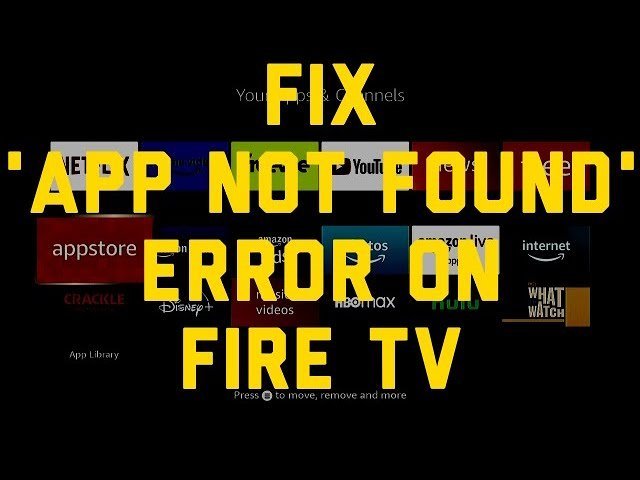
The primary cause for this error is a broken path between the Fire TV launcher and the installed application. When you select an icon, the operating system looks for a specific file path to launch the program. If that path is corrupted, the system can’t locate the binary files required to start the app.
Another common reason is a partial or interrupted update. If an app tries to update while the device is low on storage or if the power is cut, the application might be left in an incomplete state. The icon remains on your home screen, but the system no longer recognizes it as a valid, functional program. This is a common issue with apps that rely on background data syncing.
Finally, some apps are removed from the Amazon Appstore by the developer. If an app is delisted, your device may still show the icon in your library, but the link to the server is dead. In this case, the system can’t verify the license or download the necessary components to run it. Always verify your device’s connectivity status through the Amazon Fire TV support pages to rule out simple network timeouts. If your connection is solid, the issue is almost certainly with the app data itself.
Clear the application cache
If you’re a casual user who just wants to get back to watching, clearing the cache is the fastest way to solve the problem without losing your account settings. This process removes temporary files that might be confusing the system.
Go to Settings on your home screen and select Applications. Choose Manage Installed Applications and find the specific app that’s showing the error. Select the app and tap on Clear Cache. Once you have cleared the cache, try launching the app again. If it still doesn’t open, select Clear Data from the same menu.
Note that clearing data will reset the app to its original state, meaning you’ll likely need to sign back in with your username and password. This fix is ideal for apps that worked yesterday but are failing today. If you have a slow internet connection, be aware that the app may need to re-download some content upon opening, which could take a few extra minutes. This varies by model — check the label on your device to see if you have enough storage space, as very low disk space can prevent the cache from rebuilding properly.
Reinstall the application
When clearing the cache doesn’t work, the application files are likely damaged beyond repair. You must remove the current version and perform a fresh installation to restore functionality.
First, go to Settings, then Applications, and finally Manage Installed Applications. Find the problematic app and choose Uninstall. Once the app is gone, restart your Firestick by navigating to Settings > My Fire TV > Restart, or by holding the Play/Pause and Select buttons simultaneously until the device reboots. This clears the memory and ensures no corrupted processes remain running in the background. After the device reboots, navigate to the Find icon on the home screen and search for the app name. Download and install it again.
This method is for when the app is completely unresponsive or won’t open at all. It isn’t for users who have lost their login credentials, as you’ll have to set up the app from scratch. This fix works for most software glitches. If the app still shows as “not found” after a fresh install, the developer may have pulled the app from the store, or your specific region may no longer support that service. If you’re unable to find the app in the store at all, you can’t install it through official channels.
Verify storage and system updates
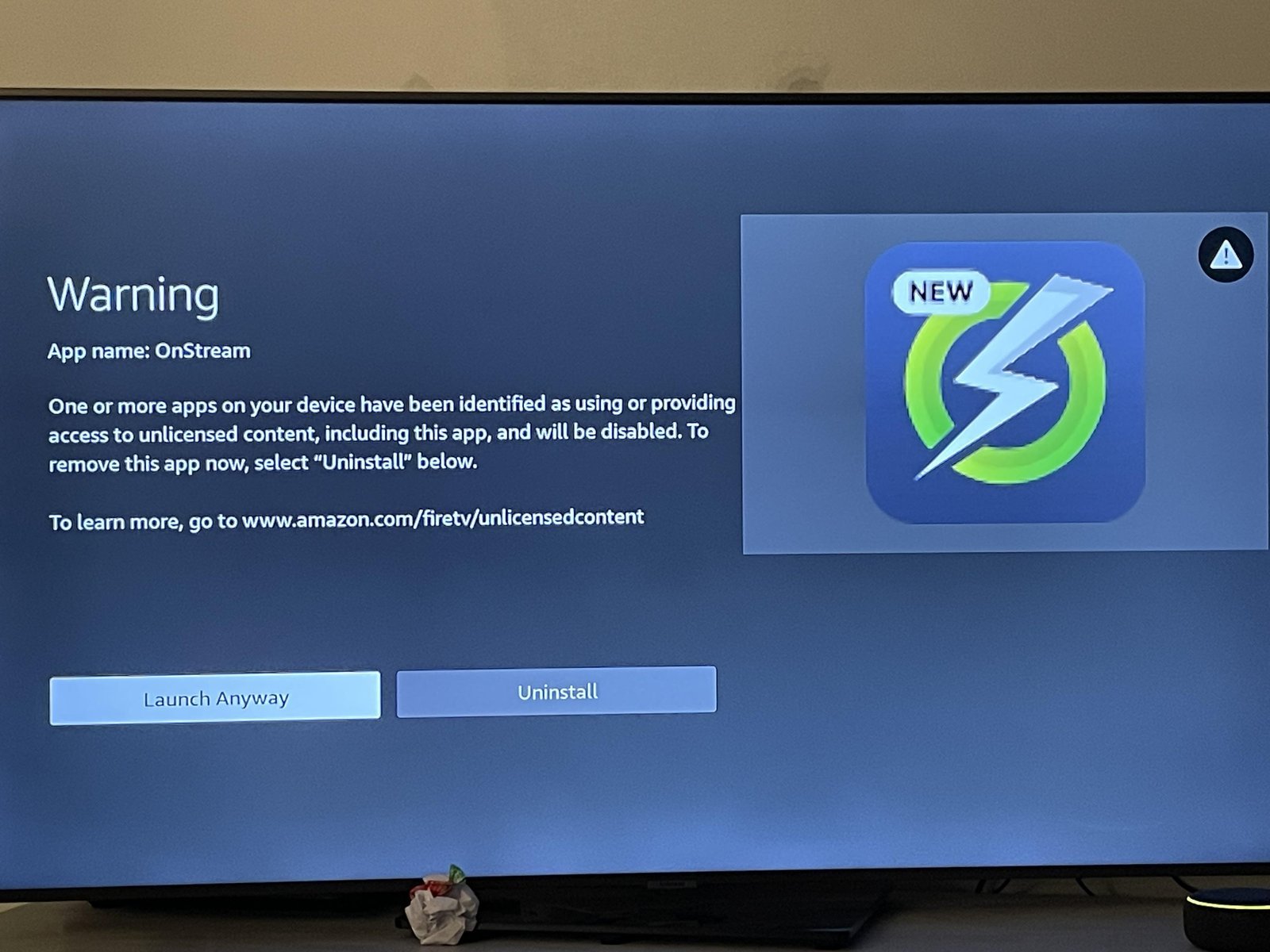
Harder cases require checking the device’s health. If your Firestick is almost out of storage, it can’t properly manage app shortcuts or updates. Check your available space in Settings under My Fire TV and then About. If you have less than 500 megabytes free, your device will struggle to run apps reliably.
It’s worth the time to clear out unused apps if you’re close to this limit. Additionally, check for system updates in the same menu. If your Fire OS version is outdated, it might not be able to communicate with newer versions of your apps. If you have tried these steps and the error persists, you should contact Amazon support directly. They can see if there’s an account-level restriction on your device that’s preventing specific apps from loading. Avoid third-party “cleaner” apps found online, as these often contain malware or cause more system instability than they solve. Only use the built-in system tools provided by Amazon to manage your storage and software.
What not to do
Don’t perform a factory reset as your first step. This wipes every app, cache, and account credential, yet it rarely resolves a single-app error. You should only consider a reset if you have already reinstalled the app and cleared its specific cache without success.
Avoid sideloading from unofficial sources when an app fails. These errors usually stem from system-level communication blocks or expired API keys, which a different file version can’t bypass. You risk installing malware that compromises your account security for no functional gain.
Never unplug your device during a system update. This interruption is the leading cause of file system corruption, which creates permanent boot errors. If the progress bar seems stuck, wait at least thirty minutes before taking action.
Don’t use third-party “cleaner” apps to manage your storage. These programs often delete essential system manifests that allow apps to identify themselves to the OS. If you need to free up space, manually clear the cache of individual apps through the settings menu instead of using automated tools that lack system-level awareness.
How to stop it happening again
Keep your device healthy by managing your apps and updates regularly. The following table shows how to manage your device to prevent future errors.
| If you’re doing this | Do this instead | Why |
|---|---|---|
| Leaving the device on 24/7 | Restart it once a week | Clears out temporary memory leaks |
| Filling storage to the max | Keep 1GB of free space | Allows room for background updates |
| Ignoring update prompts | Install updates when available | Ensures compatibility with app servers |
| Using a cheap power adapter | Use the original wall plug | Prevents power drops that cause corruption |
Most users mistakenly believe that closing apps manually saves battery, but this often forces the system to reload data from scratch. This creates unnecessary CPU spikes that degrade performance over time.
If your device feels sluggish after a restart, check your storage settings first. If you have less than 500MB available, clear your browser cache before deleting personal media.
If it is, install immediately. Ensure the device remains connected to power throughout the update process to avoid a mid-update shutdown.
Frequently asked questions
Can I fix this by just restarting my Firestick?
A simple restart often clears temporary glitches causing the error. Unplug the power cable for thirty seconds before plugging it back in to force the operating system to reload. This may restore access without changing settings.
Fixing the app not found error on Firestick after an update
This happens when an update is interrupted before completion. Uninstall and reinstall the app from the store to ensure you have a clean version. This usually occurs if your internet connection drops during the update process.
Is it safe to clear app data?
Yes, clearing app data is safe, though you’ll need to sign in again. This action removes saved settings and preferences for that specific app. It doesn’t affect your other apps or your Amazon account.
How long does it take to reinstall an app?
Downloads typically take two to five minutes depending on your internet speed. The app size determines the download duration, while the installation process is very fast. Ensure your Firestick has a stable connection to prevent file corruption.
What happens if the app is no longer in the store?
If an app is removed from the Amazon Appstore, you can’t reinstall it. The server no longer hosts the file or license key required for the download. You should look for an alternative app that provides similar content.
Final Thoughts
If these quick fixes don’t get your favorite shows back on screen, it’s a good idea to restart your device by unplugging it for a minute. Sometimes a simple power cycle is all it takes to refresh the system. You’ll be back to streaming your preferred content in no time at all.