
The most common reason for 1password not syncing between devices is a mismatch in the account status or a paused network connection on one of your gadgets. To fix this instantly, check that your device is online, then manually trigger a refresh by pulling down on the item list in your app. If that fails, sign out and sign back into your 1Password account on the device that isn’t updating. This forces the app to re-fetch your latest vault data from the central server.
Why this happens
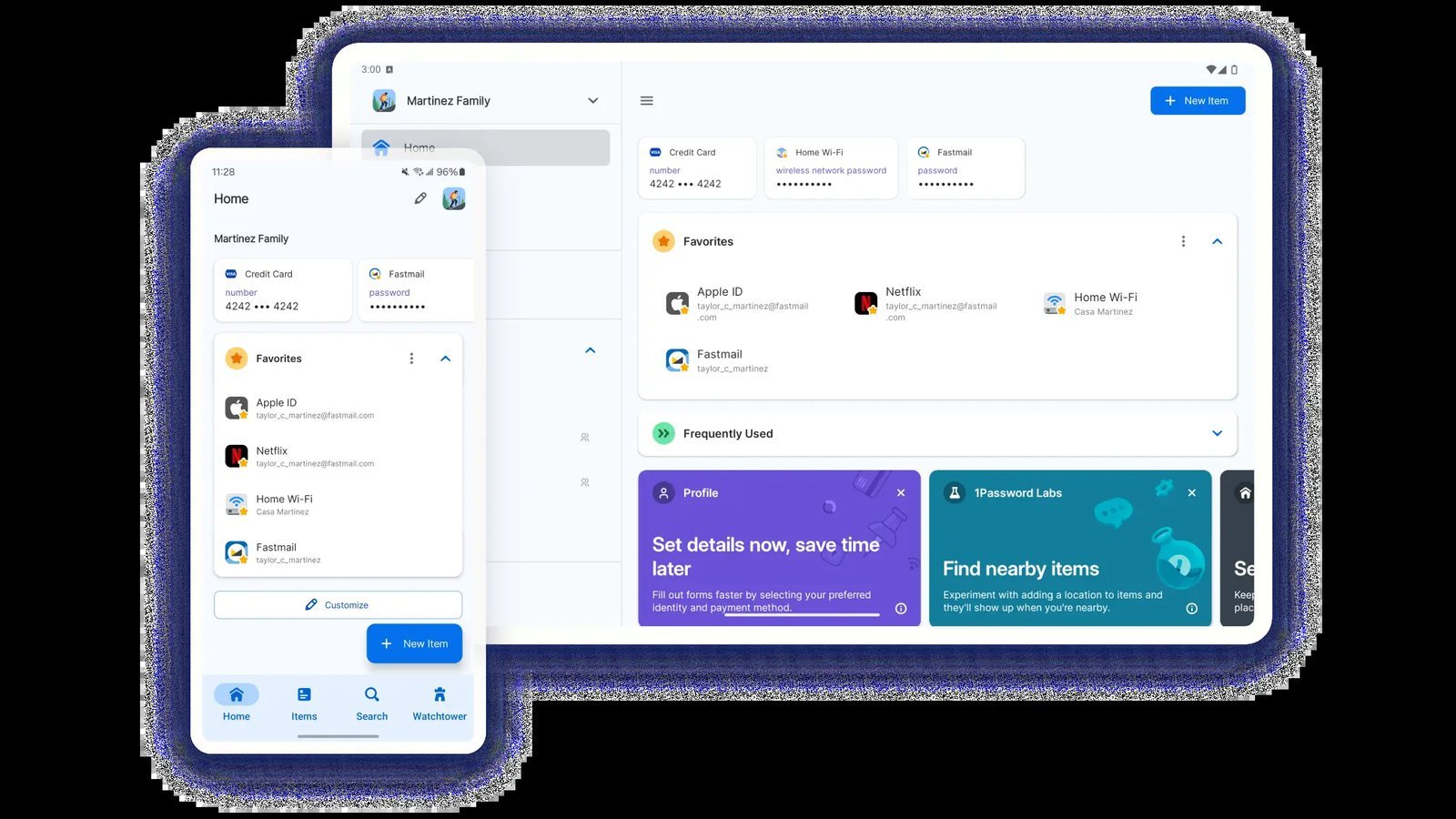
Synchronization in 1Password works by connecting your local app to the central 1Password server. When you save a new login or update a password on your phone, the app sends that encrypted data to the cloud. Your other devices then pull that update during their next check-in. If this chain breaks, you see old data on one device while your new entries exist elsewhere.
The most frequent culprit is a simple connectivity issue. If your laptop or phone has a weak signal, or if a firewall is blocking the app’s access to the internet, the sync process can’t complete. This is especially true on public Wi-Fi networks that require a browser-based login, as the background 1Password service often lacks the permissions to pass through that portal.
Another cause is an outdated app version. If you run a newer version of the software on your desktop and an older version on your tablet, the sync protocols might not match. The server requires both ends to speak the same “language” to ensure your encrypted data remains secure during the transfer. You can verify your current app version and check for necessary updates on the official 1Password support page.
Finally, verify that you’re signed into the exact same account on every device. It’s surprisingly easy to be logged into a personal vault on one machine and a family or work vault on another, making it appear as though your data is failing to sync.
Force a manual refresh
If your apps are connected to the internet but remain out of sync, you should force a manual refresh. This is for users who see a “last synced” timestamp that’s more than a few minutes old. To do this on a mobile device, open the app, navigate to the main list of items, and pull down from the top of the screen until you see the loading spinner.
If you have multiple vaults, ensure you’re viewing the correct one. If you’re in a “Private” vault but added your login to a “Shared” vault, you won’t see your changes. This fix isn’t for users who have forgotten their master password, as a sync refresh requires you to be fully logged into the app first. If you can’t log in due to a forgotten password, you must use your Emergency Kit to regain access before you can troubleshoot sync problems. If your device displays an error code during this refresh, note the number and check the official status page.
Re-authenticate your account
Sometimes the authentication token between your app and the server expires or becomes corrupted. When this happens, the app looks like it’s working, but it can’t send or receive new data. Re-authenticating is the best way to clear this state. To perform this, go into the app settings and find the “Accounts” or “Profiles” section. Select your account and choose the option to “Sign Out” or “Remove Account.”
Once you sign out, restart your device to clear any residual temporary files. Open 1Password again and sign in using your email address, Secret Key, and Master Password. This process forces the app to build a fresh, clean connection to the server. This isn’t for people who don’t have their Secret Key handy; if you don’t have your Emergency Kit or Secret Key, don’t sign out. You’ll be locked out of your vault until you recover those credentials. If you’re a member of a family or team plan, you might need to re-verify your device through your email as a security precaution. This is a common trade-off: you gain better security by requiring re-verification, but it costs you a few extra minutes of setup time. If you still see a sync error after logging back in, your network security software may be interfering with the connection.
Check for conflicting software
In some cases, local security software or system-level VPNs prevent 1Password from reaching the sync servers. This is common if you have an aggressive firewall or a “strict” VPN profile that blocks background traffic. If you suspect your network is the issue, temporarily disable your VPN or firewall to see if the sync completes. If it does, you need to add an exception for the 1Password application in your security software settings.
This step is for those who have already tried refreshing and re-signing in without success. It requires a basic understanding of your computer’s security settings. If you aren’t comfortable managing firewall rules or VPN configurations, reach out to your IT department or the software provider for help. Making the wrong change to a firewall can leave your system vulnerable, so only proceed if you’re confident in your settings. This fix isn’t for mobile devices where you can’t easily modify system-level network traffic. On a phone, the better path is to switch from cellular data to a stable Wi-Fi connection, or vice versa, to see if the carrier is the one blocking the connection. If you’re in a corporate environment, your employer may have a policy that restricts syncing to company-approved cloud services, which would prevent 1Password from syncing entirely unless you’re on the company network.
What not to do
- Don’t uninstall the app without checking your Secret Key. Don’t uninstall the app without ensuring you have your Secret Key and Master Password, as you’ll need these to sign back in.
- Don’t try to force a sync by changing your Master Password. Changing your password changes the encryption key for your vault, which complicates sync issues rather than solving them.
- Don’t use third-party “sync” tools or cloud folders to manually move your vault file. 1Password uses its own encrypted cloud service, and moving files manually will corrupt your database and lead to permanent data loss.
- Don’t ignore “Sync Error” messages in the app settings. These messages usually contain specific codes that tell you exactly why the connection failed, such as a server timeout or an authentication failure.
How to stop it happening again
To keep your devices in sync, ensure your settings allow background data usage and that you update your apps regularly.
| If you’re doing this | Do this instead | Why |
|---|---|---|
| Closing the app immediately | Leave the app open for a moment | Sync needs a few seconds to finish |
| Using free public Wi-Fi | Use a trusted connection or VPN | Public portals block background traffic |
| Ignoring app updates | Enable auto-updates in settings | New versions fix known sync bugs |
| Turning off background data | Allow background refresh for 1Password | This keeps the vault current at all times |
Frequently asked questions

Can I fix sync issues by reinstalling the app?
You can fix persistent sync issues by reinstalling the app if you have your Secret Key and Master Password saved. Verify your data on the 1Password website first, as a fresh install clears corrupted local files. You’ll be permanently locked out if you lack your credentials.
Why is 1Password not syncing between devices?
Sync issues usually occur because a device has lost its connection to the 1Password server. Check the “Sync” status in your settings to identify offline errors. Ensure both devices have a stable internet connection and manually pull down on the item list to trigger a sync request.
How long does it take for a password to sync?
Changes typically sync across all devices in less than five seconds. This requires a stable internet connection on both the originating and receiving devices. Syncing may take longer or fail entirely if you’re using a slow or unstable cellular connection.
Is it safe to use 1Password on public networks?
Yes, it’s safe to use 1Password on public networks because all data is encrypted before it leaves your device. The app uses end-to-end encryption, meaning that even if someone intercepted the data, they couldn’t read it without your Master Password. However, a public network might block the connection entirely, preventing a sync. If you can’t sync on public Wi-Fi, try switching to a personal hotspot to complete the update.
What happens if I lose my Secret Key while trying to fix sync?
You can’t sign into your account on a new device or recover your vault without your Secret Key. Locate your Emergency Kit or saved credentials to regain access. If you’re part of a team or family, an administrator may be able to assist you.
Final Thoughts
If you’re still having trouble after these quick checks, don’t hesitate to reach out to the support team. They’re happy to help you investigate deeper connection issues. Once your data is flowing smoothly again, you’ll be back to managing your passwords securely and won’t have to worry about missing updates anymore.
Related guides


