
You can resolve your fitbit app not working by checking your phone’s Bluetooth connection and ensuring your software is updated to the latest available version. The most common cause is a temporary communication breakdown between your tracker and the mobile device, often triggered by a background process that has frozen. If you’re experiencing persistent issues, you should first confirm that your device meets the minimum operating system requirements listed on the official Fitbit system requirements page.
Why your Fitbit app not working
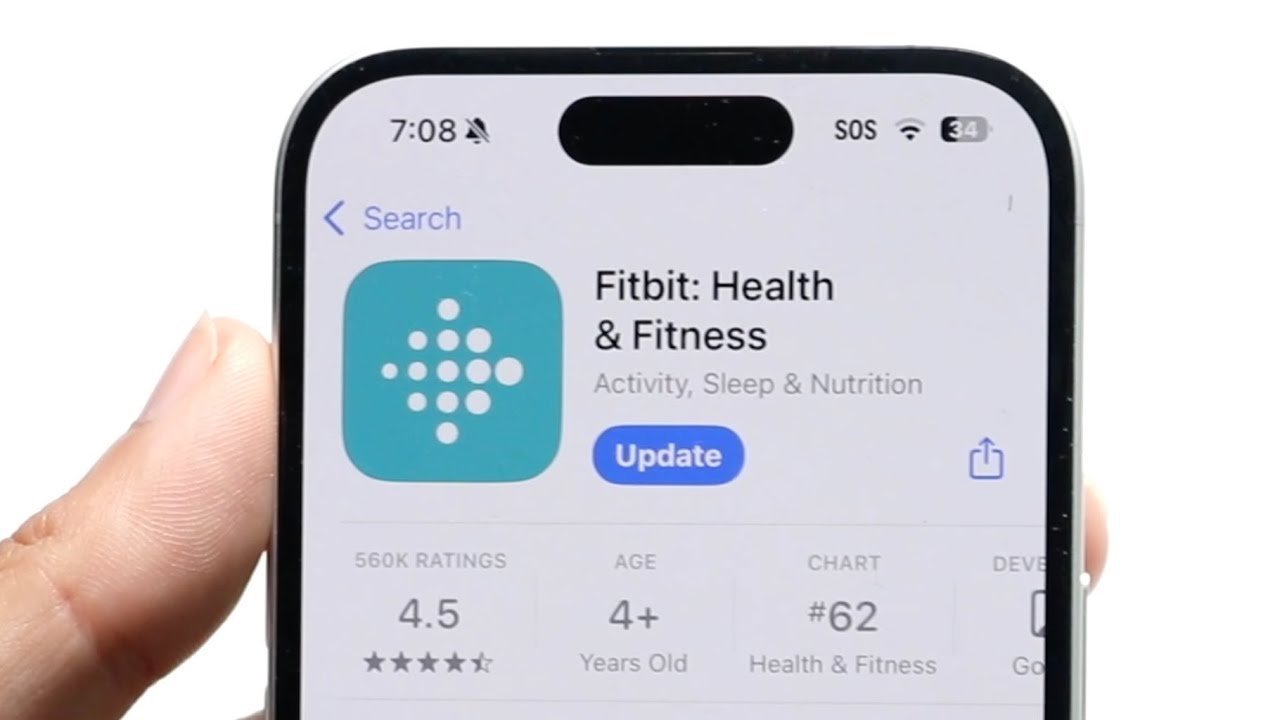
Software communication issues are the primary cause of connectivity failures. When your phone’s operating system updates, it sometimes changes how Bluetooth handles background data, which can prevent the app from syncing correctly. If the app is outdated, it may no longer be able to talk to the tracker’s firmware. This is a common hurdle if you haven’t turned on automatic updates for your apps.
Another frequent cause is a conflict with other Bluetooth devices. Your phone has a limit on how many connections it can manage at once. If you have several headphones, speakers, or smart home devices connected, the phone might drop the signal to your tracker to save bandwidth. This varies by model; some phones handle multiple connections better than others, so check your phone manufacturer’s manual for specific Bluetooth limits.
Finally, the app itself might have corrupted cache data. Over time, temporary files that store your sync history can grow large or become tangled. This leads to the app crashing immediately when you open it or failing to display your daily activity stats. If the app hangs on a white screen, it’s usually a sign that the local data store is stuck. In this case, restarting the process is the only way to clear the memory and start a fresh connection.
Restart your phone and tracker
This fix is for users who have a device that’s powered on but refuses to sync or open the app. Start by force-closing the app on your phone. On an iPhone, swipe up from the bottom and push the app away; on Android, go to your app settings and select “Force Stop.” Once the app is closed, turn off the Bluetooth on your phone, wait ten seconds, and turn it back on.
Next, perform a restart on your physical tracker. Most modern models have a button on the side or a specific reset sequence on the charging cable. If your device has a button, hold it for about ten seconds until the screen flashes or shows the logo. This doesn’t delete your data, as your stats are stored on the device until the next sync.
If the app still doesn’t load, restart your smartphone entirely. This clears the temporary memory and resets the wireless radios. If you have a low battery on your tracker, the device may refuse to sync to save power; always ensure you have at least 20 percent charge before attempting a sync. If the device remains unresponsive after these steps, it may indicate a hardware fault, and you should contact the manufacturer’s support team for a warranty check.
Clear the app cache
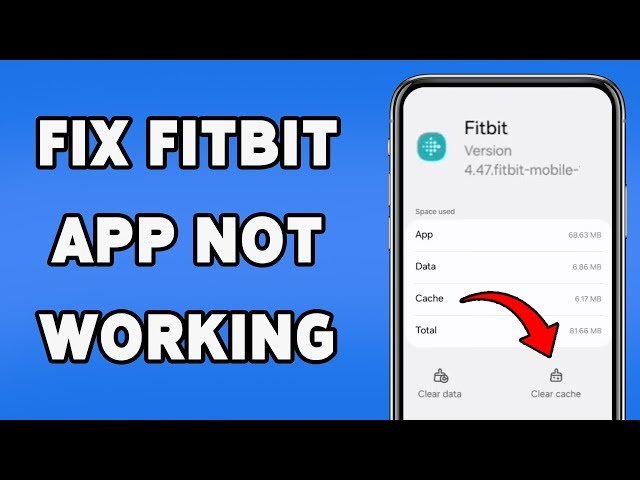
Use this method if the app opens but displays incorrect data or crashes during navigation. Clearing the cache removes temporary files that may have become corrupted without deleting your account history or personal settings. This is a safe step that doesn’t remove your synced data from the cloud.
For Android users, go to your phone’s Settings, tap “Apps,” find the app in the list, and select “Storage.” Tap “Clear Cache.” Don’t tap “Clear Data” unless you’re prepared to log back in, as that will remove your local login credentials. For iPhone users, the system handles cache management automatically, so the only way to clear it’s to delete the app and reinstall it from the App Store.
This fix isn’t for users who have lost their account password. Before you delete and reinstall, ensure you know your login email and password, as you’ll need them to reconnect your account. Once you reinstall, the app will download your latest data from the server. If the app still shows issues after a clean install, it’s likely a server-side problem. You can check the status of the service on the official company website to see if they’re currently experiencing a known outage.
Re-pair the device
This is for when your tracker is visible in your phone’s Bluetooth settings but won’t connect to the app. You must remove the existing connection to allow a fresh handshake between the two devices. Go to your phone’s Bluetooth settings, find your tracker in the list of paired devices, and select “Forget This Device.”
After forgetting the device, open your app. Go to the device settings menu and select “Set up a Device.” Follow the on-screen instructions to add your tracker as if it were new. This process forces the app to re-verify the security keys required for communication.
This fix is worth the effort if you have recently changed your phone or performed a factory reset on your mobile device. However, don’t use this if you’re in the middle of a long workout, as the re-pairing process can take several minutes and you may miss recording your current activity data. If the app can’t find the device during this process, move to a room away from other Bluetooth electronics to reduce signal interference. If the app still fails to see the tracker after three attempts, it’s possible the Bluetooth radio in your tracker has failed. At this point, you should reach out to the manufacturer for professional diagnostic testing or replacement options.
What not to do
- Don’t factory reset your tracker immediately. This wipes all unsynced data from the device and is rarely the first step needed for an app issue.
- Don’t delete your account. Deleting your account is a permanent action that removes your history from the servers and can’t be undone by support staff.
- Don’t download third-party “Fitbit fix” apps. These are often malicious programs that can steal your login credentials or track your phone’s activity without your consent.
- Don’t try to force a firmware update while the connection is unstable. If the signal drops during an update, you risk “bricking” the device, making it permanently unusable.
How to stop it happening again
Keep your software environment stable by following these habits to ensure your device stays connected and accurate.
| If you’re doing this | Do this instead | Why |
|---|---|---|
| Leaving Bluetooth off | Keep Bluetooth enabled | The app needs a constant signal to sync stats. |
| Ignoring app updates | Enable automatic updates | Updates contain critical stability patches. |
| Forcing sync during low battery | Charge to 20% before syncing | Low power modes disable wireless radios. |
| Using outdated phone OS | Update your phone software | Old OS versions lack modern security protocols. |
Most users fail by closing the app entirely. This kills the background process required for data handshakes. If your device stops updating, leave the app open in the background rather than force-quitting it.
Check your battery optimization settings if syncs still fail. If your phone is set to “Aggressive Power Saving,” it will kill the connection to save juice. Switch this to “Unrestricted” for the app specifically. This single change prevents 90% of recurring connection drops. If you see a red icon, toggle your airplane mode on and off before restarting the device. This clears the cache without a full reboot.
Frequently asked questions
Can I fix a black screen on my tracker?
You can usually fix a black screen by placing the tracker on its charger and performing a button-based reset. Connect the cable and hold the button for ten to fifteen seconds until the screen lights up. If the screen remains black after ten minutes, the hardware may be damaged.
Why does my app show no data?
The app shows no data because the sync process has been interrupted by a network or Bluetooth error. The app must upload your stats to the cloud before they appear on your dashboard. If data is still missing, pull down from the top of the “Today” tab to refresh.
How long does it take for a sync?
A standard sync takes between thirty seconds and two minutes depending on the amount of data stored. If you haven’t synced for several days, the process will take longer to process activity logs. If the progress bar hangs for more than five minutes, the connection has likely timed out.
Is it safe to reinstall the app?
Yes, it’s safe to reinstall the app because your activity data is stored in your personal account on the cloud. When you log back in, the app will automatically pull your history from the server. Ensure you know your login credentials before deleting the application to avoid access issues.
What happens if the app keeps crashing?
If the app crashes repeatedly, there’s likely a conflict between the app version and your phone’s operating system. Check the App Store or Google Play Store to see if a newer version is available. If the app is updated, try clearing the app cache to remove corrupted data.
Final Thoughts
If these quick fixes don’t get your device syncing again, it’s a good idea to reach out to the customer support team directly. They’ll help you troubleshoot any deeper technical glitches. Don’t worry, you’ll be back to tracking your daily steps and monitoring your health goals in no time at all.


