
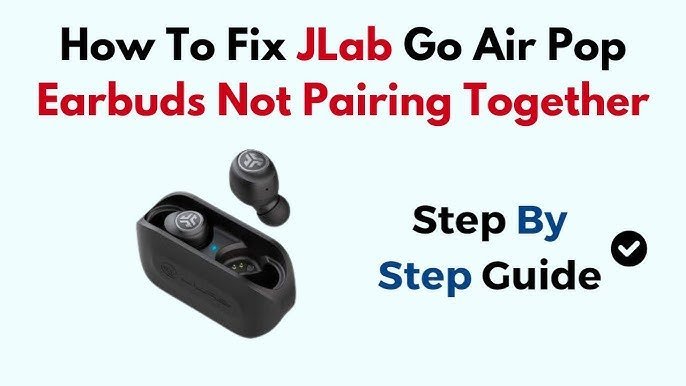
To fix JLab earbuds not syncing, perform a manual factory reset on the charging case. This issue occurs when earbuds lose their connection and pair as two separate devices, appearing as individual entries in your Bluetooth list. Because button sequences vary by series, check the official JLab support guide for your specific model.
Fixing JLab earbuds not syncing together
| Cause | How common | How to confirm it | Fix it yourself? |
|---|---|---|---|
| De-synced internal pairing | Most common | Two names in Bluetooth | Yes |
| Low battery levels | Very common | One side doesn’t light | Yes |
| Dirty charging contacts | Common | One side doesn’t charge | Yes with care |
| Bluetooth cache conflict | Occasional | Phone fails to connect | Yes |
| Firmware mismatch | Rare | Unusual blinking patterns | Yes |
| Out of range | Rare | Sound cuts in/out | Yes |
| Hardware failure | Very rare | No lights ever | No |
If you see two separate device names in your Bluetooth settings, the earbuds have lost their master-slave link. You must perform a factory reset by holding the case button for exactly ten seconds until the LEDs flash white. Don’t simply toggle Bluetooth off and on, as this leaves the internal sync broken.
When cleaning contacts, use only 90% isopropyl alcohol and a cotton swab. Using water or metal tools risks permanent corrosion, which voids your warranty immediately. If you notice one side failing to charge, check for debris inside the case’s deep pinholes.
If you suspect a firmware mismatch, check the manufacturer app for a “Version Mismatch” alert. If no alert exists, the issue is likely hardware failure. Don’t attempt a manual firmware flash unless the app explicitly prompts you, as interrupting the process will brick the device permanently. Always prioritize a full factory reset before assuming the hardware is dead.
Resetting the internal connection
A de-synced connection occurs when the left and right buds stop talking to each other. This happens because the internal software becomes confused, often after one earbud dies or loses contact with the case. You’ll notice this when your phone sees two separate devices instead of one, or when only one side plays audio at a time.
To fix this, start by removing the earbuds from your phone’s Bluetooth memory. Go to your phone settings, select the JLab device, and tap “Forget This Device.” Next, place both earbuds inside the charging case. With the earbuds in the case, tap or hold the touch sensor on each earbud a specific number of times, usually four times in quick succession. The lights on the earbuds will blink to show they’re clearing their memory. After they finish blinking, take them out of the case at the same time. Wait about ten seconds for them to find each other. If they’re successful, one earbud will blink blue and white, while the other stops blinking. This means they’re now synced and ready to pair with your phone. This process takes about two minutes of active work. If you have a model with physical buttons instead of touch sensors, the button press count remains the same, but you’ll feel a click. If you get it wrong, just put them back in the case and start over.
Resolving power and contact issues
Power imbalance is the second most common reason for syncing failure. If one earbud has a lower charge than the other, it may shut down or fail to enter pairing mode, preventing the pair from working as a single unit. You can tell if this is the cause by looking at the indicator lights on the case or the buds; if one side stays dark while the other flashes, that side is likely dead.
Clean the charging contacts to ensure both buds receive power. Use a dry, soft cotton swab to gently wipe the gold pins inside the case and the metal dots on the earbuds. Don’t use water or liquid cleaners, as this can damage the internal components. Once cleaned, place both earbuds firmly into the slots. If the charging light doesn’t turn on, adjust the earbud position slightly until the light glows. Leave them to charge for at least one hour before attempting to pair them again. This assumes a standard charging cable and wall adapter; if you’re using a weak USB port on a computer, allow double the time for a full charge. If the light remains off after cleaning and repositioning, the earbud may have a hardware fault. This process is simple but requires patience, as a rushed connection often leads to the same syncing error.
Clearing wireless interference
Bluetooth cache conflicts happen when your phone keeps old, incorrect data about your earbuds. This is a common mistake that people make; they try to re-pair without deleting the old connection first, which causes the phone to struggle between the old “two-device” profile and the new “single-device” profile.
To clear this, turn off the Bluetooth setting on your phone entirely. Keep it off for at least thirty seconds to force your phone to clear its internal memory. While the Bluetooth is off, perform a full reset of the earbuds as described in the previous section. Once the earbuds are reset and flashing to indicate they’re searching for a host, turn your phone’s Bluetooth back on. Select the earbuds from the “Available Devices” list. If your phone asks for permission to pair with the second earbud, always click “Pair” or “Allow.” This ensures that both buds are registered correctly. If you skip this step, the phone might only connect to one side, leading to the same syncing issues. This fix takes about one minute and is the most reliable way to stop recurring connection drops. If you have multiple devices nearby like tablets or laptops, turn their Bluetooth off as well to ensure they do not “steal” the connection before the earbuds have a chance to sync with each other properly.
The less likely causes
Firmware mismatch: The internal software version of the two buds is different, requiring an update through the official JLab app. If you see one earbud blinking while the other remains dark, the primary bud has likely updated while the secondary failed to sync.
Physical blockage: Debris in the charging case prevents one bud from turning off, which stops it from resetting properly. Check the gold contact pins for lint or earwax buildup. If the LED on the case fails to light up when a bud is inserted, the connection is obstructed.
Distance issues: Trying to pair while the earbuds are more than three feet apart causes them to fail the handshake sequence. Always keep them touching during the initial reset.
Hardware damage: Internal battery failure prevents one earbud from holding a charge. If a bud stays dead after six hours on the charger, it requires a replacement.
What a fix usually involves
Fixing syncing issues generally requires only your time and a clean cloth. Most solutions involve a reset, which is a small software task you perform using the buttons or touch sensors on the device. If the problem is caused by dirt on the charging pins, you only need a dry cotton swab. These repairs cost nothing beyond your own time. However, if the issue is a faulty battery or a broken sensor, the cost could be a large portion of the price of a new set. In such cases, you should check the warranty status on the JLab website to see if you’re eligible for a replacement. If you have tried all the steps above and the buds still fail to sync, contact customer support through the official brand website. They can confirm if your specific model requires a unique reset sequence not found in the general manual. Always check the physical manual included in the box for model-specific button patterns.
Frequently asked questions
Why does only one earbud connect to my phone?
This happens because the earbuds have lost their digital link to each other and are acting as two separate Bluetooth devices. You can fix this by “forgetting” the device in your phone settings and performing a factory reset on the earbuds while they’re inside the charging case. Once they’re reset, they will find each other again before you try to connect them to your phone.
How long does the reset process take?
The reset process takes about two minutes of active work. You must place the earbuds in the case, tap the sensors the required number of times, and wait for the lights to indicate the memory is cleared. If they don’t sync after the first attempt, you may need to repeat the process, which will take another two minutes of your time.
Is it safe to clean the charging contacts?
Yes, it’s safe to clean the contacts as long as you use a dry, soft tool. Never use water, soap, or metal objects, as these can cause a short circuit or scratch the gold plating. A simple dry cotton swab is the only tool you need to remove the oil or dust that stops the earbud from getting power.
What happens if I don’t forget the device first?
If you don’t forget the device, your phone will try to use the old, corrupted connection data. This often causes the phone to see two separate entries for the same pair of earbuds. Deleting the old profile is a required step because it clears the cache and allows the phone to treat the earbuds as a single, new connection.
Does it matter if my earbuds are fully charged?
Yes, it matters because low battery levels often stop the earbuds from finishing the pairing sequence. If one earbud dies during the sync process, the connection will fail. Always ensure your charging case and both earbuds are fully charged before you attempt a factory reset to make sure they have enough power to complete the handshake.
Can I use a different charging case?
No, you can’t use a different charging case because the internal pins are specific to each model. Using a case from a different version of earbuds won’t provide the correct power, and the reset buttons won’t align. Only use the original case that came with your specific model to ensure the earbuds charge and reset as intended.
Final Thoughts
If you’re still having trouble after trying these resets, don’t worry. Sometimes a simple firmware update through the JLab app can clear up lingering connection bugs. Reach out to their friendly support team if you can’t get them working, as they’ll be happy to help you get back to your music.
Related guides


