
You can fix icloud notes not syncing by toggling the Notes switch off and back on in your iCloud settings menu. This action forces your device to re-establish a connection with Apple’s servers and often clears up temporary data bottlenecks. If your notes still fail to appear across all devices, it’s usually because the account isn’t signed in to the same Apple ID on every unit or the system date and time settings are incorrect.
Fixing iCloud notes not syncing
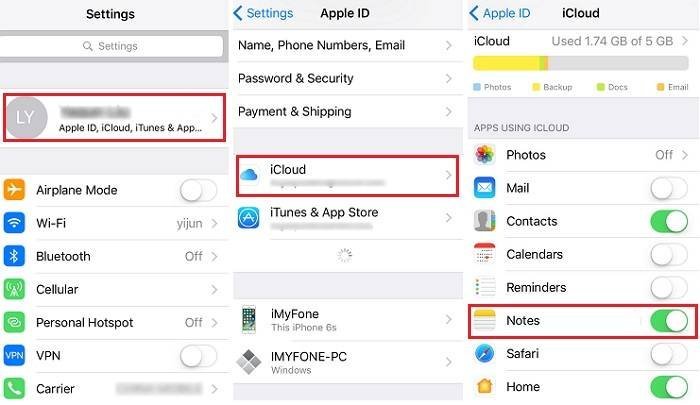
The most frequent reason for this issue is a mismatch in account authentication. If you’re signed in to different Apple IDs on your iPhone and Mac, the devices can’t communicate with the same cloud storage space. You should always verify that the email address listed at the top of your iCloud settings matches exactly on every device.
Another common cause is the system time or date being set incorrectly. iCloud relies on secure tokens that require your device’s clock to be perfectly synchronized with network time servers. If your clock is off by even a few minutes, the handshake between your device and the server will fail, preventing any data from uploading or downloading. You can check this by going to your settings and ensuring “Set Automatically” is enabled.
Finally, storage limits can block new data. If your iCloud storage is full, the system will pause syncing to prevent data loss or corruption. When you reach your storage limit, you must either delete old files, remove large attachments from your notes, or upgrade your storage plan. You can view your current usage status through the Apple iCloud storage management page to see if you have crossed your current quota. This varies by model — check the label or settings menu on your specific device to see your exact remaining capacity.
Toggle the account settings
If you need to force a refresh, you should first try toggling the sync feature. Go to the Settings app on your iPhone or iPad, tap your name at the top, and select iCloud. From there, tap “Show All” under the apps using iCloud and find Notes. Turn the switch to the off position, wait about 15 seconds, and then turn it back on. This simple step clears the local cache of your notes and asks the server to push a fresh copy to your device.
If this is for a shared note, ensure you have a stable internet connection before flipping the switch. This fix isn’t for users who have accidentally deleted their notes from the “Recently Deleted” folder, as toggling the sync won’t recover files that have been permanently purged. If you have a slow connection, wait at least three minutes for the initial re-sync to complete before checking your notes app.
Who this is NOT for: This process won’t help if you have multiple iCloud accounts active on one device, as the notes might be syncing to a secondary account instead of your primary one. If you see your notes on the iCloud website but not on your phone, check your account settings to ensure the Notes app is enabled for the specific account you’re viewing. If the data still refuses to show up, it’s time to sign out of iCloud completely and sign back in, but do this only if you have a backup of your data.
Check network and system status
Sometimes the problem isn’t your device, but the connection between your device and the internet. Many users find that their notes stop syncing because they’re using a restrictive Wi-Fi network, such as one at an office or school that blocks specific traffic. If you’re on a restricted network, try switching to cellular data or a private home connection to see if the sync resumes immediately.
Another mistake people make is ignoring the system status page. Before you spend hours troubleshooting, check if Apple is experiencing a service outage. If the iCloud Notes service is down, no amount of toggling or restarting will fix the sync until their engineers resolve the issue on their end.
The trade-off here is speed versus battery life. You can keep your notes updated instantly by leaving background app refresh turned on, but this consumes more power. If you’re trying to save battery, you might have set your device to sync only when plugged into power. If you find your notes aren’t updating while on the go, check your background app refresh settings to make sure Notes is toggled to the “On” position. This allows the app to communicate with the cloud even when you aren’t actively using it, which is the best way to ensure your changes appear everywhere without manual intervention.
Update your system software
Updating your operating system is the most effective way to resolve persistent sync errors. Apple frequently releases patches that fix bugs within the Notes application and the way it talks to iCloud. If you’re running an outdated version of iOS or macOS, your device may be using an older protocol that the current iCloud servers no longer support.
This fix is for anyone who has already tried toggling settings and checking their internet connection without success. To perform an update, go to your General settings and look for Software Update. If a version is available, download and install it. This requires a stable Wi-Fi connection and at least 50% battery life, or your device must be connected to a charger.
If you’re still experiencing issues after the update, you should look at your storage settings one last time. A device with less than 1 gigabyte of free space often struggles to index new notes, causing the sync to hang indefinitely. If you have very little space left, delete large photos or videos to give the system enough room to process the sync. This is a common point of failure for older devices with small storage capacities. If you aren’t comfortable performing these updates or managing your internal storage, contact a local authorized service provider for assistance.
What not to do
Don’t delete the Notes app from your device. This action permanently wipes all locally stored notes that haven’t yet synced to the cloud. You have no way to recover these files once the app container is destroyed.
Avoid turning off iCloud completely for your entire account. This signs you out of every linked service, including Photos and Find My. You’ll then face the tedious task of re-authenticating every device and re-downloading your entire media library.
Don’t use third-party “sync repair” tools found online. These are almost always scams designed to harvest your private data. If a tool asks for your Apple ID password, it’s a phishing attempt.
Don’t try to force a manual sync by creating hundreds of empty notes. This overwhelms the server and triggers a rate limit, which makes the syncing process even slower. If your notes are stuck, simply toggle the Notes switch in iCloud settings off and on once.
How to stop it happening again
The best way to prevent future issues is to maintain a consistent environment across your devices. Use the following table to adjust your habits and keep your notes flowing smoothly.
| If you’re doing this | Do this instead | Why |
|---|---|---|
| Using different Apple IDs | Use one Apple ID | Syncing requires a single unified account |
| Ignoring software updates | Enable auto-updates | Patches fix known sync bugs |
| Keeping storage full | Clear unused files | Syncing needs space to index data |
| Using public Wi-Fi | Use a private connection | Public networks often block iCloud |
Most users fail by ignoring the “Optimize Storage” setting. If your device has less than 2GB of free space, the sync engine will prioritize system stability over your notes. This causes silent failures where changes appear saved but never reach the cloud.
Check your status by navigating to your account settings. If the sync icon shows a spinning wheel for more than five minutes, force a restart of the application. This clears the local cache and forces a fresh handshake with the server. If you see a “Sync Failed” error, toggle your Wi-Fi off and on again to reset the network path.
Frequently asked questions
Can I recover notes that were deleted?
You can recover notes from the “Recently Deleted” folder for 30 days. Simply open the folder, select your note, and move it back to your main list. If the note isn’t there, it has been permanently removed from the server and can’t be retrieved.
Why do my notes show on iCloud.com but not my phone?
This happens because your phone isn’t signed in to the correct account or the Notes sync toggle is turned off. Check the iCloud settings on your iPhone to verify that the email address matches the one you see on the website. If the account is correct, turn the Notes toggle off and on to force the device to pull the latest data from the cloud server.
How long does an iCloud sync take?
Syncing usually takes a few seconds, but this depends on your internet speed and the size of your attachments. If you have added large photos or documents, the sync might take several minutes to complete. If your notes don’t appear after five minutes, ensure you have a strong Wi-Fi or cellular connection and that your device isn’t in Low Power Mode.
Is it safe to sign out of iCloud?
Yes, it’s safe, but it will remove your synced data from the device until you sign back in. When you sign out, your phone will ask if you want to keep a copy of your data; choose “Keep a Copy” to ensure you don’t lose anything during the process. Once you sign back in, the device will re-download your notes from the cloud automatically.
What happens if I turn off iCloud for Notes?
Turning off sync removes cloud-stored notes from your device. If you choose to keep a local copy when prompted, those notes remain on your phone but will no longer update across other devices. You must re-enable the toggle to merge local notes with the cloud again.
Final Thoughts
If these quick adjustments don’t do the trick, you shouldn’t hesitate to reach out to Apple Support for further help. Sometimes, a deeper account issue is at play that only their team can resolve. They’ll be happy to assist so you don’t lose any more of your important work.
Related guides


