
You can fix your iphone calendar not syncing with outlook by checking your account settings in the Mail app and ensuring the Calendar toggle is turned on. The most common cause is a simple sync conflict where the iOS software has lost the connection to your server credentials. This happens often after an iOS update or when you change your password on a desktop computer. If you have the right password, you should see your events appear within a few seconds of toggling the switch.
Reasons your outlook calendar isn’t syncing
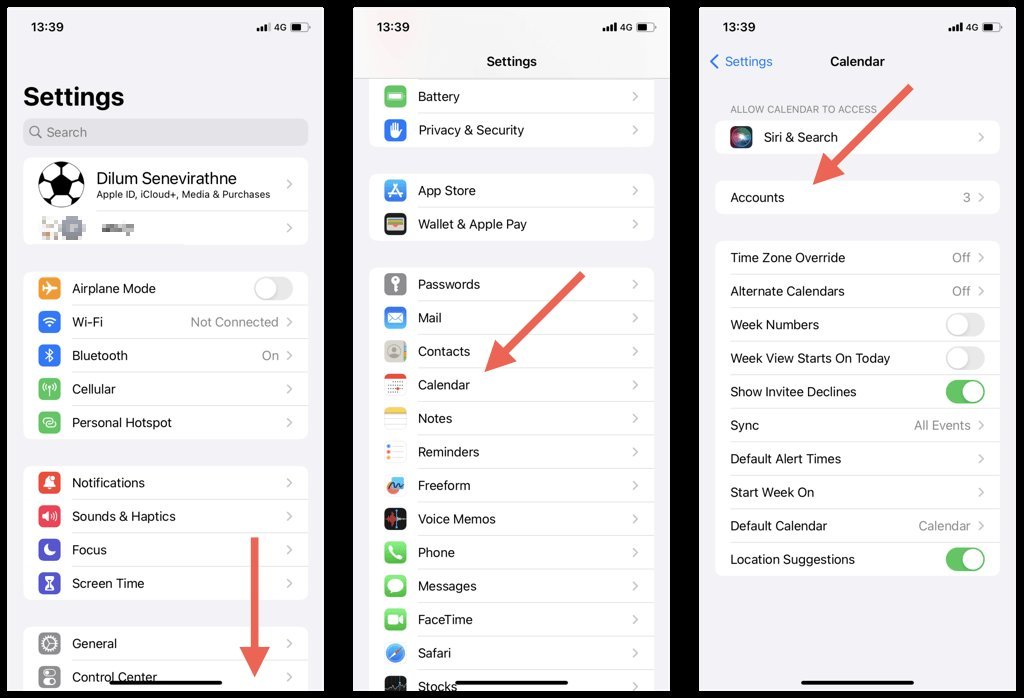
Syncing issues usually stem from a breakdown in the communication between your mobile device and the Microsoft Exchange server. When your iPhone stops talking to the server, it’s usually because the account authentication has expired or the sync interval is set too high.
Another frequent cause is the “Fetch” setting. If your phone is set to fetch new data manually, it won’t pull updates from your Outlook calendar until you open the app and force a refresh. This varies by model — check the label in your settings menu to see if you’re using “Push” or “Fetch.” If you’re on a metered data plan, your phone might also be restricting background sync to save battery or data.
Finally, consider the server configuration. If your Outlook account uses two-factor authentication, the phone might require a new “app password” or a re-login to authorize the connection. This is a security measure rather than a bug. If you’re unsure if your account is blocked, you can verify your account status and server requirements at the Microsoft support office account help page. If the server itself is down, no amount of toggling will fix the sync, so check the official Microsoft service status dashboard if you still see errors after trying the steps below.
Verify account settings
This fix is for users who have already added their Outlook account but see no events. Go to Settings, tap Mail, then tap Accounts. Select your Outlook or Exchange account from the list. Look for the Calendar toggle and make sure it’s green. If it’s already on, toggle it off, wait ten seconds, and turn it back on. This forces the device to re-query the database.
If you see a prompt asking for your password, enter it carefully. If you have recently changed your Outlook password on your PC, you must enter the new one here. For those with two-factor authentication, don’t use your standard password if the app requests an “App Password.” You’ll need to generate that specific code inside your Microsoft security settings on a browser.
You’ll know this worked if you open your Calendar app and see the “Refreshing” spinner at the bottom of the screen. If you have multiple calendars, tap the “Calendars” button at the bottom center of the app to ensure your Outlook account is actually checked. A common mistake is leaving the account active but unselected in the view menu, which makes it look like the data is missing when it’s merely hidden. If the sync fails to initiate after two minutes, restart your device to clear the cache.
Adjust fetch settings
This fix is for users whose calendar only updates when they open the app. If you need your calendar to stay current throughout the day, you must change how your phone retrieves data. Go to Settings, tap Mail, and then tap Accounts. At the bottom, tap “Fetch New Data.”
Ensure the “Push” toggle is turned on at the top. Below that, under the “Fetch” section, select “Automatically” if your battery life allows it. If you prefer to save power, select “Every 15 Minutes” or “Every 30 Minutes” instead of “Manually.”
This is a trade-off: “Automatically” or “Push” ensures your calendar is always up to date but uses more battery, while “Manually” saves energy but requires you to open the app to see new events. If you have many calendars connected, choosing a short interval like 15 minutes can lead to a slight increase in cellular data usage. If you’re on a roaming network, your phone may ignore these settings to save you money, so check your cellular data settings if you travel often. If the sync still lags, verify that “Background App Refresh” is enabled for your Calendar app in the general settings menu.
Remove and re-add the account
This is the nuclear option for accounts that refuse to sync even after your settings are correct. Only do this if the previous fixes failed, as it will temporarily remove your synced events from the device. Go to Settings, tap Mail, and select your Outlook account. Scroll to the bottom and tap “Delete Account.”
Confirm the action, then restart your iPhone to clear the memory. Once the phone is back on, return to Settings, tap Mail, then “Add Account.” Choose “Outlook.com” or “Exchange” depending on your specific email type. Follow the prompts to sign in with your email and password.
This process is generally safe, but it isn’t for users who have unsaved, local-only calendar events on their phone. If you have events that only exist on your phone and not in Outlook, they will be deleted when you remove the account. Ensure you have backed up any critical event data to a cloud service or exported it before you delete the account.
The most common mistake is assuming Outlook holds all your data. Check your calendar settings; if you see “On My iPhone” under your event lists, those items aren’t syncing to the server. You must move these to your Outlook account or export them to a file before deleting the profile. If you can’t remember your password, ensure you have access to your recovery email or phone number before starting this process. If you’re locked out, you’ll lose access to your email on the device until the account is verified.
What not to do
Don’t delete the Calendar app itself. This action doesn’t remove the account data or fix the underlying server connection; it only hides the interface. You’ll still face the same sync errors once you reinstall the app.
Avoid turning off your Wi-Fi to “force” a sync. This often triggers a low-data mode that blocks background processes entirely. If your sync is stuck, toggle Airplane Mode for ten seconds instead. This resets the radio without restricting background data permissions.
Don’t install third-party “sync booster” apps. These are usually just wrappers for standard settings and often harvest your login credentials. If an app asks for your full account password to “fix” a sync, uninstall it immediately.
Never modify Exchange server settings manually unless you’re an IT administrator. A single incorrect port number or server path will break the connection completely. If you’re unsure of the path, consult your company’s official internal documentation first.
How to stop it happening again
Consistency is the primary defense against recurring sync failures. Most users mistakenly assume that intermittent errors are random, but they usually stem from conflicting background processes or outdated handshake protocols.
| If you’re doing this | Do this instead | Why |
|---|---|---|
| Changing passwords | Update on iPhone immediately | Prevents authentication lockouts |
| Using “Manual” fetch | Set to “Automatic” | Keeps events current in real-time |
| Ignoring OS updates | Install latest iOS version | Patches known sync bugs |
| Adding multiple accounts | Use a single primary account | Reduces server-side conflict |
If you manage more than three calendars, you must prioritize a single primary account to act as the source of truth. Relying on multiple secondary accounts often triggers API rate limits, which cause silent data drops. If you see a “Calendar Unavailable” notification, check your primary account settings first. If the error persists after switching to “Automatic” fetch, toggle Airplane Mode for ten seconds to force a fresh server handshake.
Frequently asked questions
Fixing iPhone calendar not syncing with Outlook
Your calendar events may be missing because the account toggle is disabled or your login session has expired. Navigate to Settings, tap Mail, and ensure the Calendar switch is toggled on. If the issue persists, remove and re-add your account to reset the connection.
How long does it take for iphone to sync with outlook?
Syncing occurs instantly if your account is set to “Push” in the Fetch New Data settings. If set to “Fetch,” updates only occur at your selected interval. Note that poor cellular or Wi-Fi coverage will delay sync until a stable connection is restored.
Is it safe to remove and re-add my email account?
It’s safe to remove and re-add your account provided your events are synced to the Outlook server. Events created only on your iPhone that never synced will be deleted. Check outlook.com first to ensure all important events are visible before removing the account.
Can a bad internet connection stop my calendar sync?
Yes, a weak or unstable internet connection will prevent your iPhone from communicating with the Microsoft servers. If your phone is in “Low Data Mode” or “Low Power Mode,” it may also intentionally block background syncing to preserve your resources. Ensure you’re connected to a stable Wi-Fi network or have a strong cellular signal, and turn off Low Power Mode in your battery settings to see if the sync resumes.
What happens if I have two-factor authentication enabled?
If you have two-factor authentication enabled, your standard password may not work for the initial setup on your iPhone. You must use an “App Password” generated through your Microsoft security portal, or follow the modern authentication prompt that pops up to approve the sign-in via the Microsoft Authenticator app. Using your regular password in this scenario will result in an “Authentication Failed” error, which will prevent your calendar from syncing entirely.
Final Thoughts
If your events still don’t show up, don’t worry. Sometimes a quick restart of your device refreshes the connection and clears out any lingering glitches. If you’re still having trouble, it’s a good idea to reach out to your IT department or Outlook support to see if there’s a deeper server issue.


