
A weak Wi-Fi signal or a disconnected account is usually the reason why your skylight calendar not syncing correctly occurs. To fix this, you should first restart your device and check your internet connection. If the screen shows a persistent error icon, it often means the device has lost its handshake with the cloud server. This is a common issue that occurs when the router refreshes its IP address or the internal battery level drops too low for consistent background updates.
Troubleshooting: Skylight calendar not syncing
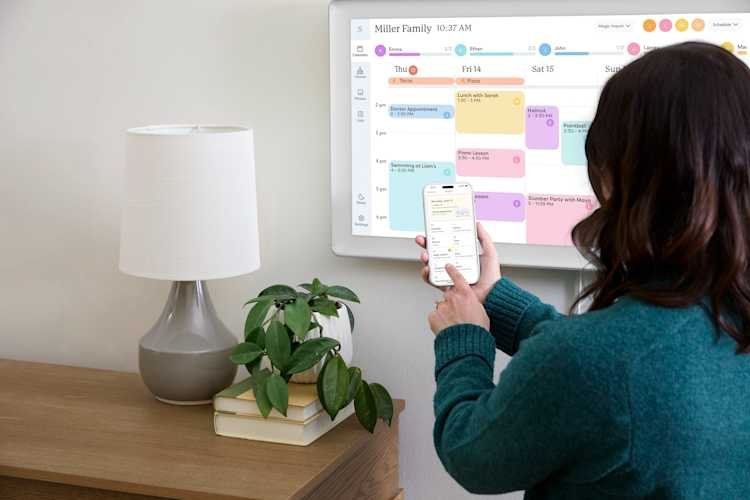
Synchronization issues occur primarily because the device can’t reach the Skylight servers. The most common cause is a disruption in your local network. Every time your home router updates its security settings or restarts, the calendar may fail to reconnect automatically. This leaves the device in an offline state where it can’t pull new events from your linked Google, Outlook, or Apple calendars.
Another frequent cause involves account permissions. If your email password changed or if you enabled two-factor authentication on your source calendar account, the link between your calendar and the Skylight device effectively breaks. The device doesn’t always prompt you to re-enter credentials, so it simply stops showing new data. This is a security feature, not a bug, but it’s a major source of frustration for users who forget to update their third-party connections.
Finally, internal software glitches can cause the sync process to hang. If the device hasn’t received a firmware update in a long time, it might struggle to communicate with updated calendar APIs. If the server itself is down for maintenance, no amount of troubleshooting on your end will restore the sync until their engineers resolve the issue.
Refresh the network connection
If your device is stuck, you must force a network refresh to establish a new connection. Start by unplugging the power adapter from the back of the device. Wait at least 30 seconds before plugging it back in. This pause allows the internal capacitors to discharge fully, ensuring the system performs a clean boot rather than just a quick restart.
Once the device reboots, go to the settings menu on the touchscreen. Select “Wi-Fi” and look for your network name. If it shows “Connected” but you still see no new events, tap “Forget Network” and then select it again to re-enter your password. This forces the device to request a fresh IP address from your router.
This fix is intended for users who have confirmed their home internet is working on other devices. If your router is behind a thick wall or a large piece of furniture, the signal might be too weak to maintain a stable sync. If you notice the Wi-Fi icon on the screen has only one bar, move your router closer or use a range extender. This varies by model — check the label on your router to see if it supports 5GHz or 2.4GHz bands, as some older units only connect to the 2.4GHz frequency. If your router is set to “5GHz only,” the device might fail to find the network entirely.
Reauthorize your calendar account
If the network is fine but the data remains stale, you must re-establish the link between your external calendar and the Skylight app. This is the most effective fix when the device is online but shows blank spaces where your events should be. Open the Skylight app on your smartphone and navigate to the “Calendar” tab.
Remove the linked account entirely by tapping on it and selecting “Delete” or “Remove.” Once the account is gone, tap the plus icon to add it back. You’ll be redirected to the login page for your service provider, such as Google or iCloud. Enter your credentials again and grant the app permission to access your events.
This process is necessary because account tokens expire for security reasons. If you recently updated your security settings on your email account, this step is mandatory. You should perform this as part of your usual clean whenever you notice the device isn’t syncing properly.
Check for firmware updates
For stubborn cases where the device remains unresponsive, you may need to trigger a firmware update. Check the device settings menu for an “About” or “System Update” section. If an update is available, install it immediately. This often patches compatibility issues with calendar services that have changed their own software protocols.
This is worth the effort if you have already tried the network and account fixes without success. However, if the device screen is frozen or the touchscreen doesn’t respond to your taps, don’t attempt to force an update. In those cases, the hardware itself might be failing. Contacting the manufacturer’s support team is the correct path when the device doesn’t respond to basic inputs. Don’t try to open the unit or perform a hardware reset using unauthorized tools, as this will void your warranty and could cause permanent damage to the internal display components. If you aren’t comfortable with digital troubleshooting, reach out to the manufacturer directly through their official support portal to request a diagnostic check.
What not to do
Don’t perform a factory reset as your first step. This wipes all local preferences and forces a complete re-configuration from scratch, often failing to resolve the underlying software glitch.
Wait at least 10 seconds when power cycling. If you unplug the device for less time, the internal capacitors retain enough charge to keep the system in a “sleep” state, preventing the volatile memory from clearing its cache.
Don’t attempt to use an ethernet cable to fix a sync issue. The hardware is designed exclusively for wireless protocols and lacks a physical RJ45 port. Forcing a connection through an adapter won’t be recognized by the firmware.
Never delete calendar events from the source app to “test” the sync. This action triggers a push command that permanently removes data from your primary cloud account. If you need to verify connectivity, modify a single non-essential field like a meeting description instead of deleting the entry entirely.
How to stop it happening again
Consistent synchronization depends on maintaining a stable environment for the device. If you’re experiencing repeated failures, use this table to adjust your habits and network setup.
| If you’re doing this | Do this instead | Why |
|---|---|---|
| Hiding the router in a closet | Keep the router in an open area | Walls block the signal |
| Using a guest network | Use your primary home network | Guest networks often isolate devices |
| Ignoring app notifications | Update the app when prompted | Newer apps handle sync better |
| Changing passwords often | Use a permanent app password | Frequent changes break the token |
Most users fail by placing routers behind dense furniture or metal cabinets. Even a single layer of wood or drywall can drop signal strength by 30 percent. If your device sits more than 20 feet from the router, consider adding a mesh node to ensure a constant handshake.
Check your router’s 2.4GHz band specifically. If your network uses band steering to force devices onto 5GHz, the sync will drop whenever the signal dips. Lock the device to the 2.4GHz band to prevent these disconnects. If the device still fails, toggle the Airplane Mode for five seconds to force a fresh handshake with the local gateway.
Frequently asked questions
Can I fix a syncing issue without the mobile app?
You can’t fix account-level syncing issues without using the mobile app. The device requires the app to manage permissions and authorization tokens for your external calendars. You must have the app installed to re-authenticate the connection when security tokens expire.
Why does my calendar show old events?
The device shows old events because it has cached data and can’t reach the server. When the connection drops, the device displays the last information it successfully downloaded to ensure the screen isn’t blank. Once you restore the connection, the device will automatically pull current events.
How long does it take for a new event to appear?
New events typically appear on your screen within 15 minutes of being added to your primary calendar. The device limits update frequency to conserve power and bandwidth. If an event doesn’t appear after an hour, try restarting the device to force a manual sync.
Is it safe to reset my router to fix the sync?
Yes, it’s safe to restart your router to clear network glitches. Most modern routers are designed to be restarted without risking your data or security settings. This process often resolves minor IP address conflicts that prevent the calendar from reaching the server.
What happens if the Skylight server is down?
If the server is down, your calendar will stop syncing and you’ll see a “Connecting” or “Offline” icon on the screen. There’s nothing you can do to fix this on your end, as the issue is on the manufacturer’s side. You should check their official status page or social media channels for updates. Once they resolve the server-side issue, your device will reconnect automatically without any further action from you.
Final Thoughts
If these adjustments don’t get your schedule back on track, don’t worry. You can reach out to the support team through the app’s settings menu for extra help. They’ll look into your specific account details to ensure everything’s running smoothly again. You’ll be back to organizing your family’s busy life in no time.


