
An outdated or misconfigured iCloud account is the most common reason for an iphone calendar not syncing across your devices. In most cases, this issue happens because the calendar feature is toggled off in your settings or because your device has lost its connection to the Apple server. You can quickly confirm this by checking your account status in the settings menu. If you’re signed into the correct Apple ID on all your devices, the system usually resolves the conflict automatically once you refresh the connection.
Fixing an iPhone calendar not syncing
| Cause | How common | How to confirm it | Fix it yourself? |
|---|---|---|---|
| Disabled iCloud Sync | Very common | Check settings menu | Yes |
| Network connectivity | Common | Try loading a website | Yes |
| Wrong default calendar | Common | Check calendar app settings | Yes |
| Incorrect Date/Time | Occasional | Compare with world clock | Yes |
| Account authentication | Occasional | Check for sign-in prompts | Yes |
| System software bug | Rare | Check for OS updates | Yes |
| Server-side outage | Rare | Check status dashboard | No |
Most users assume a server outage when data vanishes, but this is statistically the least likely culprit. Start by verifying your iCloud sync toggle. If the switch is green but data is missing, toggle it off, wait ten seconds, and flip it back on to force a refresh.
Check your default calendar settings next. Many people accidentally save events to a local “On My iPhone” calendar instead of their primary iCloud account. If you see the event on your phone but not on your desktop, this is your primary mistake. You can confirm this by tapping the event and checking the “Calendar” field in the details view.
If your date and time are set manually rather than automatically, your device may refuse to sync with secure servers. Always toggle “Set Automatically” to on. If you’re traveling across time zones, force a manual refresh of the calendar app after the time updates to prevent data conflicts.
iCloud synchronization settings
iCloud acts as the bridge that pushes your schedule updates from the cloud to your phone. When this bridge is inactive, your phone stops receiving new entries or sending your changes to other devices. This happens because the system requires a manual “on” toggle for each specific data type, including calendars.
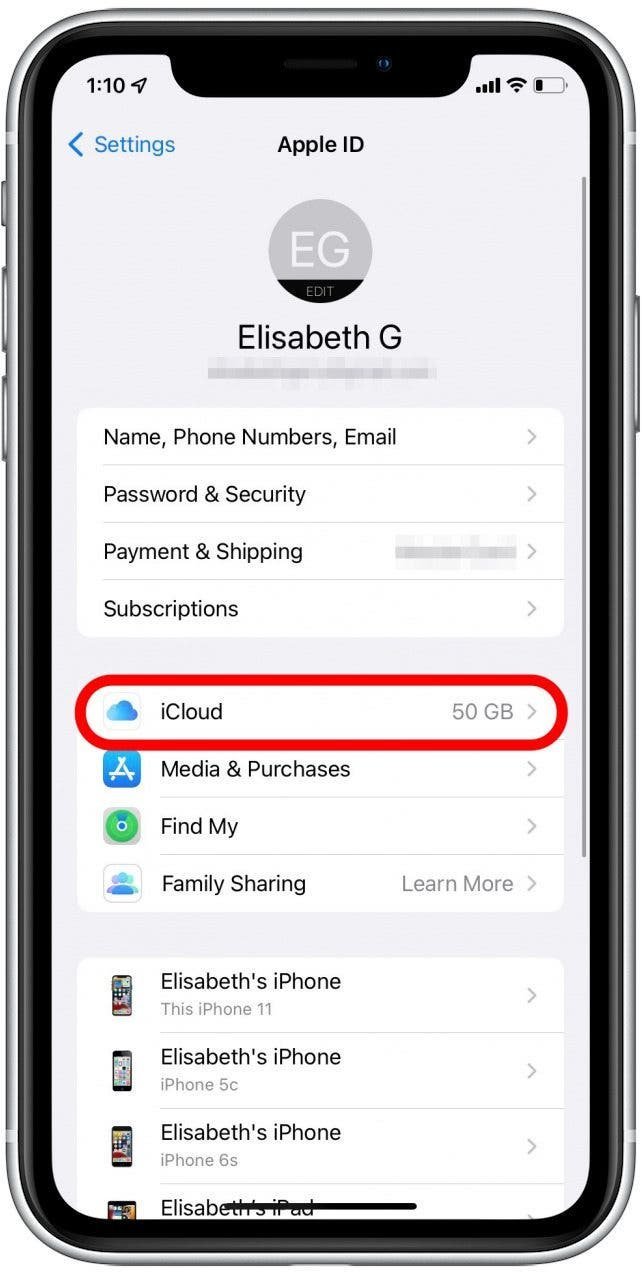
To test this, go to your Settings app, tap your name at the top, and select iCloud. Look for the “Show All” button under the apps using iCloud section. Ensure the switch next to Calendars is toggled to the green “on” position. If it’s already on, try toggling it off, waiting ten seconds, and turning it back on. This forces the device to re-establish a handshake with the server. Note that this varies by model — check the label in your settings if your interface looks different than standard iOS versions.
If your calendar still fails to update, you must verify your account credentials. The system often pauses syncing if your password has changed or if your session has timed out. You can manage your Apple ID settings to confirm your account is active and secure. If you see a prompt asking you to sign in again, follow the on-screen steps. This process typically takes three to five minutes. If you have multiple Apple IDs, ensure every device uses the exact same one, as syncing doesn’t work across different accounts.
Network and connectivity factors
Syncing relies on a stable internet connection to communicate with Apple’s servers. If your iPhone is in Airplane Mode, or if your Wi-Fi signal is too weak, the calendar can’t push or pull data. You can tell this apart from the first cause because other apps, such as Mail or Safari, will also fail to update their content when the network is the culprit.
If you’re on a cellular connection, verify that your phone is allowed to use data for the calendar. Go to Settings, tap Cellular, and scroll down to ensure the Calendar app is toggled on. If you’re using Wi-Fi, try toggling your Wi-Fi off and back on again. In some cases, a VPN can block the connection to Apple servers. If you use a VPN, disconnect it temporarily to see if the calendar begins to sync.
This isn’t for users who don’t have a stable internet plan or for those currently in areas with zero cellular service. If you’re abroad, ensure Data Roaming is turned on if you need to sync while traveling. A common mistake people make is assuming that “connected to Wi-Fi” means “connected to the internet”; if your router isn’t actually providing a web connection, no sync will occur. This check takes one minute and costs nothing in time or money.
Default calendar configuration
The default calendar setting determines where new events are saved when you create them on your device. If your default is set to a local calendar instead of an iCloud-linked one, those events will never appear on your other devices. You can confirm this by creating a test event and checking if the “Calendar” field shows “iCloud” or “On My iPhone.”
If you see “On My iPhone,” you’re saving events only to the local storage of that specific device. To fix this, go to Settings, tap Calendar, and then select Default Calendar. Choose an iCloud calendar from the list. This ensures that every new event you add is automatically synced to the cloud.
This varies by model — check the label in your settings to see if your phone supports multiple calendars or only one. If you have many local events, you’ll need to move them manually to the iCloud calendar to see them elsewhere. This is a manual task that can take ten to twenty minutes depending on how many events you have. If you’re trying to sync a calendar from a third party like Google, you must add that account specifically in Settings > Calendar > Accounts, rather than relying on iCloud settings alone.
The less likely causes
Date and Time settings: If your phone’s date is incorrect, it can’t sync with the server’s timestamp. Ensure “Set Automatically” is enabled in General settings. If your manual clock is off by even five minutes, the handshake with the server will fail.
Low Power Mode: This mode restricts background activity to save battery, which can pause syncing. Try charging your phone above eighty percent to disable this restriction. If you remain below twenty percent, the system will prioritize core functions over cloud uploads.
Storage limits: If your iCloud storage is full, the device can’t upload new data. Check your usage in the iCloud settings menu. Users often mistake “Device Storage” for “iCloud Storage,” but a full cloud account is the specific culprit here.
Outdated software: An old iOS version may have bugs that interfere with syncing. Check General > Software Update to see if a newer version is available. A pending update often freezes background processes.
What a fix usually involves
Fixing sync issues usually involves simple software adjustments that require no special tools or professional help. Most solutions, such as toggling a switch or checking a network connection, are free and take only a few minutes of your time. If you need to sign out of your Apple ID and sign back in, this may take ten minutes, as it requires re-downloading some cached data.
In rare cases where the problem is a persistent software bug, you might need to perform a hard reset or update your operating system. These actions don’t cost money, but they do require time for the device to restart or download the update package. If you suspect a hardware fault or a server-side issue that you can’t fix, visit the official Apple support page to check for reported outages in your region. The cost of a fix is almost always zero, unless you choose to upgrade your iCloud storage plan for more space, which is a small monthly fee. Always check the official Apple status page before assuming your device is broken.
Frequently asked questions
Can I force my calendar to sync right now?
Yes, you can force a sync by opening the Calendar app and pulling down on the event list. This gesture manually refreshes the data connection with the server. If the sync is successful, you’ll see a small spinning icon at the top of your screen for a few seconds. If nothing changes after this, check your internet connection settings.
Why do some events sync but not others?
This usually happens because those specific events were created in a local calendar instead of an iCloud-linked one. When you create an event, check the “Calendar” field to ensure it’s set to an iCloud account. Events saved to “On My iPhone” or a local folder won’t sync to other devices, even if your iCloud settings are correct.
Is it safe to sign out of iCloud to fix sync?
Yes, it’s safe, but be prepared for the process to take a few minutes. When you sign out, your phone will ask if you want to keep a copy of your data; choose “Keep on My iPhone” to avoid losing your local information. Once you sign back in, the system will merge your local data with your iCloud account.
How long does an event take to appear on other devices?
About five to ten seconds is the standard time for an event to sync when both devices have a strong internet connection. If you’re on a slow network or in a low-power state, it can take longer. If you don’t see the event after one minute, try toggling your Wi-Fi or cellular data off and on.
Does it matter if I have different calendars enabled?
Yes, it matters because each calendar acts as a separate layer. If you have both Google and iCloud calendars, ensure both are enabled in the Calendar app’s “Calendars” view at the bottom of the screen. If a specific calendar is unchecked, its events won’t appear on your device, even if they’re syncing correctly in the background.
What happens if my iCloud storage is full?
If your storage is full, the system stops uploading new data to the cloud. You’ll need to delete old files or buy more space to resume syncing. Check your storage usage in Settings > iCloud to see how much space you have left. Once you clear space, the sync process should resume automatically within a few minutes.
Final Thoughts
If the problem persists after these checks, it’s worth restarting your device to clear any temporary software glitches. Don’t worry if it doesn’t work immediately; sometimes a quick update to the latest iOS version is all you need to keep your schedule running smoothly across every screen you use.


