
You can fix the issue when jamf prestage enrollment not syncing by re-validating your Automated Device Enrollment token or checking for pending MDM profile commands. This problem most often occurs because the connection between your Jamf Pro server and Apple Business Manager has expired or lost its trust.
Fixing Jamf prestage enrollment not syncing
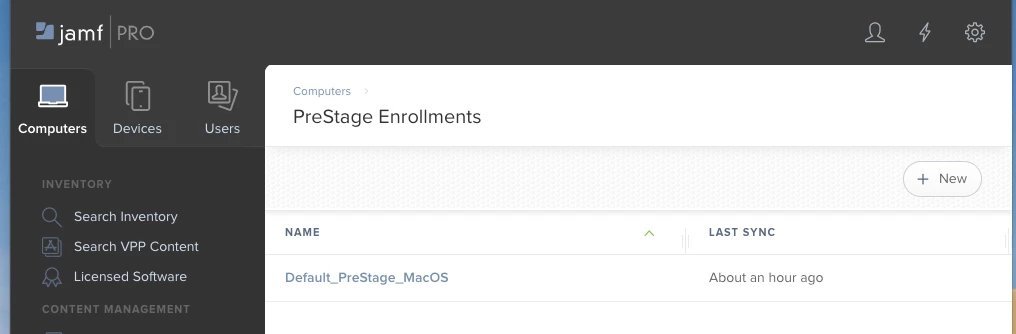
The primary cause for sync failures is an expired or revoked server token. You must regularly renew your Automated Device Enrollment (ADE) token in the Jamf Pro console. If the token expires, the communication bridge between Apple and your server breaks, causing sync requests to fail.
Another common reason is a network-level blockage. Your Jamf Pro server must reach specific Apple services to pull device information. If your firewall or proxy settings were updated recently, they might be blocking the traffic required for the sync. This is a common point of failure for on-premise servers compared to cloud-hosted instances.
Finally, the issue can stem from API or database stalls. Sometimes, the Jamf Pro service itself stops processing the background task that triggers the sync. This varies by model — check the label of your specific Jamf Pro version in the settings menu, as some older versions require a manual service restart to clear hung threads. If you suspect the service is unresponsive, you can check the status of your connection in the Jamf Pro documentation for Automated Device Enrollment.
Renew the Apple server token
This fix is for administrators who see an “expired” or “invalid” status on their enrollment profile. If your token is older than 365 days, it’s likely the root cause. Log into your Apple Business Manager account and navigate to your server settings. Download the new token file. Next, go to your Jamf Pro console and navigate to Global Management > Automated Device Enrollment. Upload the new file there.
A common mistake is uploading the file to the wrong server instance if you manage multiple MDM environments. Check the “Server Name” in Apple Business Manager against your Jamf instance name before uploading. If you upload to the wrong one, your devices will fail to enroll, and you’ll see an “Access Denied” error in the logs.
If you have a large number of devices, this process may take several minutes to reflect the changes. You can verify success by clicking the “Test Connection” button within the Jamf interface. If it returns a green checkmark, your sync should resume automatically within the next few minutes.
This fix isn’t for people experiencing local network issues; if your internet connection is down, a new token won’t solve the problem. If you can’t access the Apple Business Manager portal, you must contact your organization’s designated account holder. Only they have the permissions to manage these tokens. If the account holder has left the company, you must initiate the Apple account recovery process immediately.
Restart the Jamf Pro service
If your token is valid but data still doesn’t appear, your background synchronization process might be stuck. This is a common mistake for users who manage on-premise servers; they often assume the database is updating when the service thread has actually crashed.
To resolve this, you need to restart the Jamf Pro web application service. On a Linux-based server, run sudo systemctl restart jamf.tomcat8 through your terminal. If the service fails to return to an active state within sixty seconds, check the logs at /usr/local/jss/logs/JAMFSoftwareServer.log for database connection errors.
If you’re using a cloud-hosted version of Jamf Pro, you can’t restart the service yourself. In that case, check the official status page to see if there’s an ongoing outage affecting your region.
This is a trade-off: restarting the service will temporarily disconnect active users from the dashboard. Don’t attempt this during a major deployment or update window. If you aren’t comfortable with command-line operations, consult your IT infrastructure team.
The decision rule is simple: if you have root access and the server is unresponsive, restart the service. If you lack these permissions, don’t attempt to force a restart, as improper execution can lead to database corruption or extended downtime for your entire organization. Always verify your backup status before initiating a manual service cycle.
Verify the MDM profile scope
Sometimes the sync is working, but the devices aren’t appearing because they aren’t assigned to the correct scope. This happens if you have multiple enrollment profiles and the device is assigned to a different one than you’re viewing.
Check the “Automated Device Enrollment” section in your Jamf Pro dashboard and filter by “Unassigned” devices. If you see your hardware listed there, the sync is functioning, but the assignment rule is missing or incorrect. You must manually assign the device to the correct PreStage enrollment profile. This is worth the effort if you only have a few devices, but it isn’t efficient for bulk deployments.
For large batches, use the “Scope” tab within the PreStage profile to define rules based on serial numbers or department tags. A common mistake is assuming that a device will automatically inherit a profile based on its purchase date. If you rely on this, you’ll often find hardware orphaned in the “Unassigned” queue.
If you’re still not seeing the devices after checking these settings, verify that your Apple Business Manager account is correctly linked to the specific server you’re viewing in Jamf. If you have multiple server tokens, ensure the serial number exists within the specific token currently synced to your instance. If the device appears in ABM but not in your Jamf portal, the token is likely stale or misconfigured.
What not to do
- Don’t delete your existing PreStage profile to “reset” the sync, as this will remove all configuration settings and scope assignments for every device currently linked to that profile.
- Don’t try to force a sync by repeatedly clicking the “Sync Now” button, as this can trigger rate-limiting from Apple’s servers and cause a temporary lockout.
- Don’t change your server’s host name or IP address without updating the corresponding entries in your Apple Business Manager portal, or the handshake will fail permanently.
- Don’t ignore error logs in the Jamf Pro admin console, as these provide the specific reason (such as authentication failure or network timeout) that’s stopping the process.
How to stop it happening again
Establish a proactive schedule to audit your enrollment connections before they reach the one-year mark.
| If you’re doing this | Do this instead | Why |
|---|---|---|
| Waiting for the token to expire | Set a calendar alert 30 days early | Prevents unexpected sync failures |
| Manually checking for sync errors | Enable email notifications in Jamf | Alerts you instantly when a sync fails |
| Ignoring server logs | Review the logs once a week | Catches small issues before they grow |
| Sharing one admin account | Use individual accounts for IT staff | Allows you to track who changed settings |
Frequently asked questions
Can I force a manual sync in Jamf?
You can force a manual sync by selecting the “Sync with Apple” button in the Automated Device Enrollment section of Jamf Pro. This triggers an immediate request to Apple Business Manager to pull the latest device list. If the button is greyed out, your token may be invalid or the connection down.
Why do my devices show as unassigned?
This occurs because the device serial number was synced from Apple, but no PreStage profile was set to capture it. You must edit your PreStage enrollment settings to include the specific serial numbers or use a smart group to assign them. Ensure your “Scope” settings are broad enough to include new hardware.
How long does an Apple server token last?
An Apple server token lasts for 365 days from the date of creation. You must renew it before this period ends to keep the integration active. It’s best practice to track the renewal date in your internal IT calendar to avoid any gaps in device management.
Is it safe to delete the server token?
No, you should never delete your server token unless you’re decommissioning the server entirely. Deleting the token will break the trust relationship between Jamf Pro and Apple, causing all current device management tasks to cease. If you accidentally delete it, you’ll need to re-upload a new token from Apple Business Manager, which may require you to re-configure your entire enrollment profile from scratch, causing significant downtime for your fleet.
What happens if the sync fails for a week?
If the sync fails, your Jamf Pro server stops receiving updates about new devices added to your Apple Business Manager account. Existing managed devices will continue to function normally. You’ll be unable to enroll any new devices until the connection is restored.
Final Thoughts
If these adjustments don’t restore your connection, it’s a good idea to check your server’s logs for specific error codes. You’ll find that reaching out to Apple support or your Jamf representative can help clear up persistent sync blocks. Don’t hesitate to ask for help if you’re still stuck.
Related guides


