
You can resolve the issue when your exchange calendar not syncing with mac by removing and re-adding your account in the Internet Accounts settings. This refresh forces the Calendar app to re-establish its connection with the Microsoft server and clear any stuck data packets. The most common cause is an expired authentication token or a minor network glitch that prevents the app from pulling new updates from the server. If this doesn’t work, check your internet connection and ensure your system clock is set to automatic.
Why your Exchange calendar not syncing with Mac
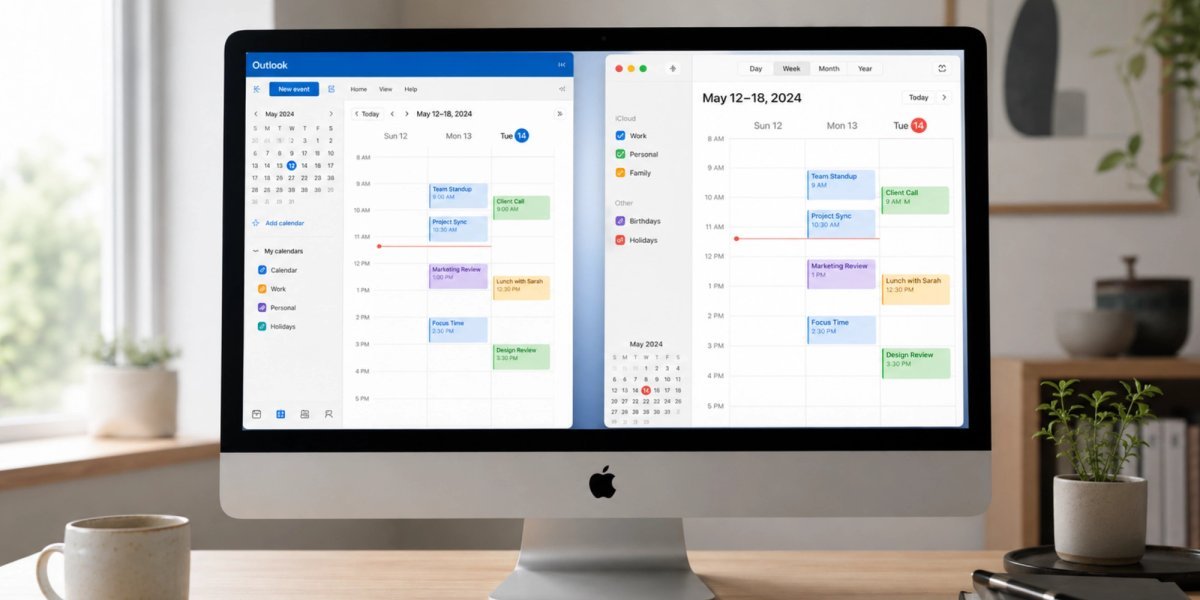
The primary reason for sync failures is often a mismatch between the client and the server. When you use an Exchange account, your Mac relies on a specific handshake to keep the calendar data current. If your password changed recently, or if the security token expired, the sync process will simply hang. It doesn’t always prompt you for a new password, leaving you with an outdated view of your schedule.
Another frequent cause is a configuration error within the macOS System Settings. Sometimes, the checkbox for “Calendars” becomes unchecked during a system update or a migration process. When this happens, the Mac stops querying the Exchange server for updates entirely. This isn’t a hardware fault; it’s a software permission setting that needs a quick manual toggle to restore functionality.
Finally, consider the state of the Microsoft server itself. If the server is undergoing maintenance or if your organization has changed security policies, your device might be blocked from accessing the data. This varies by organization — check your company’s IT portal for specific server settings. If you’re in a corporate environment, your IT department may require a specific VPN connection to allow the Calendar app to communicate with the internal server. If you don’t have that connection, the sync will fail regardless of your local settings.
Remove and re-add your account
This fix is the most reliable way to clear out corrupted sync data. It’s for users who have verified their internet connection but still see no new events. Open your System Settings and navigate to “Internet Accounts.” Select your Exchange account from the list. Scroll down and click the “Delete Account” button to remove it. Once removed, restart your Mac. Go back to “Internet Accounts,” click “Add Account,” and select “Microsoft Exchange.” Follow the prompts to sign in with your email and password.
If this is a work account, you may be redirected to your company’s login page. Complete the multi-factor authentication if required. Once the account is added, ensure the “Calendars” toggle is turned on. Open the Calendar app and wait for the “Syncing” icon to disappear. This can take several minutes depending on the size of your calendar database. If your calendar has thousands of past events, the initial sync will be slower than a fresh account. If it still doesn’t work, you should contact your Microsoft support technician to verify if your account has been locked due to excessive failed login attempts. This is a common mistake; people often try to force a sync repeatedly, which triggers a security lockout on the server side.
Check the account permissions
If re-adding the account didn’t resolve the issue, you need to verify the specific sync permissions for your Exchange profile. Sometimes the account is active for email but has the calendar sync disabled. Go to System Settings and click on “Internet Accounts.” Click on your Exchange account, and look at the list of applications enabled for this account. If the “Calendars” switch is off, toggle it to the “on” position.
If the toggle was already on, turn it off, wait ten seconds, and turn it back on. This forces the Mac to re-index the calendar data. A trade-off here is that you might see a temporary duplication of events while the app clears the cache. Don’t delete individual events during this time. Wait for the sync to finish completely. If you have multiple calendars under one account, click the “Calendars” icon in the top left of the Calendar app to ensure all sub-folders are checked. If you find that the calendar syncs but only for the last 30 days, this is an intentional limit set by your organization’s Exchange policy. You can’t change this from your Mac; you must ask your system administrator to increase the sync window if you require access to older historical data.
Refresh the sync cache

When the Calendar app seems stuck on old data, you can force a hard refresh of the local cache. This is for users who see events on their phone or web browser but not on their Mac. Quit the Calendar app entirely by pressing Command + Q. Open the Finder, then press Command + Shift + G. Type ~/Library/Calendars and press Enter. Look for files that start with “Exchange” or “com.apple.calendar.” Move these files to your desktop as a temporary backup, but don’t delete them yet.
Restart your Mac and open the Calendar app again. The system will create fresh cache files and pull your data down from the server. If this works, you can safely delete the files you moved to the desktop. If it doesn’t work, simply move those original files back into the folder. The limit here is that if your calendar database is massive, this process might take a long time to complete. If you aren’t comfortable navigating the Library folder, don’t attempt this step. It’s easy to accidentally move the wrong file and lose local non-synced data. If you’re unsure, stick to the Internet Accounts menu as this is the safest path for most users.
What not to do
Don’t delete your actual calendar events from your phone or web browser. These changes sync instantly and permanently purge your data from the server, often without a recovery option.
Avoid third-party “sync repair” tools found online. These utilities frequently contain malware or adware designed to harvest your Exchange credentials.
Don’t toggle the account on and off in rapid succession. This behavior mimics a brute-force attack, which can trigger a temporary security lockout on the Microsoft Exchange server. If the account fails to connect, wait at least fifteen minutes before attempting another manual sync.
How to stop it happening again
Maintaining a stable connection requires keeping your software current and your settings predictable.
| If you’re doing this | Do this instead | Why |
|---|---|---|
| Using an outdated macOS version | Update to the latest macOS | Newer versions fix known sync bugs |
| Ignoring password change prompts | Update credentials immediately | Sync fails if the token is invalid |
| Leaving the Mac in sleep mode | Wake it up to sync | Background sync is limited in sleep |
| Using a public Wi-Fi network | Use a secure private connection | Public networks block Exchange ports |
Most users mistakenly assume that background sync works regardless of power state. You must wake the machine manually to trigger a handshake if the sync icon has been grayed out for over an hour.
Check your “Energy Saver” settings next. Toggle this setting to “On” to allow the server to push updates while you’re away. If you still see errors, check your local firewall logs.
Frequently asked questions
Can I fix this by changing my password?
Yes, you must update your password in Internet Accounts settings if your Exchange sync stops due to expired credentials. The Mac continues using old credentials until you manually refresh them. If sync fails to resume, remove and re-add the account to register a new token.
Why is my calendar showing old events only?
No, your calendar isn’t broken; it’s restricted by an Exchange server “Sync Window” policy. Organizations often limit devices to showing only the last month of events to reduce server load. You must use the web-based Outlook portal to view older events.
How long does the initial sync take?
Initial sync takes between five and thirty minutes, depending on your internet speed and the number of events. Large calendars with many recurring appointments or attachments will take longer to process. Don’t force-quit the app during this time, as it may corrupt your local database.
Is it safe to delete the calendar cache?
Yes, it’s safe to move cache files to your desktop to verify your events return. The Calendar app automatically rebuilds this database from server information. If sync fails, you can move the original files back to the Library folder to restore your previous state.
What happens if I lose my internet connection?
No data is lost if your internet connection drops; the Calendar app simply pauses the sync process. It will automatically resume once your connection is restored. You don’t need to restart the sync manually if you experience temporary network instability.
Final Thoughts
If your schedule still doesn’t appear, it’s a good idea to restart your computer to clear out any lingering background processes. Should the problem persist after a reboot, don’t hesitate to reach out to your IT department. They’ll be able to check if your company’s security settings are blocking the sync.


