
A Jio Fiber green light blinking indicates your router is establishing a connection with the local server. This is a standard status signal, not a sign of damage. To resolve a potential handshake delay, unplug the power adapter for sixty seconds before reconnecting. If the light blinks after five minutes, the issue is likely an external signal interruption or local outage.
Troubleshooting Jio Fiber green light blinking
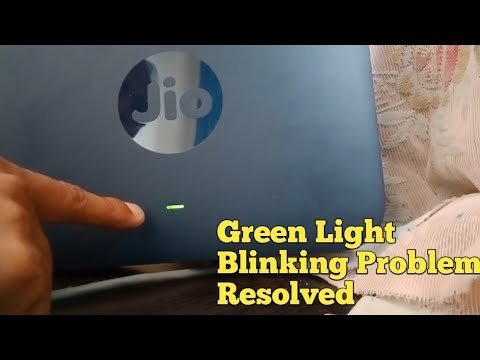
The status light on your router changes based on the data flow and physical connection state between your home and the service provider.
| What you notice | What it usually means | What to do first |
|---|---|---|
| Green light blinking | Attempting to connect | Wait five minutes |
| Green light solid | Connection is stable | No action needed |
| Red light blinking | Authentication failure | Check fiber cable |
| Red light solid | No signal received | Call customer support |
| No lights visible | Power supply failure | Check wall outlet |
| All lights flashing | Firmware update active | Don’t power off |
A blinking red light often signals a loose fiber optic connector rather than a network outage. Inspect the port where the cable meets the wall jack; if the connector feels loose, reseat it until you hear a distinct click.
If your status light is solid red, verify that your service bill is paid before calling support. Many providers automatically disable signals for accounts past the 30-day grace period.
If you see all lights flashing, you must remain patient. Interrupting an update by pulling the power cord can corrupt the router’s internal software, effectively “bricking” the device. If the lights continue to flash for more than 45 minutes, the update has likely stalled. Only then should you perform a hard reset.
The router is searching for a signal
The most common reason for a blinking light is that the device has lost its digital handshake with the provider’s central office. This happens if the fiber optic cable experiences a minor physical shift or if the provider is performing maintenance in your specific area.
You can confirm this by looking at the thin, yellow or green cable connected to the back of the device. If the connector is loose, push it firmly until you hear a click. A common mistake is assuming the cable is secure just because it looks flush; if it doesn’t click, the internal pin is likely not making contact.
If the cable is tight, the issue is likely a network-wide outage. According to the official Jio Fiber support guidelines, a blinking status light indicates the device is currently in a “handshake” phase, which should resolve automatically once the signal stabilizes.
If it doesn’t stop blinking within ten minutes, check the Jio outage map to see if your neighborhood is affected by known service interruptions. If you see a reported outage, you must wait for technicians to finish the repair.
If you’re the only one affected, you must contact their support team to request a line test. Use this decision rule: if the outage map shows nothing, the problem is almost certainly a damaged fiber line inside your home or a faulty ONT port.
Physical damage to the fiber line
A blinking light sometimes points to a broken or bent fiber optic cable. Unlike copper wires, fiber cables use light pulses to carry data; if the glass inside the cable is cracked or bent at an angle sharper than a sharp “U” shape, the signal can’t pass through. You can tell this apart from the first cause because a signal loss due to a broken cable will never resolve on its own, no matter how many times you restart the device. Inspect the entire length of the cable from the wall port to your router for any sharp kinks or visible cuts. If you find a sharp bend, gently straighten it to see if the light turns solid. If the cable is physically cut or crushed by furniture, the hardware will remain in a blinking state indefinitely. This isn’t a user-repairable part. Fiber cables contain delicate glass strands that require specialized fusion splicing equipment to fix. If you suspect damage to the line, you must request a technician visit. Attempting to tape or splice the cable yourself will permanently destroy the signal quality and may lead to a higher repair bill when the technician arrives.
Account status or hardware mismatch
Your router may blink if the account associated with the device has been suspended or if the hardware configuration doesn’t match the service plan on file. This usually occurs after a change in billing status or if a new router was installed but not yet activated by the provider’s backend system. You can distinguish this from signal issues by checking your account status through the mobile application. If your plan is marked as “active” but the router still blinks, the device might have lost its registration with the server. If your account shows as “suspended” or “pending,” the blinking light is a deliberate signal that the service is restricted. A common mistake is assuming that a factory reset will fix this; however, a reset often wipes the authentication credentials, which makes the device unable to connect even when the signal is restored. Always check your account status before performing a hard reset. If the account is fine, the provider must perform a “remote refresh” of your device’s MAC address from their end. This varies by model — check the label on the bottom of your router to ensure the serial number matches the one listed in your digital account profile.
When to stop and get help
Damaged fiber cable: Don’t attempt to cut, strip, or tape the yellow fiber cable. This requires specialized fusion-splicing tools.
Burning smell or smoke: If you notice a pungent, acrid odor from the device, unplug it from the wall immediately. Don’t wait for a shutdown sequence. Continuing to power a short-circuited unit creates an active fire hazard.
Port damage: If the fiber port on the wall or the router looks loose, recessed, or cracked, don’t force the cable into it. This often bends the delicate glass ferrule inside, turning a simple port replacement into a costly line repair.
Unresolved status: If the status light continues to blink for more than twenty-four hours despite all troubleshooting, the issue likely lies in the local junction box.
Decision rule: If the cable is physically intact but the signal fails, request a remote line test. If the hardware is physically compromised, skip the remote test and request an on-site technician immediately.
If you reach these points, contact customer service. They possess the optical power meters required to verify signal strength at your door.
Frequently asked questions
Can I fix a blinking light by resetting the router?
No, a factory reset is usually unnecessary and may cause more problems. If you press the reset button, you might delete the configuration settings that allow your device to talk to the provider’s network. Only perform a reset if the support agent specifically tells you to do so during a live troubleshooting call. If you have already performed a reset, you must contact them to re-provision your account.
How long should I wait for the light to stop blinking?
Wait about ten minutes after you have restarted the device. If the light is still blinking after ten minutes, it means the router can’t find a valid path to the provider’s server.
Is it safe to leave the router on while the light blinks?
Yes, it’s perfectly safe to leave the device powered on while it blinks. The blinking light is simply a notification that the device is in a standby or search state. It doesn’t indicate that the hardware is overheating or drawing excessive power. You can leave it plugged in while you check for local outages or wait for a technician to arrive at your property.
Does the blinking light mean I have no internet?
Yes, the blinking green light indicates that your router doesn’t have an active data connection to the internet. Because the connection isn’t established, your connected devices will show as “connected to Wi-Fi” but won’t be able to load any websites or apps. You’ll need to resolve the signal issue before your home network will provide access to the web again.
What happens if I move the fiber cable?
Moving the cable while the system is active can cause the signal to drop if the connector isn’t tight. Fiber cables are sensitive to movement and pressure. If you’re cleaning or moving furniture, be very careful not to pull or bend the yellow cable. If the connection drops after you moved the unit, check the wall port to ensure the connector is fully seated and clicked into place.
Does the color of the light matter?
Yes, the color tells you exactly what kind of problem you’re facing. A blinking green light is a search state, while a red light typically indicates a total loss of signal or a hardware error. If your light has changed from green to red, check the fiber cable for physical damage first. If the cable is intact, the issue is likely a fault in the external line outside your home.
Final Thoughts
If the connection doesn’t stabilize, don’t worry about tinkering with the cables yourself. It’s best to use the MyJio app to check for service updates in your area. If everything looks fine on their end, reach out to customer support so they can send a technician to fix the line.
Related guides


