
The tp link router power light blinking usually means the device is in the middle of a firmware update or is failing to boot its operating system properly. If your light remains in this state for more than ten minutes, it’s likely stuck in a boot loop or has suffered a corrupted software installation. This is a common issue that often occurs after a sudden power loss during a system update.
Why the router power light blinks
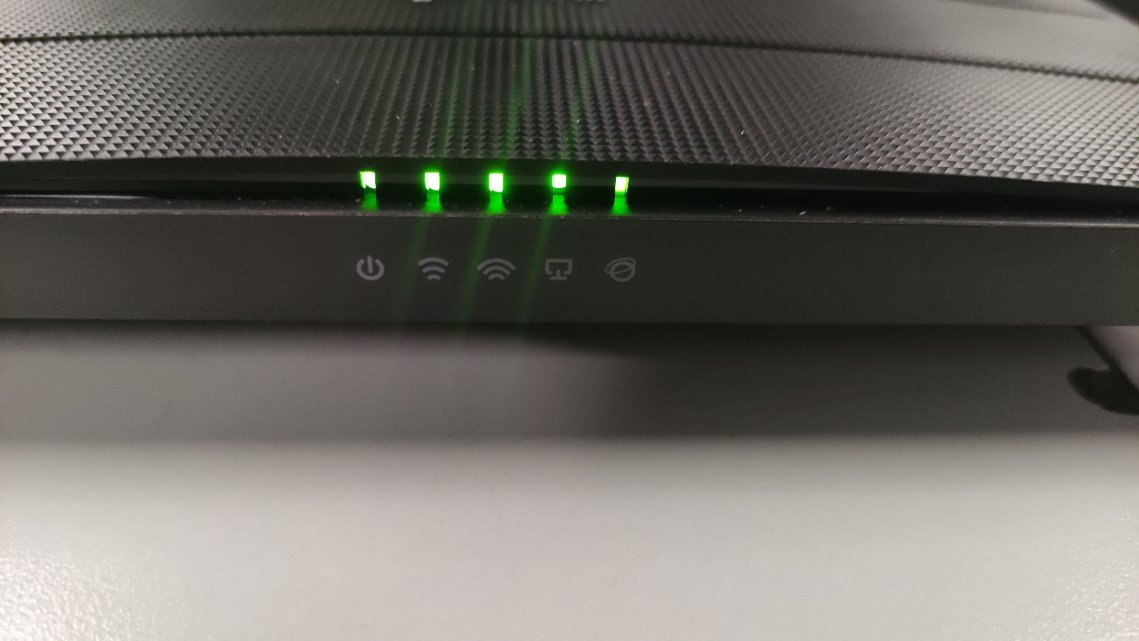
The blinking power light on your router acts as a status indicator for the device’s internal health. When you first plug it in, a brief flash is normal as the hardware initializes. However, a persistent blink suggests the router can’t load its firmware.
The most frequent cause is a failed firmware update. If the power cuts out while the router is writing new data to its flash memory, the system files become incomplete. The router then enters a recovery mode, which is why the light blinks continuously. Without a complete set of instructions, the hardware can’t establish a connection or broadcast a signal.
Another cause is a faulty power adapter. Routers require a specific voltage and amperage to function; if the adapter provides insufficient power, the processor may restart repeatedly. This creates a cycle where the device attempts to boot, hits a power wall, and tries again. You can verify the required power input by checking the label on the bottom of your unit. If the adapter is damaged, the voltage might fluctuate, causing the router to behave erratically. Always use the original power supply provided by the manufacturer to avoid permanent damage to the circuit board. You can find detailed troubleshooting guidance for your specific hardware at the TP-Link official support page.
Perform a hard factory reset
A hard reset clears the temporary memory and forces the router to reload its base configuration. This is for users who have stable power but can’t access the web interface. To start, keep the router plugged into a wall outlet. Locate the small “Reset” hole on the back or bottom panel. Use a paperclip or a pin to press and hold the button inside the hole for exactly ten seconds.
Watch the front panel lights closely. Release the button only when all the LEDs flash or change color simultaneously. Once you release the button, the router will reboot. Wait at least five minutes for the process to finish. If the power light returns to a solid state, the reset was successful.
If the light continues to blink, the firmware is likely too corrupted for a simple reset to fix. In this case, you must look for a secondary “recovery mode” button sequence specific to your manufacturer’s manual.
This fix isn’t for users who have already confirmed a hardware failure. If the unit is physically damaged, no amount of resetting will bring it back to life. A common mistake is using a toothpick, which can snap off inside the port and permanently block the switch. Always use a rigid metal paperclip to ensure the internal contact closes fully.
If you feel uncomfortable using small tools near electronic components, contact a professional technician instead of forcing the pins. If the router remains unresponsive after a ten-minute wait, the internal flash memory has failed and the device is effectively bricked.
Use the firmware recovery mode
If a hard reset fails, you must manually push new firmware to the device. This is for advanced users who have a computer and an Ethernet cable. You’ll need to download the correct firmware file from the manufacturer’s website for your specific model number.
First, set your computer’s static IP address to 192.168.0.66. Connect your computer to a LAN port on the router using an Ethernet cable. Turn off the router, then hold the reset button while powering it back on. Keep holding the reset button for about five seconds until the power light enters a specific recovery mode, which often looks different from the standard blinking. Open a web browser on your computer and navigate to 192.168.0.1. A recovery page should appear, allowing you to upload the firmware file you downloaded.
This process requires a stable connection; if the power drops during this upload, the router may become completely unresponsive. If you don’t have a spare Ethernet cable or aren’t confident in changing network settings, this is the point where you should stop and contact the manufacturer’s support team for a warranty claim or replacement.
Check your power supply hardware
Sometimes the blinking light is simply a result of the router not receiving enough electricity to start the operating system. This is a common mistake people make: using an adapter from an old modem or a different electronic device that has the same plug size but a different power rating.
If you have multiple devices, check the label on the bottom of the router. It will list a specific voltage (such as 12V) and amperage (such as 1.5A). If the adapter you’re using provides fewer amps than listed, the router will blink as it tries to draw more power than the adapter can provide. If you have a spare adapter that matches these exact numbers, swap it out to see if the blinking stops.
This is a physical trade-off: using a “universal” adapter might fit the hole, but if the polarity is reversed, you could fry the internal components of the router instantly. If you don’t have an exact matching adapter, don’t try to force a different one to work. Buying a genuine replacement from the manufacturer is the only safe way to ensure the device gets the correct, steady current it needs to remain stable during operation.
What not to do
Don’t turn the router off and on rapidly. This creates an electrical spike that can corrupt the internal flash memory, rendering the software unrecoverable. Wait at least thirty seconds between power cycles to allow the capacitors to discharge fully.
Don’t use a power strip with a low surge rating. Routers require a steady, clean voltage to initialize. If the power fluctuates during the boot sequence, the device may enter a boot loop. Always plug the unit directly into a wall outlet if you experience frequent resets.
Don’t attempt to open the router casing. Most consumer models are permanently sealed. Opening the chassis voids your warranty and exposes you to high-voltage capacitors that hold a lethal charge even when the unit is unplugged.
Don’t ignore the specific model number. Installing firmware from a different hardware revision is the most common cause of “bricking.” Always check the sticker on the bottom of the device. If the version number doesn’t match your download exactly, don’t proceed with the update.
How to stop it happening again
Consistent power and secure connections are the best ways to protect your device from software failure.
| If you’re doing this | Do this instead | Why |
|---|---|---|
| Unplugging to reboot | Use the software restart button | Prevents power spikes during shutdown |
| Updating during storms | Wait for stable weather | Prevents power drops during file writing |
| Using random power bricks | Use the original provided adapter | Ensures correct voltage and polarity |
| Keeping it in a closed cabinet | Use an open, ventilated space | Prevents overheating and hardware lag |
Most users mistake a sudden freeze for a hardware crash, leading them to pull the power cord immediately. This habit is the leading cause of corrupted boot sectors. If the system is unresponsive for more than five minutes, hold the physical power button for ten seconds to force a controlled shutdown.
Check your surge protector’s status light monthly. If the light is dim or flickering, the internal sacrificial metal-oxide varistor has likely failed. A compromised protector leaves your device vulnerable to micro-surges that silently degrade flash storage over time. Replace any unit older than three years to ensure your software remains stable.
Frequently asked questions
Can I leave my router blinking overnight?
No, leaving a router to blink overnight won’t fix the issue and may cause unnecessary heat buildup. If the device hasn’t booted after ten minutes, it’s stuck in a loop. You should power it down, check your cable connections, and try the factory reset steps. If it still fails, the internal hardware may have reached its end.
Is it safe to keep using a router that blinks?
No, it isn’t safe because the device isn’t functioning correctly and can’t provide a stable network. A router that can’t complete its boot process is essentially a dead piece of hardware. Continuing to power it may lead to further electrical issues or potential damage to the connected power outlet.
How long should the boot process take?
The typical boot process for most routers takes between two and five minutes. During this time, the lights will flash or cycle through different colors as the system checks its memory and loads the firmware. If the light remains in a blinking state for more than ten minutes, it’s a clear sign that the system has encountered an error and can’t finish the initialization process on its own.
What happens if the power cuts during a reset?
Power cuts during a factory reset can partially erase the firmware, likely resulting in a “bricked” device. This means the router will no longer have the necessary code to start. You’ll then be forced to use the manual recovery mode to flash the firmware, which is a more difficult process.
Does a blinking light mean the router is broken?
Not necessarily, but it does mean the current software state is invalid. While a blinking light often indicates a software issue that you can fix, it can also signal a failing power supply or a damaged processor. If you have tried the hard reset and the manual firmware update and the light still blinks, the hardware has likely suffered a permanent failure that can’t be repaired by the user.
Final Thoughts
If these attempts don’t resolve the issue, your hardware might have a permanent fault that isn’t fixable at home. Don’t worry, though; you can reach out to the manufacturer’s support team to check your warranty status. They’ll help you determine if it’s time to replace your unit with a newer model.
Related guides


