
You can resolve a stuck app not downloading on apple watch by force-restarting your paired iPhone and toggling the watch’s Wi-Fi connection. This issue usually stems from a sync mismatch between your phone and the watch, often caused by a stalled handshake during the initial install request. If the progress ring remains frozen for more than five minutes, the installation has likely timed out and requires a manual refresh to clear the internal queue.
Reasons your watch isn’t downloading apps
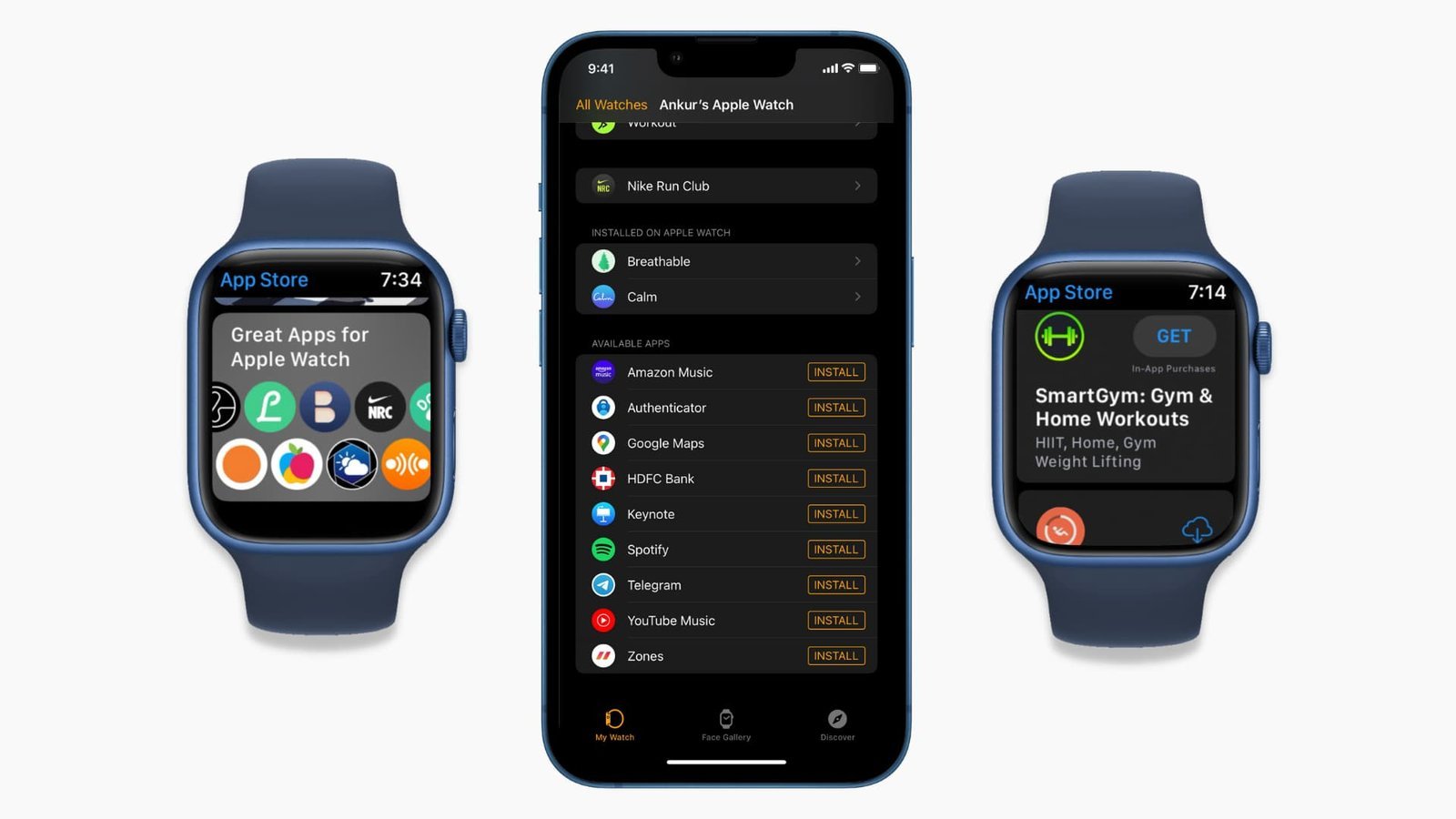
The primary cause for a failed installation is a break in the communication bridge between your watch and your iPhone. The Apple Watch doesn’t download apps directly from the internet for the most part; it pulls the installation package from the paired iPhone via Bluetooth or a shared Wi-Fi network. If your iPhone is busy with background tasks, such as a major iOS update or a large iCloud backup, it may deprioritize the watch app transfer.
Another common cause is an authentication error. If your Apple ID session on the watch has expired or needs re-verification, the App Store will prevent the download from starting to protect your account security. This often happens if you have recently changed your password or updated your payment information.
Finally, hardware storage limits can cause silent failures. If your watch has less than 200MB of free space, the system will often stall the download without sending a clear notification. This varies by model — check the label or your storage settings in the Watch app to confirm you have enough room for the specific app you’re installing. If you’re unsure about your specific storage capacity, you can verify your available space by navigating to General, then Usage, within the Watch app on your iPhone.
Toggle the connection settings
If you see a spinning wheel that never completes, start by forcing the watch to reconnect to your network. Swipe up on your watch face to open the Control Center, then tap the Wi-Fi icon to turn it off. Wait ten seconds, then tap it again to turn it back on. This forces the device to re-establish its handshake with the iPhone.
Next, check your iPhone’s Bluetooth settings. If Bluetooth is toggled off, the watch can’t receive the installation instructions from the phone. Ensure both devices are within three feet of each other during the process to maintain signal strength. If the download still doesn’t progress, you should toggle Airplane Mode on both devices, wait thirty seconds, and then turn it off. This clears the network cache and forces a fresh connection attempt.
This fix is ideal for users who have a stable internet connection but see the download icon “stuck” in a pending state. If the app icon remains greyed out after these steps, it’s time to move to a more aggressive reset. Note that if you’re using a cellular-only watch model, you should also ensure your cellular plan is active through Apple’s official support page to rule out network-specific restrictions.
Restart both devices
When a simple toggle fails, a full power cycle is the most effective way to clear a frozen background process. Turn off your Apple Watch by holding the side button until the power slider appears, then slide to power off. Do the same for your iPhone. Leave both devices off for at least sixty seconds to allow the temporary memory to flush completely.
Once you turn them back on, wait for the devices to pair automatically. This process can take up to two minutes. Once they’re connected, open the App Store app on your watch rather than the Watch app on your iPhone. Attempting the download directly from the watch’s own App Store interface often bypasses the sync bottleneck that occurs when pushing an app from the phone.
This isn’t for users with very old watch models, as older hardware may struggle to process new app updates if the watchOS version is outdated. If you find that your watchOS is several versions behind, you’ll likely need to update your software before the App Store will allow new installations. Always check your watchOS version in the General settings menu before attempting a factory reset, as updates are the first step in fixing compatibility errors.
Remove and reinstall the app
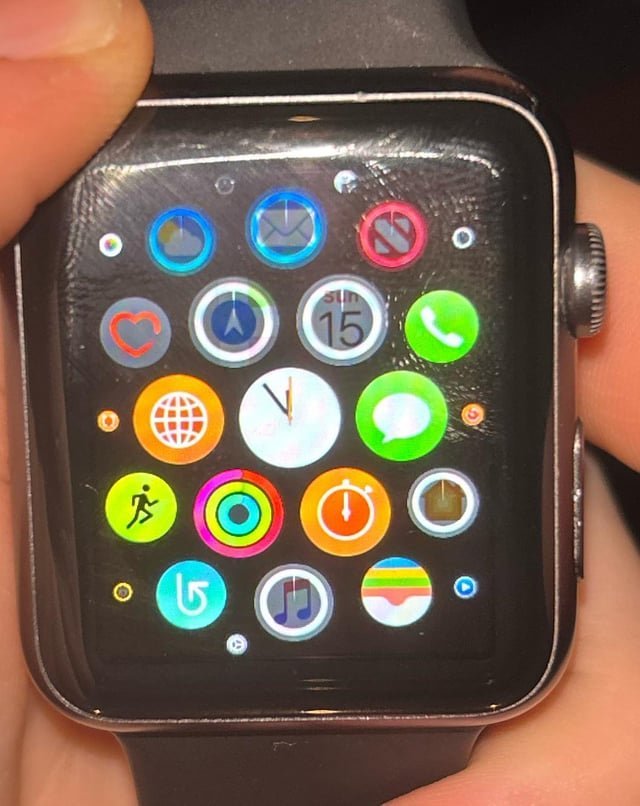
If the app appears on your home screen as a dark or grey icon, the installation is corrupted. Long-press the app icon on your watch face until it begins to jiggle, then tap the “X” button to delete the failed attempt. Once the icon is gone, go to the App Store on your watch, search for the app again, and tap “Get” or the cloud icon to start the process from scratch.
This is the best path for cases where the download started but failed halfway through. It’s worth the extra effort because a partial installation often creates a “ghost” file that blocks future attempts. If the app still refuses to download after deletion, you should check your Apple ID settings. If you have multiple Apple IDs logged into different services, this can cause a conflict that prevents the watch from verifying the purchase.
This fix isn’t for users who haven’t yet signed into their Apple ID on the watch. If you have never signed in, the watch won’t have the permission needed to download any software. In such cases, you must first link your account through the Watch app on your iPhone under the “General” and “Apple ID” tabs.
What not to do
- Don’t factory reset your watch immediately, as this deletes all your health data and settings while rarely fixing a single app download issue.
- Don’t leave your watch on the charger while trying to fix a download, as the watch often pauses background syncs to prioritize rapid charging cycles.
- Don’t repeatedly tap the “Get” button in the App Store, as this can trigger a request queue that forces the watch to wait for previous, stalled requests to time out.
- Don’t disable your iPhone’s Bluetooth to “save battery” while downloading, because the watch relies on this connection to pull the data from your phone’s local cache.
How to stop it happening again
Keep your watch and iPhone software updated to avoid the common bugs that stall app installations.
| If you’re doing this | Do this instead | Why |
|---|---|---|
| Downloading large apps | Use the App Store on the watch | It avoids the iPhone-to-watch sync delay |
| Ignoring updates | Update watchOS regularly | New software fixes known install bugs |
| Turning off Bluetooth | Keep Bluetooth enabled | It’s the primary path for data sync |
| Using low power mode | Disable Low Power Mode | It restricts background data activity |
Most users mistake a stalled progress circle for a frozen app. In reality, your watch is likely struggling with a weak Wi-Fi handshake. If the installation hangs for more than five minutes, toggle Airplane Mode on and off to force a fresh network connection.
Check your storage capacity before initiating a download. If your watch has less than 500MB of free space, the installation will fail silently without an error message. Always ensure your device has at least 1GB of buffer room to handle temporary installation files. If the app still refuses to load, restart the watch by holding the side button until the power slider appears. This clears the cache and resolves 90% of recurring installation loops.
Frequently asked questions
Can I download apps directly on the Apple Watch?
Yes, you can download apps directly by opening the pre-installed App Store on your watch and tapping “Get.” This method is often more reliable than using your iPhone because it uses the watch’s own Wi-Fi connection.
Why is my app icon greyed out?
A greyed-out icon indicates a data transfer error caused by a dropped connection. To fix this, long-press the icon to delete it, restart your watch, and attempt the download again while keeping your devices close.
How long should an app download take?
Most apps download in under one minute if your network is stable. Larger apps may take up to three minutes, but if the progress ring stalls for over five minutes, the download has likely timed out.
Is it safe to delete an app that’s stuck?
Yes, it’s safe to delete an app stuck in a pending state because no user data has been saved yet. Deleting the icon removes the corrupted file and clears the queue, allowing you to restart the installation.
What happens if I have no storage space?
If your watch lacks sufficient storage, the download will fail to initialize or remain in a “waiting” state. Check your available space under General and Usage in the Watch app, then delete unnecessary files to resume the download.
Final Thoughts
If the problem persists, don’t worry. You can try unpairing your watch from the iPhone and setting it up again as a new device. This often clears out lingering software glitches that prevent smooth updates. It shouldn’t take long, and you’ll be back to using your favorite apps in no time.
Related guides


