
To fix two domain controllers not syncing, force a replication cycle using the repadmin tool or verify the health of the NTDS database. This inconsistency often stems from network latency, clock drift, or corrupted metadata. If servers can’t communicate, critical updates like password changes will fail to propagate across your domain.
Why this happens
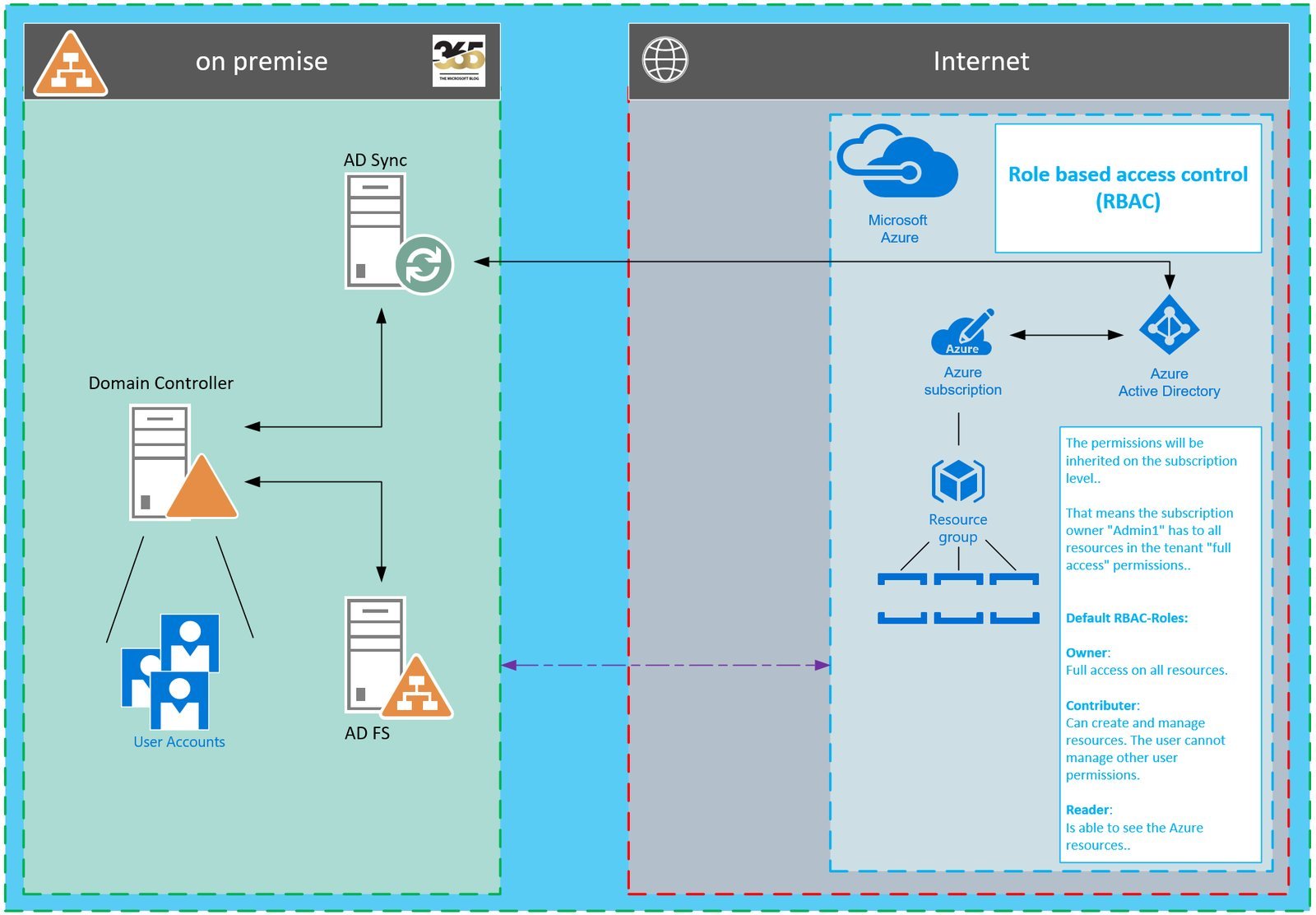
The primary reason for replication failure is a breakdown in communication between the Domain Controllers (DCs). When two servers attempt to share directory information, they rely on the Remote Procedure Call (RPC) protocol. If a firewall blocks these ports, or if the network connection between sites is unstable, the replication process stops. Another common cause is “USN rollback,” which occurs when a virtualized domain controller is restored from a snapshot rather than a proper system state backup. This confuses the database, as the server thinks its update sequence number is lower than it should be, causing the partner to reject incoming changes.
Clock drift also plays a major role. Kerberos authentication, which Active Directory uses to secure replication traffic, requires that the system clocks on both servers be within five minutes of each other. If one server drifts beyond this limit, Kerberos authentication for replication traffic will fail. Finally, DNS misconfiguration is a frequent culprit. If a DC can’t resolve the service records of its partner, it won’t know where to send the updates. You must ensure that both servers are pointing to a stable, internal DNS server and not an external service provider.
Fixing two domain controllers not syncing
If you need to move data immediately, force a manual sync. This is for administrators who have access to the Command Prompt with elevated privileges. Open a terminal as an administrator and type repadmin /syncall /AdP. This command forces the target server to pull all changes from its replication partners. If you only want to sync a specific naming context, use repadmin /replicate <destination_DC> <source_DC> <naming_context>.
If the command returns a “successful” message, your sync is working. If it returns an access denied error, check your administrative credentials. If it returns a network path not found error, confirm your IP settings and ensure the Netlogon service is running on both machines. This fix isn’t for users without domain administrator rights, as modifying replication topology can cause permanent data loss if done incorrectly. If you aren’t confident in the command line, check the Event Viewer under “Directory Service” logs for specific error codes before proceeding. This process assumes you have a stable network connection; if the link is congested, you may need to wait for off-peak hours to avoid timing out the sync process.
Clear the DNS cache
Sometimes the servers are healthy, but the DNS cache is stale. If one DC recently changed its IP address, the other might still be trying to reach the old location. To clear the cache, open the Command Prompt as an administrator on both domain controllers. Type ipconfig /flushdns and press enter.
After flushing the cache, you should register the records again by typing ipconfig /registerdns in the command prompt. This forces the server to update its records in the DNS zone. Successful resolution of the FQDN confirms that DNS is correctly resolving the partner’s address. If you can’t ping it after these steps, there’s a deeper network connectivity issue that requires checking your firewall rules or physical network switches. This fix is simple but effective for environments where IP addresses change frequently or after a server migration. It doesn’t carry risks to your data, but it’s a temporary measure; if the DNS records don’t update automatically, you likely have a configuration error in your DNS Zone settings that needs a manual review.
Repair the NTDS database
For persistent sync failures, you may need to check the integrity of the Active Directory database, known as NTDS.dit. This is an advanced step for when simple commands fail. First, restart the domain controller in “Directory Services Restore Mode” (DSRM). Once booted, use the ntdsutil command-line tool to perform a semantic database analysis.
Only perform this repair if you have already ruled out network and DNS issues, as it takes the server offline. If the tool reports corruption, restore from a verified system state backup. If you lack a recent backup or technical experience, contact a professional administrator to avoid total loss of the domain directory.
What not to do
- Don’t manually delete the “NTDS.dit” file from the system folder, as this will destroy the domain directory and cause permanent data loss.
- Don’t restore a virtual machine from a snapshot, as this triggers a USN rollback that prevents proper replication and requires a full domain rebuild.
- Don’t disable the firewall entirely to “test” connectivity, as this leaves your domain controllers vulnerable to external attacks and doesn’t help identify the specific ports that are blocked.
- Don’t attempt to force replication by editing the registry unless you have a specific, documented instruction from a senior engineer, as registry changes are difficult to undo and often cause system instability.
How to stop it happening again
Consistency is the best way to prevent future sync issues. Use this table to manage your environment:
| If you’re doing this | Do this instead | Why |
|---|---|---|
| Using snapshots | Use system state backups | Snapshots cause USN rollback errors |
| Relying on DHCP | Set static IP addresses | DC records must remain constant |
| Ignoring time alerts | Use an external NTP source | Kerberos fails if clocks differ |
| Using external DNS | Use internal DNS servers | DCs need internal SRV records |
Most administrators fail by ignoring the “time drift” threshold. If your server clock drifts beyond five minutes, Kerberos authentication will fail, preventing access to domain resources.
Check your environment for these specific triggers. If you see Event ID 2095, your USN rollback has occurred.
The decision rule is simple: if the error is related to authentication, check the NTP source first. If the error relates to database replication, verify that no virtual machine snapshots have been reverted. Fix these settings now to avoid a full forest recovery.
Frequently asked questions
Can I fix this by restarting the server?
Restarting the server is rarely a permanent fix for replication issues. A reboot might clear a hung process, but it fails to address underlying configuration errors or database corruption. If the root cause is a DNS or firewall setting, the problem will return immediately upon restart.
How long should replication take?
Replication typically occurs within seconds to a few minutes, depending on your network speed. In multi-site environments with slow WAN links, this process may take slightly longer. However, if changes take over thirty minutes to appear on a partner DC, you likely have a network bottleneck or communication error.
Is it safe to force replication manually?
Yes, it’s generally safe to force replication manually using built-in Windows tools. Using repadmin doesn’t change your data; it simply instructs servers to synchronize missing updates. Ensure you’re running these commands from a machine with proper administrative permissions to avoid access errors.
Why is my domain controller showing an access denied error?
This error almost always means the account you’re using to run the sync tool doesn’t have enough permissions. You must be a member of the “Domain Admins” or “Enterprise Admins” group to manage replication. If you’re using the correct account, check that the ‘NTDS’ (Active Directory Domain Services) and ‘DNS Server’ services are running. Sometimes, a password change on the computer account itself can cause authentication failures between partners.
What happens if I ignore the sync errors?
Ignoring sync errors leads to a fragmented domain where servers hold conflicting versions of the truth. You may experience failed group policy updates or inconsistent user login capabilities. If left unresolved, metadata differences grow, eventually requiring you to demote the faulty server and start over.
Can I use a third-party tool to sync them?
No, you should never use third-party software to synchronize Active Directory databases. Active Directory is a proprietary, highly complex database that requires specific Microsoft tools to handle its internal consistency. Using unauthorized software to “force” a sync will almost certainly corrupt the database and void your support agreement. Always stick to the native Windows tools like repadmin, dcdiag, and ntdsutil when working with domain controllers.
Final Thoughts
Monitoring your environment regularly will help you catch these issues before they turn into major headaches. Set up automated alerts for your replication status so you’re always in the loop. You’ll find that staying proactive keeps your network running smoothly, and it’s the best way to avoid future downtime for your users.
Related guides