
When you find an app not deleting from ipad, you must check your Screen Time settings to see if content restrictions are preventing the removal. This is the most common reason for the “X” icon to be missing or for an app to reappear after you try to delete it. If your restrictions are off, the problem usually stems from a stuck background sync or a profile managed by your workplace or school.
Why this happens
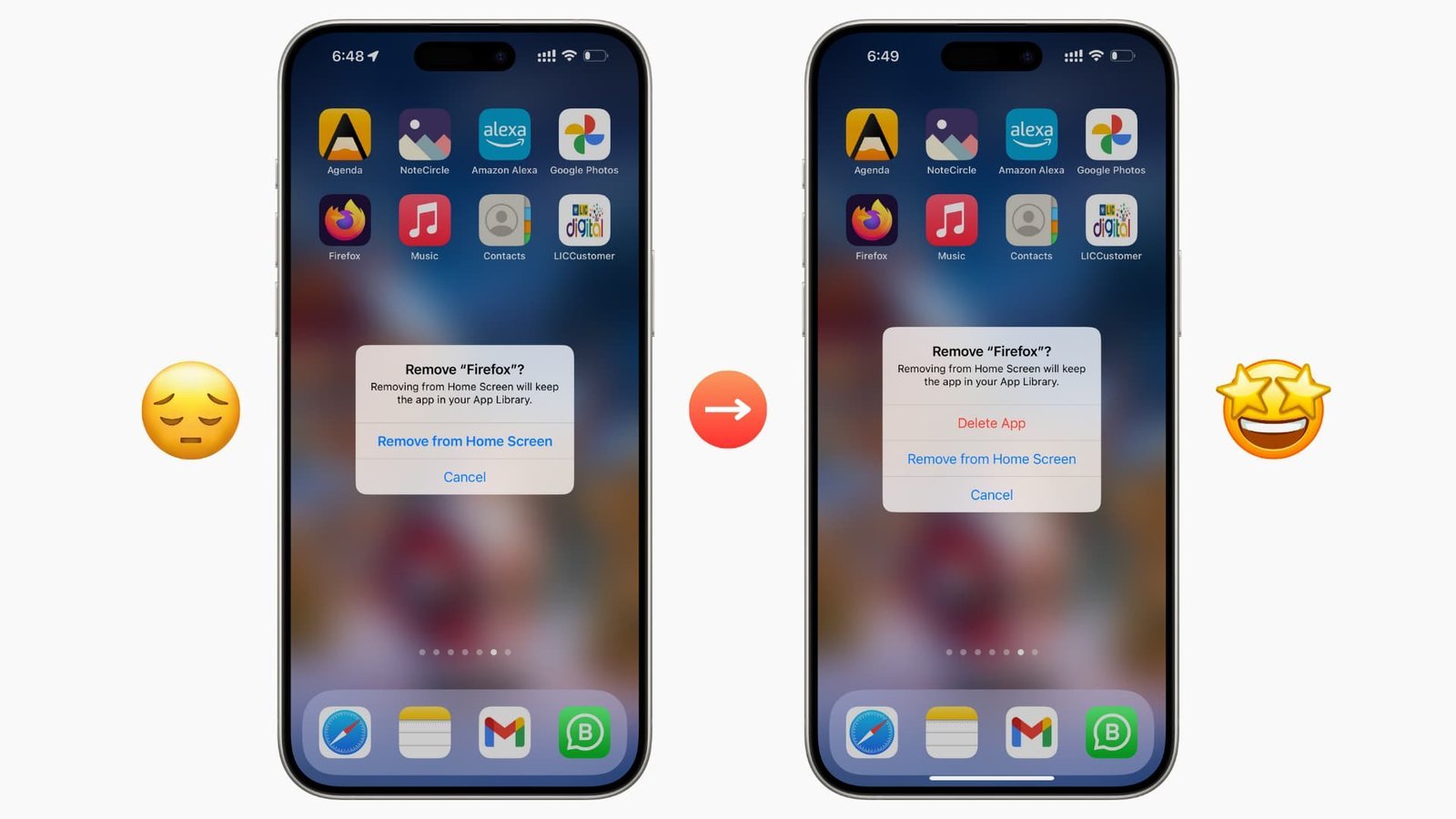
The primary reason an app refuses to leave your device is a software restriction. Apple allows users to block the deletion of apps through the Screen Time menu. If this setting is active, the system won’t let you remove any software, even if you hold the icon until it jiggles. You can check this by going to Settings, tapping Screen Time, and looking at Content & Privacy Restrictions. If “Deleting Apps” is set to “Don’t Allow,” you won’t be able to remove anything.
Another common cause involves managed profiles. If your iPad was issued by a company or school, it might have a Mobile Device Management (MDM) profile installed. These profiles give administrators control over which apps stay on the device. If the app was pushed to your iPad by your organization, you can’t delete it manually. You would need to contact your IT department to have it removed from your user account.
Finally, a temporary system glitch can freeze the deletion process. Sometimes the iPadOS gets stuck while trying to communicate with the App Store server to finalize the removal. If the app is currently downloading or updating, the delete command will be ignored until that process finishes. This is a common issue when your storage is nearly full, as the system struggles to perform background tasks.
Check your content restrictions
This fix is for users who can’t see the “X” button or the “Remove App” option when they long-press an icon. You must first ensure your device isn’t preventing changes to your apps.
Open the Settings app and scroll down to the Screen Time section. Tap on “Content & Privacy Restrictions” and enter your Screen Time passcode if prompted. Look for the “iTunes & App Store Purchases” menu. Within this screen, find the “Deleting Apps” option. If it’s set to “Don’t Allow,” toggle it to “Allow.” Once you have changed this setting, return to your Home Screen and try to delete the app again.
If this doesn’t resolve the issue, you should verify your Apple ID status. On some devices, a pending update or a billing issue can cause the App Store to lock certain functions. You can review the official Apple support guidance on managing your apps to ensure your account is in good standing. If the app is a default Apple application, remember that some system apps can’t be removed, though most can be hidden. This varies by model — check the label in the App Store to see if the app is officially removable. If you aren’t comfortable navigating these settings, ask a friend who uses an iPad to walk you through the menu, as accidental changes to your privacy settings can affect other features.
Fixing an app not deleting from iPad
This fix is for cases where the standard Home Screen method fails due to a frozen interface. Using the storage menu bypasses the icon-based deletion system and forces the OS to clear the data.
Go to Settings, then tap General, and select iPad Storage. Wait a few seconds for the list of apps to load completely. Scroll through the list until you find the app that’s giving you trouble. Tap the app name, which will show you two options: “Offload App” and “Delete App.” Select “Delete App” and confirm your choice. This action removes both the application and all associated data from your device.
This method is highly effective because it forces the system to re-scan your storage allocation. If the app is still stuck after this, it’s likely a system-level process that’s currently locked. In this scenario, restart your iPad by turning it off and back on again. This clears the temporary cache and stops any background tasks that were preventing the deletion. If you still see the app after a restart, you may have a corrupted system file, which requires a full backup and restore using a computer. This is a trade-off: you gain a clean system but lose your local settings during the process.
Use a force restart
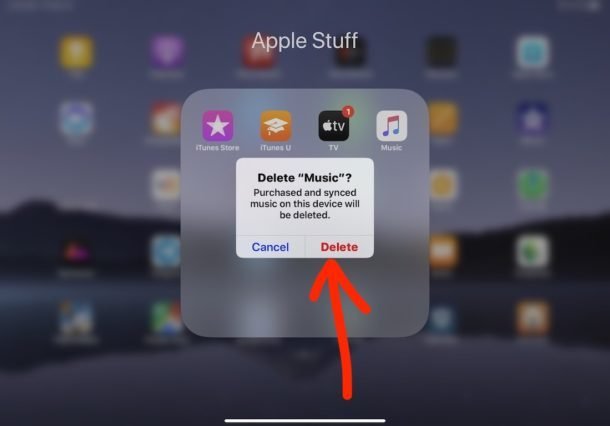
This is the fix for when the iPad is completely unresponsive. If the screen is frozen or the app icon has turned grey with a “Waiting” label, a force restart is the best way to reset the system’s state.
For iPads without a Home button, quickly press and release the Volume Up button, then the Volume Down button, and finally hold the Top button until the Apple logo appears. For iPads with a Home button, hold both the Home and the Top buttons until the screen goes black and the logo reappears. This process doesn’t delete your personal files, but it does stop all active processes.
Only use this method if the app has been stuck for more than ten minutes. If the app is part of a managed profile, this restart won’t change your access rights. You should be careful not to force restart while a system update is installing, as this can lead to data loss. If you see a progress bar on the screen, wait for it to finish before attempting a restart. If the device remains stuck on the logo screen for more than twenty minutes, it’s no longer a simple app issue; you’ll need to connect the device to a computer and use recovery mode to repair the software.
What not to do
- Don’t try to delete the app by dragging it into a folder, as this only hides the icon and doesn’t remove the data from your storage.
- Don’t attempt to jailbreak your iPad to remove stubborn apps, because this voids your warranty and puts your personal data at severe risk.
- Don’t keep tapping the icon repeatedly while it’s in “Waiting” mode, as this creates a queue of commands that can cause the system to crash.
- Don’t reset your entire device to factory settings before backing it up, as you’ll lose every photo, document, and message currently on your iPad.
How to stop it happening again
Keep your software updated to ensure the system handles app management correctly. Most issues arise when the iPadOS version is outdated, causing conflicts with new app updates.
| If you’re doing this | Do this instead | Why |
|---|---|---|
| Leaving updates pending | Enable automatic updates | Prevents sync errors |
| Keeping storage full | Clear unused files | Stops background hangs |
| Sharing one Apple ID | Use Family Sharing | Prevents account conflicts |
| Ignoring app prompts | Check the App Store | Confirms app status |
A common mistake is assuming that “Auto-Update” covers every app. It does not. If your iPad has less than 2GB of free space, the system will pause all background updates to preserve core functions.
Check your storage in Settings under General. If you’re near the limit, offload large apps you rarely use. If you see a “Waiting” status on an app icon, tap it once to force a priority download. If it still hangs, toggle your Wi-Fi off and on to reset the connection handshake.
Frequently asked questions
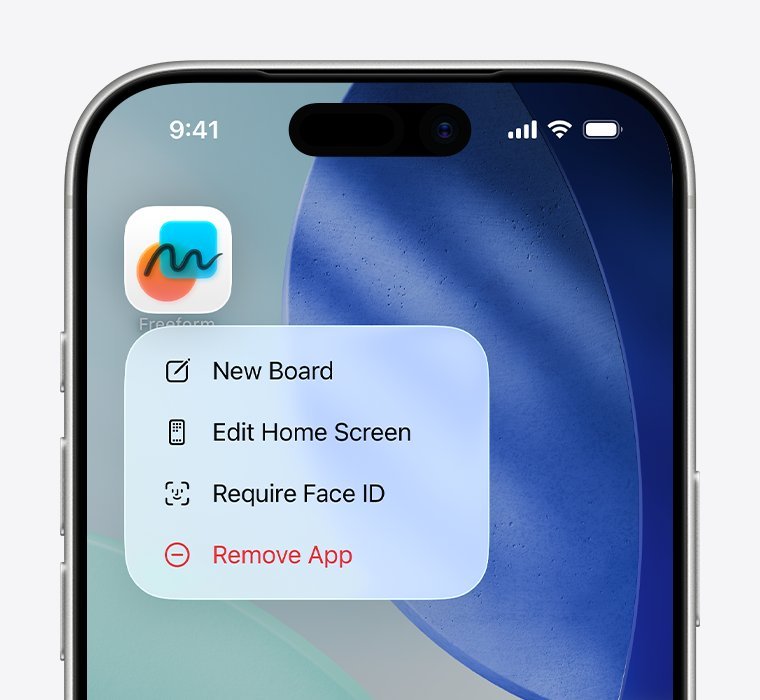
Can I delete pre-installed apps?
You can delete most pre-installed apps, but not core system components. Apple allows you to remove standard applications like Mail and Calendar to free up space. However, essential tools like Settings and the App Store can’t be deleted because they’re required for your device to function properly.
Why does the app icon stay grey?
A grey icon indicates a pending download or update that has stalled. This usually occurs due to a weak internet connection or insufficient storage space on your device. Ensure you’re connected to stable Wi-Fi and have enough free storage to allow the process to complete successfully.
Is it safe to force restart my iPad?
A force restart is safe and won’t delete your personal files or photos. This action simply forces the operating system to reload, which resolves most unresponsive software issues. Avoid performing this while the device is installing a major firmware update to prevent potential software corruption.
What happens if I offload an app?
Offloading an app removes the application file while keeping all your documents and data intact. This feature is ideal for managing storage space without losing your game progress or account settings. You can easily redownload the app later by tapping its icon on your Home Screen.
How long should I wait for an app to delete?
Wait thirty seconds for the deletion process to complete after tapping the button. If the icon remains after one minute, the system is likely experiencing a temporary hang. If the app persists after five minutes, perform a device restart to resolve the issue.
Final Thoughts
If these quick fixes don’t solve the issue, it’s a good idea to reach out to Apple Support for further help. They’ll be able to see if there’s a deeper software glitch affecting your device. Don’t worry, you’ll get your storage space back once you identify the root cause of the problem.


