
If you find Joplin not syncing, verify your synchronization target settings and ensure encryption keys match across all devices. The most common cause is a simple network timeout or a mismatched master password on one of your connected machines.
Check your internet connection first. If you’re on a metered or public Wi-Fi, the sync target URL may be blocked by a firewall. If the status bar shows an error, wait sixty seconds before clicking “Sync” again to allow the application to re-establish its handshake with your storage provider.
The biggest mistake users make is changing the sync target folder path on only one device. If you see a “Sync target not found” error, compare the folder path string character-for-character against a device that’s currently working. If the paths differ, you must manually update the configuration on the failing device to match the primary source.
Why this happens
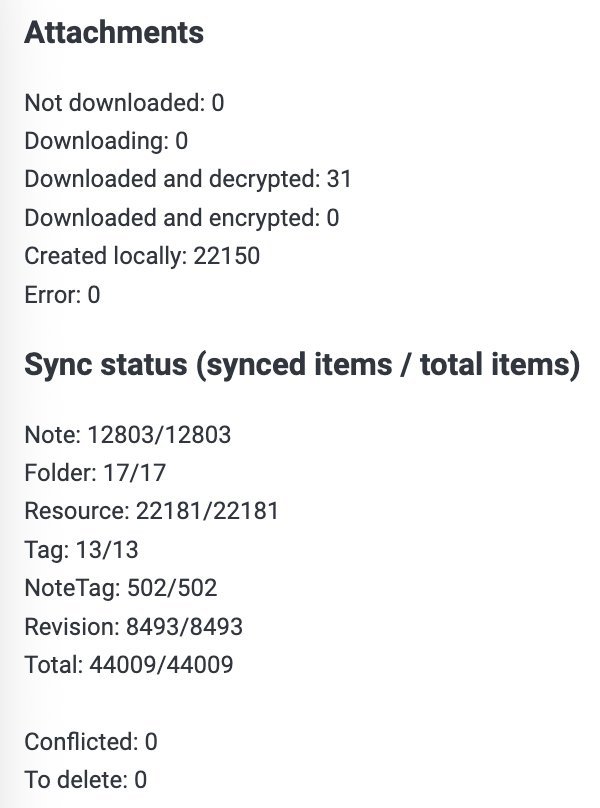
Synchronization failures occur because the application requires a precise handshake between your local database and your remote storage provider. When this process breaks, the software can’t verify that your data is current or safe to update.
The first common cause is a credential mismatch. If you change your master password on your desktop but forget to update it on your mobile device, the sync process will fail silently or display a generic error message. The app can’t decrypt the remote files to compare them with your local ones, so it stops the process to prevent data corruption.
A second cause involves network configuration or proxy settings. If you’re using a workplace or public Wi-Fi network, the firewall may block the specific ports Joplin uses to reach your sync target, such as WebDAV or Dropbox. The application needs an open path to communicate with your cloud storage; if the server rejects the request, the synchronization loop will stall.
Finally, internal database locks sometimes prevent syncing. If the application crashes during a previous sync, a temporary lock file might remain in your sync folder. This file tells the software that another process is busy, preventing any new sync attempts. You can find more details on how the application handles data integrity and storage paths on the Joplin official documentation. Check the settings menu of your sync provider to ensure you have enough storage space left for your notes.
Check your sync configuration
This fix is for users who see a “Connection Error” or “Invalid Credentials” message in the log. First, open your settings menu and go to the “Synchronization” tab. You need to re-enter your username and password for your chosen storage service, even if they look correct. Sometimes, the internal cache holds a stale token that no longer works with the server. If you use a WebDAV provider, ensure the URL ends with a trailing slash, as some servers are sensitive to this format.
After updating the credentials, click “Check synchronization configuration.” If the test returns a success message, you can proceed to trigger a manual sync. If the test fails, you must verify your storage provider’s status page to ensure their servers aren’t undergoing maintenance.
This fix isn’t for users who have lost their master password. If you don’t have your master password, you can’t decrypt your data on a new device, and there’s no “forgot password” option that will recover your encrypted notes. If you’re uncertain about your current encryption status, look at the “Encryption options” section in the settings. If you see a green checkmark next to your keys, your configuration is likely correct, and the issue might be a local network block. If you’re unsure, don’t attempt a full re-install yet, as that won’t fix a credential mismatch.
Clear the temporary lock file
Use this method if the application reports that the database is locked or that a sync is already in progress. Sometimes, a sudden power loss or an app crash leaves a file named lock in your synchronization directory. This file acts like a “stop” sign for the software, keeping it from starting a new sync.
To fix this, navigate to your sync folder on your cloud storage provider—such as your Dropbox or OneDrive folder—and look for a file specifically labeled lock. If you see it, delete it. After deleting the file, restart the Joplin application on your primary device. The software will perform a fresh check of the files and realize the previous session is closed.
This is a powerful fix, but be careful. Only delete a file named exactly lock. If you delete other files in that directory, you risk losing your notes permanently. If you aren’t comfortable navigating your cloud storage folders manually, you can try to “Re-index” the database from the “Tools” menu in the application. Re-indexing forces the app to scan your notes again and can sometimes clear minor internal errors without requiring you to touch the raw files. This is a safe first step before you decide to manually manage your remote directory.
Force a full re-sync
When notes are missing or the synchronization status remains stuck for hours, you may need to force a full re-sync. This process tells the application to ignore the current local status and compare everything against the remote storage again.
To do this, go to the “Tools” menu and select “Options,” then “Synchronization.” You’ll see an “Advanced” button. Choose “Re-upload local data to sync target.” This is a heavy-duty option that should only be used when standard syncing fails repeatedly. It will take time, as the application must compare every single note against the remote copy.
This is worth the time if you have just migrated to a new computer or restored from a backup. It isn’t worth the time if you have a slow internet connection and thousands of notes, as the process could take hours. Be aware that this process can consume a significant amount of data. If you’re on a metered mobile connection, wait until you’re on a stable Wi-Fi network before starting this. If the sync still fails after this step, it’s likely that your local database has a deeper corruption issue. At this point, you should export your notes to a JEX file as a manual backup before attempting a full profile reset. If you don’t have a backup, don’t proceed with a reset.
What not to do
- Don’t delete your entire sync folder on the server, as this will result in the permanent loss of all your notes across every device.
- Don’t try to edit the encrypted files directly in a text editor, because this will corrupt the data and make it impossible for the application to decrypt your notes.
- Don’t use different encryption passwords for different devices, as the app can’t merge notes from two different keys and will cause a sync failure.
- Don’t ignore the error logs, because they contain the specific reason why the sync is failing, which saves you from guessing which fix to apply.
How to stop it happening again
Keep your software updated to the latest version to ensure compatibility with your sync provider’s security requirements.
| If you’re doing this | Do this instead | Why |
|---|---|---|
| Changing your password often | Keep one master password | Sync requires a matching key |
| Closing the app during sync | Wait for the icon to stop | Prevents corrupt lock files |
| Using unstable public Wi-Fi | Use a stable home connection | Reduces request timeouts |
| Ignoring sync error logs | Check logs after a failure | Tells you the exact cause |
Frequently asked questions
Can I sync Joplin with Google Drive?
You should use a supported provider like Dropbox, OneDrive, or a WebDAV server for stable synchronization. Note that using a third-party WebDAV bridge for Google Drive requires advanced technical knowledge.
Why does my sync take so long?
Sync duration depends on your total note count and your internet upload speed. Thousands of small notes require individual network requests, which significantly increases the time needed. If the sync stalls for over thirty minutes, your connection may have dropped or the server might be throttling requests.
Is it safe to use end-to-end encryption?
Yes, your notes are safe because they’re encrypted on your device before being uploaded. The sync provider only sees unreadable data, ensuring your information remains private. You must keep your master password secure, as lost passwords mean your encrypted data can’t be recovered by anyone.
What happens if I lose my master password?
You’ll lose access to all encrypted notes on every device because there’s no way to recover a lost master key. The system is designed so that only you hold the lock to your data. If you forget your password, you must start over, leaving previous notes permanently inaccessible.
How long should a sync take?
A standard sync for a few hundred notes takes less than sixty seconds on a modern broadband connection. Large databases or slow upload speeds can extend this process to several minutes. If the sync takes longer than ten minutes, check your internet connection and the synchronization log for errors.
Final Thoughts
If the problem persists after these checks, don’t hesitate to reach out to the community forum for extra help. You’ll find that other users are often happy to share their own experiences. Once your notes are flowing smoothly again, you’re all set to focus on your projects without any further interruptions.
Related guides


