
To fix an apple watch calendar not syncing, you need to toggle the iCloud Calendar switch off and back on in your iPhone’s settings to force a fresh data handshake. This issue is most often caused by a stalled background sync between your iPhone and the Apple Watch, which happens when the Bluetooth connection is momentarily interrupted or when the phone’s calendar cache becomes too cluttered. If you have recently changed your Apple ID password or updated your device software, the watch may lose its authorization to pull data from your primary calendar account.
Fixing an Apple Watch calendar not syncing
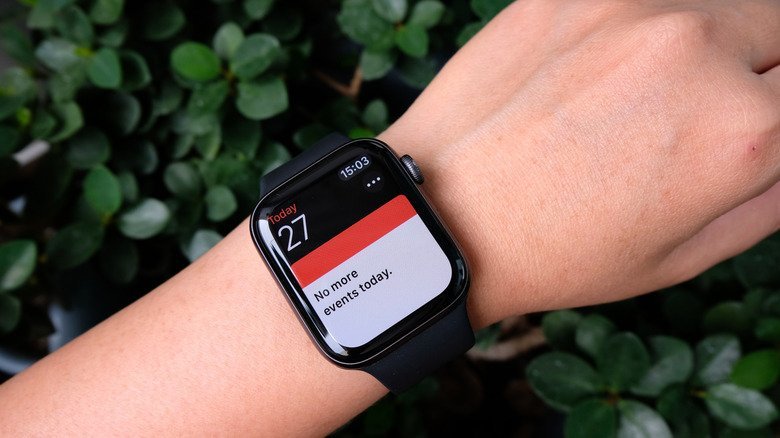
The primary reason for sync errors is a breakdown in the communication bridge between your iPhone and the watch. Because the watch doesn’t pull calendar data directly from the internet, it relies entirely on the iPhone to “push” events via Bluetooth or Wi-Fi. When the iPhone’s background app refresh settings are restricted, the watch stops receiving updates until the next manual trigger occurs.
Another common cause is a conflict within the account settings. If you have multiple calendars—such as work, personal, and shared family accounts—the watch might be trying to sync a calendar that’s no longer authenticated on your phone. This often occurs if your security credentials for an email provider, like Google or Outlook, have expired. The iPhone keeps working because it uses a direct server connection, but the watch remains stuck because it can’t access the account’s tokens.
Lastly, software bugs in the watchOS or iOS versions can cause the sync daemon to hang. This process is responsible for managing the data transfer between the two devices. If the daemon crashes, the watch will show old information until you force the devices to re-establish their connection. You should check Apple’s official support guide to ensure your devices are running the latest compatible software, as outdated versions are a frequent cause of background sync failures.
Toggle account settings
This fix is for users who see their iPhone calendar working fine but the watch remains blank or outdated. Go to your iPhone, open the Settings app, and tap on your name at the top. Select “iCloud,” then tap “Show All” under the “Apps Using iCloud” section. Find “Calendars” and flip the switch to the “Off” position. When prompted, choose “Delete from My iPhone.” Wait about thirty seconds, then flip the switch back to “On.”
This action forces the device to re-download your calendar information from the cloud server rather than relying on the potentially corrupted local cache. Once you turn it back on, open the Calendar app on your iPhone and wait for it to fully load your events. After the phone shows your current schedule, check your watch. If it still doesn’t update, keep the watch on its charger for ten minutes; this triggers a power-save mode that often prioritizes background data syncing over other tasks. If you have over one thousand calendar entries, this process can take several minutes to complete, so don’t interrupt the connection during this time. If you don’t see the events appear after ten minutes, move to the next step.
Reset the sync data
This method clears the specific bridge between the watch and the phone. Open the Watch app on your iPhone and go to the “My Watch” tab. Tap “General,” then scroll down to the bottom and select “Reset.” You’ll see an option labeled “Reset Sync Data.” Tap this once. You won’t see a progress bar or a confirmation message, but the watch will immediately begin wiping its internal calendar cache and requesting a fresh copy from the phone.
This is a non-destructive process, meaning you won’t lose your watch faces, health data, or apps. It’s a “clean slate” command for the sync service. If you have a large number of calendars, this may cause the watch to feel slightly sluggish for a few minutes while it re-indexes your events. If you have multiple Apple Watches paired to one phone, this command only affects the watch that’s currently active in the app. If the sync still fails after this, check that your watch isn’t in “Airplane Mode,” as this kills the Bluetooth link required for data transfer. For those who frequently switch between different Wi-Fi networks, ensure your watch is connected to the same network as your phone during this reset to speed up the data transfer.
Check your calendar sources
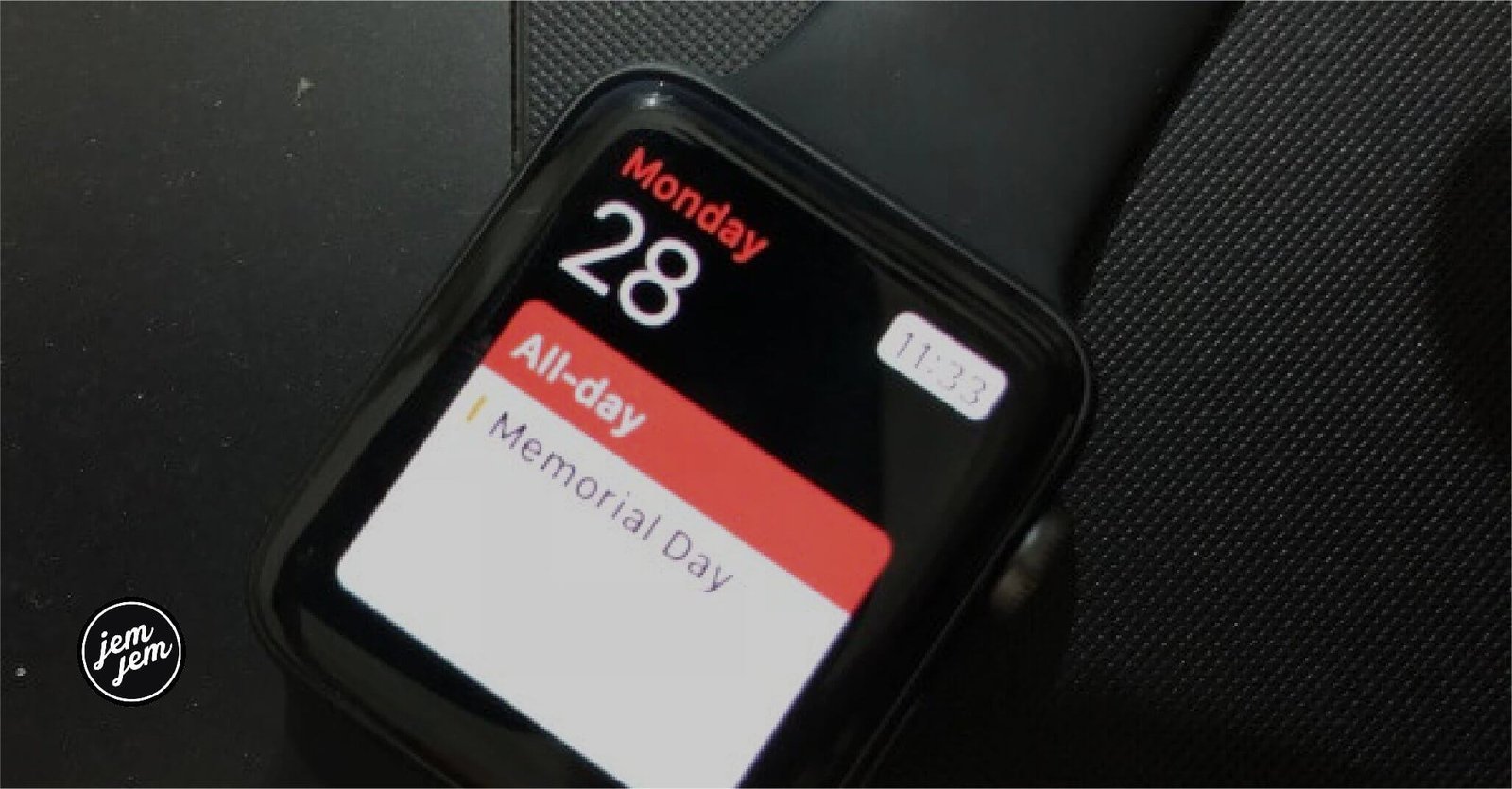
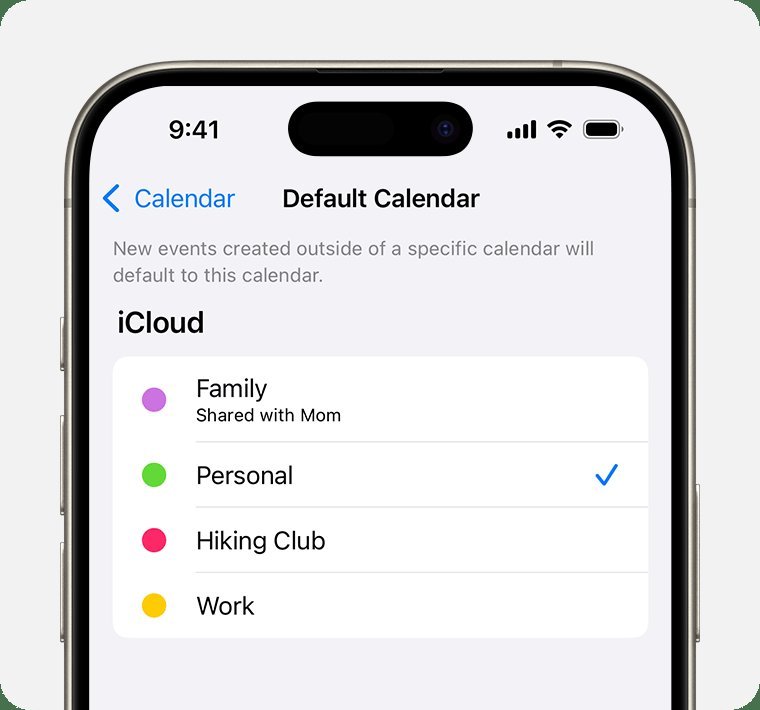
Sometimes the problem isn’t the watch, but a specific calendar account that has stopped syncing to the phone itself. Open the Calendar app on your iPhone and tap the “Calendars” button at the bottom of the screen. Look at your list of accounts. If any account has a warning icon or is unchecked, the watch won’t receive data from it. Uncheck all calendars and then re-check them one by one. This forces the iPhone to re-verify its connection to your email provider.
This fix is worth the effort if you use third-party services like Outlook or Google, which occasionally require re-authentication. However, if your calendar is managed by a company or school, you may not have the rights to fix the sync settings yourself. In those cases, the account might be blocked by a mobile device management policy. If you see a “Profile” or “Device Management” section in your iPhone’s General settings, contact your IT department. They’re the only ones who can reset the permissions for your work account. Don’t attempt to bypass these settings by deleting the account, as you may lose access to your company email or other secure resources.
What not to do
Don’t unpair your watch unless you have tried every other step. Restoring your data from a backup can take over an hour, and you risk losing health metrics that haven’t synced to the cloud.
Don’t delete the Calendar app from your iPhone. This action permanently wipes your local event data and fails to repair the sync bridge. If your events are missing, check your iCloud settings instead.
Don’t turn off Bluetooth on your iPhone. The watch relies on this low-energy connection to receive small data packets. Without it, the devices can’t handshake to verify your calendar permissions.
Don’t perform a full factory reset. This is a drastic measure that’s rarely needed for a simple sync issue. If you’re stuck, toggle Airplane Mode on the watch for ten seconds. If that fails, restart both devices. A reset should only be your final decision if the watch is completely unresponsive.
How to stop it happening again
Staying on top of your sync status is easier when you follow a routine, especially if you manage multiple busy calendars.
| If you’re doing this | Do this instead | Why |
|---|---|---|
| Leaving Bluetooth off | Keep Bluetooth enabled | Sync requires a constant wireless bridge |
| Ignoring software updates | Update iOS and watchOS | Updates fix known bugs in the sync daemon |
| Using many third-party apps | Use the native Calendar app | Third-party apps often have sync delays |
| Adding events offline | Sync while on stable Wi-Fi | Large syncs fail if the signal is weak |
The most common mistake is assuming a “connected” icon guarantees a successful push. It often only confirms a local handshake. If your data remains missing after thirty seconds, toggle Airplane Mode for five seconds to force a fresh handshake with the server.
Use this decision rule: if you see a conflict, always prioritize the native app. Third-party tools often cache data locally, creating a “ghost” entry that looks correct but never reaches the cloud. If you must use a third-party tool, check it against the native app once a week to ensure your databases remain identical.
Frequently asked questions
Can I force my Apple Watch to sync immediately?
You can force a sync by opening the Calendar app on your watch or toggling “Reset Sync Data” in the iPhone Watch app. The watch automatically refreshes data when the Calendar app is opened. Ensure devices are within ten feet to maintain a strong Bluetooth signal.
Why is my calendar only showing events from today?
Sync issues often occur because the watch is set to a limited timeframe to preserve battery. Change this in the Watch app by selecting “All Events” instead of “Upcoming Events.” Note that the watch prioritizes upcoming days to keep the interface fast and responsive.
Is it safe to reset my sync data?
It’s safe to use “Reset Sync Data” because it only clears the temporary cache, not your actual calendar information. Your personal data remains secure on your iPhone and iCloud. The watch simply discards its current list and requests a fresh copy from your phone.
How long does it take for a new event to appear?
Under normal conditions, a new event should appear on your watch within thirty seconds of being added to your iPhone. If it takes longer, the devices may be struggling to maintain a background connection due to low battery or distance. If you’re using a cellular-enabled watch, ensure that the “Cellular” setting is turned on in the Watch app so that events can sync even when your iPhone isn’t nearby.
What happens if I have two Apple Watches?
The “Reset Sync Data” command only affects the currently paired and active watch in the Watch app. You must perform the reset procedure for each device individually if both are experiencing issues. Ensure the correct watch is selected in the “My Watch” tab before resetting.
Final Thoughts
If these quick adjustments don’t resolve the delay, try restarting both devices to clear out any lingering software glitches. It’s usually a simple fix, but if your events still won’t appear, you shouldn’t hesitate to reach out to Apple Support. They’ll help you get everything back in sync in no time.


