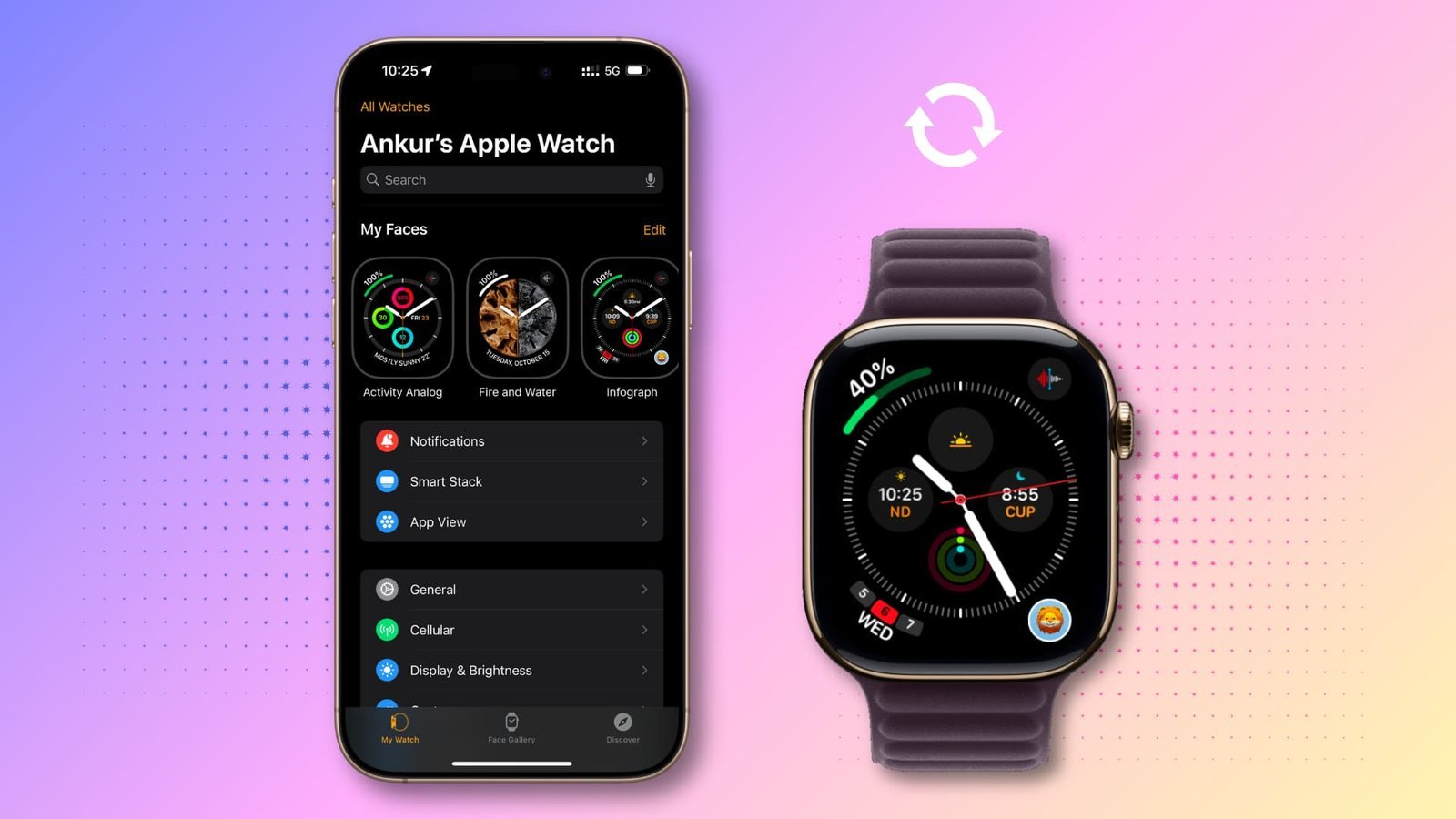
Most of the time, apple watch faces not syncing happens because your devices have lost their Bluetooth connection or require a software update to communicate properly. You can usually fix this by restarting both your iPhone and your watch, which forces them to re-establish their pairing. If the issue persists, the problem likely stems from a cache error in the Watch app on your phone. Checking your official Apple support guidance will help you verify if your specific watch model is running the latest watchOS version required for full syncing features.
Fixing Apple Watch faces not syncing
| Cause | How common | How to confirm it | Fix it yourself? |
|---|---|---|---|
| Bluetooth disconnected | Very common | Check control center | Yes |
| Outdated software | Common | Check settings menu | Yes |
| Full storage space | Occasional | Check usage stats | Yes |
| App cache error | Occasional | Force restart app | Yes |
| Corrupt watch face | Rare | Delete and recreate | Yes |
| Hardware failure | Very rare | Contact authorized repair | No |
Bluetooth drops usually stem from interference. If your watch disconnects near a microwave or high-traffic Wi-Fi router, move away to see if the signal recovers.
Software issues often trigger silent crashes. If your OS version is more than two updates behind, the watch may struggle to maintain background sync. Always check for pending updates in the Watch app.
Storage becomes a bottleneck when you have less than 500MB of free space. This prevents the system from writing temporary logs, causing the device to freeze. If you see “Storage Almost Full,” delete your oldest voice memos or offline music playlists immediately.
Most users mistake a hardware failure for a software bug. If the screen remains unresponsive after a hard reboot—holding the side button and crown for ten seconds—you’re likely dealing with a physical digitizer fault. Don’t attempt to open the casing yourself, as this voids all remaining coverage.
Connection and wireless signal issues
Bluetooth interference is the primary reason your watch faces fail to transfer. When your iPhone and Apple Watch can’t maintain a steady handshake, the data packets containing your face configuration are dropped. You can confirm this by opening the Control Center on your watch; if the icon shows a red disconnected status, the sync can’t complete.
To fix this, toggle Bluetooth off on your iPhone, wait ten seconds, and turn it back on. If that fails, move your devices closer together, ideally within one foot of each other, to minimize signal noise from other electronics. If you have multiple Bluetooth devices nearby, such as speakers or headphones, disconnect them temporarily to ensure the watch takes priority.
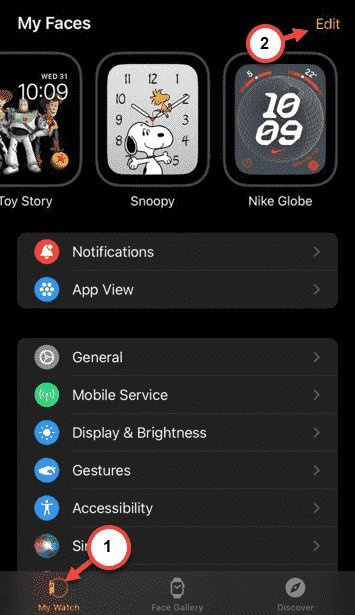
This isn’t for users who have hardware damage to their internal wireless antenna. If your watch has suffered a drop or water exposure, software resets won’t resolve the connectivity gap. A common mistake people make is trying to unpair the watch before checking the Bluetooth settings. This takes much longer and risks losing data if your current backup is incomplete. If your watch remains disconnected after a restart, check the “My Watch” tab in the Watch app. If the app shows a “Connecting” spinner that never goes away, you must move to a full device restart. This takes about five minutes of waiting for the watch to reboot and handshake with the phone again.
Software version mismatches
Software version mismatches occur when your iPhone is on a newer version of iOS than your watchOS, preventing the sync of newer watch face features. You can tell if this is the cause by looking at the “General” section of the Watch app on your phone; if it shows a red notification badge next to “Software Update,” your devices are out of sync.
If X is a major update, do A: update the iPhone first. If Y is a minor security patch, do B: update the watch directly via its own settings menu. This process varies by model — check the label on your watch box or the back of the case to identify if you’re using an older series that no longer supports the latest software. An older watch might not support the newest “Modular” or “Astronomy” faces, which can look like a sync error but is actually a compatibility limit.
Updating both devices can take thirty minutes or more, depending on your internet speed. Don’t turn off your devices during this time, as a partial update can cause the Watch app to hang. If you see an error message stating “Unable to Check for Update,” ensure your phone is connected to a stable Wi-Fi network. Don’t use cellular data for these updates, as the connection is often too unstable for large files. If the update finishes but the faces still don’t sync, you must force-close the Watch app by swiping up in the app switcher and reopening it to clear the interface memory.
Storage and cache limitations
Full storage space prevents the Watch app from writing new face data to the device memory. You can confirm this by navigating to General > Usage on your watch; if the available space is under five hundred megabytes, the device can’t accept new configurations.
This limit is a hard barrier because the watch needs room to process the temporary files required for face rendering. If you have many third-party apps installed, try deleting two or three unused ones to clear space. Once the space is freed, the watch will automatically attempt to sync the pending faces again.
A common mistake is assuming that deleting a watch face on the phone will instantly free up storage. It does not; you must clear the cache by restarting the watch. If you have a large library of photos synced to your watch, this is often the culprit for storage issues. If you have more than one hundred photos in your synced album, remove half of them to see if the sync resumes. This trade-off between having your favorite photos and having space for new watch faces is common for users with smaller storage capacities. If you see a “Storage Almost Full” warning, you can’t sync new faces until you remove media files, as the watch prioritizes system stability over customization.
The less likely causes
- Corrupt face configuration: A specific face file has become unreadable; delete the face from the app and create a new one to test if the sync function is working.
- Restricted background refresh: Background App Refresh is turned off in your phone’s privacy settings, which stops the Watch app from communicating; toggle this back on in Settings.
- Apple ID mismatch: Your watch is signed into a different account than your phone; check the “General” menu to ensure the Apple IDs match perfectly.
- Physical component failure: The internal Bluetooth chip has failed due to age or impact; this requires professional service from an authorized repair center.
What a fix usually involves
Fixing sync issues usually involves simple software management that costs nothing but your time. Most cases are resolved by a basic restart, which takes only a few minutes. If you need to update your software, you’ll need a stable Wi-Fi connection and a charger, as the process requires the battery to be at least half full. If you have a corrupt watch face, the fix is just a few taps in the Watch app to delete and recreate the design.
In rare cases where hardware is the problem, you may need a repair. This involves a small part replacement or a full unit swap, which can cost a significant portion of the price of a new watch. Always check the official website for your specific model to see if there’s a known service program for your issue before paying for a repair. You can get a real quote for service by visiting a store or using the online support portal, which will give you an estimate based on your device’s serial number and warranty status.
Frequently asked questions
Can I force my Apple Watch to sync?
Yes, you can force a sync by toggling Airplane Mode on and off on your watch. This action forces the device to drop all current connections and initiate a fresh handshake with your iPhone. If that doesn’t work, force-closing the Watch app on your phone and restarting the watch is the most effective way to trigger a complete data refresh.
Why do some watch faces show a blank icon?
About ten seconds after a sync error, you might see a blank or black icon for a face. This happens when the sync process started but failed to download the image assets for that specific design. You can usually fix this by deleting the blank face in the app and adding it again while your watch is charging.
Is it safe to unpair my watch to fix syncing?
No, you should only use unpairing as a last resort because it wipes your watch data. While it does create a backup, the process takes thirty to sixty minutes and isn’t necessary for minor sync glitches. Try restarting your devices first, as this fixes the vast majority of sync issues without the need to erase and restore your watch.
How long does a watch face sync take?
Under normal conditions, a watch face sync takes about thirty seconds once you tap “Add” in the app. If you’re syncing a face with many complications or a photo album, it might take up to two minutes. If the sync takes longer than five minutes, it’s likely that your Bluetooth connection has failed or your storage is full.
Does it matter if my watch is on the charger?
Yes, it’s highly recommended to keep your watch on its charger while syncing new faces or updating software. This prevents the watch from entering power-save mode, which can cut off the Bluetooth connection mid-sync. Keeping the watch powered ensures the processor has enough energy to handle the file transfer and the rendering of the new face configuration.
What happens if I have two watches?
If you have two watches, the app will sync the faces to the one currently marked as “Active” in the top left corner of the Watch app. You can switch between watches easily, but only the active one will receive the sync commands. Ensure you have selected the correct device in the app before you try to push new faces or update your settings.
Final Thoughts
If these quick fixes don’t get your display back to normal, it’s a good idea to reach out to Apple Support directly. They can check for deeper hardware issues that might be preventing a stable connection. Don’t worry, you’ll likely have your favorite setup back on your wrist in no time.