You can often resolve a fitness app not tracking steps by checking your smartphone’s motion sensor permissions and ensuring the background activity settings are enabled. The most common cause is a software conflict where the operating system restricts the app from accessing sensor data to save battery life. If you have recently updated your phone or the app itself, these permission toggles may have reset to a default “off” position.
Reasons your fitness app stops tracking steps
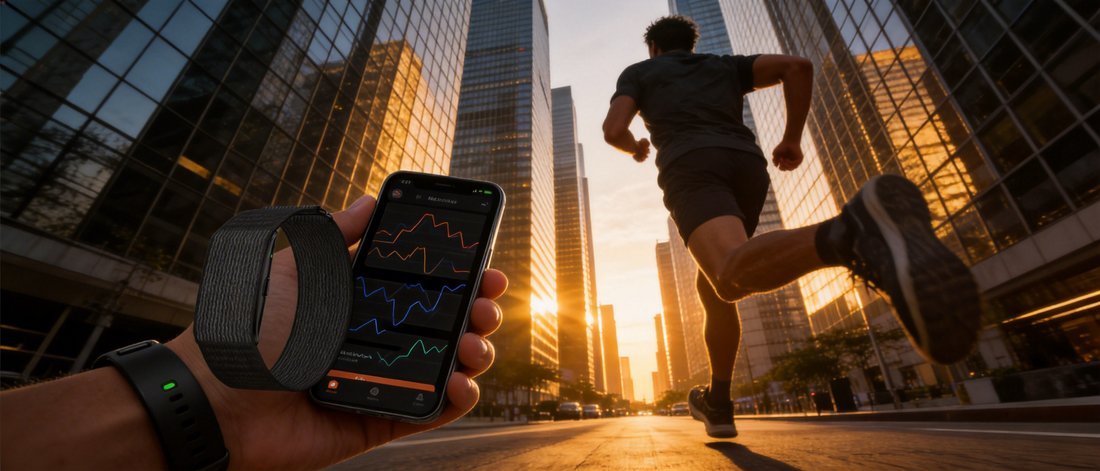
Most modern smartphones use a combination of an accelerometer and a gyroscope to detect movement. When your device fails to count your steps, it’s usually because the connection between the hardware sensors and the software application has been severed.
The primary culprit is battery optimization settings. Android and iOS devices have aggressive power-saving modes that stop background processes when they perceive the phone is idle or low on power. If your fitness app isn’t granted “always-on” permission, the system will kill the tracking process the moment you lock your screen.
Another frequent cause is a corrupted cache or a pending app update. If the app has accumulated too much temporary data, it may struggle to process new sensor inputs correctly. This is a technical glitch rather than a hardware failure. You should also consider that some phone cases or mounting positions can block the internal sensors from detecting your gait accurately. If you carry your phone in a loose bag or a heavy-duty holster, the sensors may not register the rhythm of your walk. Finally, ensure your device’s internal clock is set to “automatic” in the settings. If the time is out of sync with the server, the app may reject incoming step data because it appears to be from the future or the distant past.
Check your sensor permissions
This fix is for users who have confirmed their app is installed but shows zero progress despite movement. You must ensure the app has explicit permission to access the phone’s physical activity sensor.
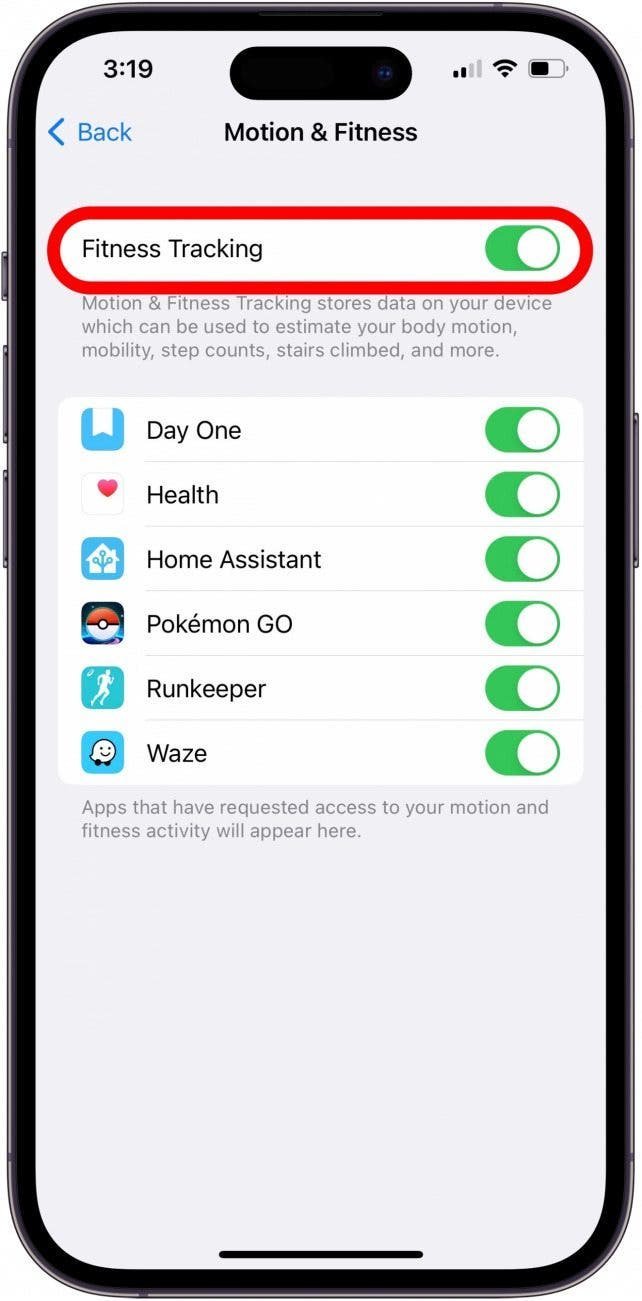
On an iPhone, go to Settings, select Privacy & Security, and tap Motion & Fitness. Find your fitness app in the list and toggle the switch to “On.” If you use an Android device, navigate to Settings, tap Apps, select your fitness app, and look for Permissions. Ensure “Physical Activity” is set to “Allow.” If you don’t see this option, the app might not be fully updated, so check the Google Play Store or Apple App Store for the latest version.
This change should take effect immediately. To test it, walk for at least 50 steps with your phone in your hand or a secure pocket, then open the app. If the number doesn’t update, restart your phone to force the system to re-initialize the sensor drivers. If you’re using a third-party accessory like a heart rate strap or a smartwatch, this varies by model — check the label or the manufacturer’s manual to see if you need to pair it via a specific bridge app first. If you’re still seeing zero steps after these steps, you may need to uninstall and reinstall the app to clear out any deep-seated software bugs.
Clear the app cache and data
If permissions are correct, you may need to clear the temporary data stored by the app. This is a common fix for apps that crash or freeze during data syncs. This isn’t for users who fear losing their historical data, as most fitness apps sync to a cloud account; however, if you haven’t synced in a long time, ensure you’re logged into your account on a web browser to verify your data is backed up before proceeding.
On Android, go to Settings, tap Apps, select your fitness app, and choose Storage. Tap “Clear Cache.” If that doesn’t work, tap “Clear Data” to reset the app to its original state. You’ll likely need to log back in after this. For iPhone users, there’s no “clear cache” button; you must delete the app entirely and download it again from the App Store.
This fix is effective because it removes corrupt files that might be blocking the sensor handshake. If the app still doesn’t track after a clean install, the issue is likely a hardware fault in your phone’s accelerometer, which requires a professional technician to diagnose.
Adjust battery optimization settings
Sometimes the operating system is too aggressive at saving power. You can prevent the system from killing your fitness app by excluding it from battery optimization lists.
For Android users, navigate to Settings, Battery, and then “Battery Optimization” or “App Power Management.” Find your fitness app in the list and select “Don’t Optimize” or “Unrestricted.” This tells the phone to keep the app running in the background at all times, even when the screen is off. If you’re on an iPhone, ensure “Background App Refresh” is enabled for that specific app under General settings.
This is a trade-off: your battery will drain slightly faster because the app remains active. If your phone is older, you might notice a 5% to 10% decrease in daily battery life. This isn’t for people who need their phone to last two full days on a single charge without access to a power bank. If you choose this setting, ensure your phone is charged to at least 80% to avoid the system re-enabling power-saving mode automatically. This fix is the most reliable way to ensure consistent step counting if you walk for long periods without checking your phone. If your phone enters “Low Power Mode” or “Battery Saver Mode,” these settings are often overridden; always keep your battery level above 20% to ensure the sensors continue to report data to the application.
What not to do
- Don’t shake your phone manually to “trick” the sensor. This often leads to inaccurate data spikes and can damage the internal components of your device.
- Don’t download multiple fitness apps to “test” the sensor. Multiple apps competing for the same sensor data can cause conflicts, leading to both apps failing to report steps correctly.
- Don’t reset your entire phone to factory settings as a first step. You’ll lose all your photos and local files for no reason; always try clearing the cache and checking permissions first.
- Don’t ignore system software updates. Many updates contain patches for sensor drivers that specifically fix tracking issues, so skipping them often keeps the bug active.
How to stop it happening again
Consistency is the best way to keep your tracking accurate. Use this table to manage your phone habits and ensure your steps are always counted.
| If you’re doing this | Do this instead | Why |
|---|---|---|
| Closing all background apps | Keep the fitness app open | The app needs to run to count steps |
| Using “Battery Saver” mode | Charge your phone regularly | Power modes disable sensor tracking |
| Keeping phone in a loose bag | Carry phone in a pocket | Sensors need steady rhythm to count |
| Ignoring app update notices | Enable auto-updates | Updates fix sensor compatibility bugs |
Frequently asked questions
Can a phone case stop my fitness app from tracking steps?
Thick or metal-heavy cases can interfere with your device’s accelerometer sensitivity. These cases often dampen the subtle movements required for the sensor to detect footsteps. If tracking improves without the case, consider switching to a thinner, non-metallic cover.
How long does it take for steps to sync to the cloud?
Steps typically sync to the cloud within minutes of finishing a walk if you have a stable internet connection. Data remains in local storage while offline and syncs once you reconnect. If data fails to update after 24 hours, manually pull down on the dashboard to force synchronization.
Is it safe to give my fitness app all permissions?
It’s safe to grant permissions if the app comes from a reputable developer found in official stores. Fitness apps require activity data to function, but you should always read the privacy policy to ensure your data isn’t being sold. If you distrust the app, choose a more transparent platform.
What happens if I move my phone between pockets?
Your fitness app should continue tracking steps without issue when you move the phone between pockets. The accelerometer is designed to detect hip and leg motion regardless of which side the phone is on. Note that moving the phone to a bag may cause a brief pause as the sensor adjusts.
Why does my app track some steps but not all?
Your app may miss steps if your walking pace is too slow or your movements are irregular. Accelerometers are calibrated to recognize the specific frequency of a human gait, causing them to ignore very slow or inconsistent movement. Maintain a steady, brisk pace with the phone in a secure pocket for better accuracy.
Final Thoughts
If these adjustments don’t get your data flowing again, try deleting and reinstalling the software to clear out any lingering glitches. It’s a simple fix that usually does the trick. You’ll be back to monitoring your daily progress in no time, so don’t hesitate to reach out to their support team if you’re still stuck.