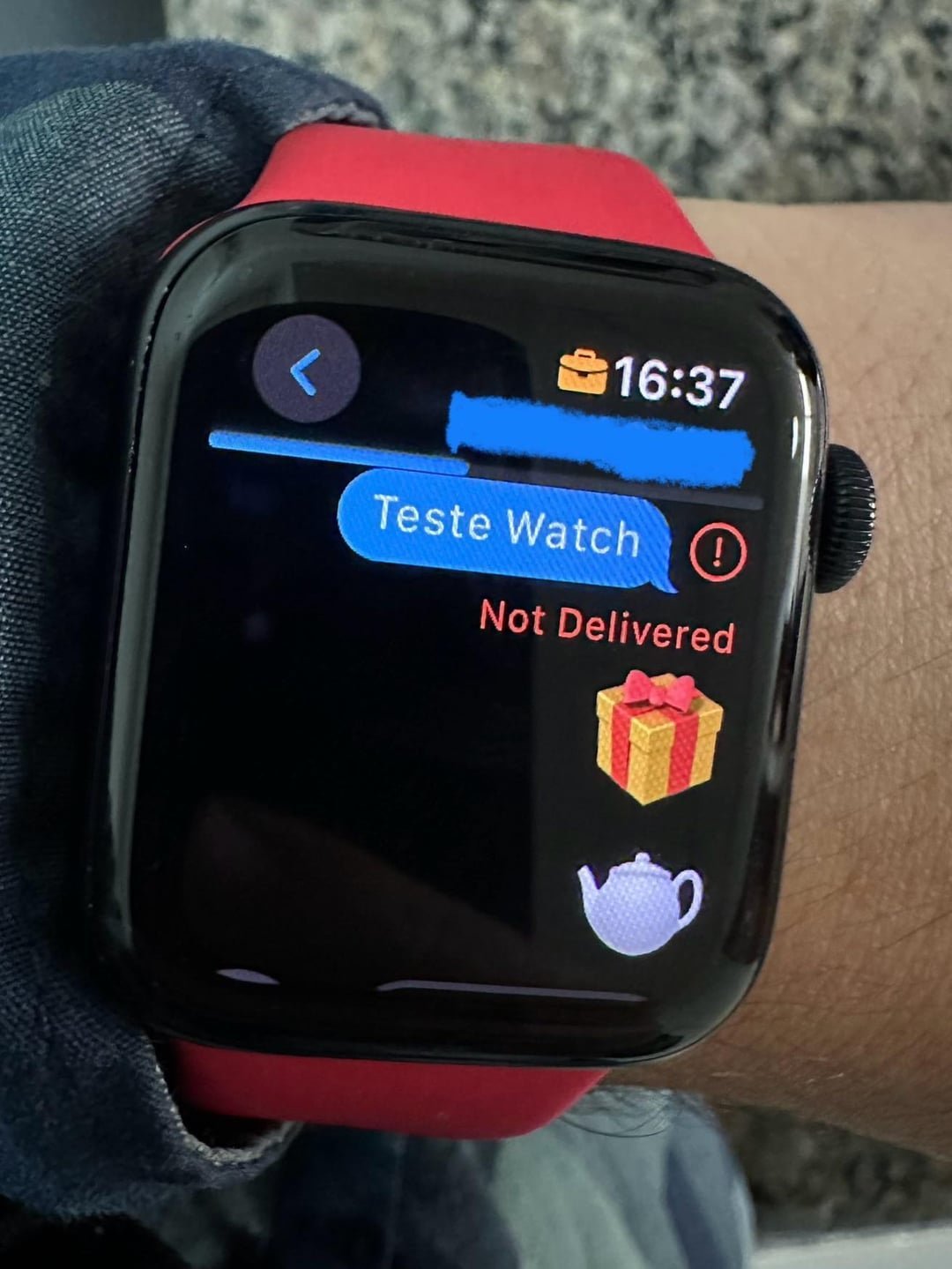
You can fix apple watch messages not syncing by toggling your iMessage settings off and back on to force a fresh connection with the iCloud servers. This issue usually happens because the handshake between your phone and your watch has timed out or encountered a data bottleneck. If this doesn’t resolve the delay, a simple restart of both devices is often the necessary next step to clear the temporary cache.
Reasons your messages aren’t syncing
The primary reason your messages fail to mirror across devices is a breakdown in the synchronization process between the Apple Watch and the paired iPhone. When you send or receive a message, the data must travel from the Apple servers to your iPhone, which then forwards the notification and the message content to your watch via Bluetooth or Wi-Fi. If your iPhone is busy with other background tasks, or if the Bluetooth connection is unstable, that bridge becomes blocked.
Another common cause is an issue with your Apple ID credentials. If your watch has lost its authentication token, it will stop pulling new data from your iCloud account even if it appears to be connected to your network. This is common after you update the watchOS or iOS software. If the sync state is stuck, the watch might show old messages while failing to fetch the latest threads.
Finally, low-power modes or battery-saving settings can restrict background data refresh. If your watch is running in a restricted power state, it intentionally stops fetching new message data to save energy. This is a standard feature designed to extend battery life, but it causes the exact sync delay you’re seeing. You can check the official details on how these communication features function through Apple’s support guide for watch connectivity. Always verify that your watch and phone are connected to the same iCloud account, as different accounts will prevent synchronization entirely.
Toggle iMessage settings
This fix is for users who have a stable internet connection but see a mismatch in their conversation history. Start by opening the Settings app on your iPhone, tapping on Messages, and then turning off the switch for iMessage. Wait at least thirty seconds to ensure the connection fully resets before turning it back on. Once you reactivate iMessage, wait for it to show the “Waiting for activation” status until it clears.
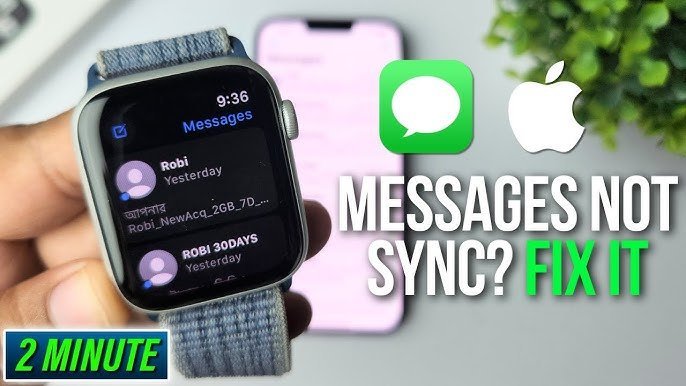
Next, open the Watch app on your iPhone, go to the My Watch tab, and select Messages. Ensure that the “Mirror my iPhone” option is checked. If it’s already checked, toggle it to “Custom” and then back to “Mirror my iPhone.” This forces the watch to re-read the configuration from your phone. You’ll know this worked if the conversation list on your watch begins to refresh and show new timestamps within a minute of completing these steps.
If you’re in a region with poor cellular reception, this process can take longer. If you have an Apple Watch with cellular capabilities, ensure the signal strength icon is white rather than red. This fix isn’t for users who have completely forgotten their Apple ID password, as you’ll need to re-authenticate during the process. If you encounter an activation error, contact your wireless carrier to ensure your line supports iMessage syncing.
Restart both devices
If the settings toggle fails, a full power cycle is required to clear the temporary memory in both the iPhone and the Apple Watch. This is a manual process that forces the operating system to re-initialize all background services, including the sync daemon. Power off your iPhone first, then turn off your watch by holding the side button and sliding the power-off icon. Keep both devices off for sixty seconds.
Turn the iPhone back on first and wait until it’s fully connected to your Wi-Fi or cellular network. Once the phone is ready, turn on your Apple Watch. The watch will automatically search for the iPhone and attempt to re-establish the pairing. Watch the watch screen; when it shows the status bar or the watch face, wait two minutes for the background sync to complete.
This is the most effective way to clear a “stuck” process that doesn’t show an error code. However, if your watch battery is below ten percent, the devices may not perform a full background sync immediately upon rebooting. This varies by model — check the label or the battery indicator to ensure you have enough power. If you still see no messages after five minutes, your connection to the local network may be the bottleneck.
Check network and storage
Sometimes the issue isn’t the watch itself, but the connection to the Apple servers. If your iPhone has low storage, it may limit the amount of message data it buffers for other devices. Check your iPhone storage in Settings under General; if you have less than one gigabyte of free space, delete unnecessary files to allow the sync process to function.
This fix is for users whose devices are otherwise working normally but still show a lag in message arrival. You should also check that your watch isn’t set to Airplane Mode, which disables the Bluetooth and Wi-Fi radios. If you’re using a public Wi-Fi network, be aware that some networks block the ports required for Apple’s synchronization services. In this case, switching to your cellular data or a private home network is the only way to resolve the blockage.
If you have tried these steps and still face issues, you may need to unpair and re-pair your watch. This is a time-consuming process that wipes the watch and restores it from a backup. Only perform this if you have the time to go through the full setup again. If you aren’t comfortable with the risk of losing unsaved data, visit an Apple Authorized Service Provider for assistance.
What not to do
- Don’t delete your message threads on your iPhone to “clear space,” as this will permanently delete them from your watch and iCloud as well.
- Don’t reset your entire phone to factory settings because of a sync issue, as this is unnecessary and causes significant data loss.
- Don’t turn off iCloud Drive for Messages in the settings, as this breaks the cloud-based synchronization that keeps your watch and phone aligned.
- Don’t force restart your watch while it’s in the middle of a software update, as this can corrupt the watchOS files and require a professional restore.
How to stop it happening again
Regular maintenance of your sync settings will prevent these delays from returning.
| If you’re doing this | Do this instead | Why |
|---|---|---|
| Leaving Wi-Fi off | Keep Wi-Fi and Bluetooth on | Constant connection ensures background sync |
| Ignoring OS updates | Install updates promptly | Updates contain fixes for sync bugs |
| Low power mode always on | Only use low power when needed | It blocks background data refreshing |
| Full storage on iPhone | Keep 2GB+ storage free | System needs space for sync cache |
Most users mistakenly believe that toggling sync off and on again fixes persistent errors. In reality, this often triggers a massive re-indexing process that drains your battery and stalls your device for hours. If your sync fails, check your system status page first. If the service is green, the issue is local.
The decision rule is simple: if you see a “Sync Pending” icon for more than ten minutes, force-close the app and restart your network connection. If the error persists, clear the app cache rather than deleting the app entirely. Deleting the app forces a full re-download of your entire library, which can consume gigabytes of data and hours of your time.
Frequently asked questions
Can a weak Bluetooth signal cause my messages to stop syncing?
A weak Bluetooth signal often prevents messages from reaching your watch in real-time. The watch relies on a stable Bluetooth handshake with your phone to sync data effectively. Move closer to your phone or remove physical obstructions if you experience frequent connection drops.
Why are my Apple Watch messages not syncing?
Messages often get stuck in the transmission queue when the background sync service fails to push data. Restarting both your phone and watch typically clears this queue and restores message flow. Ensure both devices are signed into the same Apple ID to maintain proper data sharing.
How long should I wait for messages to sync?
Messages usually appear on your watch within thirty seconds of arriving on your iPhone. If syncing takes longer than two minutes, the process is likely stalled due to connectivity issues. Cellular models may sync faster than standard versions when you’re away from your phone.
Is it safe to unpair my watch to fix the sync?
Unpairing your watch is safe because the process automatically creates a backup on your iPhone. You can restore this backup during re-pairing to keep your health data and settings intact. Note that this process can take fifteen to thirty minutes depending on your data volume.
What happens if I turn off iMessage on my iPhone?
Turning off iMessage temporarily stops all message traffic to force the servers to re-register your account. Your messages aren’t deleted; they’re held by Apple servers until you reconnect. Once you toggle the switch back on, the server will sync your pending messages.
Final Thoughts
If these quick fixes don’t get your alerts flowing again, don’t worry. Sometimes a pending software update is all your devices need to smooth out those lingering bugs. Check your settings to see if an update is waiting, and you’ll likely find that everything works perfectly once you’ve installed it.