
You can fix upnote not syncing by checking your internet connection and ensuring you’re logged into the same account on all devices. This issue often occurs when a firewall blocks the app or when your local cache has become corrupted, preventing the background process from pushing new data to the cloud. Most users resolve this by logging out and back into their account, which forces the application to re-establish a secure connection with the servers.
Troubleshooting UpNote not syncing
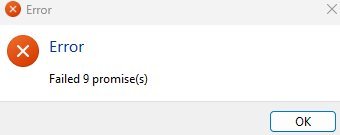
Synchronization failures usually stem from a breakdown in communication between your local device and the UpNote server. If your app isn’t syncing, it’s often because your device has lost its connection to the internet, or a strict network firewall is blocking the specific ports UpNote uses to transmit data. In some cases, the application may have cached an outdated authentication token. When this token expires or mismatches the server’s record, the app stops sending updates to protect your data integrity.
Another frequent cause involves system-level power management settings. Modern operating systems often suspend background tasks to save battery life. If your device is in a low-power mode, it might restrict the app from reaching out to the cloud. You can verify the status of the service at the UpNote official status page, which shows if the provider is currently experiencing an outage. If the service is online but your notes remain stuck, the issue is almost certainly local to your setup. This varies by model — check your device’s specific energy-saving settings, as some phones kill background processes much more aggressively than others.
Force a manual refresh
If your notes aren’t appearing on another device, you can trigger a manual sync to bypass the automatic queue. This is the first step because it’s non-destructive and helps you identify if the problem is a temporary glitch. To do this, open the app and look for the sync icon, usually located in the top menu or the sidebar. Clicking this icon forces the application to compare your local database with the cloud version.
If you’re on a desktop, try pressing the refresh shortcut if your version supports it, or simply restart the application entirely. Closing the app completely and reopening it forces a fresh handshake with the server. If the sync icon shows a spinning animation but never completes, your connection might be too weak to handle the upload. This fix is for users who have a stable internet connection but see a discrepancy between their devices. If the icon shows an error symbol, don’t keep clicking it repeatedly. Instead, wait about thirty seconds to let the network socket reset before trying again. If you have a massive amount of data to sync, it may take several minutes to finish.
Reauthenticate your account
Sometimes the authentication token stored on your device becomes invalid, causing the server to reject your sync requests. To fix this, you must sign out of the app and sign back in. This process clears the local session and forces the app to request a fresh token from the server. Before you do this, ensure you have a strong internet connection, as the app will need to re-download your note list to verify your account.
Go to the settings menu, find your account profile, and select the sign-out option. Once you have signed out, close the application completely to ensure no background processes are still running. Reopen the app and enter your credentials again. If you used a third-party login, ensure you select that same provider to avoid creating a new, empty account. This fix isn’t for users who have forgotten their password, as you’ll need your login details to regain access. If you find that your notes are missing after signing back in, check your web browser by logging into the web version of the app. If your notes appear there, your local app is simply still in the process of downloading the data from the cloud.
Clear the local cache
In rare instances, the local database file becomes corrupted, leading to a permanent sync stalemate. This is the most advanced fix and should only be used if the previous steps failed. Clearing the cache forces the app to rebuild its local index from the master copy on the server. On most desktop versions, you can find a “Clear Cache” or “Reset Database” option within the advanced settings or developer tools menu.
This is a trade-off: you’ll lose any unsynced changes that are currently only on your local machine. If you have notes that haven’t synced for a long time, copy the text to a temporary document on your computer before clearing the cache. This fix isn’t for those who aren’t comfortable managing application files or who are currently offline. If you’re unsure about the location of your local data, don’t attempt to delete folders manually, as this can lead to permanent data loss. Stick to the in-app options provided by the settings menu. If the app still fails after a cache reset, contact the support team through the official website, as there may be a deeper issue with your specific user profile on their server.
What not to do
Don’t uninstall the app immediately. This often deletes local data that hasn’t yet reached the cloud, resulting in permanent loss.
Avoid using public Wi-Fi to force a sync. These networks often block the specific ports required for secure cloud communication. If your sync fails on public Wi-Fi, toggle to a cellular connection or wait until you reach a private network.
Don’t modify internal database files manually. The software manages its own structure; manual edits will likely corrupt the index.
How to stop it happening again
Consistency is the best way to prevent sync issues. Keep your software updated and ensure your device has a reliable power source during large sync operations.
| If you’re doing this | Do this instead | Why |
|---|---|---|
| Using old versions | Enable auto-updates | Older versions may lack critical security patches for servers. |
| Closing app instantly | Wait for the sync icon | The app needs time to finish the upload process. |
| Low power mode | Disable during sync | Power saving often kills the background sync process. |
| Unstable public Wi-Fi | Use a stable home network | Poor connectivity causes frequent sync timeouts. |
Most users mistakenly force-quit their apps the moment a progress bar stalls. This habit creates corrupted metadata files that are difficult to repair. If your progress bar remains frozen for more than three minutes, don’t close the app. Instead, toggle your Wi-Fi off and on to force a fresh handshake with the server.
Always prioritize a stable connection over speed.
Frequently asked questions
Can I lose my notes if I sign out?
You won’t lose your notes if they have successfully synced to the cloud before you sign out. Unsynced notes exist only on your local device’s memory. Always check the web version of your account to confirm your latest changes are visible online before signing out.
Why does the sync take so long?
Syncing takes longer if you have a large volume of attachments or a poor internet connection. UpNote must verify every file and note change against the server to ensure no data is overwritten. Keep your device awake and connected to a stable power source to allow the process to finish.
Is it safe to clear my cache?
It’s safe to clear your cache provided your notes are already backed up to the cloud. The cache is simply a local copy of your data meant to speed up access. If you have made changes while offline, those local changes will be permanently deleted when you clear the cache.
What happens if I have a network error?
A network error means the application can’t reach the server to send or receive data. This usually happens because of a firewall, a VPN, or a temporary drop in your internet connection. Try disabling your VPN, as these services often interfere with the protocols the app uses for synchronization.
How do I know if the sync finished?
You know the sync is finished when the sync icon stops spinning and shows no error messages. The app displays a checkmark or neutral icon when the local database matches the server data. If you see a persistent warning symbol, the sync has encountered a conflict it can’t resolve automatically.
Final Thoughts
If these quick fixes don’t get your notes moving again, don’t worry. You should reach out to the support team directly through the app’s settings menu. They’ll be happy to look into your specific account logs and help you get back to a smooth, reliable experience across all your devices.
Related guides


