
The most common reason your 1Password desktop app won’t sync is a temporary network interruption or stalled server connection. Confirm this by checking your internet and looking for a “Syncing” or “Offline” status icon in the app. This often happens when your computer sleeps or switches Wi-Fi networks. If the status remains unchanged after a minute, check the 1Password support page for regional service outages.
Why your 1password desktop app not syncing
| Cause | How common | How to confirm it | Fix it yourself? |
|---|---|---|---|
| Network disruption | Very common | Check other web apps | Yes |
| Stale session token | Common | Sign out and in | Yes |
| Firewall interference | Occasional | Disable security software | Yes |
| App version outdated | Occasional | Check app menu | Yes |
| Corrupt local cache | Rare | Clear data folder | Yes with care |
| Server-side outage | Very rare | Check status page | No |
Network disruptions often stem from unstable Wi-Fi signals.
Simply refreshing the browser is insufficient; you must trigger a full re-authentication.
Firewalls frequently block outgoing requests if the application uses non-standard ports.
Corrupt cache files are the primary culprit if the interface loads but buttons remain unresponsive. Always back up your configuration file before clearing the local data folder. Failing to do so will reset your custom preferences permanently.
Finally, distinguish between a server-side outage and a local issue by checking the provider’s status page. If the status page shows “operational” but you still see errors, the bottleneck is almost certainly your local ISP routing.
Connection and Network Interruptions
A poor or interrupted internet connection is the primary driver of sync failures. Your desktop app needs a stable handshake with the cloud to push and pull your vault data. When your machine moves between networks or wakes from sleep, the app may fail to re-establish this link immediately.
To confirm this, open your web browser and navigate to a site you don’t usually visit. If the page loads slowly or fails, your network is the bottleneck. The fix is simple: toggle your Wi-Fi off and on, or restart your router if multiple devices are struggling to connect. If you’re using a VPN, turn it off temporarily. VPNs often block the specific ports 1Password needs to communicate with its servers. This process usually takes less than two minutes.
If you have a fast connection but the app remains stuck, the issue is likely a conflict with your local firewall or security software. These programs sometimes flag the 1Password sync process as suspicious traffic. If you use third-party antivirus software, check its logs to see if it blocked the 1Password executable.
Expired Authentication Sessions
A stale session token happens when the app’s background authorization has timed out, preventing it from refreshing your vault. You’ll often see a persistent spinning icon or a message stating that the app is unable to reach the server.
You can tell this apart from a network issue because your browser-based 1Password extension will likely still work perfectly while the desktop app remains frozen. To confirm this is the cause, look for a “Sign In” prompt or an “Account Locked” notification within the app’s primary window. If you see these, the app has simply lost its secure link to your account.
The fix is to force a fresh login. Open the app, go to the account menu, and select “Sign Out.” Once you have signed out, close the application completely—ensure it isn’t running in your system tray or background tasks—and then relaunch it. Enter your master password and secret key to initiate a new session. This clears the old, broken link and forces the app to request a new set of authentication tokens. This process takes about three minutes. The mistake people often make is just locking and unlocking the app, which doesn’t force a new connection to the server. If you do this, you’ll still be using the same broken token, and the sync will remain stuck.
Outdated Software Versions
Running an older version of the desktop app can cause compatibility issues with the current server infrastructure. 1Password updates its sync protocols periodically to improve security and performance. If your app version is significantly behind, it may no longer be able to interpret the data packets sent by the server.
You can verify your current version by clicking the application name in your menu bar and selecting “About 1Password.” Compare this number with the latest version listed on the official website.
The fix is to download the latest installer from the official 1Password website and run it over your existing installation. You don’t need to uninstall the old version first; the installer will detect your current setup and update the necessary files automatically. This process takes five to ten minutes depending on your download speed. This isn’t for users who are currently in the middle of a critical, time-sensitive task, as the update will force the app to restart and re-index your vault. Always ensure you have a backup of your emergency kit or secret key before performing updates, just in case you’re prompted to re-authenticate from scratch. If the sync still fails after the update, you may need to reach out to official support for a deeper diagnostic.
The less likely causes
- Corrupt local database files: Sometimes the encrypted cache on your drive becomes unreadable, which requires deleting the local cache folder so the app can download a fresh copy from the cloud.
- System clock drift: If your computer’s date or time is set incorrectly by even a few minutes, the encrypted handshake with the server will fail for security reasons.
- Insufficient disk space: If your local drive is completely full, the app can’t write the temporary files needed to complete a sync process.
- Account suspension: If your subscription has expired or payment failed, the server may prevent the app from syncing new changes to your vault.
What a fix usually involves
Fixing a sync issue typically involves basic troubleshooting rather than professional intervention. In most cases, you only need your master password and your secret key to re-authenticate the application. If you have misplaced these, the cost of recovery is high because you lose access to your data entirely.
Time-wise, most fixes demand only a few minutes. If the problem is a corrupt cache, you might spend fifteen minutes manually clearing folders. If you need to reinstall the app, it’s a quick process that requires no special tools. The cost is usually nothing, as these are configuration errors. If you find yourself needing to contact support, expect to provide logs; this is a free service provided to all users. If your issue involves a deeper system conflict, you may need to consult a local computer technician, which would cost a portion of a standard hourly service rate. Always check the official documentation on the manufacturer’s website first, as most sync problems are solved by following their standard reset procedures.
Frequently asked questions
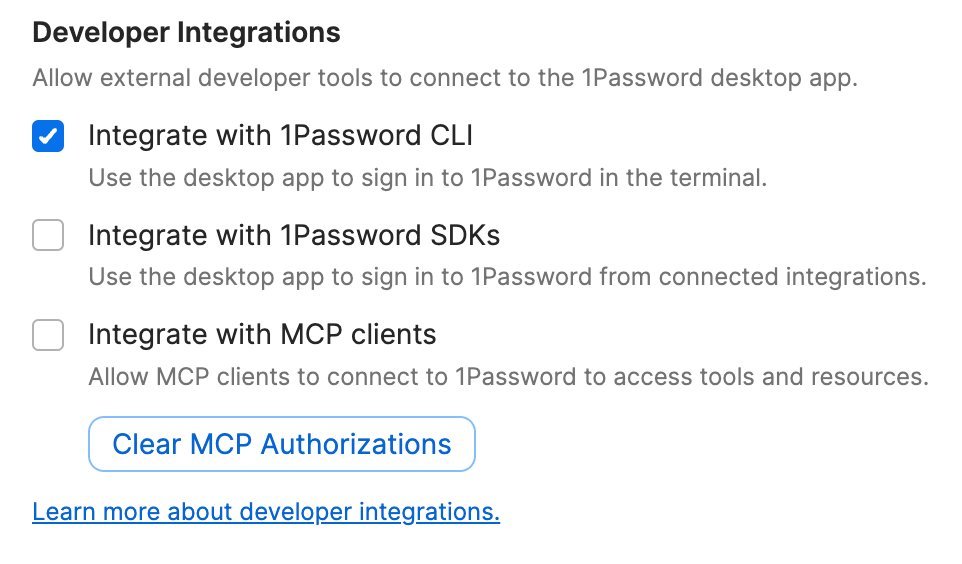
Can I force a manual sync?
If the app is truly stuck, this will often force it to re-check the server connection. If that doesn’t work, closing and reopening the app is the next best step for a hard refresh.
Is it safe to reinstall the app?
Yes, it’s perfectly safe to reinstall the desktop app because your data is stored securely in the cloud and not just on your local machine. As long as you have your master password and your secret key, you can sign back in on any device and your vault will download automatically. Always ensure you have your secret key saved in a secure, physical location.
What happens if I clear the cache?
Clearing the cache forces the application to delete the local, temporary copy of your vault and download a fresh version from the 1Password servers. This is a common and safe troubleshooting step when the local database file has become corrupted. You won’t lose any data, but you’ll need to be connected to the internet so the app can rebuild your vault.
Does it matter if I am on a public network?
Yes, public networks often block the specific ports used for secure syncing, which can cause the app to hang indefinitely. If you’re on a public Wi-Fi, try switching to a mobile hotspot or a secure home connection to see if that resolves the issue. Public networks frequently have firewalls that interfere with the encrypted traffic required by password managers.
How long should a sync take?
About ten seconds is the standard time for a sync to complete on a stable connection. If your vault is very large or has thousands of items, it may take up to a minute to finalize the update. If the app remains in a syncing state for longer than five minutes, it’s likely experiencing a connection error that requires manual intervention.
Why is my browser extension working but the app is not?
The browser extension and the desktop app use different methods to communicate with the server and store local data. It’s common for one to work while the other is stuck, usually because the desktop app has a stale session token or a firewall rule blocking its background process. Signing out and back into the desktop app specifically usually resolves this type of mismatch.
Final Thoughts
If you’re still having trouble, don’t hesitate to reach out to the support team directly. They’re happy to help you investigate deeper issues with your account settings or local cache. Once you’ve cleared these hurdles, you’ll be back to accessing your secure passwords across all your devices in no time.


