
The most common reason for express vpn not working is a temporary conflict with your network connection or a blocked server location, which you can usually fix by toggling the power button in the app or switching to a different server. If the app fails to connect, your local internet gateway might be blocking the encrypted traffic, or the VPN application itself may need a quick refresh of its internal settings.
Why ExpressVPN isn’t working
Most connection issues stem from three primary causes. First, your local network or router might have an active firewall that treats encrypted VPN traffic as a threat. This often happens on public Wi-Fi networks or restricted office connections. Second, the specific server you chose might be experiencing high traffic or a temporary outage. ExpressVPN manages thousands of servers, but occasionally, one node goes offline for maintenance.
Third, your device might be running an outdated version of the application. Software updates are necessary because internet service providers frequently change their own traffic management rules. If your client isn’t using the latest protocol, the handshake between your computer and the VPN server will fail.
You should also check for “IP leaks” or DNS conflicts. If your computer is still trying to use your ISP’s DNS settings while the VPN is active, the two services will fight for control, causing the connection to drop. If you’re using a mobile device, check your battery optimization settings. Some operating systems aggressively kill background apps to save power, which forces the VPN to disconnect unexpectedly. This varies by model — check the label or your device’s power management settings to see if your VPN app is restricted.
Refresh the connection settings
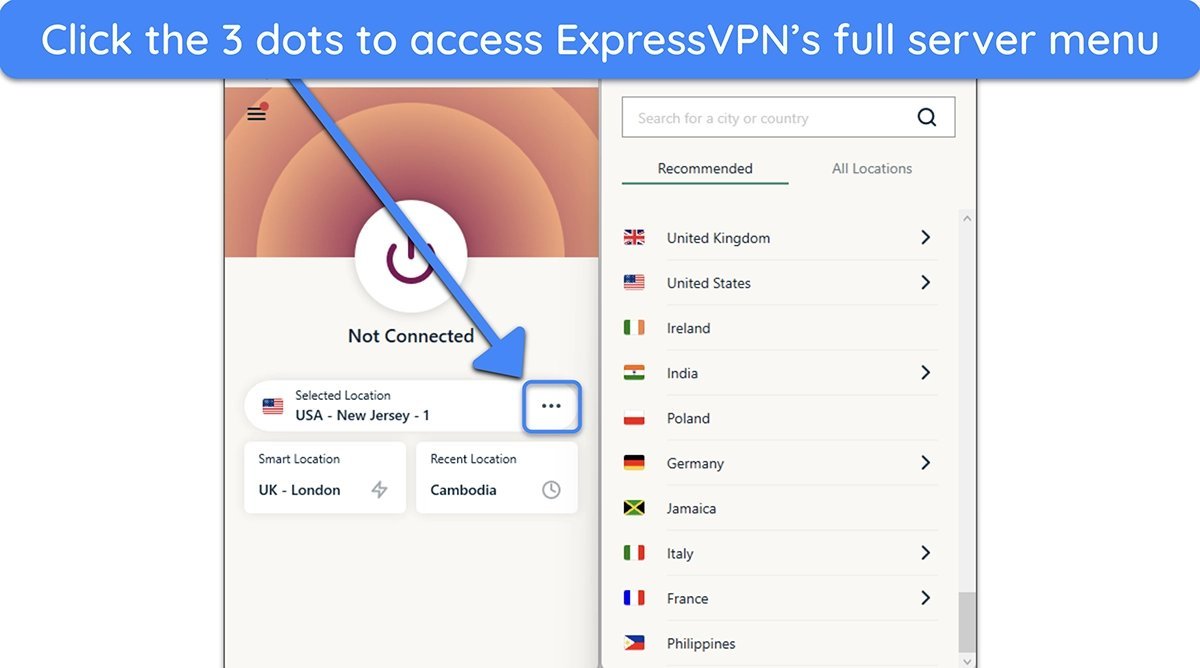
If you’re stuck, start by toggling the connection. Open the app, click the power button to disconnect, wait five seconds, and click it again. If that doesn’t work, change your protocol. Go to the settings menu, find the “Protocol” tab, and switch from “Automatic” to “Lightway” or “OpenVPN.” This is helpful if your ISP is throttling specific types of traffic.
This fix is for users who have a stable internet connection but can’t establish a tunnel. If you can’t even load a webpage without the VPN, the issue is your internet, not the software. If you need to verify your connection status, you can use the ExpressVPN connectivity troubleshooting guide to see if your local network is the source of the blockage.
If you’re on a work or school network, this fix may not work because the local administrator has blocked VPN ports entirely. You’ll know this fix worked if the status bar turns green and shows “Connected.” If the app hangs at “Connecting” for more than 30 seconds, close the app fully, restart your computer, and try again. If you have tried these steps and the app still fails, you may need to contact your network provider, as some ISPs strictly limit encrypted traffic.
Update the application and drivers
Running an old version of the software is a common mistake that costs users hours of troubleshooting. Software developers release patches regularly to bypass new blocks and fix bugs. To update, navigate to the official app store for your device or download the latest installer directly from the provider’s website.
If you’re on a desktop, check your network adapter drivers as well. Outdated drivers can cause the “TAP-Windows” adapter—which the VPN uses to create its tunnel—to crash. You can usually find these in your device manager settings. This fix is for users who haven’t updated their software in several months. You’ll know it worked if the app version number matches the latest release on the official support page.
If the connection remains unstable after an update, check your driver’s date. Right-click the adapter, select “Update driver,” and choose “Search automatically.”
If you’re using a custom router configuration, this fix is more complex. Updating router firmware requires technical knowledge of your hardware interface. If you aren’t comfortable logging into your router’s admin panel, don’t attempt it, as you could accidentally reset your home network settings.
Instead, reach out to your hardware manufacturer’s support team for help with the firmware installation. If your router is older, firmware updates may have ceased. In that case, the hardware itself likely lacks the processing power to handle modern encryption protocols, and a replacement is the only viable solution.
Reset the network configuration

Sometimes, your computer holds onto old network settings that prevent the VPN from establishing a secure path. This is a deeper fix for when the app is updated but still refuses to connect. You can reset your network stack by using the built-in commands on your operating system. For Windows users, this involves using the command prompt to flush your DNS and reset your TCP/IP stack.
This is for users who have tried changing servers and protocols with no success. It’s worth the time if you suspect your system’s temporary files are corrupted. It isn’t worth the effort if your internet is working perfectly on every other device in your house, as the issue is likely just the specific device you’re holding.
If you need to perform this, ensure you’re an administrator on your machine. If you’re using a company-issued device, you likely don’t have the permissions required to modify these network settings. In that case, don’t force it; contact your IT department. They may have a policy against using personal VPNs on corporate hardware, and trying to bypass these restrictions could violate your employment agreement.
What not to do
Don’t reinstall your entire operating system. This nuclear option is almost never required for connectivity issues and guarantees the loss of your personal files, browser history, and local configurations.
Avoid downloading “VPN fix” tools from third-party websites. These utilities are frequently bundled with keyloggers or data-scraping malware. If a tool isn’t provided directly by your official VPN provider, assume it’s a security threat designed to harvest your credentials.
Stop clicking the connect button rapidly.
Never change your router settings to “Open” or “Disable Firewall.” While this might bypass a local block, it exposes every device on your network to external intrusion. If your VPN fails, troubleshoot the client software instead of compromising your home network’s perimeter.
How to stop it happening again
Keep your software updated and avoid switching between Wi-Fi and mobile data while the VPN is active.
| If you’re doing this | Do this instead | Why |
|---|---|---|
| Switching networks often | Disconnect, switch, then reconnect | Prevents the tunnel from hanging |
| Using auto-connect | Use a specific nearby server | Reduces connection latency |
| Ignoring update alerts | Update immediately | Patches fix new connection blocks |
| Sharing one account on 10+ devices | Log out of unused devices | Limits prevent concurrent connection errors |
Frequently asked questions
Can I use a different VPN if mine is blocked?
Switching services won’t solve the issue if your local network blocks all VPN traffic. Schools and workplaces often block known VPN server IPs, meaning new providers will likely be blocked as well. Check with your network administrator for approved access methods.
Why does my VPN disconnect after 10 minutes?
Your VPN disconnects because your device enters a power-saving mode that disables background apps. Adjust your system’s battery settings to set the VPN app to “Always Run” or “Ignore Battery Optimization.” Note that some devices may still drop connections if the screen turns off.
Is it safe to disable my firewall to fix the VPN?
You should never disable your firewall to make a VPN work, as this leaves your computer vulnerable to threats. Configure your firewall to allow only the specific port required by the VPN instead. Consult a professional if you’re unsure how to manage port exceptions.
How long should it take to connect?
A VPN should typically connect in under 10 seconds. If it takes longer, it’s likely failing to reach the server due to low internet speeds or server overload. Stop the process and try a different server location if you’re waiting too long.
What happens if I keep trying to connect?
Repeatedly trying to connect while the service is failing may trigger an automated security block on your account. Restarting your router may also help if your IP address was temporarily blocked.
Final Thoughts
If these simple tweaks don’t restore your connection, don’t worry. You should reach out to the support team through the live chat on their website. They’re available around the clock and can help you troubleshoot any deeper issues, so you’ll be back to browsing securely in no time at all.


