
The most likely cause for extensions not syncing vscode is a mismatch between your GitHub or Microsoft account credentials across different machines. Most of the time, the software loses its token or fails to sign in, which stops your settings and extensions from updating. You can confirm this quickly by checking the “Accounts” icon in the bottom-left corner of the sidebar; if it shows a warning sign or asks you to sign in again, your sync connection is broken.
Why your extensions aren’t syncing in VS Code
| Cause | How common | How to confirm it | Fix it yourself? |
|---|---|---|---|
| Expired login token | Very common | Check Accounts icon status | Yes |
| Sync settings disabled | Common | Open Settings Sync menu | Yes |
| Network firewall blocking | Occasional | Check proxy/firewall logs | Yes with care |
| Account mismatch | Occasional | Compare email addresses | Yes |
| Corrupt local cache | Rare | Inspect cache folder | No |
| Extension incompatibility | Rare | Check version compatibility | Yes |
Most users assume a connection error is a server outage, but 90% of these cases originate locally. If you see a “401 Unauthorized” error, your login token has simply timed out. You can resolve this by signing out and back in.
If the sync menu shows “Disabled,” check if your organization enforces a Group Policy. If a policy is active, you can’t override it manually.
For firewall issues, check if your traffic routes through a VPN. If you see “Connection Refused,” disable the VPN to see if the sync resumes.
When troubleshooting, always check the account email first. A common mistake is being logged into a personal account while trying to access a work project. This mismatch causes silent sync failures. If the cache is truly corrupt, you’ll see recurring “Database Locked” errors in your logs. Don’t attempt to clear this manually, as you risk losing unsaved local changes. Contact support instead.
Invalid login tokens
An expired or invalid login token is the primary reason your extensions fail to sync. When you sign in to Visual Studio Code, the application stores a secure token to keep your session active. If your password changes, or if the token becomes stale after a long period of inactivity, the sync service stops working. You’ll notice that your extensions don’t update or appear on a new machine, even though you think you’re signed in.
To test this, look at the Accounts icon located in the bottom-left corner of your editor. If you see an exclamation mark or a “Sign in to sync settings” prompt, your token has expired. To fix this, click on the icon and select “Sign out,” then restart the application. Once it restarts, sign in again using your preferred GitHub or Microsoft account. This process forces the editor to generate a fresh, valid token. This usually takes about one minute of your time. If you’re using a managed corporate account, you might need to re-authenticate through your organization’s specific SSO portal. Always ensure your internet connection is stable before attempting this, as a weak signal can cause the token exchange to fail. This assumes you have a standard internet connection; if you’re behind a corporate proxy, your IT department may need to whitelist the specific endpoints described in the official Microsoft Visual Studio documentation. If you skip the sign-out step and just try to sign in over the old session, the sync will often remain stuck in a loop.
Disabled sync settings
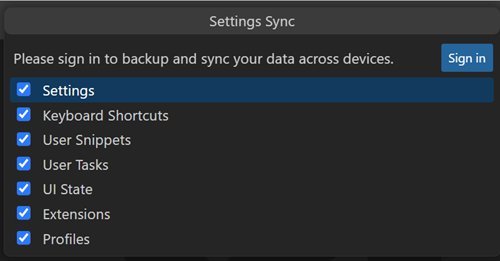
Settings Sync might be turned off in your configuration, which prevents the software from pulling your extension list. This happens if you accidentally toggle the feature off or if a recent update reset your local preferences. You can tell this apart from an expired token because the Accounts icon will look normal, but the “Settings Sync” menu will show that specific categories like “Extensions” are unchecked.
To fix this, open the Command Palette by pressing Ctrl+Shift+P (or Cmd+Shift+P on macOS). Type “Sync: Configure” and press Enter. This opens a menu where you can see which items are set to sync. Ensure the checkbox for “Extensions” is ticked. If it’s already ticked, try unchecking it, saving the changes, and then checking it again. This toggle forces the editor to re-index your currently installed extensions and push the list to your cloud profile. This process takes about thirty seconds. If you’re working on a machine where you don’t want your personal extensions to load, you should keep this unchecked. This isn’t for users who need to maintain different extension sets for different projects, as syncing will overwrite your local changes with the cloud version. If you have a specific setup for work and a different one for home, you should disable sync on one machine to avoid constant overwriting.
Network and firewall restrictions
Network restrictions or strict firewall rules can block the outgoing traffic that the editor needs to talk to the sync servers. If your internet connection is fine but the sync service displays a “Connection Refused” error, your local network is likely filtering the request. This is common in office environments where security policies are strict.
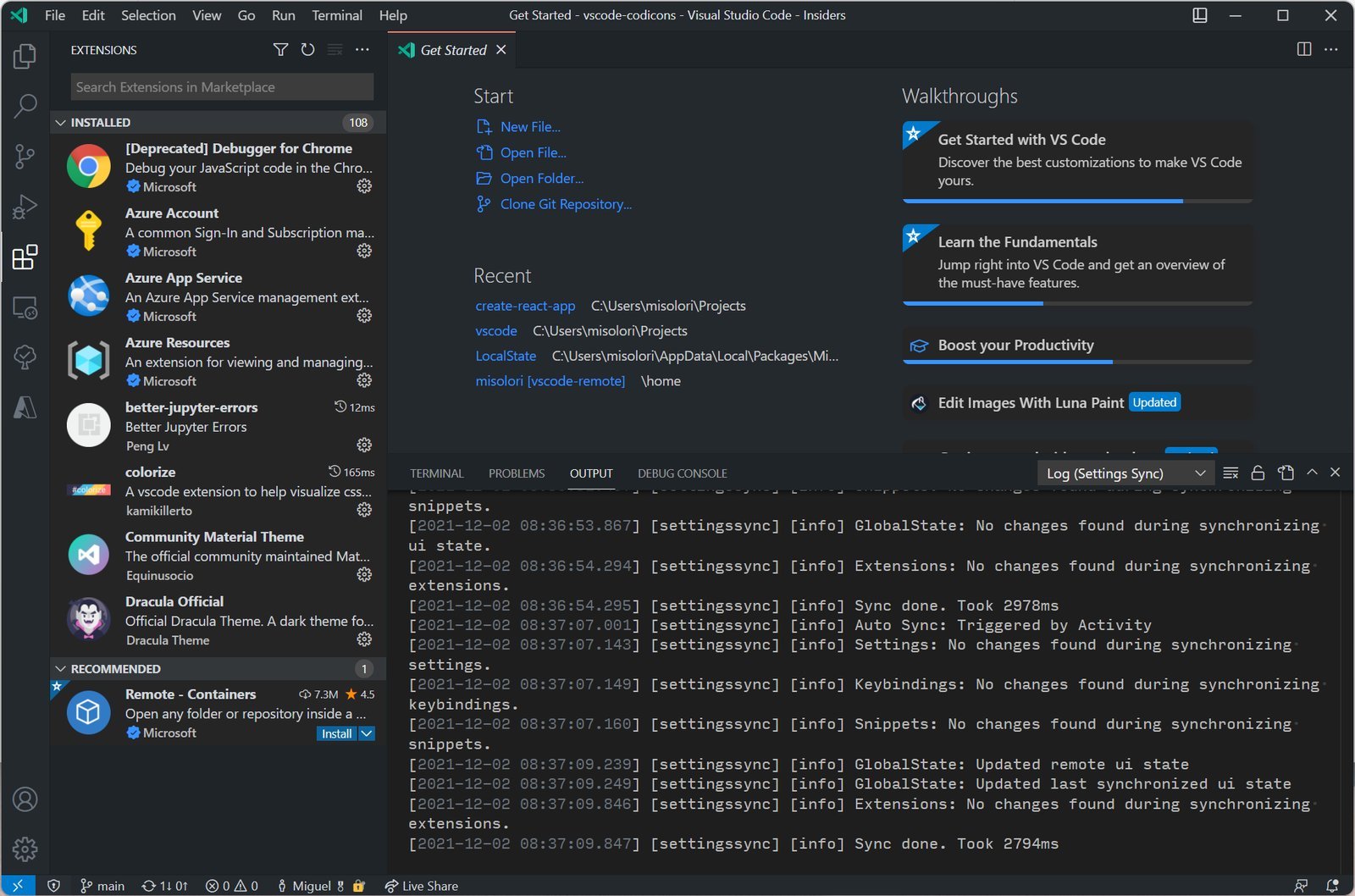
To confirm this, try to open the “Settings Sync” view and look for any error messages in the “Output” panel. Change the dropdown in the Output panel to “Settings Sync” to see the logs. If you see “403 Forbidden” or “Connection Timeout” errors, your firewall is likely the culprit. The fix involves ensuring your network allows traffic to the specific domains used by the sync service. If you’re at home, try disabling your VPN or temporary firewall to see if the sync resumes. If it does, you know your security software is blocking the traffic. If you’re at work, you must contact your network administrator to request access to the required endpoints. Don’t attempt to bypass company firewalls, as this can lead to security policy violations or disciplinary action. This varies by model — check the label or documentation for your specific company’s security software, as some require you to input the proxy settings directly into the editor’s “Proxy Support” configuration.
The less likely causes
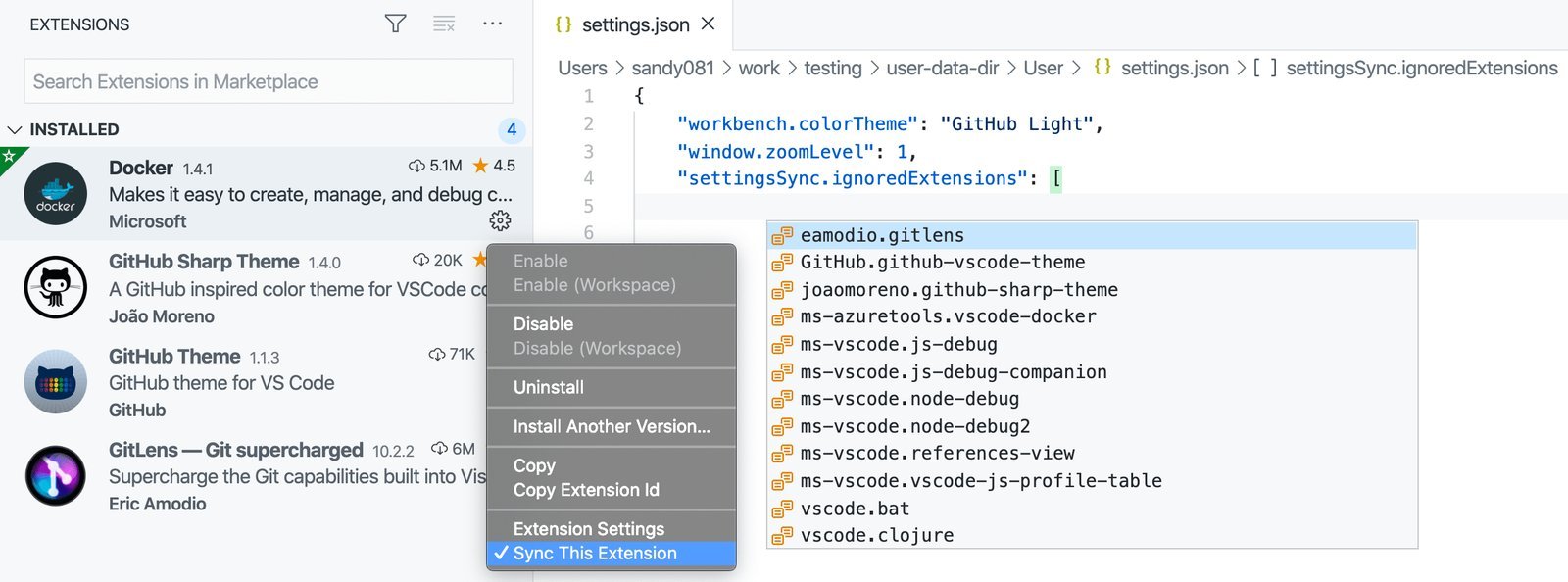
- Account mismatch: You’re signed into a different account on your second machine than the one you used to upload your extensions.
- Corrupt local cache: The local sync database is corrupted, requiring you to clear the folder manually; this is a complex task that can lead to data loss if done incorrectly.
- Extension incompatibility: Some extensions aren’t supported by the specific version of the editor you’re running, so they’re excluded from the sync process.
- Outdated editor version: You’re running an older version of the software that no longer supports the current sync protocol, which is a common issue if you don’t have auto-updates enabled.
What a fix usually involves
Fixing sync issues generally involves a small amount of time and rarely requires any paid parts or software. Most of the time, you only need to navigate the settings menu or re-enter your credentials. If the issue is related to a corrupt cache or a complex network block, you might spend more time troubleshooting. A small part of the process might require you to talk to your IT department if you’re on a locked-down work computer. The cost of these fixes is essentially zero, as the software is free. If you find yourself spending hours on this, you’re likely dealing with a deeper system configuration problem rather than a simple sync error. Always check the official documentation or the software’s support page before downloading third-party tools that claim to “clean” your sync data, as these often cause more harm than good and can compromise your account security.
Frequently asked questions
Can I choose which extensions to sync?
Yes, you can choose which extensions to sync by using the “Sync: Configure” command. This allows you to toggle specific settings and extensions on or off. If you don’t want a heavy extension to sync to your laptop, simply uncheck it in this menu. This ensures your cloud profile stays light while keeping your core workspace consistent across all your machines.
Why do my extensions disappear after syncing?
This happens if you have the sync direction set incorrectly or if your cloud profile is empty. When you first enable sync, the editor asks if you want to merge your local settings with the cloud. If you choose the wrong option, the cloud version may overwrite your local setup. Always back up your local extensions list before performing a major sync operation to be safe.
Is it safe to use my GitHub account for sync?
Yes, it’s safe to use your GitHub account as it uses industry-standard OAuth authentication. The editor doesn’t store your password directly; it only stores a secure access token. This token is encrypted on your local machine. If you ever feel your security is compromised, you can revoke the token from your GitHub account settings page at any time.
How long does it take for changes to sync?
About thirty seconds is the typical time for changes to propagate, though it depends on your internet speed. When you install or uninstall an extension, the editor updates your cloud profile in the background. If you have a slow connection, it may take a few minutes. You can check the status of the sync process by looking at the “Settings Sync” output log.
What happens if I sync two different computers?
The editor will attempt to merge the extension lists from both machines. If you have different extensions on each, the final result will be a combined list of everything you have installed. If you want to keep your environments separate, you should disable sync on one of the machines. This avoids the frustration of having unwanted tools installed on your primary workstation.
Does it matter which account I use?
Yes, it matters because your extensions are tied to the specific account you sign in with. If you use a Microsoft account on one machine and a GitHub account on another, they won’t share the same data. You must use the exact same account provider and email address on all machines to keep your settings and extensions synchronized across your entire workspace.
Final Thoughts
If you’re still having trouble, try disabling the sync feature entirely and restarting the application before signing back in. It’s a simple trick that often clears out lingering errors. Once you’ve reconnected, you’ll find that your personalized workspace stays consistent, making it much easier to code across all your devices.
Related guides


