
When your Steam Deck white light blinking occurs, it usually means the device needs a forced restart or a deeper power cycle to break a frozen state. First, hold the power button down for a full 10 seconds until the screen goes completely dark and the light stops flashing. If it still doesn’t turn on, plug it into the original power supply for at least 15 minutes before trying the button again. You can check the official power requirements provided by Valve to ensure your charger is compatible.
Why this happens
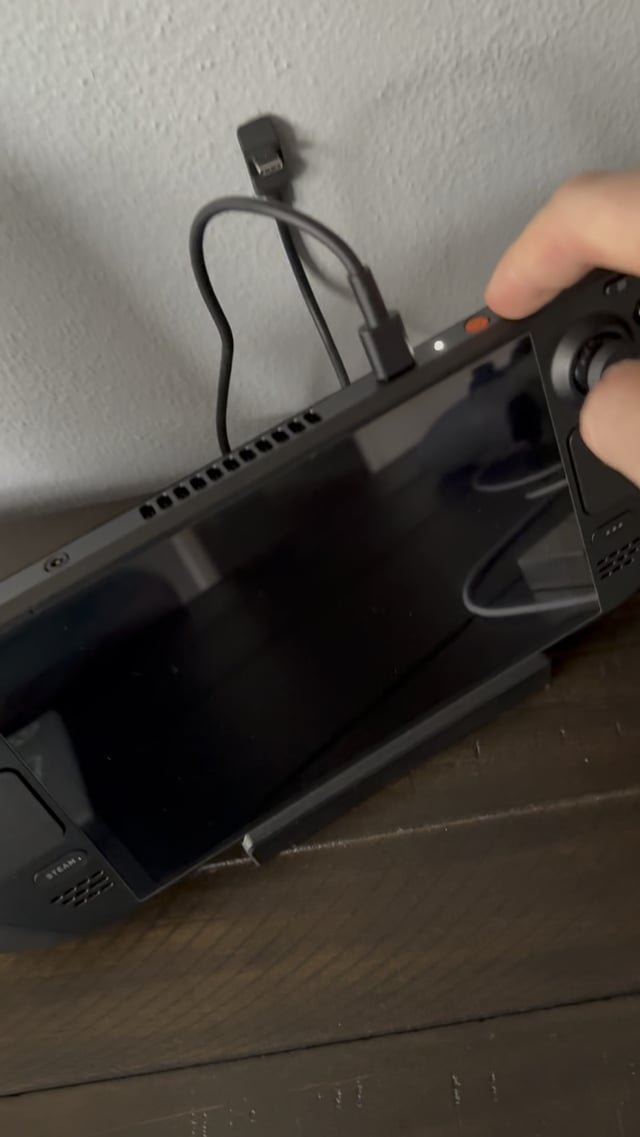
The blinking white light is a signal from the Steam Deck’s power management controller. It indicates that the system is stuck in a loop while trying to initialize its hardware. This often happens because the battery charge dropped below a critical threshold, or the operating system encountered a software error during a sleep state.
When the battery is completely drained, the device can’t pull enough power to “wake up” the screen. It stays in a low-power mode, flashing the light to tell you that it’s trying to boot but lacks the energy to finish the process. Another common cause is a conflict between the hardware and the latest firmware. If you recently updated the system, the hardware might be struggling to handshake with the new software, causing the boot process to hang.
If the internal battery connector has become loose due to physical impact, the system may also fail to boot, leading to this blinking indicator. This isn’t a “low power” state, but rather a hardware failure to detect the power source. If you have tried the power cycle and the light continues to blink indefinitely, the issue might be a faulty battery or a motherboard error. In those cases, don’t open the casing yourself, as this will void your warranty. Contact the manufacturer directly for a repair.
Perform a hard power reset
If the device is unresponsive, a hard reset is the first step. This forces the power management chip to clear its current state and start fresh. Press and hold the power button for exactly 10 seconds. Don’t release it early, even if the light changes speed. After 10 seconds, release the button and wait 5 seconds. Press the power button once more to see if the device boots to the Steam logo.
If it remains stuck, you must perform a “battery storage mode” reset. This is a specific command that tells the hardware to fully disconnect the battery internally. With the device unplugged, hold the “Volume +” button and the “…” button at the same time, then press the power button once while keeping the others held down. If done correctly, the light will blink three times and then stay off. This clears the memory of the power controller.
This fix is for users whose device is unresponsive but not physically damaged. If you hear a clicking noise from inside the shell or smell burning plastic, stop immediately. These are signs of a short circuit. In that scenario, unplug the device and contact official support. This varies by model—check the label on the back to confirm you’re using the correct power supply, as using an underpowered phone charger will often cause the device to blink indefinitely rather than charging.
Use the BIOS boot menu
When the system software is the problem, the boot menu can often bypass the error. This method is effective if the device shows the white light but refuses to reach the SteamOS home screen. First, ensure the device is completely powered off. Hold the “Volume -” button and the power button simultaneously. Keep holding them until you hear a chime or see the logo appear on the screen.
Once the BIOS menu appears, use the D-pad to select “Boot from file” or “Continue.” If the device boots successfully here, the issue was a temporary software glitch. If it fails to boot even from this menu, the internal storage drive may be corrupted. If X happens (the menu loads), do a system reset; if Y happens (the menu is black or frozen), you likely have a hardware failure.
This isn’t for users who are uncomfortable with system menus. If you feel lost, stop and reach out to support. The trade-off here is that you might lose unsaved data if you have to re-image the drive. This process requires a steady hand and a clear view of the screen. If the screen remains black throughout this entire process, the internal display cable might be loose. A technician should handle internal cable repairs to prevent damage to the delicate ribbon connectors.
Check your power delivery
Sometimes the blinking light is just a warning that the charger isn’t providing enough power. The Steam Deck requires a specific voltage profile to charge while active. If you’re using a third-party USB-C hub or a low-wattage wall adapter, the system will blink to warn you that it can’t pull the required 45 watts.
Remove all external docks, USB sticks, and SD cards. Plug the official power cable directly into the charging port on the top of the device. If the light turns solid white, you know the issue was a power delivery conflict. If you’re using a high-quality Power Delivery (PD) charger from a reputable brand like Anker or Ugreen, ensure it supports 15V at 3A.
This fix is for those who use multiple chargers for different electronics. If you have a laptop charger, check the label to see if it lists “45W” or higher. If it does not, the Steam Deck won’t charge, and the blinking will persist. This is a common mistake; many people assume any USB-C cable will work, but the Steam Deck needs a cable that supports the Power Delivery standard. If you use a standard phone cable, you’ll waste hours waiting for a charge that never happens.
What not to do
- Don’t use a hair dryer or heat gun to “warm up” the battery. This will melt the internal plastic casing and permanently damage the lithium-ion cells inside the battery pack.
- Don’t force a needle or pin into the charging port to clean it. You’ll bend the delicate pins inside the USB-C port, which makes the unit impossible to charge and leads to expensive motherboard repairs.
- Don’t leave the device plugged into a faulty outlet for a long time. If the light continues to blink for more than one hour, the battery isn’t taking a charge, and leaving it connected will only generate unnecessary heat.
- Don’t attempt to open the rear shell if you’re still under warranty. You’ll break the tamper-evident seals, which prevents the manufacturer from honoring your repair request.
How to stop it happening again
To keep your device healthy, you must manage how you charge and store it. Following these steps prevents the power controller from entering a “panic” state.
| If you’re doing this | Do this instead | Why |
|---|---|---|
| Leaving it in a cold car | Store at room temperature | Cold slows battery chemistry |
| Using random phone chargers | Use a 45W PD charger | Ensures stable power delivery |
| Draining the battery to 0% | Charge at 20% remaining | Prevents deep discharge errors |
| Storing for months unused | Charge to 50% first | Protects battery cell longevity |
Frequently asked questions
Can a faulty SD card cause the white light to blink?
A corrupted SD card can prevent your device from booting correctly. Remove the card and attempt to power on the device to confirm the issue. If it boots, format the card using a computer before reuse.
Why is my Steam Deck white light blinking?
The light blinks when plugged in if the system detects a power delivery mismatch. Always ensure your charger is rated for at least 45 watts. If the issue persists, plug the cable directly into the device to rule out a faulty dock.
How long should I leave it charging if it blinks?
You should leave it on the official charger for at least two hours before giving up. Sometimes the battery is so low that the device needs significant time to reach a “pre-charge” state before it can show a charge indicator on the screen. If after two hours the light is still blinking and the screen is black, the battery is likely dead or the internal charging circuit has failed.
Is it safe to use the device while it blinks?
No, you can’t use the device while the light is blinking because the system isn’t fully powered on. The blinking indicates a boot-loop or a power error, meaning the operating system hasn’t loaded. Trying to press buttons or force the screen on while the light is blinking won’t help and may cause further software errors. You must resolve the power state before the device will respond to your inputs.
What happens if the light turns solid white but the screen is black?
A solid white light with a black screen indicates the device has booted but isn’t sending a signal to the display. Connect the device to an external monitor to verify the output. If the external screen works, the internal display panel may be faulty.
How do I know if the battery is dead?
Your battery is likely dead if the device only functions while plugged into a wall outlet. Check your battery health in the “Settings” menu under the “System” tab. If the health is below 50%, contact support to discuss a replacement.
Related guides


