
A jio airfiber red light blinking indicates that your device has lost its connection to the network signal. This signal loss is usually caused by a loose cable, an outage in your local area, or a physical obstruction blocking the outdoor antenna. Before you try complex settings, check if the cable is pushed firmly into the “WAN” or “Internet” port on the back of the unit. If the light stays red after securing the cables, you must wait for the network to restore or contact support.
Why is my Jio AirFiber red light blinking?
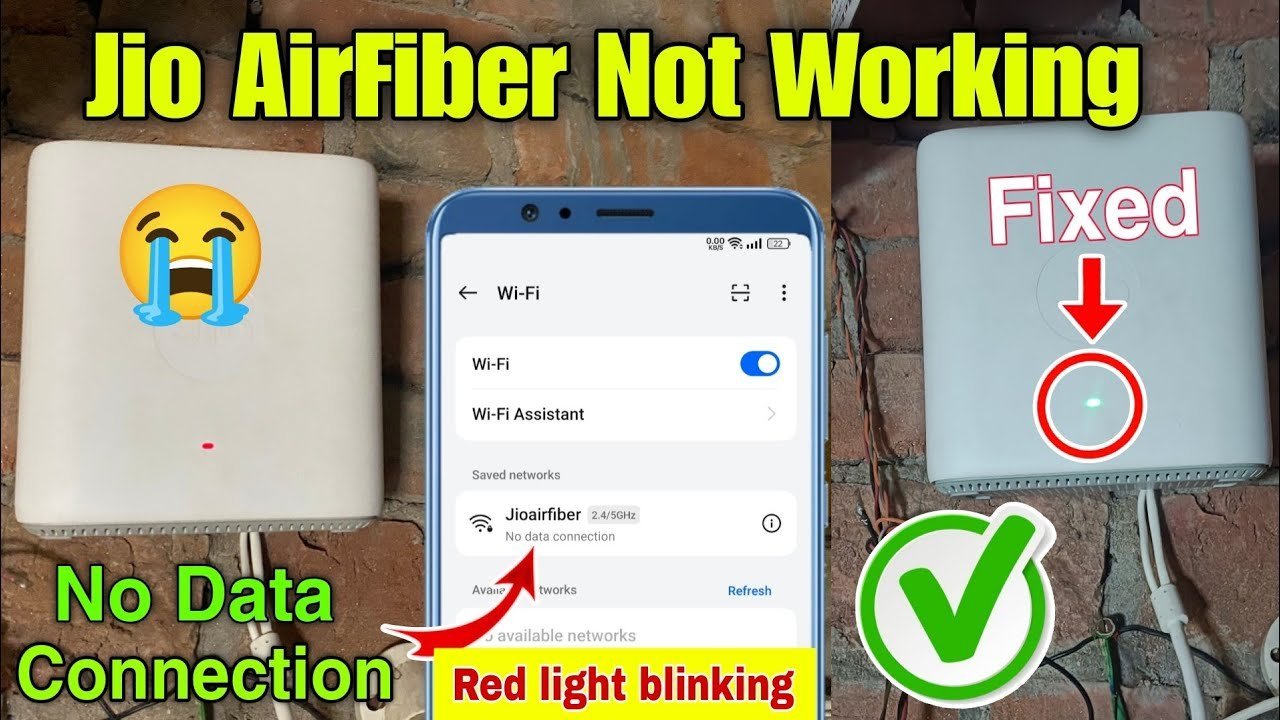
The red light on your device serves as a visual alert that the hardware can’t establish a handshake with the service provider’s tower. Most often, this isn’t a fault of the hardware itself but an external disruption.
First, consider the signal path. The outdoor unit relies on a clear line of sight to the nearest tower. If a new building, a large tree, or even heavy storm debris has shifted the antenna, the signal strength will drop below the threshold required for a stable connection. This is a common issue after high winds.
Second, check for local service interruptions. If the provider is performing maintenance or if there’s a regional power failure affecting the transmitter, your device will show a red light because it’s searching for a signal that simply isn’t there. You can verify if there’s an active Jio Fiber service status update for your specific area through their official dashboard.
Finally, hardware initialization errors occur if the unit loses power abruptly or if a firmware update was interrupted. If the device was mid-update when the power cut out, the internal software might be stuck in a loop. This is a technical failure that usually requires a factory reset or remote intervention from the service provider’s backend team to restore the configuration.
Check the physical connections
This fix is for users who have just moved the device or recently experienced a power surge. You need to inspect every inch of the cable running from the outdoor unit to your indoor router. Start at the outdoor antenna. Ensure the connector is tight and not showing signs of corrosion. If the cable looks bent at a sharp angle, it might have internal damage.
Move to the indoor unit. Unplug the power adapter from the wall outlet and the router. Wait for thirty seconds to allow the internal capacitors to discharge. Plug the power back into the wall first, then into the router. Watch the indicator lights. If the power light turns green but the internet light remains red, the issue is with the incoming signal, not your power supply.
If you’re comfortable, inspect the Ethernet port where the outdoor cable meets the router. It should click when inserted. If it feels loose or wobbly, the port might be damaged. This is a common mistake people make by pulling the cable too hard when cleaning; it costs you the stability of the connection and often requires a professional technician to replace the jack. If the light remains red after these steps, don’t attempt to open the casing. This varies by model — check the label on the bottom of the unit for the specific warning about voiding your warranty.
Reset the router settings
If the physical cables are secure, you may need to reset the device to its factory state. This process wipes out custom settings like your Wi-Fi name or password, so be ready to set them up again. Locate the small “Reset” hole on the back or side of your device. You’ll need a paperclip or a pin to press the button inside.
Ensure the device is powered on. Press and hold the reset button for about ten to fifteen seconds. You’ll see the lights on the front panel blink or change color, which confirms the reset has started. Release the button and wait for five minutes while the device reboots. During this time, the red light might blink or turn orange as it downloads the latest configuration from the server.
This isn’t for everyone. If you have complex network configurations or static IP addresses, you’ll lose them. If the red light persists after a full reset, the device is failing to authenticate. At this point, stop the DIY efforts. Call the official customer service line and provide them with your device serial number. They can check if your account is active or if the device has been blacklisted due to a billing or technical error.
Perform a power cycle
A simple power cycle often resolves software hangs that cause the red light. This is different from a factory reset because it keeps your personal settings intact. To do this, turn off the device using the power button or by removing the power cable. Leave the device off for at least ten minutes. This allows the internal memory to clear completely.
When you plug it back in, let it sit undisturbed for at least fifteen minutes. The red light will often stay on during the first few minutes as the device boots up. If it switches to green or blue, your connection is restored. If it stays red, the issue is definitely outside your home.
This is the best method to use if you notice the light turning red only during specific times of the day, such as during heavy rain. If the light clears up on its own after a few hours, it was likely a temporary network congestion issue. However, if the red light is permanent regardless of the time of day, your outdoor antenna may need professional realignment. Don’t try to climb onto your roof to adjust the antenna yourself, as this carries a significant fall risk. Contact the service provider to schedule a technician who has the proper safety equipment and training for high-altitude work.
What not to do
- Don’t press the reset button repeatedly. This can corrupt the firmware and turn your router into an unusable brick.
- Don’t cut or splice the internet cable yourself. This cable is shielded, and poor splicing will create signal noise that prevents the device from ever connecting.
- Don’t place the router inside a closed metal cabinet. Metal blocks the signal and causes the device to overheat, which often leads to the red light appearing as a thermal warning.
- Don’t ignore the warning lights for more than twenty-four hours. If the light stays red for a full day, the issue won’t fix itself and requires human intervention from the service provider.
How to stop it happening again
Keep your equipment in a stable environment to prevent future connection drops. The following table outlines how to maintain your setup.
| If you’re doing this | Do this instead | Why |
|---|---|---|
| Placing router near windows | Keep it in a central, open area | Reduces heat buildup and interference |
| Tying cables in tight knots | Use loose cable ties | Prevents internal wire breakage |
| Leaving it on during storms | Unplug during extreme weather | Protects against power surges |
| Ignoring dust on the vents | Clean with dry cloth monthly | Improves airflow and prevents thermal shutdown |
Many users mistakenly place routers inside wooden cabinets to hide clutter. This creates a heat trap that causes the hardware to throttle speeds or reboot unexpectedly. If your device feels hot to the touch, move it to an open shelf immediately.
Check your cables for sharp bends or crimps. A single kink can degrade signal quality by damaging the internal copper shielding. If you see a permanent crease in the plastic housing, replace that cable entirely.
Finally, check your firmware settings for an “auto-reboot” feature. If your connection drops at the same time every night, your ISP might be forcing a session refresh. Scheduling a manual restart for 3:00 AM prevents this from happening during your active hours.
Frequently asked questions
Can I fix the red light by myself?
You can fix the light if it’s caused by a loose cable or a software hang. Check that the Ethernet cable is fully inserted and perform a ten-minute power cycle. If the light remains red, you likely have an external signal failure or hardware defect.
Why is my internet light red after a storm?
The red light appears after a storm because wind or debris likely shifted your outdoor antenna. A small change in angle can cause the signal to drop below the required strength. Don’t attempt to adjust the antenna yourself; call your provider to request a technician.
How long should I wait for the light to turn green?
You should wait at least fifteen minutes after a reboot for the light to turn green. The device must perform a handshake with the tower to verify credentials and check for updates. If the light remains red after fifteen minutes, the device is failing to reach the network.
Is it safe to leave the router on 24/7?
It’s safe to leave the router on at all times because these devices are designed for constant operation. They consume very little power and are built to handle continuous connectivity. If the device feels extremely hot, ensure the vents aren’t blocked by dust or other objects.
What happens if I ignore the red light?
The internet won’t work while the red light is blinking because it indicates a total loss of connection. You’ll remain without service until the root cause is addressed. It’s best to report the issue to support as soon as you confirm the cables are secure.
Final Thoughts
If the light doesn’t turn white after these checks, don’t hesitate to reach out to the customer service team through the MyJio app. They’ll be able to run a remote diagnostic on your connection. It’s the quickest way to get things back up and running so you can enjoy your internet again.
Related guides


