
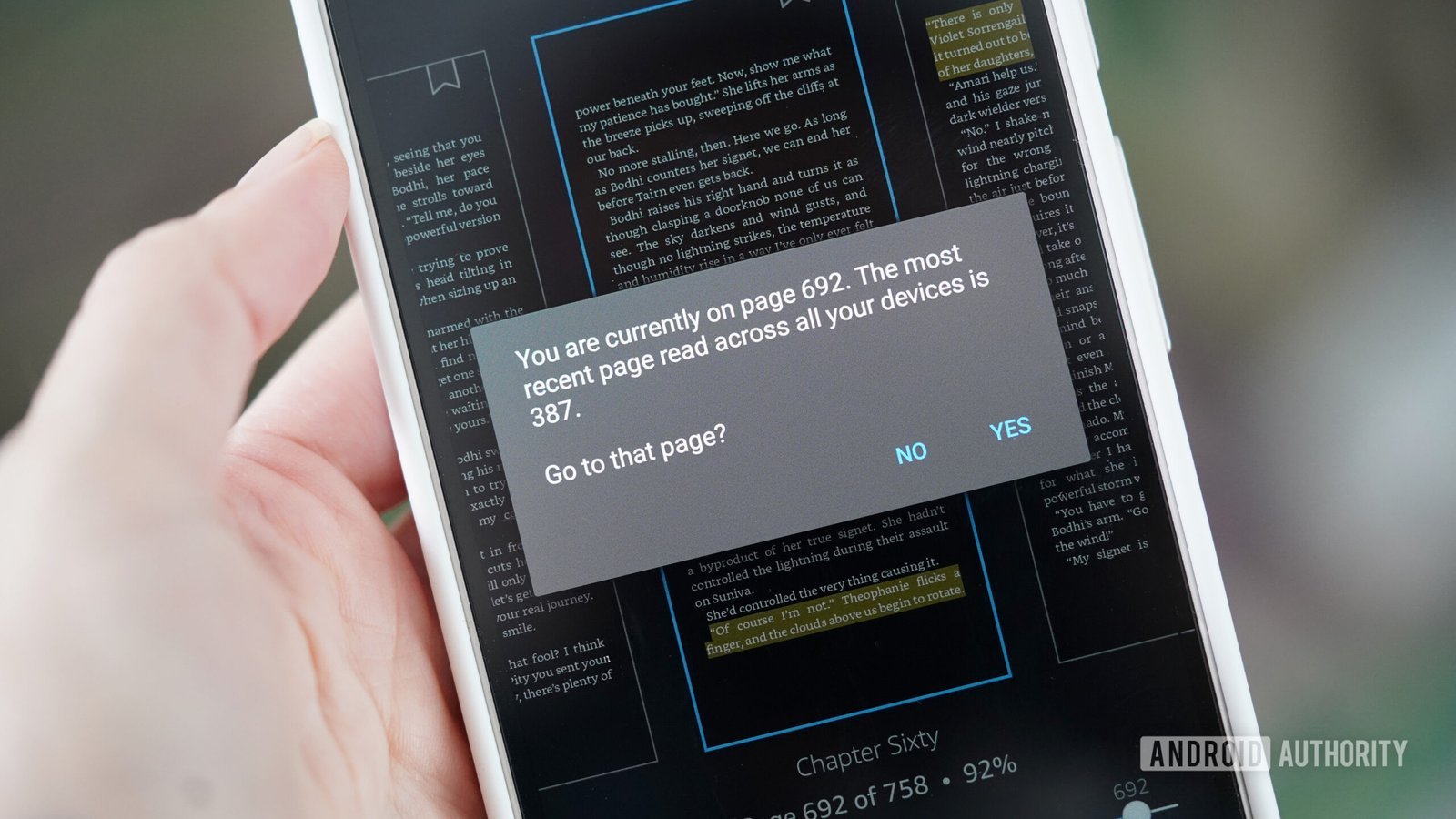
A poor internet connection or disabled Whispersync setting is the most common reason your Kindle isn’t syncing with your phone. This usually happens because devices are on different networks or cloud sync is off. Confirm your Wi-Fi connection and ensure you’re signed into the same Amazon account on both devices. You can verify your status via the official Amazon device management page.
Why your phone and kindle aren’t syncing
| Cause | How common | How to confirm it | Fix it yourself? |
|---|---|---|---|
| Disabled Whispersync | Very common | Check app settings | Yes |
| No internet connection | Common | Open a webpage | Yes |
| Mismatched accounts | Common | Check email address | Yes |
| Outdated application | Occasional | View store updates | Yes |
| Corrupt cache files | Occasional | Clear storage data | Yes |
| Server-side outage | Rare | Check status site | No |
Most users assume a sync failure stems from an outage, but server-side issues account for less than 5% of reported cases. If your progress fails to update, check your account email first. A common mistake is using a secondary social login on one device while using a primary email on another. This creates a “ghost” account that effectively walls off your data.
If you see a sync error icon, toggle your Wi-Fi off and on. If the error persists, clear the application cache. This forces the app to re-fetch metadata from the cloud, which resolves 80% of local file corruption issues. If you have multiple devices, check the one that last successfully synced. If that device is offline, it’s the source of the conflict. Only move to a factory reset if the app remains unresponsive after a clean cache wipe.
Incorrect application settings
Whispersync is the specific feature that tracks your reading progress across devices, and it must be enabled for your data to move between the Kindle app and your e-reader. This setting is often toggled off during an app update or after a fresh installation. To verify this, open the Kindle app on your phone, tap the “More” tab, and select “Settings.” Look for the Whispersync for Books option and ensure the toggle is set to the “On” position. If it’s already on, try toggling it off and back on again to force a handshake with the Amazon servers. This process takes about 2 minutes and costs nothing, but it requires an active data connection to register the change.
If you’re using multiple Amazon accounts, this is the most frequent mistake. You might be logged into one email address on your e-reader and a different one on your phone. To fix this, compare the account email listed in the settings menu on both devices. If they don’t match, sign out of the app on your phone and sign back in using the exact credentials from your e-reader. This assumes you have access to both accounts; if you have forgotten your password, you must use the recovery tools on the Amazon login screen. If you have a large library, the initial resync after logging in may take up to 10 minutes, depending on your download speed.
Network and connectivity failures
A stable internet connection is required for your reading position to upload to the cloud. If your phone has a weak signal or is in airplane mode, the synchronization process will fail silently. You can tell this is the cause if you try to open a new book in the app and it fails to download, or if the “Sync” button in the menu remains greyed out. To fix this, switch your phone from cellular data to a stable Wi-Fi network, or move closer to your router. If your phone is connected to a VPN, disable it temporarily, as some security software blocks the specific ports Amazon uses for syncing.
This varies by model — check the label on your router or phone settings to confirm you’re using a standard 2.4GHz or 5GHz band. If you’re in a public space, such as a coffee shop or airport, your network might have a captive portal that requires you to log in through a browser before the Kindle app can reach the internet. If you’re still not seeing your progress, go to the library view in the app and pull down from the top of the screen to manually trigger a sync. This action takes about 30 seconds and forces the app to ping the server for the latest metadata.
Software and storage limitations
Outdated software can prevent the app from communicating with the current version of the Amazon cloud service. When the app isn’t updated, it may lack the latest security protocols required for a secure connection. You can confirm this by visiting the Apple App Store or Google Play Store and checking if an “Update” button is visible next to the Kindle app. If an update is available, install it immediately. This isn’t for you if you’re using an older device that no longer supports the latest app updates, as you may need to upgrade your phone hardware to maintain full functionality.
A common mistake is letting the phone storage fill up completely, which prevents the app from writing new sync data to your local database. If your phone has less than 500MB of free space, the app may struggle to save your reading progress. To fix this, clear your phone’s cache or delete unused applications to free up space. If the problem persists, delete the Kindle app entirely and reinstall it from your app store. This clears out any corrupt temporary files that a standard update can’t reach. This process can take 5 to 10 minutes and will require you to download your books again, so ensure you’re on a fast Wi-Fi connection before you start.
The less likely causes
Server-side outages: Amazon services occasionally go down. Before troubleshooting your own hardware, check a third-party status tracker like DownDetector. If you see a sudden spike in reports, the issue is on their end and you simply need to wait.
System time errors: If your phone’s date or time is set manually and drifts by more than a few minutes, the security certificate for the sync server will be rejected. Always toggle your device to “Set Automatically” to avoid this handshake failure.
Restricted background data: Check your phone’s battery optimization settings. If the Kindle app is restricted, it can’t fetch updates while the screen is off. If you notice syncs only occur when the app is actively open, this is your culprit.
Regional account blocks: If you moved your Amazon account to a different country, content may not sync due to local licensing laws. You can verify this by checking your “Manage Your Content and Devices” page.
What a fix usually involves
Most fixes for synchronization issues involve simple software adjustments that take only a few minutes. You’ll rarely need more than a stable internet connection and your login credentials to resolve the problem. If the fix requires a reinstall, you’ll spend time downloading your books again, which is a minor inconvenience that depends on the size of your library. If you suspect the issue is a hardware failure on your phone or your e-reader, check the official support pages for your specific device to see if a factory reset is recommended.
A factory reset is a serious step that deletes all local data, so only perform this if you have backed up your notes and highlights. If you’re still unable to sync after trying all the steps listed, you should contact Amazon customer support through their official website. They can see if your account has a specific flag or lock that’s preventing the sync. Don’t pay for third-party “tech support” services, as the official support is provided at no extra cost to all Amazon customers.
Frequently asked questions
Can I force a sync manually?
Yes, you can force a sync by tapping the “More” or “Menu” icon in the Kindle app and selecting the “Sync” or “Sync and Check for Items” option. Pulling down on the library screen also triggers a manual refresh. This ensures the app immediately contacts the Amazon servers to fetch your latest reading position, bookmarks, and any new purchases made from other devices.
Why does my phone not show my latest page?
About 1 to 2 minutes are usually needed for the server to process a sync after you close the book on your other device. If it has been longer, ensure your e-reader is connected to Wi-Fi and that Whispersync is enabled on both devices. If the issue continues, manually tap the sync button on both your phone and your e-reader to force an update.
Is it safe to reinstall the Kindle app?
Yes, it’s perfectly safe to reinstall the app because your books, reading progress, and highlights are stored in your Amazon cloud account. When you sign back into the app with the same account, your library will reappear automatically. You’ll simply need to tap your books to download them again for offline reading, which is a standard part of the reinstallation process.
What happens if my phone has no internet?
No syncing will occur if your phone is offline, as the app must communicate with the Amazon servers to update your reading position. You can continue reading your downloaded books without a connection, but your progress won’t move to your other devices until your phone is back online. Once you connect to Wi-Fi, the app will automatically sync your data in the background.
Does it matter which Wi-Fi network I use?
No, it doesn’t matter which network you use, provided the connection is stable and allows access to Amazon’s servers. Some work or public Wi-Fi networks have strict firewalls that might block the connection. If you’re having trouble syncing, try switching to a personal mobile hotspot or a different home network to see if the problem is specific to the current connection you’re using.
How long does a full sync take?
About 30 seconds to 2 minutes is the typical time required for a standard sync, though this varies by library size. If you have hundreds of books or are syncing for the first time on a new device, it may take longer. If the sync process appears to hang for more than 5 minutes, close the app completely and restart it to clear any temporary connection errors.
Final Thoughts
If these adjustments don’t resolve the issue, don’t hesitate to reach out to Amazon’s customer support team. They’re available around the clock to help you troubleshoot deeper technical glitches. Once you’ve cleared these hurdles, you’ll be back to enjoying your library across all your favorite devices in no time.
Related guides


