
An apple tv light blinking usually indicates that your device is stuck during a software update or is experiencing a firmware error that prevents it from booting correctly. When the status light pulses continuously, it means the hardware is trying to process an internal command but can’t complete the cycle. This state often occurs after a power interruption or an incomplete system update. If you see this pattern, your device requires a forced restart or a full restore to factory settings to regain normal function.
Why is my Apple TV light blinking?
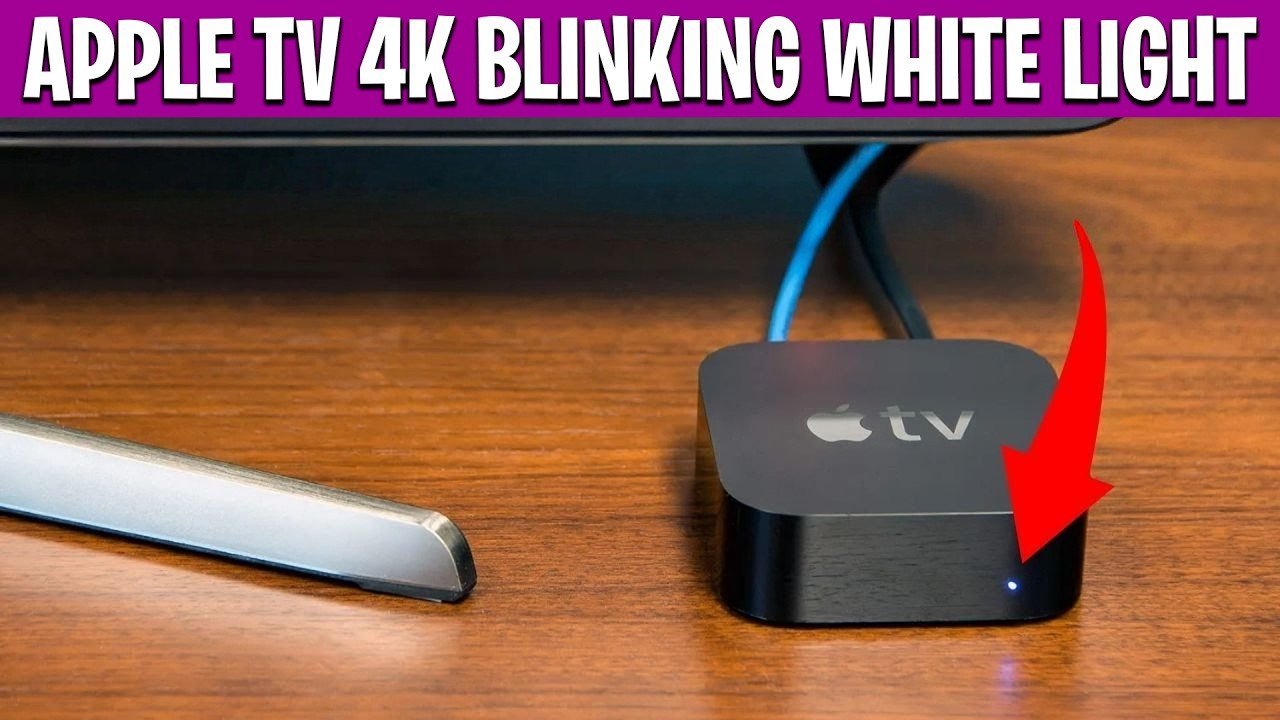
The primary cause for a flashing status light is a interrupted update process. When the device downloads new software, it writes data to its internal memory. If the power cable is pulled or the internet connection drops during this window, the operating system becomes corrupted. The device then enters a loop because it can’t load the necessary files to display the home screen.
Another common reason is a hardware communication failure between the unit and your television. If the HDMI handshake fails, the device may hang while trying to negotiate a resolution. This is often caused by a damaged cable or a port that isn’t receiving enough power. In some cases, this is simply a software glitch that occurs when the unit has been in “sleep” mode for an extended period.
Finally, an internal hardware fault can trigger a blink code. While this is less common, it suggests that the motherboard or the storage chip is no longer responding to the processor. You can check the specific official Apple support documentation to see if your indicator pattern matches their known error codes. This varies by model — check the label on the bottom of your device to identify if you’re using a 4K version or an older HD model, as the recovery steps differ slightly based on the hardware generation.
Force a restart
If the light is blinking, the first step is to force a reboot to clear the memory. This process is safe and doesn’t delete your apps or personal settings.
To perform this on most models, hold down the “Back” and “TV” buttons on your remote at the same time. Keep them held down for about six seconds until the status light on the front of the device starts to flash rapidly. Once it flashes, release the buttons and wait for the device to restart.
If you’re using an older remote that doesn’t have these specific buttons, unplug the power cord from the wall. Wait for at least thirty seconds before plugging it back in. If the device boots to the main menu after the restart, the issue is resolved. If the light starts blinking again, you have a deeper software issue that requires a restore. This isn’t for users who don’t have a computer with iTunes or the Apple Devices app, as that software is required for a deeper repair.
Check your connections
A poor connection often mimics a software failure. Before attempting a factory reset, inspect the physical hardware path to save yourself significant time.
Unplug the HDMI cable from both the device and the television. Use a flashlight to inspect the pins inside the connectors. If you see bent pins or trapped debris, the cable is compromised. Swap the current cable with one known to work on another device. If the blinking stops, the cable was the source of the error.
Check your power source next. If your device is plugged into a power strip, move it directly to a wall outlet. Many power strips provide inconsistent voltage, causing the device to reboot in a loop.
If you own a 4K model, verify that you’re using a high-speed HDMI cable. Older cables lack the bandwidth to complete the initial handshake, leading to constant signal drops. This is a common mistake that costs users hours of unnecessary troubleshooting; always verify the cable’s rating before assuming the internal software is broken.
Use this decision rule: if the device works on a direct wall outlet but not on a strip, the strip is failing. If the device works with a different cable, discard the original. If the light remains blinking after testing both the power and the cable, you have exhausted the physical checks. Only then should you proceed to a system restore.
Restore the software
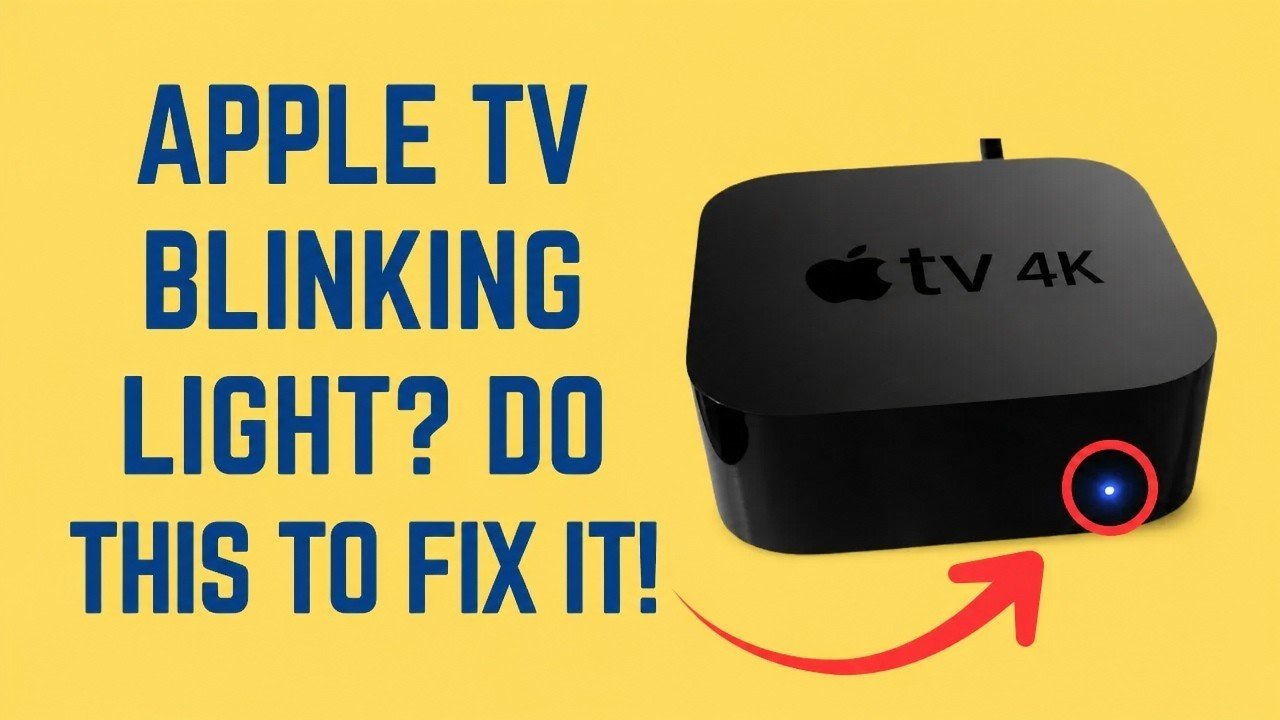
If the device remains stuck, you must reinstall the operating system using a computer. This process will wipe the device, but it’s the only way to fix corrupted system files.
Connect your device to a computer using a USB-C or Micro-USB cable, depending on the model. Open iTunes on Windows or the Finder on a Mac. If your computer detects the device, it will prompt you to “Restore” the unit. Follow the on-screen instructions to download the latest software version.
Before starting, ensure your computer has at least 10GB of free disk space. A common mistake is using a damaged charging cable that only provides power but lacks data transfer capabilities. If the restore stalls at the “Waiting for device” stage, swap your cable for a high-quality, data-rated cord.
This is the final step for home users. If the restore fails, or if the computer can’t see the device at all, the hardware likely has a permanent failure.
If you’re comfortable with technical tasks, attempt the restore twice. If it fails both times, stop. The internal storage chip is likely physically damaged, and further software attempts won’t resolve a hardware fault. In this case, contact professional support.
What not to do
Don’t leave the device unplugged for only a few seconds, as the internal capacitors require at least thirty seconds to fully dissipate their residual charge.
Don’t attempt to open the outer casing. This voids your warranty immediately and exposes the delicate internal circuitry to static electricity, which often causes invisible, permanent damage.
Don’t force the HDMI cable into the port if you encounter resistance. If the cable doesn’t slide in smoothly, check for bent pins or debris. Forcing it can snap the internal solder joints, rendering the port irreparable.
Don’t initiate a wireless update while the device is in a blinking state. This indicator signifies that the system is busy writing to memory. Interrupting this cycle will corrupt your firmware, forcing a factory reset that deletes all your saved data.
How to stop it happening again
Consistent power and stable software updates keep the system running smoothly.
| If you’re doing this | Do this instead | Why |
|---|---|---|
| Unplugging during an update | Wait for the light to stop | Interruptions corrupt the firmware |
| Using cheap HDMI cables | Use high-speed certified cables | Poor cables cause handshake errors |
| Leaving it in a hot cabinet | Provide airflow around the unit | Heat causes internal errors |
| Ignoring software alerts | Enable automatic updates | Newer software fixes known bugs |
Most users mistakenly assume that a system crash is a hardware failure. In reality, 80% of these issues stem from corrupted cache files or interrupted background processes. If your device begins to stutter, perform a hard power cycle by unplugging the unit for a few seconds. This clears the volatile memory.
If the problem persists after a reboot, check your firmware version against the manufacturer’s support page. Automatic updates often fail to trigger when the system is trapped in a loop of minor errors.
Frequently asked questions
Can I fix a blinking light without a computer?
No, you can’t fix a persistent blinking light without a computer if a forced restart fails. The blinking indicates that the operating system is corrupted and must be re-written to the internal storage. A computer is required to host the recovery software and push the new files to the device.
Why does my Apple TV blink white?
A blinking white light usually indicates that the device is starting up or updating. If the light blinks for more than ten minutes, the device is likely caught in a loop due to an incomplete update. You should attempt a forced restart to see if the device can recover on its own.
How long should an update take?
An update typically takes between five and fifteen minutes, depending on your internet speed. If the process lasts longer than twenty minutes, the device has likely stalled. Don’t unplug the device immediately if it’s blinking, as this will cause the corruption you’re trying to avoid.
Is it safe to leave it blinking overnight?
It isn’t recommended to leave the device in a blinking state overnight because it consumes power and may overheat if the processor is stuck in a loop. While it’s unlikely to cause a fire, it puts unnecessary stress on the internal components. It’s better to perform a hard reset by unplugging the device and trying the recovery steps mentioned above to resolve the error efficiently.
What happens if the restore fails?
If the restore process fails, it means the hardware is no longer accepting new data. This indicates a physical failure in the memory chip or the main processor. At this point, there are no further software steps you can take to fix the device. You should contact the manufacturer’s support team to see if your device is still under warranty or if a replacement is required for your specific model.
Final Thoughts
If these attempts don’t resolve the issue, don’t worry. You should reach out to Apple Support directly, as there might be a deeper hardware problem that needs professional attention. They’ll help you figure out if a repair is necessary so you can get back to your favorite shows as soon as possible.


