
If your Kindle not syncing new books is the problem, checking your internet and Amazon account settings will almost always resolve it. Most failures happen because the device lost its wireless connection or the content was purchased on a different account. Start by toggling Wi-Fi off and on, or perform a hard restart by holding the power button for forty seconds.
Reasons your Kindle isn’t syncing books
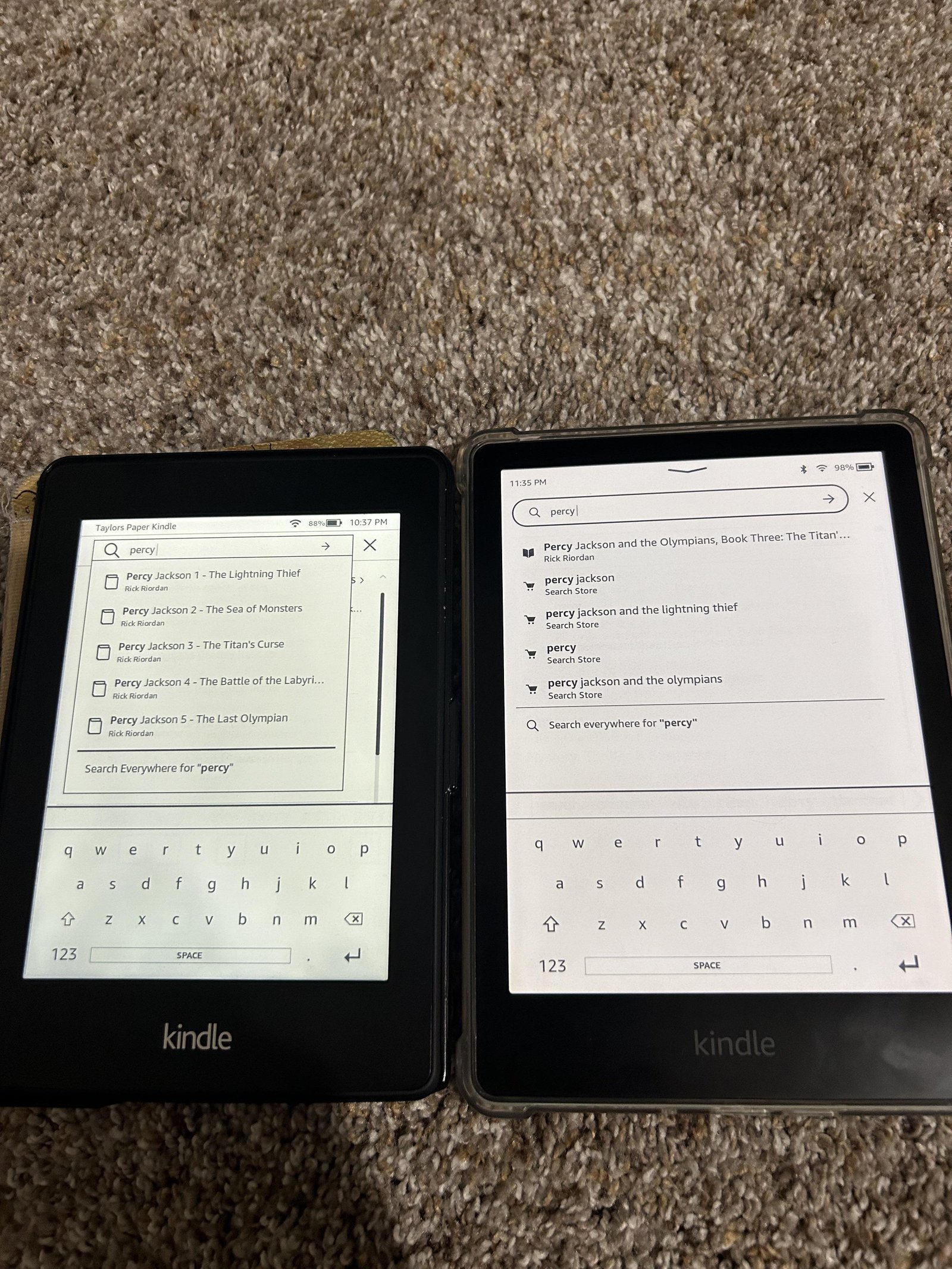
The most common reason for a sync failure is a temporary software glitch or a weak network handshake. When a Kindle loses its path to the Amazon servers, it can’t verify your library or download the metadata for your new purchases. This often occurs if the device has been in sleep mode for a long period or if the router assigned a new IP address that the Kindle hasn’t yet recognized.
Another frequent cause involves account mismatches. If you have multiple Amazon accounts in your household, it’s easy to buy a book on one account while your Kindle is signed into another. In these cases, the book exists in your cloud library, but the device is effectively “blind” to it because it isn’t authorized to display that content.
Finally, outdated firmware can prevent the device from communicating with modern security protocols. Amazon periodically updates its backend infrastructure to improve encryption. If your software is several versions behind, the Kindle might fail to authenticate the handshake required to pull down your latest book list. You can check for official updates on the Amazon Kindle software updates page to see if your model is running the current version. If you’re using a very old model that no longer receives support, it may struggle to maintain a connection to the modern Kindle store.
Refresh the sync connection
For this fix, you need to manually force the device to ping the Amazon servers. This is for users who see their Wi-Fi icon is active but still find their library is empty. Go to the “Home” screen, tap the three dots in the top right corner, and select “Sync and Check for Items.” Wait at least sixty seconds for the progress bar to complete.
If this doesn’t bring the book down, turn on “Airplane Mode” for ten seconds, then turn it off to force the device to re-authenticate with your router. If you have a large library of over one hundred titles, this process may take longer because the device is downloading index data for your entire collection. If you have a weak signal, move the device within five feet of your router to ensure the handshake completes without packet loss. This is a common point of failure for older models that don’t support 5GHz bands; if you have a dual-band router, ensure your Kindle is connecting to the 2.4GHz network, as it has a better range and is more compatible with older wireless hardware.
Verify the registered account
This fix is for users who have confirmed their internet is working but still don’t see their new content. You must confirm that the Kindle is signed into the exact email address used for the purchase. Go to “Settings,” then “Your Account,” and look at the “Registered Amazon Account” field. If the email address shown there doesn’t match the one where you received your purchase confirmation receipt, you must deregister the device and sign in with the correct credentials.
Deregistering will remove downloaded books from the device, so you’ll need to re-download them from the cloud once you log back in. This is a significant step, so do it only if you’re certain the account is wrong. If you’re unsure which account holds the book, check your email history for the purchase receipt from Amazon. If you have multiple accounts, log into each one on a computer and check the “Manage Your Content and Devices” page. If the book appears there but not on your Kindle, it means the device isn’t linked to that specific account. This fix isn’t for people who share a library; if you’re using “Amazon Household” sharing, ensure the feature is still active, as individual books can sometimes be restricted by the primary account holder.
Check for firmware compatibility
This fix is for users whose devices are several years old and haven’t been used in a long time. You must manually check the firmware version against the specifications on the manufacturer’s website. If your version number is lower than the one listed for your specific model, the device can’t securely communicate with the server.
To perform this, use a computer to download the update file from the official Amazon site and transfer it to your Kindle via a USB cable. This requires a standard micro-USB or USB-C cable, depending on your model. Place the file in the root directory—not inside any folders—and then go to “Settings,” “Device Options,” and “Update Your Kindle.” This option will be greyed out if the file is missing or placed in the wrong folder. This process is for technical users; if you’re uncomfortable moving system files, contact Amazon support for a remote update. This fix isn’t for devices with a broken charging port, as they won’t be recognized by a computer. If your Kindle doesn’t charge when plugged into a PC, the hardware may be failing, and no software update will resolve the sync issue.
What not to do
- Don’t factory reset your device immediately, as this deletes all local content and is rarely necessary unless you have confirmed a deep system corruption.
- Don’t leave your Kindle connected to a public hotspot that requires a browser “landing page” to accept terms, because the Kindle browser is often too basic to navigate these redirects.
- Don’t assume that “Sync” is broken just because a book isn’t appearing; verify the book has actually finished processing in your account by checking the “Manage Your Content” page on a web browser.
- Don’t keep the device in a metal case while troubleshooting, as this can interfere with the internal antenna and result in a signal that’s too weak to complete the sync handshake.
How to stop it happening again
Keep your device connected to a stable home network and perform a manual sync once a week to ensure the index stays current. Most users fail to realize that background syncs often stall if the device enters deep sleep mode while disconnected from a power source. To prevent this, plug the unit into a charger during your weekly maintenance window.
| If you’re doing this | Do this instead | Why |
|---|---|---|
| Leaving Wi-Fi off | Keep Wi-Fi enabled | Syncing happens in the background |
| Using an old case | Use a non-metallic case | Metal blocks the antenna signal |
| Ignoring updates | Update firmware manually | Improves security and connection |
| Buying on one account | Use one primary account | Prevents registration conflicts |
If you notice the sync icon flashing red, you’re likely suffering from IP address conflicts. Simply restart your router to refresh the lease. If the icon remains solid, perform a hard reset by holding the power button for ten seconds.
Frequently asked questions
Can I sync my Kindle using a mobile hotspot?
Yes, you can use a mobile hotspot if the connection is stable and lacks a captive portal. Most modern smartphones create hotspots that function like home routers. If the sync fails, ensure your data plan is active and your reception is strong.
Why does my Kindle say it’s registered but shows no books?
This usually happens because the device is registered to an account without purchased content. Verify the email address in your device’s settings menu. If correct, check the “Manage Your Content and Devices” page online to confirm your books are assigned to that account.
Is it safe to deregister my Kindle?
Yes, it’s safe to deregister your Kindle, though you must download your books again. Deregistering only clears the link between your hardware and the Amazon account. Your books remain safely in your cloud library and will reappear once you sign back in.
How long should a manual sync take?
A manual sync typically takes between thirty seconds and two minutes. If you have thousands of items, the device takes longer to process the list. If the progress bar freezes for over five minutes, your internet connection is likely too slow or unstable.
What happens if my Kindle is too old to sync?
Early generation models may no longer connect to Amazon’s secure servers. Check your specific model’s status on the Amazon help pages. If unsupported, you can still transfer books manually by downloading them to your computer and moving them onto the Kindle via a USB cable.
Final Thoughts
If these quick fixes don’t bring your library up to date, don’t worry. You can reach out to Amazon’s support team directly through their website. They’re usually very helpful and will get your device working properly again, so you’ll be back to your favorite stories in no time at all.
Related guides


