
If you find Steam Cloud not syncing, you can resolve the error by restarting your client or verifying that your firewall isn’t blocking the application. This is usually caused by a temporary handshake failure between your local machine and Valve’s servers.
If the status remains stuck, right-click the game title in your library, select Properties, and confirm the Cloud Synchronization toggle is set to “On.” Many users mistakenly toggle this off during troubleshooting, which forces the client to ignore local save files entirely.
Check the official Steam support page to see if the global service is undergoing maintenance. If the service is online, navigate to your Steam installation folder and delete the “appcache” directory. This forces a clean refresh of your local manifest files. If you have multiple accounts on one PC, ensure you aren’t logged into a different profile, as Steam will refuse to sync cloud data if the local user ID doesn’t match the cloud save owner.
Why this happens
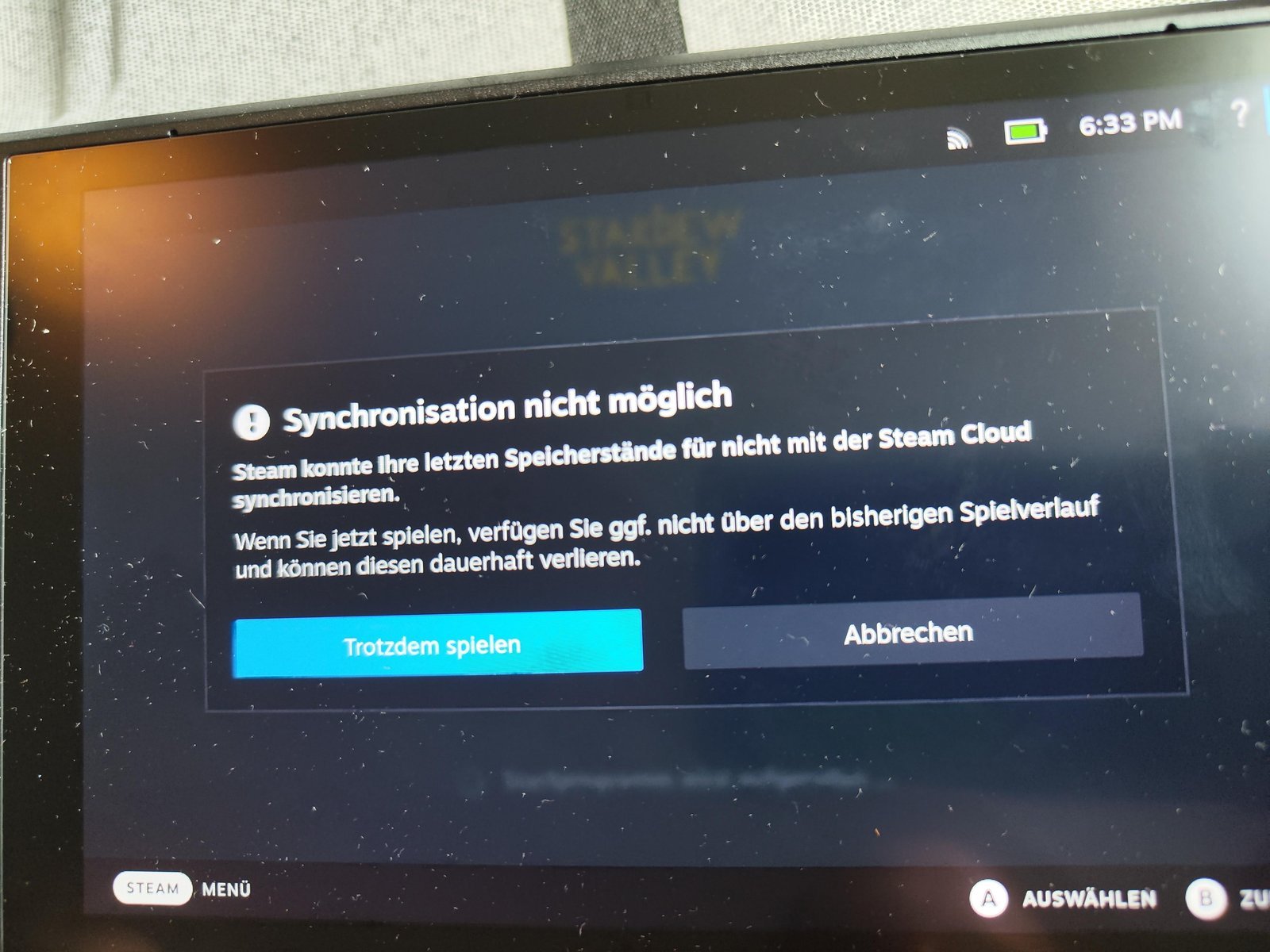
The primary reason for sync errors is a communication breakdown between your computer and the remote storage servers. This usually happens when your network connection drops for even a fraction of a second during a save attempt. If your connection is unstable, the client can’t verify the file hash, which is the digital fingerprint used to confirm that your local files match the ones stored online.
Another frequent cause involves local file corruption. If the game crashes while it’s trying to write data to your drive, the Steam client might see an incomplete file. Because the client can’t safely upload a broken file, it flags the sync as failed to protect your progress from being overwritten by corrupted data.
Software interference also plays a significant role. If you use a strict firewall or a third-party antivirus program, these tools may misidentify the Steam sync process as an unauthorized attempt to access the internet. If you have recently changed your network security settings, this is often the culprit. Finally, if your hard drive is nearly full, the client may be unable to create the temporary files needed to stage your data before sending it to the cloud. Check your drive’s capacity within your operating system’s storage settings, as some systems require at least 10% of total space to be free for background operations.
Verify account permissions
This fix is for users who suspect that local security software or Windows permissions are preventing the client from writing data. First, ensure your user account has full administrative rights, as Steam needs these to access the hidden folders where sync data is held. Right-click your Steam icon, select “Run as administrator,” and attempt to launch the game again.
If this doesn’t change the status, check your antivirus software. Look for a “Whitelist” or “Exceptions” list and add the entire Steam folder path to it. If you’re using a public or work network, the network administrator may have blocked the ports that Steam requires to communicate with the cloud. This fix isn’t for people on home networks where they have full control over the router; if you’re in a dorm or office, you’ll need to contact the network IT department to request that the necessary ports be opened. You’ll know this worked if the “Syncing” icon disappears from your library menu and is replaced by a checkmark within a minute of launching the application.
Clear the download cache
If your sync status is persistently stuck, clearing the local download cache can force the client to re-establish a clean handshake with the server. Open your Steam settings, navigate to the Downloads tab, and select “Clear Download Cache.” You’ll be prompted to restart your client and log in again. This process doesn’t delete your installed games, but it does remove temporary data that might be causing a loop in the sync process.
This is a different approach because it targets the temporary files rather than your network permissions. It’s effective if you have recently moved your Steam installation to a different drive or changed your download region. After you log back in, wait at least three minutes for the client to re-index your local files. If the sync icon turns green, the connection is restored. If the error persists, you may have a hardware limit on your drive’s read/write speed during high-traffic periods, which requires you to wait for the server load to decrease. If you have a slow connection, say below 10 Mbps, expect this process to take longer as the client verifies every small save file.
Repair local library folders
For cases where the sync error is tied to a specific game, repairing your library folder can resolve underlying file path issues. Go to Settings, choose Storage, and click the three dots next to your drive. Select “Repair Folder.” This tells Steam to scan the drive for missing or misaligned files that might be preventing the cloud service from reading your local save data.
This is worth the effort if you have tried restarting and clearing the cache without success. However, it isn’t a fix for issues caused by server outages or local internet downtime. If the repair process fails, it may indicate a failing hard drive, which is a hardware issue that requires professional diagnostic tools or a replacement drive. If you aren’t comfortable with disk management, don’t attempt to manually move files, as you could lose your saved progress permanently. If the repair finishes and the game still won’t sync, you should check your disk health using the built-in Windows tool or a trusted utility to ensure your drive isn’t physically dying.
What not to do
- Don’t delete your local “userdata” folder manually, as this will likely result in the permanent loss of your local save game files if the cloud hasn’t already backed them up.
- Never use third-party “cloud sync repair” tools found on random websites, because these programs often contain malware that steals your login credentials.
- Don’t attempt to bypass the sync error by launching the game in offline mode repeatedly, because this will eventually force the client to choose between your old cloud data and your new local data.
- Avoid uninstalling and reinstalling your entire library, as this is a massive waste of time that rarely fixes a simple handshake error between the client and the server.
How to stop it happening again
The best way to prevent sync issues is to keep your client updated and maintain a stable network environment.
| If you’re doing this | Do this instead | Why |
|---|---|---|
| Closing Steam during updates | Let the update finish | Incomplete updates break file paths |
| Using a VPN to game | Disable VPN for syncing | VPNs block the specific sync port |
| Ignoring disk space warnings | Delete old or unused games | Low space prevents temporary staging |
| Changing save folders | Use the default library path | Custom paths often hide files from sync |
Most users mistakenly assume a “green” connection icon guarantees a successful handshake with the cloud. In reality, your firewall may permit the game to launch while actively blocking the ports required for background cloud synchronization. If you see a “Sync Conflict” error, check your router’s UPnP settings immediately.
You must maintain this buffer because the client creates a compressed archive of your save data before uploading. If you hit this wall, move your largest titles to an external drive rather than deleting them. This keeps your local library intact while freeing the necessary overhead for the sync engine to operate.
Frequently asked questions
Fixing a Steam cloud not syncing error
Yes, you can often force a sync by verifying the integrity of your game files. Right-click the game, select Properties, go to Installed Files, and click “Verify integrity of game files.” This forces the client to compare your local files against the server version and will trigger a sync attempt once the scan completes. If the scan finishes and the error icon remains, your network connection is likely the block.
Why does Steam say my cloud is out of date?
This happens when the files on your computer don’t match the version saved on the Valve servers. It usually occurs if you played the game on another computer and didn’t allow the first machine to finish its sync before you closed the application. Always wait for the “Sync complete” message in your library before shutting down your computer to ensure your latest progress is safely stored in the cloud.
How long does a sync usually take?
A standard sync takes between five and thirty seconds, depending on the number of save files and your upload speed. If you have a large number of save games or a high-resolution screenshot folder, this can extend to several minutes. If the process is still running after ten minutes, it isn’t a normal sync and you should restart your client to reset the connection.
Is it safe to play if the sync fails?
You can still play if the sync fails, but your progress won’t be backed up to the cloud until the issue is resolved. If the client can’t sync, it means your local files aren’t being backed up to the cloud. If your computer crashes or the local drive fails, all progress made during the period of the sync error will be lost forever. Always resolve the sync error before opening the game to play.
What happens if I choose the wrong save file?
If you choose the local file when the cloud version is newer, you’ll overwrite your progress with an older version of your game. This action is irreversible. Always read the pop-up warning carefully, as it will display the date and time of both the local file and the cloud file. If you’re unsure, always choose the file with the most recent timestamp to keep your latest progress.
Why do I see a sync conflict error?
You see this error when the Steam client detects a discrepancy between your local data and the cloud data. This is a safety feature designed to prevent you from accidentally deleting your progress. It happens most often when you play the same game on two different devices. The system asks you to pick which file is the correct one to ensure your progress remains synchronized across both machines.
Final Thoughts
If these quick fixes don’t do the trick, don’t worry. Sometimes, you just need to wait an hour or two while the servers catch up. If the problem persists, reach out to Steam Support directly. They’ll help you get back to your saved games so you can keep playing without any further interruptions.


