You can resolve a 1password chrome extension not syncing issue by performing a forced refresh of your vault data through the extension settings. This problem usually occurs because the local cache in your browser has become disconnected from the primary account server. If you’re using a managed device, your company’s security policy might restrict background data updates, which often causes this delay. For most users, simply signing out of the extension and signing back in forces a clean handshake with the server, clearing out the old, stuck data packets immediately.
Fixing 1Password Chrome extension not syncing
Synchronization failures typically happen because the local browser environment doesn’t match the information stored on the central server. The most common cause is a stale session token. When your browser updates or your computer wakes from sleep, the extension may fail to re-authenticate properly, leaving you with an outdated view of your passwords. This is a common hurdle when browser extensions update in the background while the main application is still running an older process.
Another frequent reason involves network interference. If you use a VPN or a restrictive firewall, the extension might be blocked from reaching the servers required to push updates to your machine. The official 1Password support documentation confirms that connection stability is the primary factor for successful data retrieval. If your internet connection drops for even a second during a sync attempt, the process may time out.
Finally, browser conflicts play a role. If you have multiple password managers installed, they can compete for browser resources, causing the 1Password extension to hang or fail to write new entries to the local database. If you have a stable network and no other managers active, the issue is almost certainly a corrupt cache that needs a manual reset.
Force a manual refresh
This fix is for users who see their items on the web vault but not in the browser extension. To begin, click the 1Password icon in your Chrome toolbar. Open the menu by clicking your account name or the gear icon in the top right corner. Select “Settings” and look for the “Advanced” tab. If you don’t see a specific refresh button, sign out of the extension entirely.
Once you have signed out, close the browser completely and restart it. Sign back into the extension using your Secret Key and Master Password. This process forces the extension to pull a fresh copy of your entire vault from the server rather than trying to update individual changed items. If you’re on a shared computer, be careful not to save your password in the browser’s own manager, as this can confuse the 1Password extension. You’ll know this worked when the “Last Synced” timestamp updates to the current time. If it still doesn’t sync, check your internet connection and ensure your system clock is accurate, as an incorrect time setting prevents secure connections from establishing.
Update your browser extension
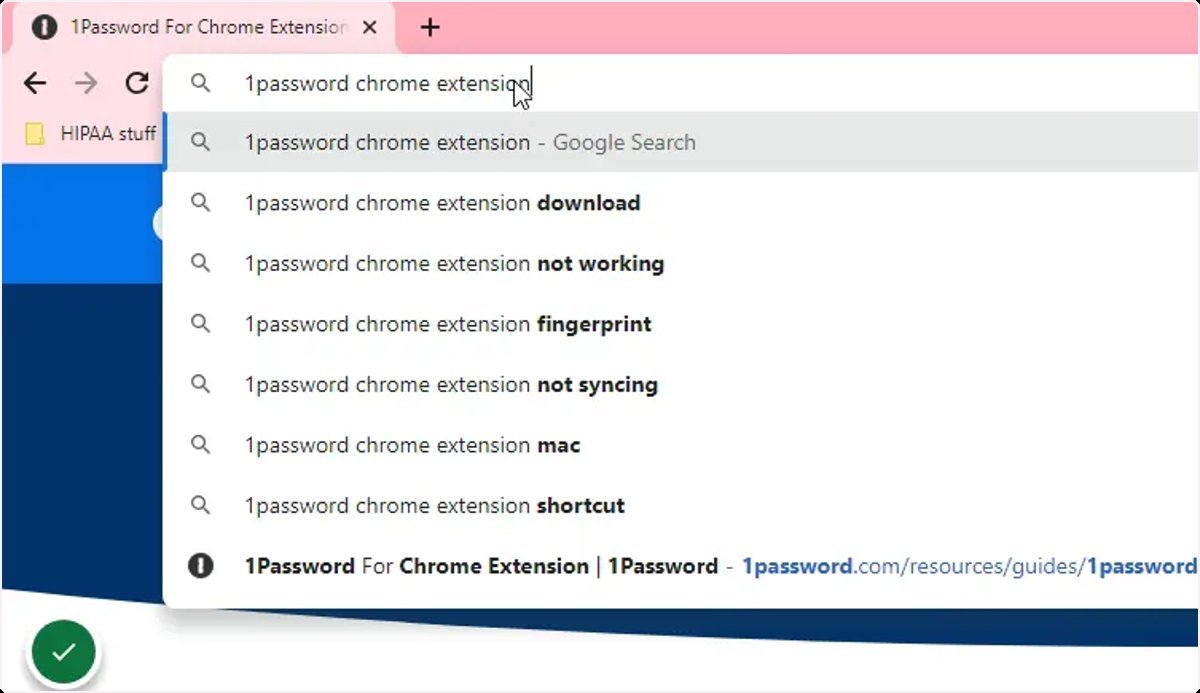
If the manual refresh didn’t work, the extension version itself might be outdated. Chrome extensions sometimes fail to update automatically if the browser has been left open for a long period. To fix this, open your Chrome extensions page by typing chrome://extensions/ into your address bar. This forces Chrome to check for the latest version of the 1Password extension.
This fix is intended for users experiencing persistent bugs that were patched in recent releases. If you’re running an older version of Chrome, you might need to update the browser itself before the extension can function correctly. If you find that the extension is still stuck, check if you have any “AdBlock” or “Privacy” extensions running. These tools sometimes block the specific scripts that 1Password uses to verify your identity. Disable these one by one to see if the sync resumes. If you’re using a work-issued laptop, you may need to ask your IT department to whitelist the 1Password domain to allow the sync traffic to pass through the company firewall.
Reinstall the extension
Reinstalling is the final step for when the local database file is corrupted beyond a simple refresh. This is a last resort, as it requires you to log in and set up your preferences again. First, remove the extension from Chrome by right-clicking the 1Password icon and selecting “Remove from Chrome.” Once removed, clear your browser cache and cookies for the last hour to ensure no residual data remains. Restart the browser and navigate to the Chrome Web Store to download the latest version of the 1Password extension.
This fix is for users who have tried everything else and still face a “Sync Error” message. It isn’t for users who have forgotten their Master Password or Secret Key, as you’ll need those to sign back in. Before you do this, ensure you have your Emergency Kit printed or saved in a secure, offline location. If you don’t have your credentials, don’t delete the extension, as you’ll be locked out of your vault. Once the new extension is installed, it will perform a clean, full sync. This usually resolves even the most stubborn sync issues because it clears the corrupted local database file that was preventing the update.
What not to do
- Don’t uninstall your main 1Password desktop app:
- Don’t repeatedly click “Sync” or “Refresh”: Spamming the refresh button can trigger rate-limiting on the server side, which will temporarily block your IP address from syncing.
- Don’t use a third-party “cleaner” tool: Software that claims to “optimize” your browser cache often deletes the encrypted database files that 1Password needs to function, leading to data loss.
- Don’t share your Secret Key with support: If you contact 1Password help, never provide your Secret Key; they have internal tools to verify your account and will never ask for your private credentials.
How to stop it happening again
Consistency is the best way to keep your vault in sync. If you’re doing this manually, do this instead to keep your data flowing smoothly.
| If you’re doing this | Do this instead | Why |
|---|---|---|
| Leaving Chrome open for weeks | Restart your browser daily | It clears stuck background processes |
| Using multiple password managers | Disable or remove others | Prevents conflicting auto-fill attempts |
| Ignoring extension updates | Enable automatic updates | Ensures compatibility with the server |
| Using a public VPN | Use a trusted, stable network | Prevents connection drops during syncing |
Most users fail because they treat sync as a background event rather than a handshake. If your vault fails to update, check the timestamp on your last successful sync. If it exceeds 24 hours, force a manual refresh before adding new credentials.
The most common mistake is closing the browser while a sync is mid-process. This creates a “ghost” entry that forces the system to resolve a conflict later. If the error persists, clear your local cache. This forces the vault to pull a fresh copy from the server, which is safer than attempting to merge corrupt local data.
Frequently asked questions
Can I lose my passwords if I reinstall the extension?
No, you won’t lose your passwords because they’re stored on 1Password servers, not the extension. Reinstalling only removes the local vault copy kept for speed. As long as you have your Master Password and Secret Key, your data remains safe and accessible upon signing back in.
Why does my sync status say “Offline”?
This happens when the extension can’t reach 1Password servers due to a network or firewall block. Check your internet connection to ensure other secure websites load normally. If they do, your firewall or security software may be blocking the connection, so try disabling your VPN or ad-blocker temporarily.
How long should a sync take?
A normal sync takes less than five seconds with a stable internet connection. If the icon spins for over a minute, your connection is likely failing or the data packet is too large.
Is it safe to clear my browser cache?
Yes, it’s safe because your encrypted vault data is stored on 1Password servers, not in the browser cache. Clearing your cache only removes temporary files used to load pages faster. You’ll simply need to sign back into your accounts after clearing your session cookies.
What happens if I forget my Master Password?
You can’t access your vault or sync data if you lose your Master Password. 1Password doesn’t store your password, so there’s no reset option. You must use the Emergency Kit saved during account creation; without it or your Master Password, you’ll be permanently locked out.
Final Thoughts
If you’re still seeing outdated information after these quick fixes, it’s a good idea to check your browser’s extension manager for any pending updates. Keeping your software current ensures everything runs smoothly, so you won’t have to worry about these connection glitches slowing you down while you’re trying to work.
Related guides