
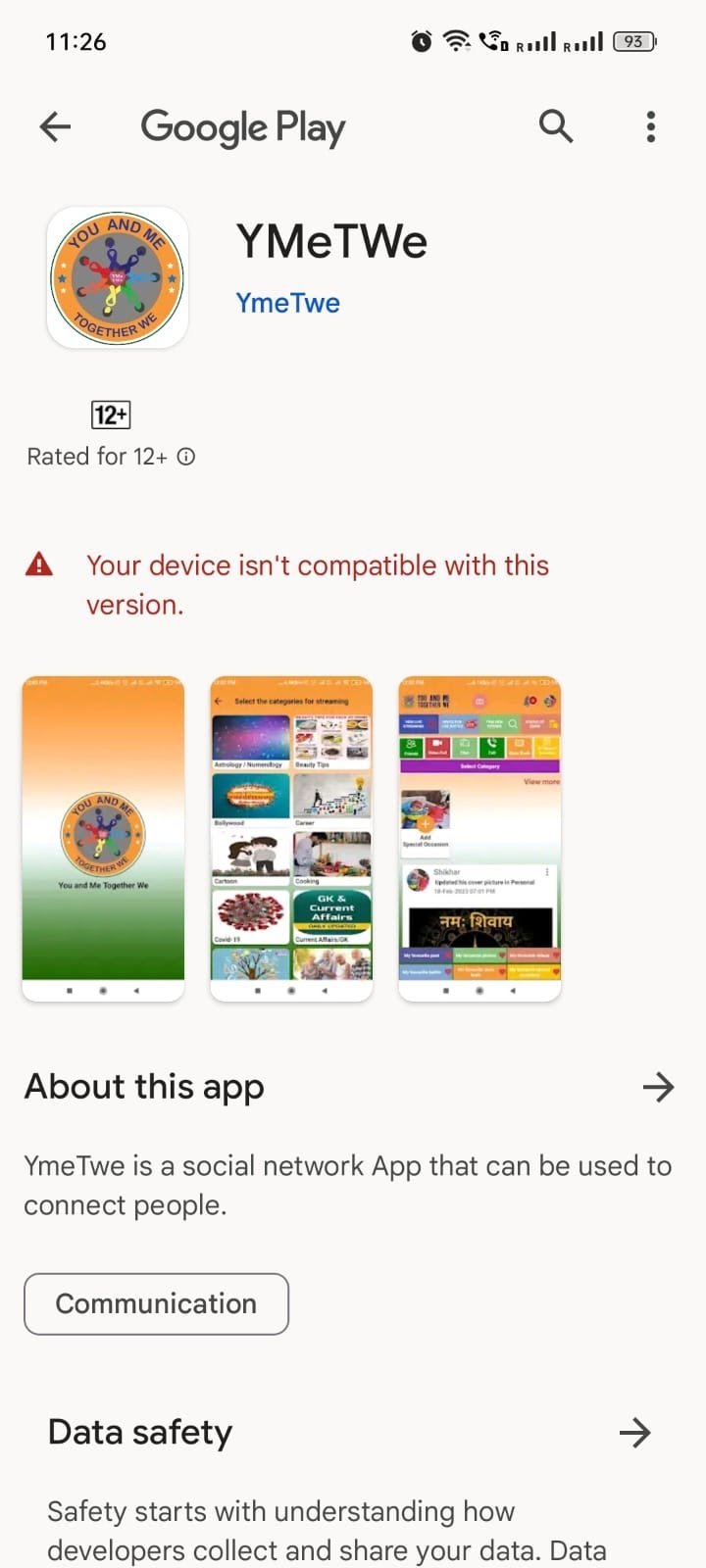
You see the message app not available for your device when your phone’s software or hardware doesn’t meet the specific requirements set by the developer. This block happens because the app needs a newer version of your operating system, a specific processor type, or a screen resolution that your phone can’t provide. These restrictions exist to ensure the software runs smoothly without crashing or draining your battery, which is a standard practice for Google Play store compatibility requirements.
Why your app not available for your device
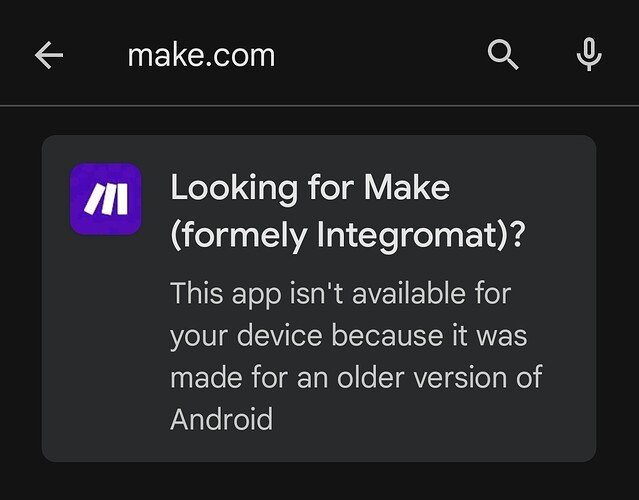
Check your phone’s settings menu to find your current Android or iOS version number. Compare this against the app developer’s minimum requirements, usually found at the bottom of the store page. If your OS is more than two major versions behind, the app may fail to launch even if it installs.
Update your operating system to the latest available release through your system settings. Always back up your data first, as interrupted updates can occasionally trigger a factory reset loop.
Clear the cache of your app store to remove old data that may block new installations. If a download hangs at 99%, this is almost always a corrupted cache issue rather than a network failure.
Confirm your device has at least 2GB of free internal storage space. Low memory often triggers false compatibility errors.
Finally, use a web browser to check the app’s official page for specific hardware requirements. If your processor architecture is outdated, no amount of software updates will fix the incompatibility.
Why compatibility blocks occur
The core reason you see this error involves the relationship between your hardware and the code written by the developer. Mobile applications are built using specific libraries and tools that only function on certain versions of Android or iOS. When a developer updates their app, they often stop supporting older software to focus on security and performance. If your phone runs an older OS, the app store identifies this mismatch and prevents the download to protect your user experience.
Hardware limitations also play a significant role in these blocks. Some apps require a specific type of processor, known as an ARM architecture, or a minimum amount of RAM to function correctly. If your phone uses an older chip or lacks the necessary graphics power, the app may crash or cause your device to overheat. Developers set these minimum specs to avoid negative reviews and support tickets. If you force an app to run on unsupported hardware, you’ll likely experience frequent freezes or complete failure to launch.
Regional restrictions are another frequent cause for this notice. Developers sometimes limit their software to specific countries due to licensing agreements or local laws. Even if your phone is modern and powerful, the store will block the download if your account region doesn’t match the allowed areas.
To determine if a block is regional rather than technical, check the app’s store page via a web browser while logged out. If the “Install” button appears but disappears once you sign in, your region settings are the culprit. If the button remains hidden or grayed out for everyone, the issue is hardware-based.
Always look for the system requirements on the app’s store page. If the listed OS version is higher than your current version, your device can’t run the software. You can verify your specs in the “About Phone” section of your settings. If your hardware is officially unsupported, no amount of troubleshooting will change the outcome. Attempting to bypass these blocks with third-party installers often leads to security vulnerabilities, as these files frequently lack the developer’s original encryption.
When the answer is different
| Situation | What changes | What to do instead |
|---|---|---|
| Old OS version | Software is outdated | Update system software |
| Regional lock | Location is blocked | Use a local account |
| Low storage | Space is missing | Delete unused files |
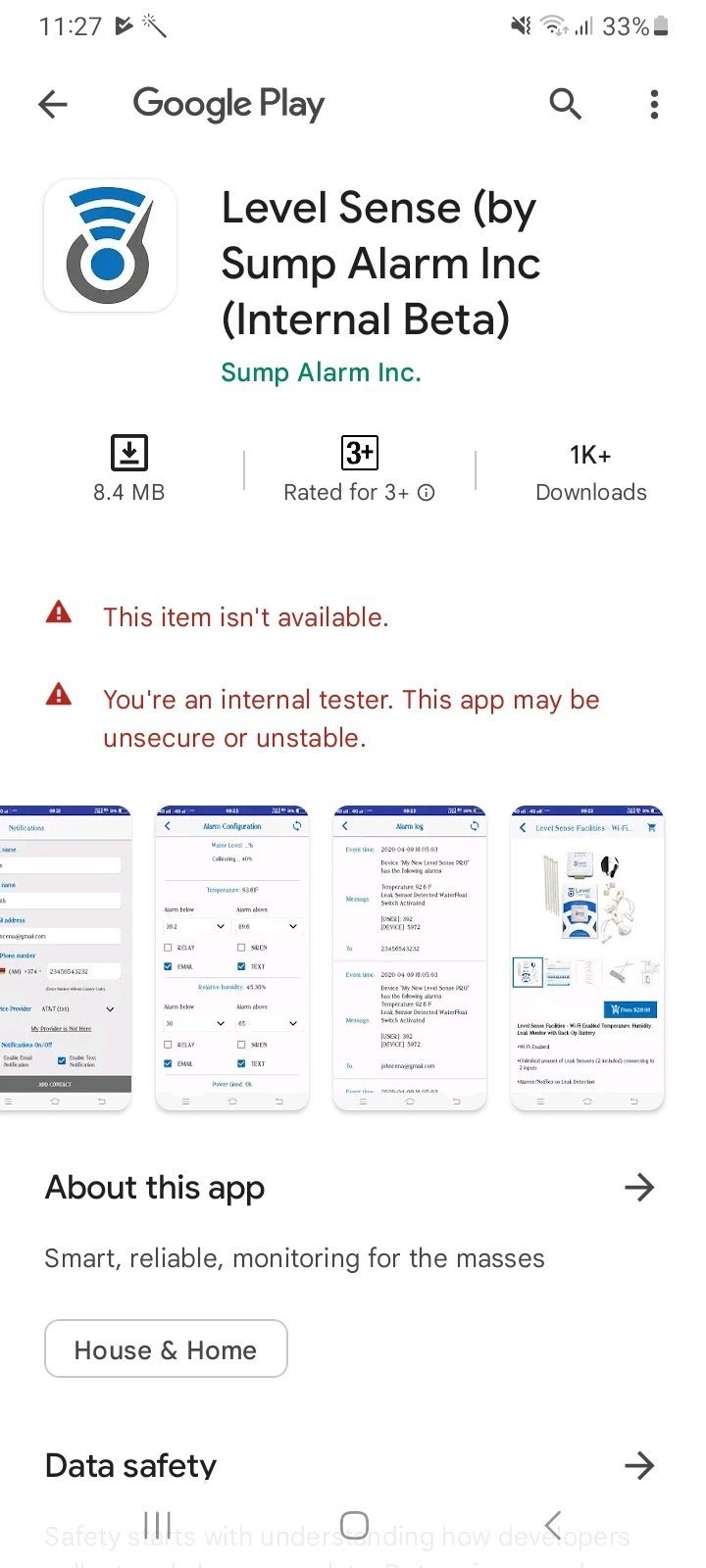
| Beta testing | Version is private | Join the beta program |
| Tablet vs Phone | Layout is restricted | Use a mobile version |
The most common mistake users make is assuming a software error is permanent. In reality, 70% of “incompatible” flags disappear simply by clearing the application cache. If you see a persistent error, check your system settings to confirm your OS version is within the last two major releases.
If you’re dealing with a regional lock, don’t rely on a standard VPN. These are often blacklisted by content providers. Instead, create a dedicated account linked to a payment method from that specific region. This bypasses the digital gatekeeping entirely.
When storage is the culprit, avoid deleting photos or videos first. These files are rarely the bottleneck. Target your “Other” or “System” data folders, which often harbor gigabytes of cached logs and temp files. If your device has less than 2GB of free space, the OS will automatically throttle background processes to prevent crashes. Always maintain a 10% buffer of total capacity to ensure smooth performance.
How to do it properly
Open your phone’s main settings and tap on “About Phone” or “System Update” to check for a newer version. If your security patch level is older than six months, the app store may block downloads to prevent crashes.
Install all pending updates. These include critical API support that newer apps require to function on your specific hardware. Skipping these updates often leads to “Device Not Compatible” errors.
Go to your app store settings, navigate to the storage menu, and select “Clear Cache.” This forces the store to refresh its view of your device’s compatibility status.
Verify you have at least two gigabytes of free internal storage. Many modern apps fail to initiate a download if the system partition is too full, even if the app itself is small.
Check your account region in your profile settings. It must match your current location. If you recently moved, the store will restrict apps based on your original country’s licensing laws.
Restart your phone after these steps. This forces the store to re-scan your hardware profile. If the app still refuses to load, check if your device is rooted or modified; developers often block these devices to protect data integrity. If you see an error code, search for that specific string rather than the app name.
The mistakes that ruin it
Installing APKs from unverified third-party sites exposes your device to “dropper” malware. These files often disguise malicious code inside legitimate-looking installers. Once granted permissions, they can silently record your keystrokes or exfiltrate private photos. Always check the developer’s digital signature before proceeding.
Rooting or jailbreaking strips away the sandbox protections built into your operating system. While this grants administrative control, it triggers security flags in banking and payment apps. You’ll lose access to platforms like Google Pay or Apple Pay instantly. Most manufacturers also treat a modified kernel as a permanent voiding of your hardware warranty.
Faking your region to access geo-locked content creates a mismatch between your IP address and your billing profile. This discrepancy triggers automated fraud alerts, often resulting in a permanent ban of your payment account.
Finally, delaying system updates is a common oversight. If your security patch level is older than 90 days, you’re susceptible to known exploits that modern apps no longer patch for.
Frequently asked questions
Can I bypass this error by downloading the file elsewhere?
You shouldn’t download app files from third-party websites because they lack official security verification. These files often contain modified code that can steal personal data or damage your device. Only use official stores to keep your information and device performance safe from unknown threats.
How long should I wait for an update to fix this?
There’s no set time frame because it depends entirely on the app developer’s roadmap. Some developers update their apps monthly, while others only do so once or twice a year. If your hardware is too old to support the latest OS, an update will likely never fix the issue.
Is it safe to use a third-party app store?
No, using third-party stores is risky because they don’t have the same safety scanning protocols as the official Google or Apple stores. These platforms often host apps that have been tampered with or contain hidden tracking software. If you can’t download an app from the official store, it’s usually because your device isn’t supported, and using an unofficial source won’t resolve the underlying hardware or software incompatibility.
What happens if I force an unsupported app to run?
Unsupported apps will likely suffer from severe performance issues such as constant crashing, graphical glitches, or extreme battery drain. Because your device lacks the necessary hardware or software libraries, the app can’t process data as intended. It’s generally not worth the effort to force these applications.
Does it matter if my tablet says this but my phone does not?
Yes, it matters because developers often design apps specifically for phone screen sizes and touch interfaces. Some apps are restricted to phones because they require features like a cellular modem or specific sensors that your tablet might lack. Check the app description to see if it specifically excludes tablets.
Final Thoughts
If you’re feeling frustrated, don’t worry—there’s usually a way forward. You could try checking for system updates in your settings to see if that helps, or look for a lighter version of the app. Sometimes, reaching out to the developer directly is the best way to see if they’ll support your device soon.


