
When you notice the jio remote red light blinking, it usually means the device is in pairing mode or that the batteries are low and need replacing. This blinking pattern is the remote’s way of signaling that it’s actively searching for a connection to your set-top box or that it lacks the voltage to maintain a stable infrared or Bluetooth signal. If the light blinks rapidly, the remote is likely trying to re-establish its handshake with the receiver.
Why is my Jio remote red light blinking?
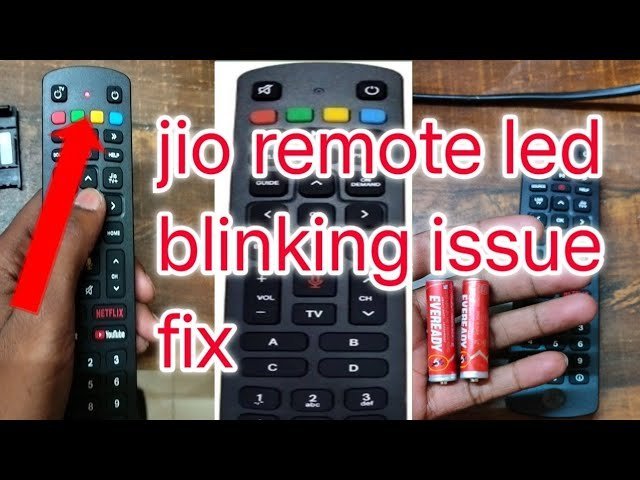
The blinking light occurs because the remote control hardware is attempting to communicate with the set-top box but failing to confirm a successful link. The most common cause is a loss of synchronization between the two devices. This often happens after a power outage, a system update, or if the remote has been moved too far from the receiver.
Another frequent reason involves battery degradation. Even if the batteries have some charge left, they may not provide enough power to maintain the constant radio frequency or infrared signal required for pairing. When the voltage drops below the threshold required by the remote’s internal chipset, the indicator light will flash to warn you of the power deficit. This is a standard design feature across most JioFiber remote control hardware specifications.
Finally, physical interference can trigger this signal. If there’s an object blocking the direct line of sight—or if there’s significant electronic interference from other wireless devices—the remote will continue to pulse the red light as it continuously attempts to find a clear path to the receiver. If the light remains solid instead of blinking, it may indicate a stuck button or a hardware fault that prevents the remote from entering its standard operational state.
Change the batteries
This fix is for users whose remotes are unresponsive and showing a dim or slow-blinking light. You must replace the existing cells with two fresh, high-quality alkaline AAA batteries. Don’t mix old and new batteries, as this causes voltage imbalances that prevent the remote from pairing correctly.
To perform this, slide the back cover off the remote and remove the old batteries. Insert the new batteries, ensuring the positive and negative ends match the markings inside the compartment. Once inserted, wait ten seconds. If the blinking stops, your remote is likely ready for use. If it continues to blink, the remote needs to be re-paired with the set-top box. This process varies by model—check the label on the bottom of your set-top box for the specific pairing sequence required for your hardware version. If you’re unable to open the battery compartment, don’t force it, as you risk breaking the plastic clips; contact your service provider for a replacement.
Reset the pairing connection
This process is for when the batteries are new but the remote still refuses to control the set-top box. You’re essentially forcing the remote to forget its previous connection and start a fresh search for the receiver.
Hold the “OK” and “Home” buttons simultaneously for at least three seconds. You’ll see the red light flash rapidly, which confirms the remote has entered discovery mode. Keep the remote within one foot of the set-top box during this time to ensure the signal is strong enough for the initial handshake. Once the set-top box detects the remote, the red light will typically stop blinking and turn off, or it will flash green to confirm a successful connection.
If the light continues to blink after thirty seconds, the pairing has failed. Move the remote away from other wireless routers or cordless phones, as these devices often create signal noise that blocks the pairing process. This is a common mistake; people often try to pair the remote while standing right next to a Wi-Fi router, which creates enough frequency interference to block the low-power signal of the remote. If you still can’t get a response, the remote may have a hardware failure.
Clean the button contacts
If only specific buttons aren’t working while the light blinks, there may be dirt or moisture trapped under the rubber keypad. This is a fix for out-of-warranty remotes where you’re comfortable opening the casing.
Use a small screwdriver to gently pry the plastic shell apart. Once open, remove the rubber button mat and clean the circuit board contacts with a cotton swab dipped in 90% isopropyl alcohol. Don’t use water or household cleaners, as these leave residues that corrode the sensitive electronic traces. Let the board air dry for five minutes before reassembling. This fix isn’t for everyone; if you aren’t confident in handling small electronic parts, don’t attempt this, as you’ll likely void your warranty or break the internal plastic tabs. If the remote is still under warranty, don’t open it. Instead, reach out to the customer support team for a professional assessment or a replacement unit.
What not to do
Don’t bang the remote against a hard surface to “fix” the connection. This impact often shatters the fragile internal infrared emitter or creates hairline fractures in the circuit board that are impossible to repair.
Avoid using rechargeable batteries if the manual specifies alkaline only. Rechargeables output a different voltage than standard alkaline cells, which can trigger a persistent “low battery” error. If you experience power issues, contact a qualified technician to inspect your device.
Never submerge the remote or apply liquid directly to the buttons. Moisture seeps into the contact pads, causing immediate short-circuits that corrode the conductive traces. If you must clean sticky buttons, use a cotton swab lightly dampened with 90% isopropyl alcohol, then dry it instantly.
Finally, don’t attempt to force a firmware update through the remote. These devices lack the storage capacity to hold update files. Attempting to push data to the unit will likely corrupt the existing memory, effectively bricking the hardware.
How to stop it happening again
To keep your remote functioning, you must manage the power and the physical environment of your living room.
Most users ignore the internal battery contacts. If your remote feels sluggish, check for white, chalky corrosion on the springs. If you see it, scrub the contacts with a cotton swab dipped in 90% isopropyl alcohol.
A common mistake is assuming the remote is broken when the television sensor is actually blocked. If your remote works only when held inches from the screen, clean the IR emitter lens on the remote and the TV sensor window with a dry microfiber cloth. Dust buildup here acts like a filter, weakening the signal significantly.
Finally, determine if your remote uses Bluetooth or Infrared. If it’s IR, you must maintain a clear line of sight. If it’s Bluetooth, you can hide it in a drawer, but you must keep it within 30 feet of the console to avoid pairing drops.
Frequently asked questions
Can I use a universal remote instead?
Yes, you can use a universal remote if it’s compatible with your set-top box’s specific frequency. Most remotes require a sync code found in the manufacturer’s manual. Note that some universal remotes may not support the advanced features of modern digital set-top boxes.
Why is my remote light blinking green?
A green light indicates that the remote is successfully paired or actively sending a command. This light confirms the signal is being transmitted to the receiver. This behavior is a normal part of the operation and doesn’t suggest a fault with your device.
How long do the batteries usually last?
Standard remote batteries typically last between six and nine months, depending on your usage of the voice search feature. Voice search consumes more power because it keeps the microphone active to transmit audio data. Expect shorter battery life if you use the voice feature multiple times daily.
Is it safe to open the remote?
Opening the remote isn’t recommended if it’s under warranty, as doing so will void your repair rights. You can easily damage the delicate internal ribbon cables if you attempt to open the casing. It’s safer to purchase a new remote if you’re uncomfortable working with small electronics.
What happens if the light never stops blinking?
If the light blinks indefinitely after a reset, the remote has likely suffered a permanent hardware failure. The internal transmitter or pairing chip has likely become corrupted. You’ll need to contact your service provider to order a replacement remote matched to your specific account.
Final Thoughts
If the indicator continues to flash after you’ve swapped the batteries, try resetting the connection by holding down the designated pairing buttons for a few seconds. If that doesn’t fix it, you shouldn’t hesitate to contact customer support. They’ll help you determine if it’s time to get a replacement unit.
Related guides


