
You can resolve the issue of teams not syncing with outlook by signing out of both applications, clearing your local cache files, and then signing back in to re-establish the connection. This synchronization failure is most often caused by corrupted cached credentials or mismatched account profiles between the two platforms. When the background services fail to communicate, your calendar events won’t show up in the Teams app, or your status won’t update correctly in your email client.
Why Teams not syncing with Outlook happens
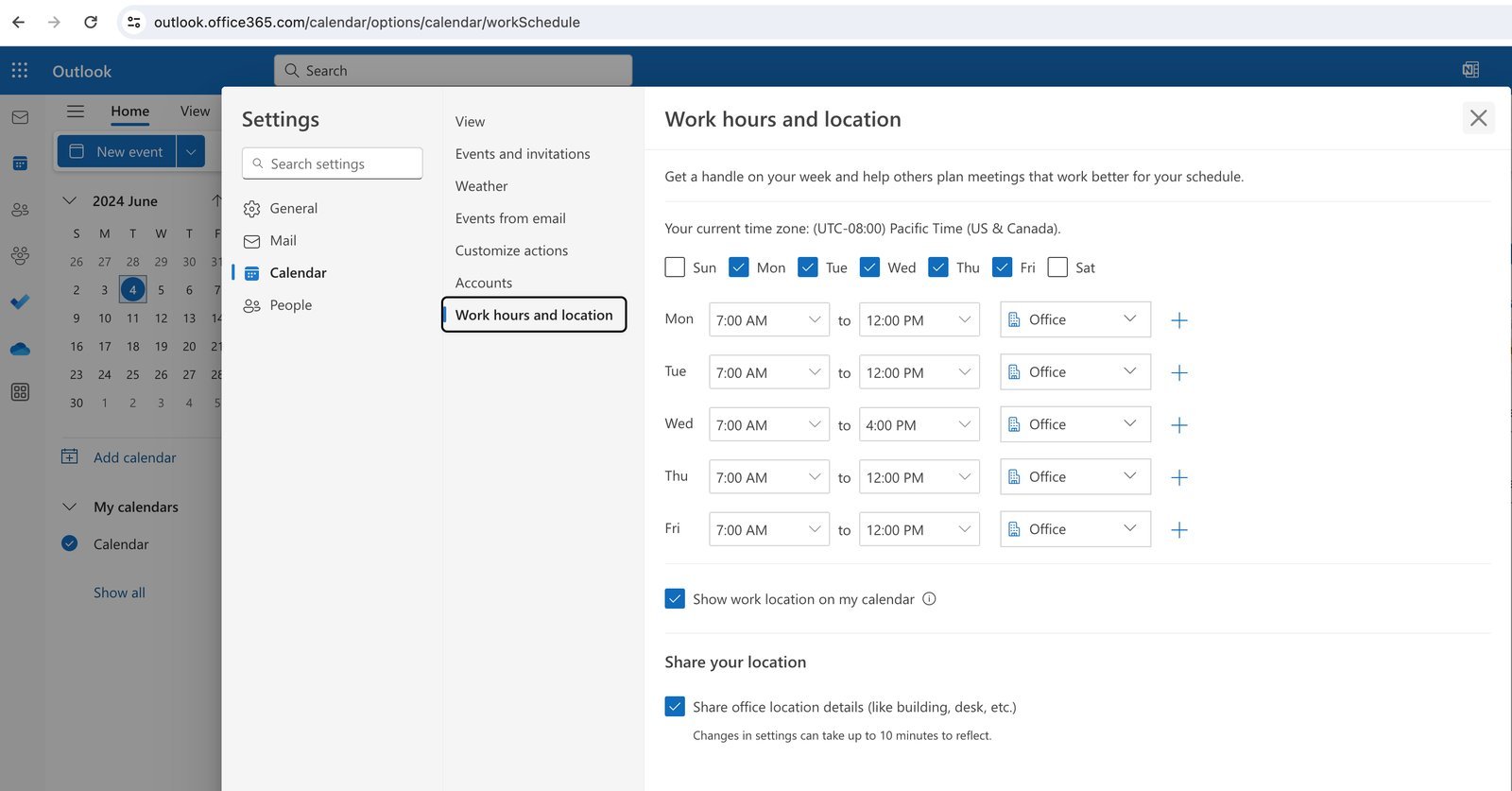
The primary reason for this breakdown is a conflict in your cached authentication tokens. When you log into Microsoft 365, your computer stores small files that tell the software you’re who you say you are. If these files become outdated or corrupted, the “handshake” between your email and your collaboration hub breaks.
Another common cause involves a mismatch in your account login status. If you’re signed into the desktop application with a different email address than the one you use for your mail, the integrated calendar feature will fail to pull data. This is especially common if you have recently switched between a personal account and a work or school account on the same machine.
Finally, there’s the matter of system updates. If your mail client is running a version that’s significantly older than your collaboration software, the API calls—which are the digital messages the apps send to each other—may be blocked or ignored. If your IT department manages your machine, these updates are often pushed automatically, but they can occasionally get stuck in a “pending” state.
Sign out and clear the cache
This fix is for users who are comfortable navigating local folders. First, close both programs completely. Right-click the icons in your taskbar and select “Quit” or “Exit.” Don’t just minimize them.
Once they’re closed, you need to clear the temporary data. Press the Windows key + R on your keyboard, type %appdata%\Microsoft\Teams into the box, and press Enter. Delete all the files in the folder that opens. Don’t worry; this won’t delete your actual data, as your messages and files are stored on the cloud servers.
Next, restart your computer. This forces the system to drop any lingering connections. When you open the programs again, sign in with your primary work account. If you have multiple accounts, add them one by one. You’ll know it worked if you see your upcoming meetings appear in your calendar view within a few minutes. If you’re on a locked-down corporate laptop, you might not have permission to delete these files. If you see an “Access Denied” error, contact your company’s help desk immediately, as they have the administrative rights to reset your profile safely.
Update your software versions
This fix is for users who haven’t updated their Office suite recently. A version mismatch is a major reason for syncing errors. Open your mail client and go to File, then Office Account. Look for the “Update Options” button and select “Update Now.” If you’re using a standalone version of the collaboration app, click your profile picture in the top right corner and choose “Check for updates.”
Wait for the process to finish. If the system finds a new version, it will download and install the changes automatically. Once the installation is complete, you should restart your machine to ensure all application services are properly initialized. You’ll know this fixed the issue if the “Sync Status” icon in your settings menu turns green or shows a checkmark.
This isn’t for people using web-based versions, as those update automatically when you refresh your browser. This fix also carries a risk: if you’re in the middle of a critical meeting, don’t start an update, as it may force your computer to restart unexpectedly. If you can’t find the update button, your organization likely manages updates centrally, and you should reach out to your internal IT team for assistance.
Verify your account credentials
Sometimes the issue isn’t the software, but the account itself. This approach helps when you have multiple profiles. Start by checking which account is active in the top-right corner of your mail client. If it shows an email address that’s different from the one you use for your meetings, you have found the conflict.
Log out of the account that’s currently active. If you have a primary account, sign into that one first. If you’re using a shared computer, ensure that no other user is logged into their own profile in the background, as this can confuse the system’s token management. Once you have logged out, wait thirty seconds before signing back in.
This is a trade-off: you might have to re-enter your password or go through two-factor authentication again, which takes a moment. However, it’s the most reliable way to fix a “profile collision.” If you still see a “Sync Pending” message after signing back in, reboot your system one more time to clear the internal cache. If you’re unable to log in, don’t keep trying, as this may lock your account for security reasons. Contact your system administrator to verify that your account permissions haven’t expired.
What not to do
Don’t reinstall the entire Office suite immediately. This process takes upwards of forty minutes and rarely resolves minor sync errors. If your issue persists after a simple restart, focus on the specific account settings instead.
Never delete your local PST or OST files to clear space. You risk losing archived messages that haven’t yet reached the cloud. If you suspect file corruption, use the Inbox Repair Tool (ScanPST.exe) instead of manual deletion.
Avoid editing the Windows Registry to force a sync. A single mistyped value can trigger system-wide instability or crash your Outlook profile entirely. If you aren’t a certified administrator, don’t touch these keys.
Finally, ignore third-party “sync fixers” found online. These tools often bundle malware designed to harvest your login credentials. If your sync remains broken after checking your network connection, contact your IT department. They have the secure diagnostic logs required to solve the problem safely.
How to stop it happening again
Consistency is the best way to keep your accounts talking to each other. Follow these rules to keep your setup stable.
| If you’re doing this | Do this instead | Why |
|---|---|---|
| Leaving your PC on for weeks | Restart at least once a week | Clears out old background processes |
| Using multiple accounts | Use one primary account for both | Prevents token conflicts |
| Ignoring update prompts | Install updates when prompted | Fixes known bugs in the sync engine |
| Using outdated browser versions | Keep your web browser updated | The apps rely on web-based protocols |
Most users fail by ignoring the “cache” folder. If your sync stalls, delete the local cache file before restarting. This forces the engine to rebuild its index from the cloud.
Frequent, rapid changes often trigger API rate limits that freeze your connection.
In this case, pause the sync, sign out, and clear the browser cookies.
Frequently asked questions
Can I fix this by reinstalling the app?
Reinstalling is usually unnecessary because it rarely resolves corrupted cache files. Most syncing issues stem from your user profile or local authentication tokens rather than the application files. You should sign out and clear the cache first to avoid losing your personal settings.
Why is my calendar empty?
Your calendar is empty because the link between your mail server and the collaboration hub has been severed. This occurs when your authentication token expires or the app uses the wrong email profile. Ensure you’re signed in with the same credentials used for your mail.
Is it safe to delete my cache files?
Yes, it’s safe to delete files in your local cache folder. These are temporary copies of cloud data, and the software will download fresh versions upon your next login. Note that the app may take a few seconds longer to load initially.
How long does a sync take?
A sync typically takes less than sixty seconds to complete once your credentials are verified. Large calendars with many recurring meetings may take up to five minutes for the initial load. If the icon persists for over ten minutes, sign out and back in.
What happens if I ignore the sync error?
Ignoring the error will cause you to miss meeting notifications and prevent you from viewing team availability. This makes it difficult to schedule calls or join meetings on time. You should fix the sync issue early to ensure your schedule and status remain accurate.
Final Thoughts
If you still don’t see your updates after trying these fixes, it’s a good idea to reach out to your IT department. They’ll be able to check if there’s a deeper server-side restriction affecting your account. Don’t worry, they’ve likely seen this glitch before and can get you back on track quickly.
Related guides


