When an app not found on insignia tv occurs, it is usually because the software is incompatible with your operating system or your region settings are incorrect. Most Insignia TVs use Fire TV or Roku platforms, which frequently update their requirements. If your model is older, the developer may have stopped supporting your version.
Why your app not found on Insignia TV
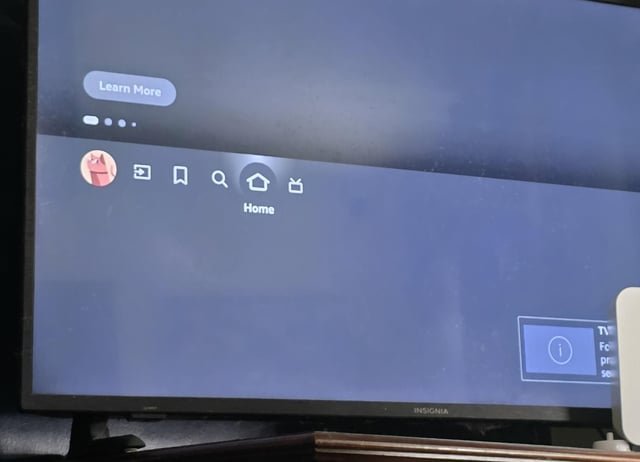
Several factors influence why an application appears missing from your interface. The most common cause is a mismatch between the app’s requirements and your TV’s firmware version. Manufacturers like Insignia frequently roll out system updates to maintain security and performance, and if your device hasn’t updated in some time, the app store will hide applications that require newer system resources.
Another frequent cause involves regional restrictions. Many streaming services license content by country. If your Insignia TV is set to a region where a specific app isn’t authorized to operate, the store won’t display it in your search results. This is common when a television is moved between countries or if the account associated with the device was created in a different region.
Finally, the issue may stem from the specific platform your Insignia TV runs. Because Insignia produces televisions with both Fire TV and Roku software, the app store interface differs significantly between units. An app available on the Fire TV version may not exist for the Roku version, or vice versa. Always check your television’s “About” section in the settings menu to confirm which operating system you’re using, as this dictates which software library you can access. This varies by model — check the label on the back of your TV to identify the specific hardware version if you’re unsure.
Update your system firmware
Updating your firmware is the most effective way to ensure your app store remains current. If you’re using a Fire TV edition, navigate to Settings, select Device & Software, and then choose About. From there, select Check for System Update. If an update is available, the TV will download and install it automatically. This process usually takes about ten to fifteen minutes, depending on your internet speed.
For Roku-based Insignia models, go to Settings, select System, and then choose System Update. Select Check Now to see if there are any pending updates. This ensures your TV has the latest version of the Roku OS, which is necessary to see the most recent apps added to the store.
If you find that the app still doesn’t appear after the update, try a power cycle. Unplug the television from the wall outlet for at least sixty seconds. This clears the temporary cache that might be holding onto outdated store data. If the app remains missing, you should visit the official Insignia support center to verify if your specific hardware model is still receiving software support. This is a crucial step because manufacturers eventually stop releasing updates for older hardware, which makes certain modern apps incompatible. If your model is no longer supported, the store will simply not list those applications.
Change your account region settings
If your firmware is up to date, the issue might be your account’s location settings. This is a common mistake for users who travel or move, as the television’s store behaves differently based on the zip code or country associated with your login.
If you have a Fire TV edition, you must log into your Amazon account on a computer or mobile device. Go to the “Manage Your Content and Devices” page. Select the “Preferences” tab and then click on “Country/Region Settings.” Ensure that your address matches your current location. Once you update this, return to your television, go to Settings, select My Account, and choose Sync Amazon Content. This forces the TV to refresh its library based on your corrected location.
If you use a Roku-based Insignia TV, the process is slightly different. You must log into your Roku account on their website. Go to your account profile and check the address and zip code listed under your billing information. If the zip code is incorrect, the Roku device will filter out apps that aren’t available in that specific area. After updating your profile, navigate to the System settings on your TV and perform a System Update to pull the new account information. This fix is highly effective if you recently moved to a new city or country, as it aligns your digital storefront with your physical presence.
Reset the television to factory defaults
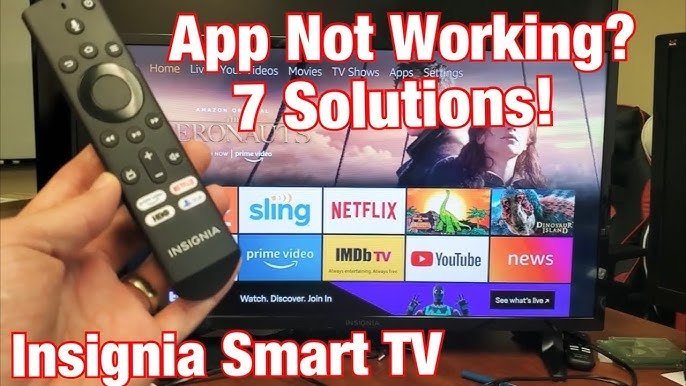
Factory resetting the television is a major step that should only be done if other methods fail. This process wipes all saved data, including your login credentials, downloaded apps, and personalized picture settings. Only perform this if you’re prepared to reconfigure the entire device from scratch.
To reset a Fire TV Insignia, go to Settings, select Device & Software, and choose Reset to Factory Defaults. For a Roku Insignia, go to Settings, select System, then Advanced System Settings, and finally Factory Reset. You’ll need to provide your Wi-Fi password and re-sign into every streaming service once the TV reboots.
This isn’t for someone who doesn’t have access to their account credentials or a stable internet connection. If you don’t know your passwords, you’ll be locked out of your streaming services after the reset is complete. Furthermore, if your TV is very old, a factory reset might not bring back the missing app if the developer has officially ended support for your hardware. In that case, you’re better off using an external streaming stick, such as a Roku Express or a Fire TV Stick, which plugs into an HDMI port and provides a brand-new, supported interface that bypasses the limitations of your television’s internal software.
What not to do
- Don’t install “sideloaded” apps from unverified websites. This often introduces malware to your system that can compromise your network security or steal account credentials.
- Don’t use third-party “app stores” that claim to unlock hidden content. These are almost always scams that exist to harvest your data or force unwanted advertisements onto your screen.
- Don’t perform a hard reset while the TV is downloading an update. This can corrupt the firmware, potentially rendering the television unusable or stuck in a boot loop that requires professional repair.
- Don’t assume that a “hidden” app is just a software bug. If an app is missing, it’s usually because the developer removed support for your specific TV, and no amount of resetting will bring it back if the server side has blocked your model.
How to stop it happening again
Staying organized with your account settings and keeping your system software current is the best way to prevent this issue from returning. If you follow these habits, you’ll avoid the frustration of missing programs in the future.
| If you’re doing this | Do this instead | Why |
|---|---|---|
| Ignoring update prompts | Enable auto-updates in settings | Keeps the app store library current |
| Using a VPN on your router | Disable VPN during setup | Prevents incorrect region detection |
| Sharing one account globally | Use a local account per region | Prevents app store library conflicts |
| Using old hardware | Use an external streaming stick | Bypasses outdated internal firmware |
Frequently asked questions
Can I manually add an app to my Insignia TV?
You can’t manually install app files on your Insignia television. These TVs only allow installations from official, curated app stores to ensure system stability. If an app is missing from the store, it isn’t compatible with your device or region.
Why is my Insignia TV missing apps it had before?
Apps disappear from your library because developers have discontinued support for your specific TV model. As streaming technology evolves, older hardware often lacks the processing power required for newer app versions. Check the developer’s website to confirm if your model remains supported.
How long does a factory reset take?
A factory reset typically takes between five and fifteen minutes to complete. The duration depends on your internet speed, as the TV must download the base operating system software. Don’t unplug the television during this process to avoid permanent memory damage.
Is it safe to use a third-party streaming device?
Using an external streaming device is safe and recommended for older televisions. These devices plug into your HDMI port to provide a faster, modern interface. This ensures you maintain access to the latest software updates regardless of your TV’s original hardware limitations.
What happens if I update my region settings?
Updating your region settings refreshes the application store to match content available in your current area. The TV automatically removes restricted apps and adds those newly available in your location. If apps disappear, it confirms those services aren’t licensed for your new region.
Final Thoughts
If you’re still having trouble after checking these settings, don’t worry. You can always use a streaming stick like a Chromecast or Fire Stick to get the latest features on your screen. It’s a simple way to upgrade your viewing experience, and you won’t have to replace your entire television.